> ## Documentation Index
> Fetch the complete documentation index at: https://docs.omnifact.ai/llms.txt
> Use this file to discover all available pages before exploring further.
# Microsoft Admin Consent
> How to authorize Omnifact to access your organization's SharePoint and OneDrive
When connecting **SharePoint** or **OneDrive** to Omnifact, you may encounter a message stating that **Admin Authorization is Required**.
This is a standard security setting within Microsoft Entra ID (formerly Azure Active Directory) that prevents third-party applications from accessing your organization's data without explicit approval from an IT Administrator.
**This is not an error.** This is a security policy enabled by your organization to ensure only approved applications can access your corporate data.
## Identifying the Requirement
You might first notice this requirement when connecting SharePoint or OneDrive in [Account Settings > Connections](/en/platform/core-features/account-settings/user-profile-and-personalization#connections) or when choosing cloud storage while uploading files in chat.
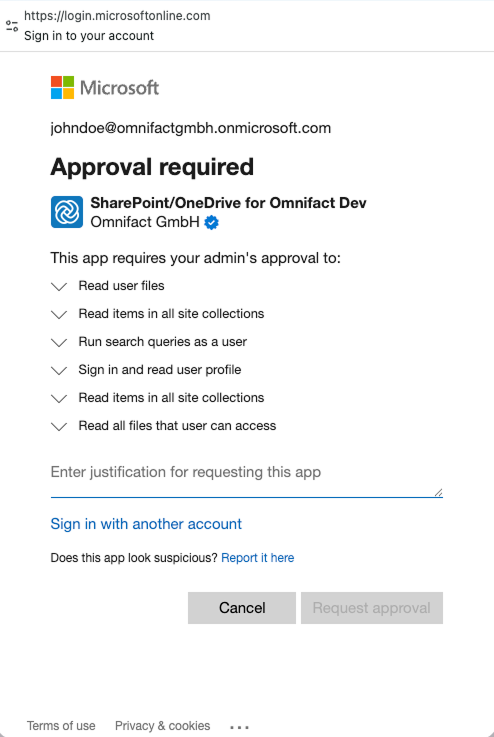
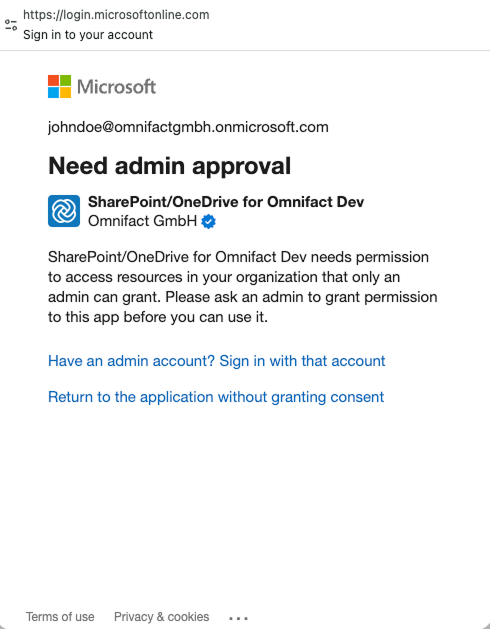
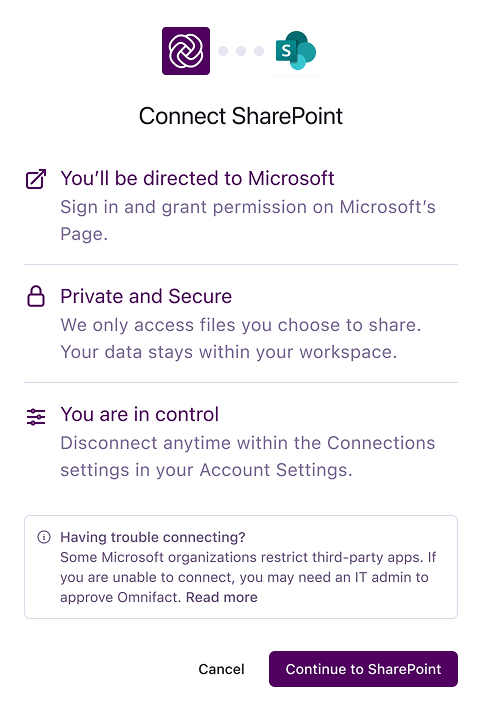 After logging in with your credentials you may see one of the popups below. Seeing the first popup will allow you to request approval for Omnifact to access your organization's data. The second popup (Need admin approval) appears if your organization has disabled the ability for users to request approval directly. In this case, you must use the Authorization Flow below to generate a manual link.
 ## The Authorization Flow
To enable the integration, a **Microsoft Global Administrator** must grant "Tenant-Wide Consent" to Omnifact. This is a one-time process. Once approved, all users in your workspace will be able to connect their accounts.
### 1. Locate the Authorization Link
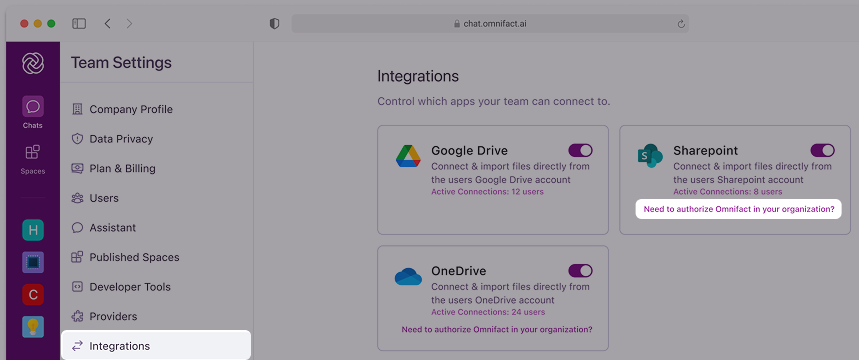
Go to **Team Settings > Integrations**. Click the link button that says **"Need to authorize Omnifact in your organization?"**
## The Authorization Flow
To enable the integration, a **Microsoft Global Administrator** must grant "Tenant-Wide Consent" to Omnifact. This is a one-time process. Once approved, all users in your workspace will be able to connect their accounts.
### 1. Locate the Authorization Link
Go to **Team Settings > Integrations**. Click the link button that says **"Need to authorize Omnifact in your organization?"**
 ### 2. Open the Admin Popup
Clicking that link opens a popup that allows you to authorize Omnifact to access your organization's data.
### 2. Open the Admin Popup
Clicking that link opens a popup that allows you to authorize Omnifact to access your organization's data.
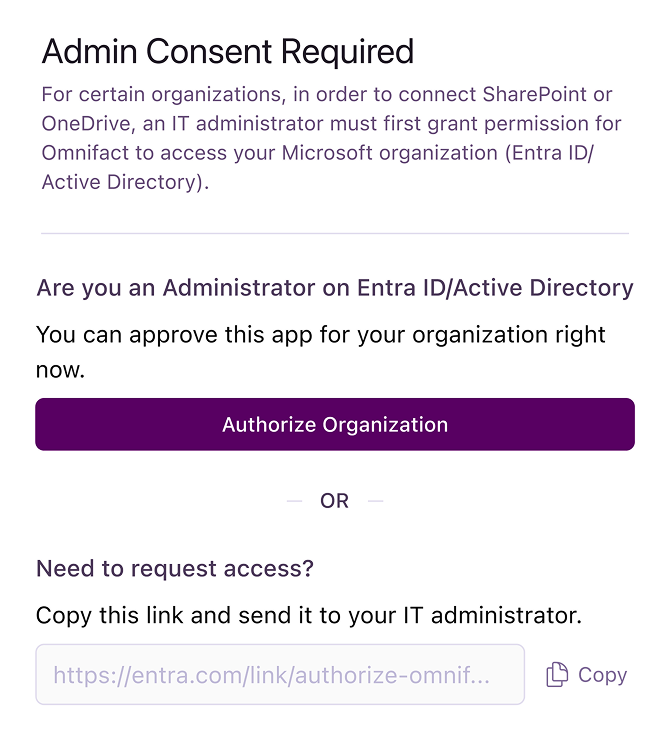 Choose the option below that matches your role:
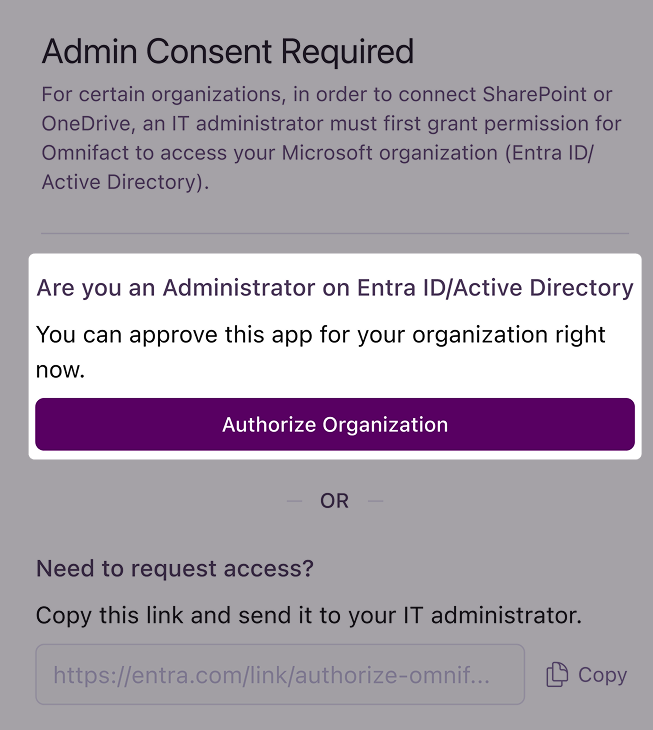
#### **Option A: I am a Microsoft Global Administrator**
1. Click the purple **Authorize Organization** button.
2. You will be redirected to Microsoft. Log in with your Microsoft Admin credentials.
3. Review the permissions requested by Omnifact.
4. Check the box **"Consent on behalf of your organization"** and click **Accept**.
Choose the option below that matches your role:
#### **Option A: I am a Microsoft Global Administrator**
1. Click the purple **Authorize Organization** button.
2. You will be redirected to Microsoft. Log in with your Microsoft Admin credentials.
3. Review the permissions requested by Omnifact.
4. Check the box **"Consent on behalf of your organization"** and click **Accept**.
 #### **Option B: I am not a Microsoft Administrator**
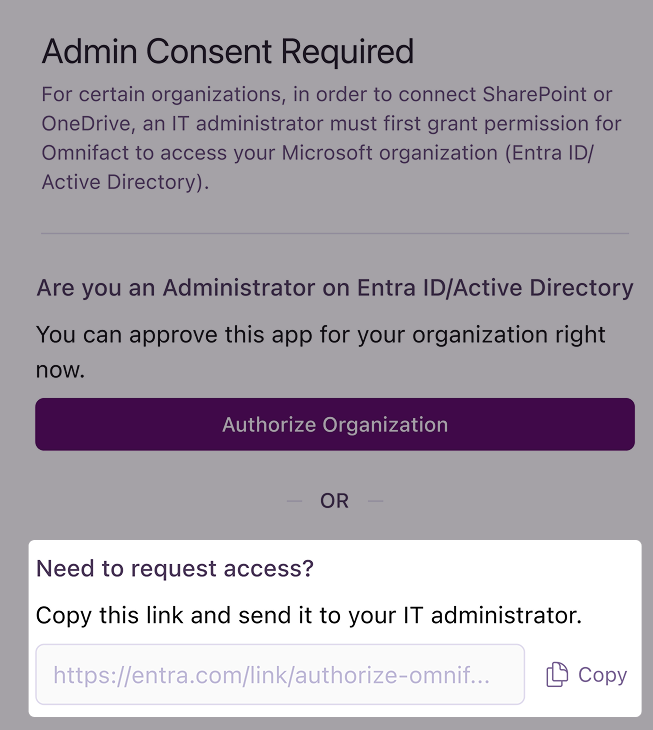
If you are not a Microsoft Global Administrator, you cannot approve the app yourself.
1. In the popup, find the **"Need to request access?"** section.
2. Click **Copy** to grab the secure authorization link.
3. Send this link to your IT Administrator (via email, Slack, or Teams).
#### **Option B: I am not a Microsoft Administrator**
If you are not a Microsoft Global Administrator, you cannot approve the app yourself.
1. In the popup, find the **"Need to request access?"** section.
2. Click **Copy** to grab the secure authorization link.
3. Send this link to your IT Administrator (via email, Slack, or Teams).
 **Why do I need to send a link?**
Depending on your organization's Azure settings, you might be blocked from requesting access directly inside Microsoft's interface. Sending this link ensures your Admin goes directly to the correct approval page.
**Why do I need to send a link?**
Depending on your organization's Azure settings, you might be blocked from requesting access directly inside Microsoft's interface. Sending this link ensures your Admin goes directly to the correct approval page.