> ## Documentation Index
> Fetch the complete documentation index at: https://docs.omnifact.ai/llms.txt
> Use this file to discover all available pages before exploring further.
# Connections
> Link your cloud storage accounts to Omnifact for seamless document workflows.
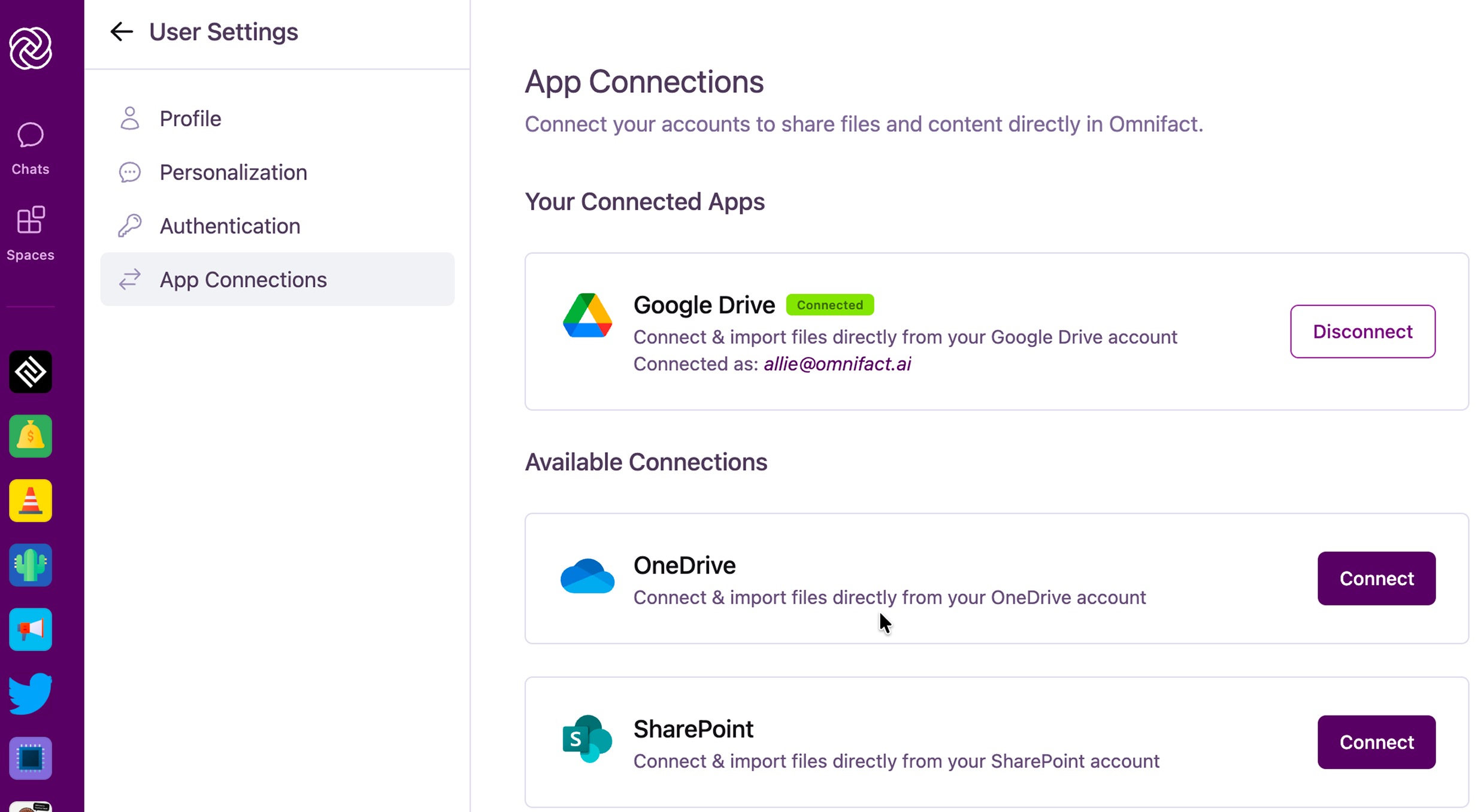
The **Connections** tab allows you to integrate Omnifact with your existing cloud storage providers, such as Google Drive, OneDrive, and SharePoint. By connecting your accounts, you can seamlessly import files directly into your conversations or Space Uploaded Files, saving you time and keeping your documents centralized.
 Cloud storage integrations must be enabled by your organization's administrator in the [Integrations](/en/platform/team-administration/integrations) section of the Team Settings to appear in your account settings.
## Managing Connections
You can easily link or unlink your cloud storage accounts at any time.
1. Navigate to your **Account Settings** by clicking your profile picture, then select the **Connections** tab.
2. Locate the cloud storage provider you want to link (e.g., **Google Drive**, **OneDrive**, or **SharePoint**).
3. Click the **Connect** button next to the provider's name.
4. Follow the authentication prompts from the provider to grant Omnifact access to your files.
If you no longer want to use a connected account, you can revoke access.
1. In the **Connections** tab, find the currently connected provider.
2. Click the **Disconnect** button to immediately unlink the account.
## Using Your Connected Accounts
Once your cloud storage is connected, you can access your files directly within Omnifact:
* **Chat Attachments:** Click the **+** (Plus icon) next to the chat input to browse and attach files directly from your connected drives into any conversation.
* **Space Knowledge:** When managing a Space, you can import documents from your cloud storage directly into the Space's **Knowledge** tab to enrich the AI's context.
Cloud storage integrations must be enabled by your organization's administrator in the [Integrations](/en/platform/team-administration/integrations) section of the Team Settings to appear in your account settings.
## Managing Connections
You can easily link or unlink your cloud storage accounts at any time.
1. Navigate to your **Account Settings** by clicking your profile picture, then select the **Connections** tab.
2. Locate the cloud storage provider you want to link (e.g., **Google Drive**, **OneDrive**, or **SharePoint**).
3. Click the **Connect** button next to the provider's name.
4. Follow the authentication prompts from the provider to grant Omnifact access to your files.
If you no longer want to use a connected account, you can revoke access.
1. In the **Connections** tab, find the currently connected provider.
2. Click the **Disconnect** button to immediately unlink the account.
## Using Your Connected Accounts
Once your cloud storage is connected, you can access your files directly within Omnifact:
* **Chat Attachments:** Click the **+** (Plus icon) next to the chat input to browse and attach files directly from your connected drives into any conversation.
* **Space Knowledge:** When managing a Space, you can import documents from your cloud storage directly into the Space's **Knowledge** tab to enrich the AI's context.