> ## Documentation Index
> Fetch the complete documentation index at: https://docs.omnifact.ai/llms.txt
> Use this file to discover all available pages before exploring further.
# Account Settings
> Manage your personal details and tailor the AI assistant to your preferences.
You can customize your Omnifact experience through your account settings. This includes updating your personal profile, changing your language, and most importantly, defining how the AI assistant should interact with you.
## Accessing Your Account Settings
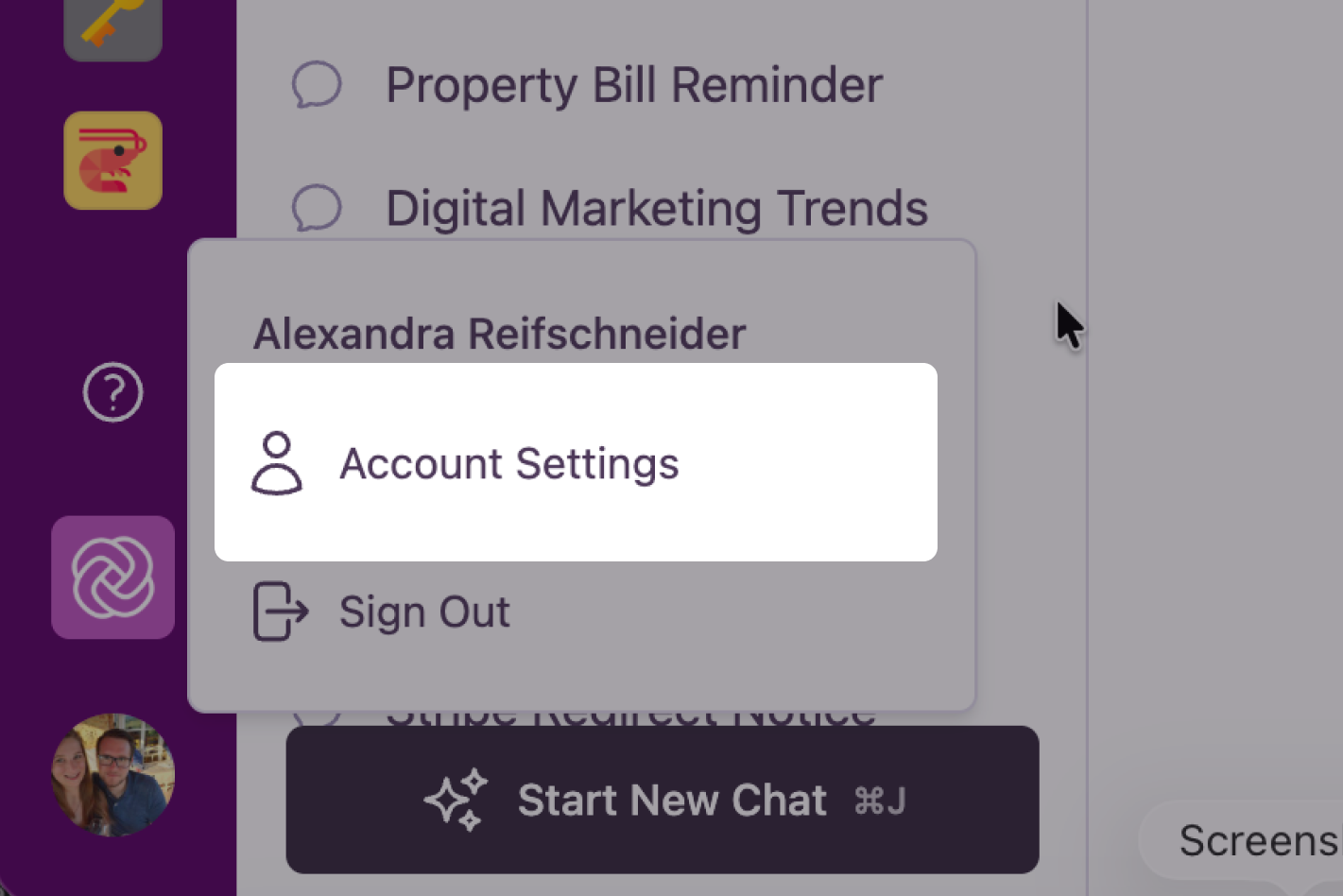
To access your settings:
1. Click on your **User Avatar** at the bottom of the main navigation bar.
2. Select **Settings** from the menu.
 ## Profile Settings
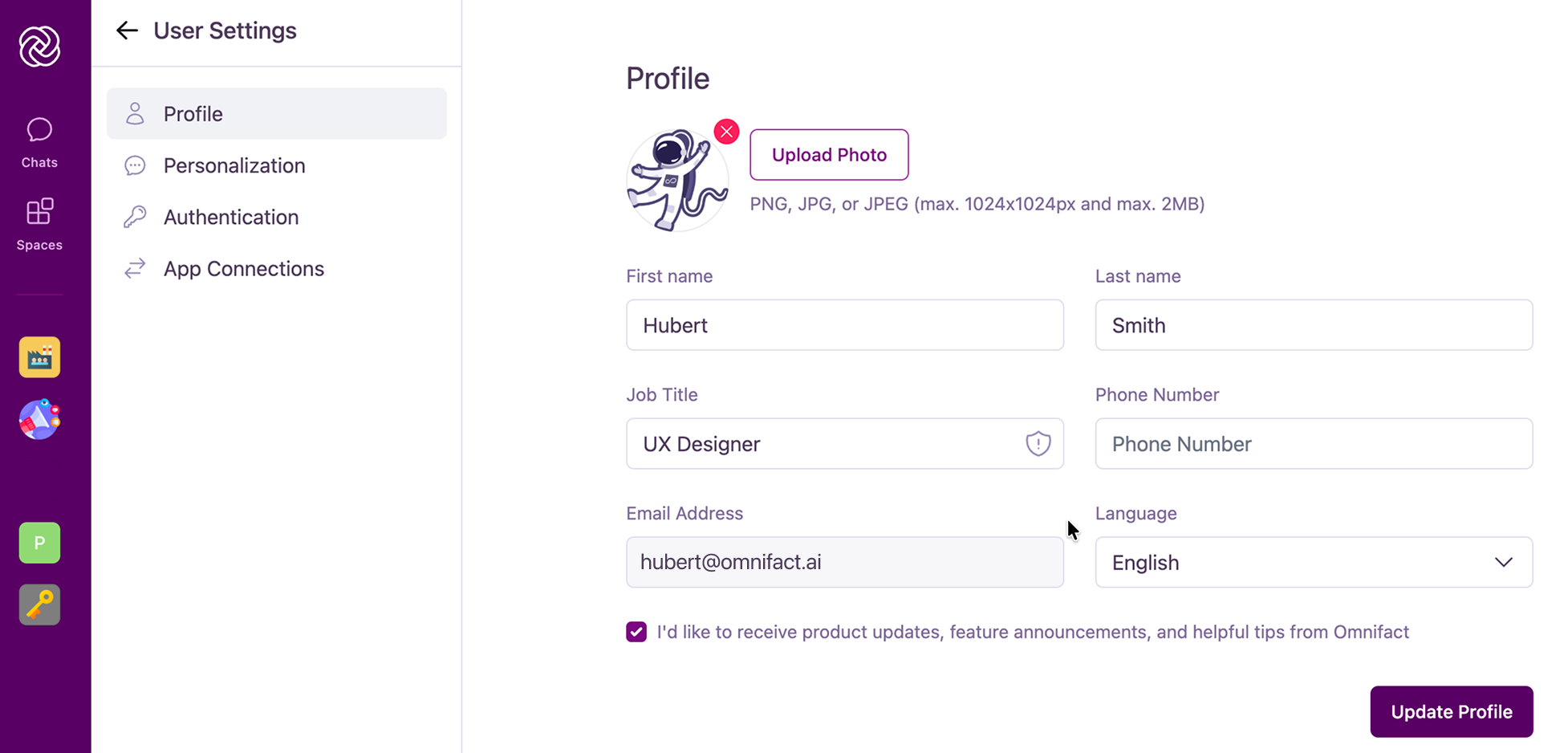
The **Profile** tab allows you to manage your personal information and application preferences.
## Profile Settings
The **Profile** tab allows you to manage your personal information and application preferences.
 ### Personal Information
Here you can view and update your basic details:
* **Profile Picture**: Upload a photo to be displayed in chats.
* **Name & Job Title**: Helps the AI understand your role within the organization.
* **Contact Information**: Email and phone number.
### Language Preferences
Omnifact supports both **English** and **German**. You can manually select your preferred language here, and your preference will persist across all your sessions. If not set, the platform will automatically detect and use your browser's language setting.
### Email Subscriptions
Manage your preferences for receiving updates and notifications from Omnifact.
## Personalization
### Personal Information
Here you can view and update your basic details:
* **Profile Picture**: Upload a photo to be displayed in chats.
* **Name & Job Title**: Helps the AI understand your role within the organization.
* **Contact Information**: Email and phone number.
### Language Preferences
Omnifact supports both **English** and **German**. You can manually select your preferred language here, and your preference will persist across all your sessions. If not set, the platform will automatically detect and use your browser's language setting.
### Email Subscriptions
Manage your preferences for receiving updates and notifications from Omnifact.
## Personalization
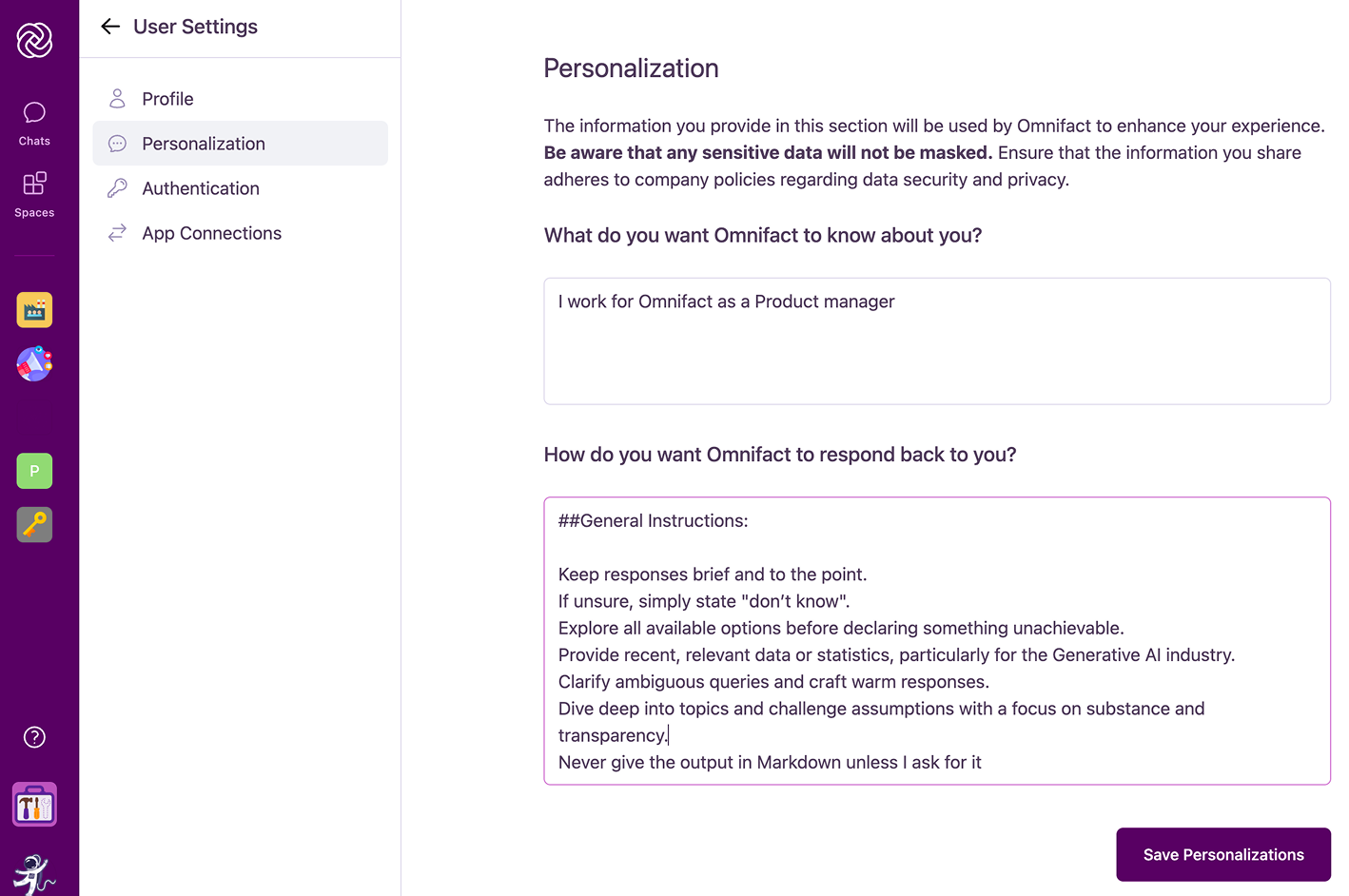 The **Personalization** tab is where you can shape the AI's behavior to match your specific needs and working style. This context is provided to the AI in every conversation, ensuring more relevant and helpful responses.
The information you provide here is used solely to improve the AI's responses to you. It is not shared with other users.
### About You
Use this section to tell the AI who you are and what you do.
* **What to include**: Your role, daily responsibilities, key projects, or areas of expertise.
* **Example**: "I am a Senior Marketing Manager responsible for content strategy and social media. I prefer concise summaries and creative brainstorming partners."
### Response Preferences
Define how you want the AI to communicate with you.
* **Tone**: Formal, casual, technical, or simple?
* **Format**: Do you prefer bullet points, detailed paragraphs, or code blocks?
* **Style**: Should the AI be direct and to the point, or more explanatory and educational?
**Example Preferences:**
* "Be concise and professional. Use bullet points for lists."
* "Explain complex technical concepts in simple terms."
* "Always cite sources when providing facts."
Be aware that any sensitive data will not be masked. Ensure that the information you share adheres to company policies regarding data security and privacy.
## Authentication
In the **Authentication** tab, you can manage your login credentials.
* **Change Password**: If you log in with an email and password, you can update your password here.
* **SSO Users**: If your organization uses Single Sign-On (SSO), password management is handled by your company's identity provider, and this section may be hidden. For more information on user roles and authentication, see [User Management](/en/platform/team-administration/users).
## Connections
The **Connections** tab allows you to link your cloud storage accounts (like Google Drive, OneDrive, or SharePoint) to Omnifact.
* **Why connect?**: Once connected, you can easily attach files from your cloud storage directly into chats or add them to [Space Uploaded Files](/en/platform/core-features/spaces/managing-uploaded-files).
* **Management**: You can connect or disconnect accounts at any time.
The **Personalization** tab is where you can shape the AI's behavior to match your specific needs and working style. This context is provided to the AI in every conversation, ensuring more relevant and helpful responses.
The information you provide here is used solely to improve the AI's responses to you. It is not shared with other users.
### About You
Use this section to tell the AI who you are and what you do.
* **What to include**: Your role, daily responsibilities, key projects, or areas of expertise.
* **Example**: "I am a Senior Marketing Manager responsible for content strategy and social media. I prefer concise summaries and creative brainstorming partners."
### Response Preferences
Define how you want the AI to communicate with you.
* **Tone**: Formal, casual, technical, or simple?
* **Format**: Do you prefer bullet points, detailed paragraphs, or code blocks?
* **Style**: Should the AI be direct and to the point, or more explanatory and educational?
**Example Preferences:**
* "Be concise and professional. Use bullet points for lists."
* "Explain complex technical concepts in simple terms."
* "Always cite sources when providing facts."
Be aware that any sensitive data will not be masked. Ensure that the information you share adheres to company policies regarding data security and privacy.
## Authentication
In the **Authentication** tab, you can manage your login credentials.
* **Change Password**: If you log in with an email and password, you can update your password here.
* **SSO Users**: If your organization uses Single Sign-On (SSO), password management is handled by your company's identity provider, and this section may be hidden. For more information on user roles and authentication, see [User Management](/en/platform/team-administration/users).
## Connections
The **Connections** tab allows you to link your cloud storage accounts (like Google Drive, OneDrive, or SharePoint) to Omnifact.
* **Why connect?**: Once connected, you can easily attach files from your cloud storage directly into chats or add them to [Space Uploaded Files](/en/platform/core-features/spaces/managing-uploaded-files).
* **Management**: You can connect or disconnect accounts at any time.
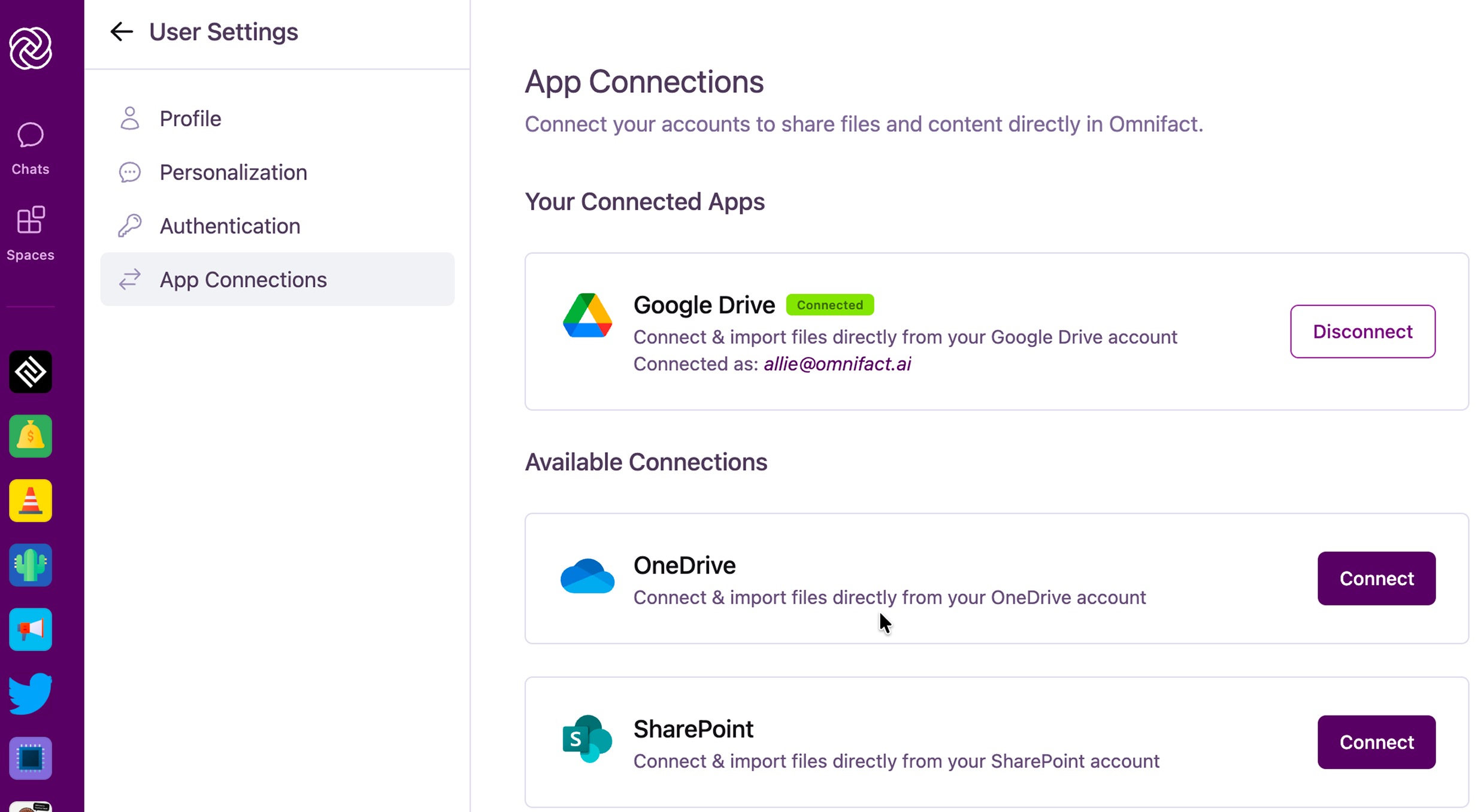 Cloud storage integrations must be enabled by your organization's administrator in the [Integrations](/en/platform/team-administration/integrations) section in the Team Settings to appear in your account settings.