> ## Documentation Index
> Fetch the complete documentation index at: https://docs.omnifact.ai/llms.txt
> Use this file to discover all available pages before exploring further.
# Attaching Documents & Images
> Learn how to add documents and images to your conversations with Omnifact and get valuable insights from them
export const Glossary = ({children, term}) => {
const glossaryDefinitions = {
'ai': 'Artificial Intelligence - computer systems that can perform tasks typically requiring human intelligence',
'artificial-intelligence-ai': 'Computer systems that can perform tasks typically requiring human intelligence',
'ai-assistant': 'An AI system designed to help users with tasks through conversation',
'space': 'A dedicated environment with a specialized AI assistant and optional Uploaded Files',
'spaces': 'Dedicated environments with specialized AI assistants and optional Uploaded Files',
'knowledge': 'The sub-menu in Space settings where you manage Uploaded Files and Connected Sources',
'uploaded-files': 'Documents manually uploaded to a Space under the Knowledge tab',
'prompt': 'Instructions or questions you give to an AI assistant',
'response': 'The AI assistant\'s answer to your prompt or question',
'query': 'A question or request for information',
'context': 'Background information that helps the AI understand your request',
'llm': 'Large Language Model - an AI system trained on vast amounts of text data to understand and generate human language',
'large-language-model-llm': 'An AI system trained on vast amounts of text data to understand and generate human language',
'privacy-filter': 'A system that automatically detects and masks sensitive information before it reaches AI models, and restricts images from being sent to non-EU hosted models for compliance',
'chat-instructions': 'Custom guidelines that define how an AI assistant behaves and responds in a Space',
'pattern-matching': 'The process by which AI recognizes and uses patterns in data to provide responses',
'patterns': 'Recognizable structures or trends in data that AI systems can identify and use',
'training-data': 'The text and information used to teach an AI system how to understand and respond to requests',
'natural-language': 'Everyday human language that people use to communicate, as opposed to computer code or formal syntax',
'hallucination': 'When an AI generates information that sounds plausible but is actually incorrect or fabricated',
'filtering': 'The process of automatically detecting and temporarily replacing sensitive information to protect it during AI processing',
'masking': 'Temporarily replacing sensitive information with generic labels to protect it from being seen by external AI models',
're-insertion': 'The automatic process of putting original sensitive information back into AI responses after they\'ve been generated with filtered data',
'retrieval': 'The process of finding and accessing relevant documents from Uploaded Files to answer questions',
'hosting': 'Where an AI model is deployed and made available for use - either by third-party providers, on your organization\'s own servers, or in private cloud environments',
'cite': 'To reference or mention the source of information, helping you know where an AI\'s answer came from',
'sidebar': 'A panel that appears on the side of the screen showing additional information and options',
'toggle': 'A button or control that switches something on or off, like opening and closing a sidebar',
'navigation': 'The system of menus and buttons that help you move between different parts of Omnifact',
'favoriting': 'Marking a Space as a favorite to pin it to the main navigation for quick access',
'pinning': 'Attaching a Space to the main navigation bar so it\'s always visible and easily accessible'
};
const definition = glossaryDefinitions[term];
return {children};
};
Omnifact's attachment feature allows you to share files directly in your chats, enabling the AI assistant to analyze, summarize, and extract information from your documents and images. This powerful capability helps you quickly make sense of reports, presentations, contracts, charts, diagrams, and other business materials without having to manually review them.
When you attach documents and images to your conversations, Omnifact can help you understand their content, extract key information, and answer specific questions about them - saving you valuable time.
## Why Attach Documents & Images?
Attaching files to your chats with Omnifact opens up powerful possibilities:
Get concise summaries of long reports or complex documents in seconds.
Extract specific data points, statistics, or key information without reading
entire documents.
Analyze charts, diagrams, screenshots, and other visual content to extract
insights and understand complex information.
Provide the AI with relevant background information to answer your questions
more accurately.
Get insights, identify trends, or highlight important aspects of your
documents and visual materials.
Combine text and visual information for comprehensive analysis and more
complete understanding of your materials.
## How to Attach Documents & Images to Your Chat
Adding files to your Omnifact conversations is straightforward:
Begin a new chat or use an existing conversation where you want to discuss a file.
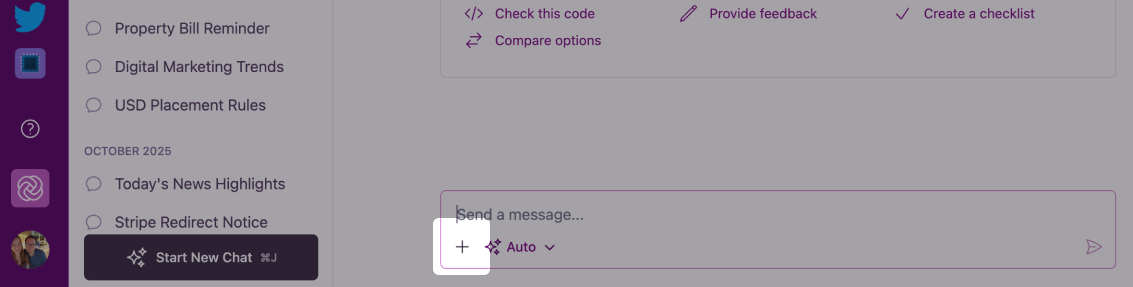 Look for the Plus icon on the left side of the message input field at the bottom of
the chat window.
Look for the Plus icon on the left side of the message input field at the bottom of
the chat window.
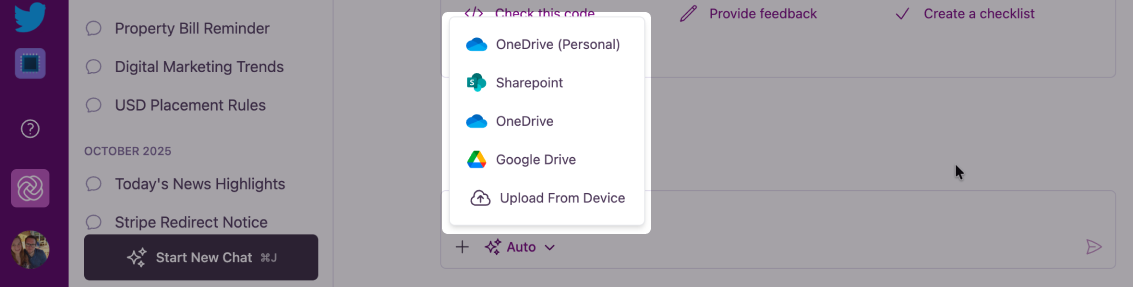 Select whether you want to upload a file from your **Computer**, or connect to **Google Drive**, **SharePoint**, or **OneDrive**.
Cloud storage options (Google Drive, SharePoint, OneDrive) are only available if enabled by your organization. To connect your own account, go to [Account Settings > Connections](/en/platform/core-features/account-settings/user-profile-and-personalization#connections). Team Admins can manage these integrations in [Team Settings > Integrations](/en/platform/team-administration/integrations).
A file selection dialog will open, allowing you to browse your computer for the document or image you want to attach.
Omnifact supports various formats including documents (PDF, Word, Excel, PowerPoint, OpenDocument text/presentation formats), plain text files (TXT, JSON, Markdown, CSV, SVG), and images (PNG, JPEG, WebP, HEIC/HEIF, AVIF, BMP, GIF, ICO, SVG, and TIFF). Images are automatically optimized for efficient processing while maintaining quality.
After selecting your file, you'll see it displayed in the message input area
with the filename and an appropriate icon.
Select whether you want to upload a file from your **Computer**, or connect to **Google Drive**, **SharePoint**, or **OneDrive**.
Cloud storage options (Google Drive, SharePoint, OneDrive) are only available if enabled by your organization. To connect your own account, go to [Account Settings > Connections](/en/platform/core-features/account-settings/user-profile-and-personalization#connections). Team Admins can manage these integrations in [Team Settings > Integrations](/en/platform/team-administration/integrations).
A file selection dialog will open, allowing you to browse your computer for the document or image you want to attach.
Omnifact supports various formats including documents (PDF, Word, Excel, PowerPoint, OpenDocument text/presentation formats), plain text files (TXT, JSON, Markdown, CSV, SVG), and images (PNG, JPEG, WebP, HEIC/HEIF, AVIF, BMP, GIF, ICO, SVG, and TIFF). Images are automatically optimized for efficient processing while maintaining quality.
After selecting your file, you'll see it displayed in the message input area
with the filename and an appropriate icon.
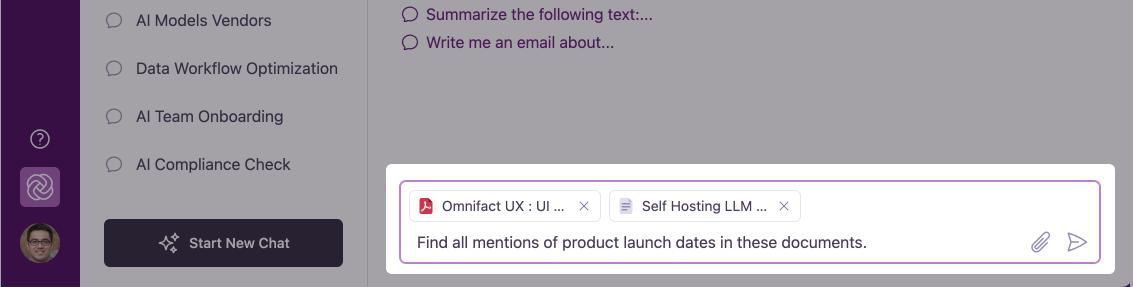 Add a clear question or instruction about the file in the message field,
then click the send button.
Including a specific question or instruction with your file helps
Omnifact understand what you need. For example: "Please summarize the key
findings in this report" or "What trends do you see in this chart?"
After sending, the attached file will be visually represented in the chat conversation, and Omnifact will begin processing it to provide the information you requested.
While the Privacy Filter automatically masks sensitive information in your chat interactions, be mindful of the files you upload. The Privacy Filter will scan documents when it's used in chat interactions. Additionally, when the Privacy Filter is enabled, images are restricted from being sent to AI models not hosted within the EU to ensure compliance with data privacy standards.
## Asking Effective Questions About Documents & Images
The quality of information you get from Omnifact about your files depends significantly on how you frame your questions. Here are some strategies for getting the most out of your attachments:
Instead of "What's in this document?" or "What's in this image?", try:
* "What are the three main conclusions in this report?"
* "Extract all the action items mentioned in these meeting minutes."
* "What trends do you see in this sales chart?"
* "Describe the key elements in this workflow diagram."
* "What data points are highlighted in this dashboard screenshot?"
You can ask Omnifact to organize information in useful ways:
* "Summarize this quarterly report as a bulleted list of key points."
* "Create a table showing all the budget figures mentioned in this document."
* "Extract the timeline from this project plan and present it chronologically."
* "List the key metrics shown in this chart with their values."
* "Describe the process flow shown in this diagram step by step."
Go beyond just retrieving information:
* "What are the potential risks identified in this business plan?"
* "Compare the performance metrics in this report to the goals we set last quarter."
* "What implications do these survey results have for our marketing strategy?"
* "What patterns or anomalies do you notice in this data visualization?"
* "Based on this screenshot, what usability issues can you identify?"
For documents with both text and visuals, or when attaching multiple files:
* "Compare the financial projections in this spreadsheet with the trends shown in this chart."
* "How does the data in this table relate to the process shown in this diagram?"
* "What story do these images tell when combined with the written report?"
## Working with Multiple Files
You can attach multiple documents and images to a single message to compare information across them or provide more comprehensive context.
When working with multiple files, be clear about which file you're
referring to. For example: "In the Q1 Report, find the revenue figures, and
compare them to the trends shown in the Sales Chart image."
## Next Steps
Now that you know how to attach documents and images to your conversations, you can:
* Discover how to [Edit Your Messages](/en/platform/core-features/chats/editing-messages) to refine your prompts after reviewing results
* Learn about [Spaces](/en/platform/core-features/spaces/introduction) for specialized analysis with dedicated knowledges
* Explore [Uploaded Files Retrieval](/en/platform/core-features/spaces/uploaded-files-retrieval) to understand how Spaces work with uploaded files
* Learn how to [Generate Images](/en/platform/core-features/chats/image-generation) if you need to create or edit visuals
Add a clear question or instruction about the file in the message field,
then click the send button.
Including a specific question or instruction with your file helps
Omnifact understand what you need. For example: "Please summarize the key
findings in this report" or "What trends do you see in this chart?"
After sending, the attached file will be visually represented in the chat conversation, and Omnifact will begin processing it to provide the information you requested.
While the Privacy Filter automatically masks sensitive information in your chat interactions, be mindful of the files you upload. The Privacy Filter will scan documents when it's used in chat interactions. Additionally, when the Privacy Filter is enabled, images are restricted from being sent to AI models not hosted within the EU to ensure compliance with data privacy standards.
## Asking Effective Questions About Documents & Images
The quality of information you get from Omnifact about your files depends significantly on how you frame your questions. Here are some strategies for getting the most out of your attachments:
Instead of "What's in this document?" or "What's in this image?", try:
* "What are the three main conclusions in this report?"
* "Extract all the action items mentioned in these meeting minutes."
* "What trends do you see in this sales chart?"
* "Describe the key elements in this workflow diagram."
* "What data points are highlighted in this dashboard screenshot?"
You can ask Omnifact to organize information in useful ways:
* "Summarize this quarterly report as a bulleted list of key points."
* "Create a table showing all the budget figures mentioned in this document."
* "Extract the timeline from this project plan and present it chronologically."
* "List the key metrics shown in this chart with their values."
* "Describe the process flow shown in this diagram step by step."
Go beyond just retrieving information:
* "What are the potential risks identified in this business plan?"
* "Compare the performance metrics in this report to the goals we set last quarter."
* "What implications do these survey results have for our marketing strategy?"
* "What patterns or anomalies do you notice in this data visualization?"
* "Based on this screenshot, what usability issues can you identify?"
For documents with both text and visuals, or when attaching multiple files:
* "Compare the financial projections in this spreadsheet with the trends shown in this chart."
* "How does the data in this table relate to the process shown in this diagram?"
* "What story do these images tell when combined with the written report?"
## Working with Multiple Files
You can attach multiple documents and images to a single message to compare information across them or provide more comprehensive context.
When working with multiple files, be clear about which file you're
referring to. For example: "In the Q1 Report, find the revenue figures, and
compare them to the trends shown in the Sales Chart image."
## Next Steps
Now that you know how to attach documents and images to your conversations, you can:
* Discover how to [Edit Your Messages](/en/platform/core-features/chats/editing-messages) to refine your prompts after reviewing results
* Learn about [Spaces](/en/platform/core-features/spaces/introduction) for specialized analysis with dedicated knowledges
* Explore [Uploaded Files Retrieval](/en/platform/core-features/spaces/uploaded-files-retrieval) to understand how Spaces work with uploaded files
* Learn how to [Generate Images](/en/platform/core-features/chats/image-generation) if you need to create or edit visuals