> ## Documentation Index
> Fetch the complete documentation index at: https://docs.omnifact.ai/llms.txt
> Use this file to discover all available pages before exploring further.
# Image Generation
> Create and edit images directly within your chat conversations.
Omnifact's **Image Generation** feature allows you to visualize ideas, create illustrations, and edit existing images without leaving your chat workflow. Whether you need a quick mockup, a stylistic variation of an existing image, or a completely new visual asset, the AI assistant can help you create it in seconds.
Master the art of effective image prompting and learn professional workflows.
## Generating Images
Creating an image is as simple as asking for it. You can describe what you want to see, and the assistant will generate it for you.
Start a new chat or continue an existing conversation.
Type a prompt that clearly describes the image you want. Be specific about the subject, style, colors, and mood.
**Examples:**
* "Generate a minimalist icon for a settings menu."
* "Create a professional illustration of a team collaborating around a whiteboard, in a flat vector style."
* "Show me a futuristic cityscape at sunset."
The assistant will process your request and display the generated image directly in the chat window.
Image generation capabilities depend on the settings configured by your organization's administrators. If you don't see this feature, it may not be enabled for your team. Learn more in [Group Management](/en/platform/team-administration/groups#group-permissions).
## Using Reference Images
You can also use existing images as a starting point. This is useful when you want to modify an image, change its style, or use it as a composition reference.
1. Click the **Attachment (+) icon** in the chat input area.
2. Select **Upload from Computer** (or cloud storage if connected - see [Attaching Files](/en/platform/core-features/chats/attaching-documents)) and choose your reference image.
3. In your message, explain what you want to do with the image.
* "Turn this sketch into a realistic photo."
* "Change the background color of this image to blue."
* "Create a variation of this logo in a watercolor style."
## Generated Assets
All images you create are automatically saved to your personal **Generated Assets**, making it easy to find and organize your visual assets.
To access the gallery:
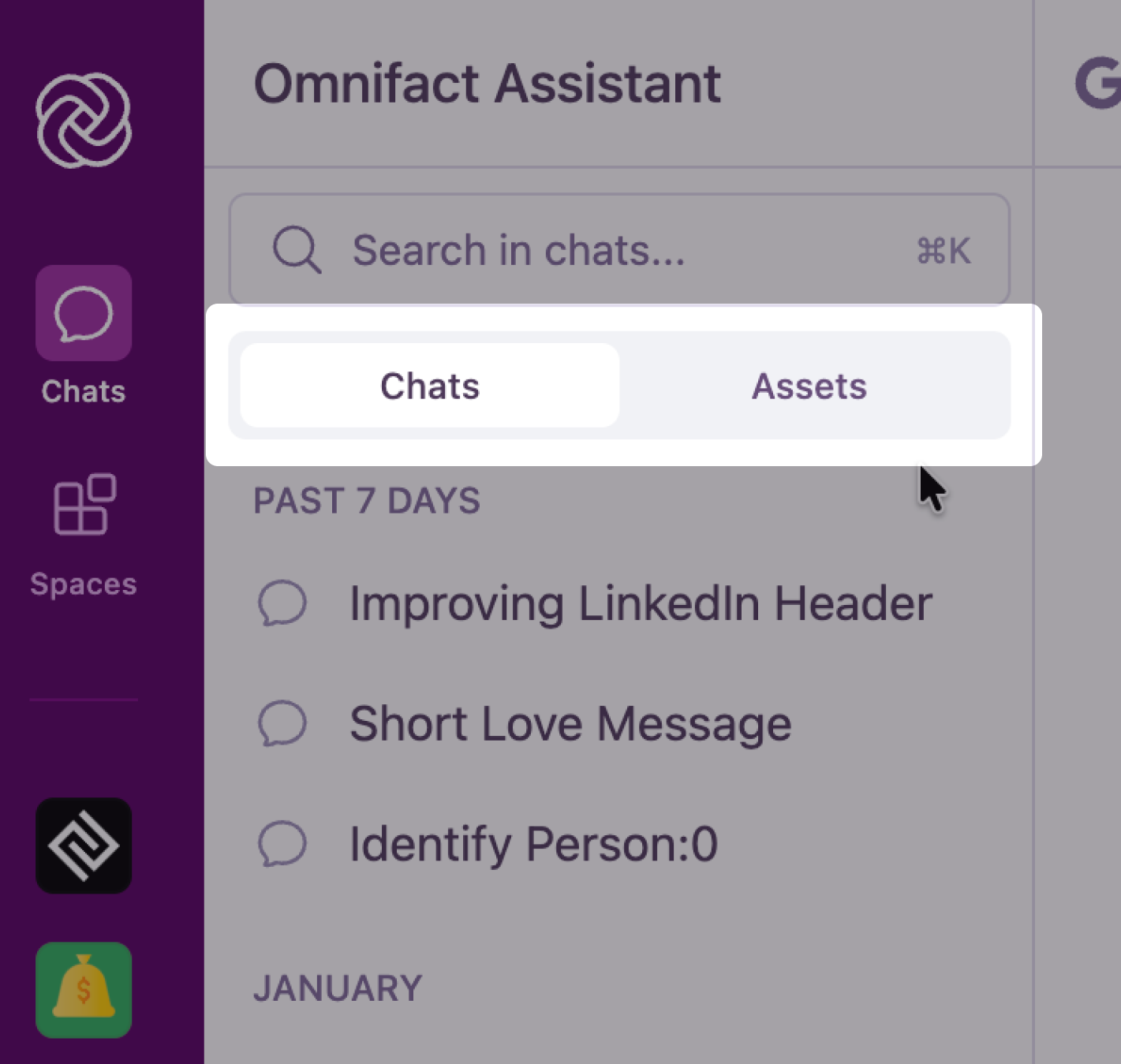
1. In the sidebar, you can see a switcher for "Chats" and "Assets". Click on "Assets" to view your generated images.
2. Browse your images in the grid view, organized by date (Today, Yesterday, Past 7 Days, etc.).
 ### Gallery Features
* **View Full Size**: Click any image to open it in a large lightbox view.
* **Download**: Hover over an image and click the **Download** button to save it to your device.
* **Navigate to Chat**: Click the **Chat bubble icon** on an image to jump back to the original conversation where it was created.
* **Generate New**: Click the **Generate an image** button to start a new creation flow.
## Tips for Better Results
To get the best images, we recommend following our best practices guide. It covers advanced prompting techniques, style definitions, and iteration strategies.
**Privacy Note**: When the **[Privacy Filter](/en/platform/core-features/privacy-security/how-privacy-filter-works)** is enabled, images are restricted from being sent to AI models that do not comply with your organization's data residency requirements.
### Gallery Features
* **View Full Size**: Click any image to open it in a large lightbox view.
* **Download**: Hover over an image and click the **Download** button to save it to your device.
* **Navigate to Chat**: Click the **Chat bubble icon** on an image to jump back to the original conversation where it was created.
* **Generate New**: Click the **Generate an image** button to start a new creation flow.
## Tips for Better Results
To get the best images, we recommend following our best practices guide. It covers advanced prompting techniques, style definitions, and iteration strategies.
**Privacy Note**: When the **[Privacy Filter](/en/platform/core-features/privacy-security/how-privacy-filter-works)** is enabled, images are restricted from being sent to AI models that do not comply with your organization's data residency requirements.