> ## Documentation Index
> Fetch the complete documentation index at: https://docs.omnifact.ai/llms.txt
> Use this file to discover all available pages before exploring further.
# Introduction to Chats
> Your starting point for understanding how to talk with your Omnifact AI assistant
export const Glossary = ({children, term}) => {
const glossaryDefinitions = {
'ai': 'Artificial Intelligence - computer systems that can perform tasks typically requiring human intelligence',
'artificial-intelligence-ai': 'Computer systems that can perform tasks typically requiring human intelligence',
'ai-assistant': 'An AI system designed to help users with tasks through conversation',
'space': 'A dedicated environment with a specialized AI assistant and optional Uploaded Files',
'spaces': 'Dedicated environments with specialized AI assistants and optional Uploaded Files',
'knowledge': 'The sub-menu in Space settings where you manage Uploaded Files and Connected Sources',
'uploaded-files': 'Documents manually uploaded to a Space under the Knowledge tab',
'prompt': 'Instructions or questions you give to an AI assistant',
'response': 'The AI assistant\'s answer to your prompt or question',
'query': 'A question or request for information',
'context': 'Background information that helps the AI understand your request',
'llm': 'Large Language Model - an AI system trained on vast amounts of text data to understand and generate human language',
'large-language-model-llm': 'An AI system trained on vast amounts of text data to understand and generate human language',
'privacy-filter': 'A system that automatically detects and masks sensitive information before it reaches AI models, and restricts images from being sent to non-EU hosted models for compliance',
'chat-instructions': 'Custom guidelines that define how an AI assistant behaves and responds in a Space',
'pattern-matching': 'The process by which AI recognizes and uses patterns in data to provide responses',
'patterns': 'Recognizable structures or trends in data that AI systems can identify and use',
'training-data': 'The text and information used to teach an AI system how to understand and respond to requests',
'natural-language': 'Everyday human language that people use to communicate, as opposed to computer code or formal syntax',
'hallucination': 'When an AI generates information that sounds plausible but is actually incorrect or fabricated',
'filtering': 'The process of automatically detecting and temporarily replacing sensitive information to protect it during AI processing',
'masking': 'Temporarily replacing sensitive information with generic labels to protect it from being seen by external AI models',
're-insertion': 'The automatic process of putting original sensitive information back into AI responses after they\'ve been generated with filtered data',
'retrieval': 'The process of finding and accessing relevant documents from Uploaded Files to answer questions',
'hosting': 'Where an AI model is deployed and made available for use - either by third-party providers, on your organization\'s own servers, or in private cloud environments',
'cite': 'To reference or mention the source of information, helping you know where an AI\'s answer came from',
'sidebar': 'A panel that appears on the side of the screen showing additional information and options',
'toggle': 'A button or control that switches something on or off, like opening and closing a sidebar',
'navigation': 'The system of menus and buttons that help you move between different parts of Omnifact',
'favoriting': 'Marking a Space as a favorite to pin it to the main navigation for quick access',
'pinning': 'Attaching a Space to the main navigation bar so it\'s always visible and easily accessible'
};
const definition = glossaryDefinitions[term];
return {children};
};
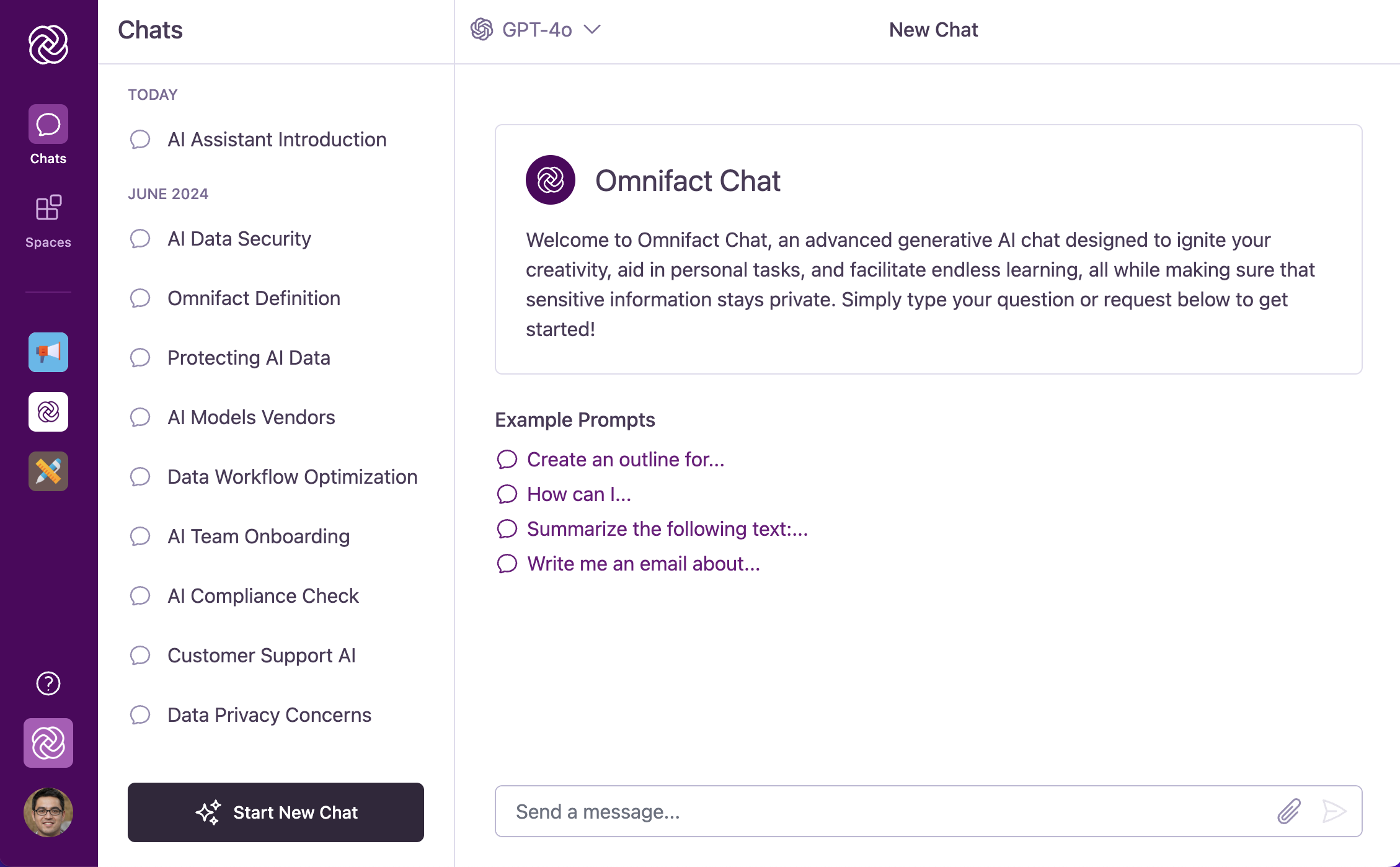
Chats are where you talk with your Omnifact AI assistant. With a clean and simple design, Omnifact helps you get answers, create content, solve problems, and complete tasks quickly in your daily work. Think of Chats as having a conversation with a helpful colleague who's always available. Within each chat, Omnifact maintains context of your ongoing discussion, allowing for natural back-and-forth exchanges. Unlike regular search tools that just find information, Omnifact understands the flow of your current conversation to provide more relevant and personalized help.
Chats are where you'll spend most of your time in Omnifact, whether in general
conversations or within specialized Spaces. Getting comfortable with Chats
will help you get the most from Omnifact.
## Experience Natural AI Conversations
Chats are your primary workspace in Omnifact. Designed to feel like a conversation with a knowledgeable colleague, the interface allows you to ask questions, solve problems, and create content naturally.
 **Why use Chats?**
Unlike traditional search engines, Omnifact remembers the **context** of your conversation. This means you can ask follow-up questions, refer to previous messages, and refine your results without starting over.
## Having a Conversation
**Why use Chats?**
Unlike traditional search engines, Omnifact remembers the **context** of your conversation. This means you can ask follow-up questions, refer to previous messages, and refine your results without starting over.
## Having a Conversation
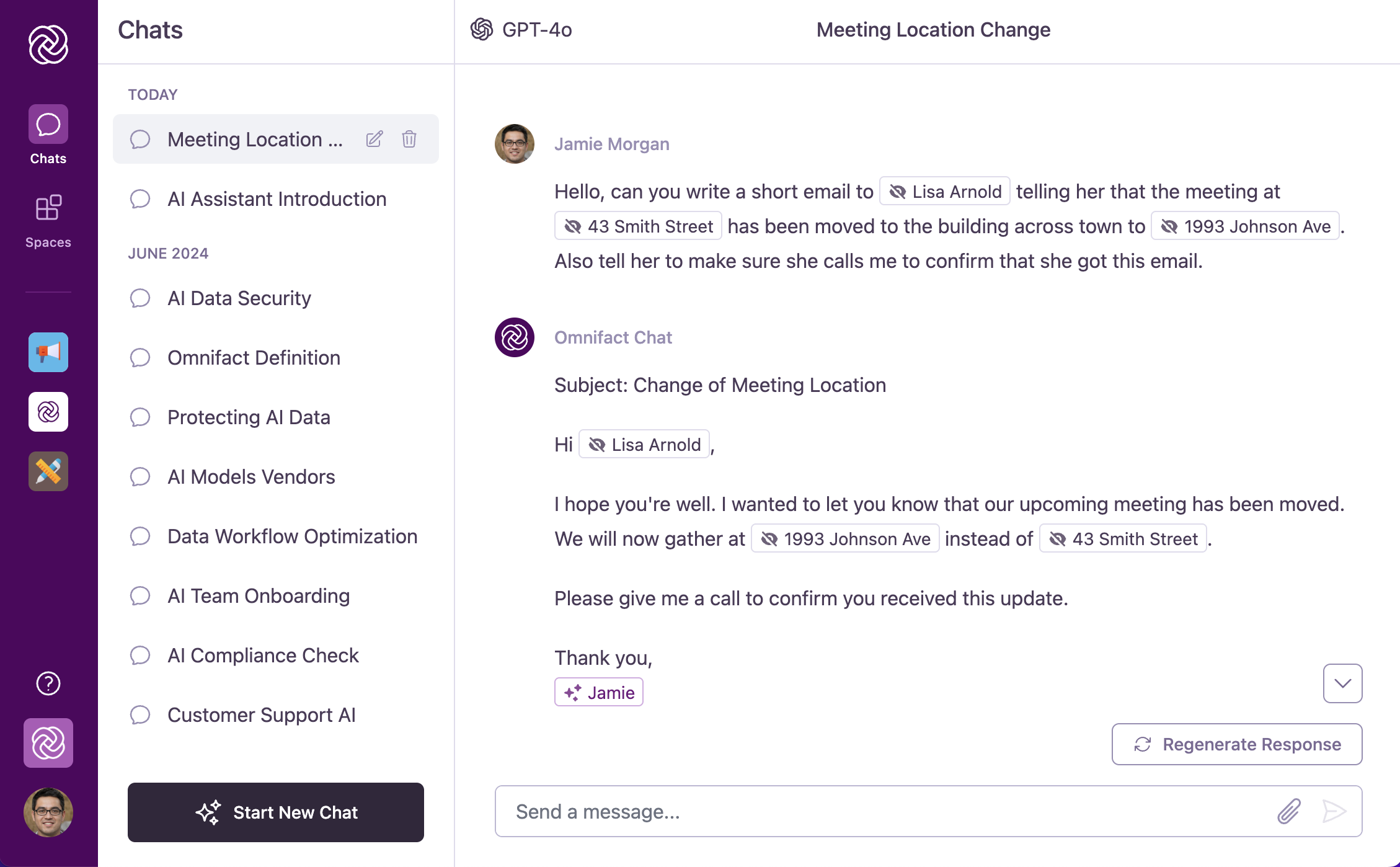 Once you ask your first question, the real magic begins as you start interacting with your AI assistant. Your conversation with Omnifact feels natural and intuitive. Your messages appear with your profile picture, while Omnifact's responses show up with the Omnifact logo. The back-and-forth happens in a flowing conversation just like you'd have with a colleague.
As you chat, you can ask follow-up questions using the message box at the bottom of the screen. Need to use a response elsewhere? Just use the copy button that appears with each of Omnifact's messages. If you need to clarify something you've said, you can easily edit your messages after sending them.
What makes Omnifact special is its ability to remember your entire conversation. You can refer back to earlier points, ask for clarifications, or build on previous ideas without having to repeat yourself. It's like talking to someone who's been paying close attention to everything you've discussed.
Try referring back to earlier parts of your conversation. Simply say something
like "Going back to what we discussed earlier..." and Omnifact will understand
the context.
## Returning to Past Conversations
Your conversations with Omnifact remain available whenever you need them. The sidebar organizes your chat history by timeframe, making it easy to find recent or older conversations.
Each chat gets its own title that you can customize to help you quickly identify important conversations. When you want to continue a previous discussion, simply click on any chat in the list and you'll pick up exactly where you left off—with the full context preserved.
Need to find a specific conversation from the past? Press **Cmd/Ctrl + K** or click the search bar in the top right corner of the chat interface to open the conversation search and find chats by keyword.
## Key Features at a Glance
Chats include several helpful features to make your experience better:
Talk with Omnifact just like you would with a colleague - it remembers
context and understands follow-up questions.
Add documents and images to your messages when you need Omnifact to review, summarize,
or extract information from them.
Change your messages after sending them if you need to clarify what you
meant or fix any mistakes.
Copy Omnifact's responses with a single click to use them in other apps or
documents.
Choose between Auto, Quick Response, or Simple Lookup to control how the AI answers your questions.
Switch between different AI models (like GPT-4o or Claude) to find the best fit for your task.
### Draft Auto-Save
If you start typing a message but navigate away before sending it, Omnifact automatically saves your work as a draft. Your unsent message will be preserved in that specific chat or Space, ready for you to finish when you return.
### Rich Response Rendering
Omnifact presents information clearly using rich text formatting. You'll see:
* **Markdown Support:** Formatted text including bolding, lists, tables, and strikethrough.
* **Tables:** Rendered markdown tables with a per-table **Copy table** action that copies the table as HTML for pasting into documents and spreadsheets.
* **Code Blocks:** Syntax-highlighted code snippets with a convenient **Copy Code** button.
* **Math Equations:** Complex formulas rendered beautifully using LaTeX/KaTeX (both inline and as blocks).
Omnifact includes a Privacy Filter that automatically hides sensitive
information in your messages to keep your data secure. Learn more in the
[Privacy Filter](/en/platform/core-features/privacy-security/how-privacy-filter-works)
section.
## Next Steps
Now that you understand the basics of chatting with Omnifact, explore these related topics:
* [Starting a New Chat](/en/platform/core-features/chats/starting-new-chat) - Learn the specifics of beginning a fresh conversation
* [Selecting an AI Model](/en/platform/core-features/chats/model-selection) - Learn how to switch between different AI models
* [Model Guide](/en/guides/mastering-chat/models/model-guide) - Detailed recommendations on choosing the right model
* [Response Modes](/en/platform/core-features/chats/response-modes) - Choose the right mode for your task (Auto, Quick, or Simple Lookup)
* [Web Search and Browsing](/en/platform/core-features/chats/web-search-browsing) - Find up-to-date information with cited sources
* [Image Generation](/en/platform/core-features/chats/image-generation) - Create and edit images directly in chat
* [Conversational Flow & Follow-Up Questions](/en/platform/core-features/chats/conversational-flow) - Master the art of effective communication with the AI
* [Attaching Files](/en/platform/core-features/chats/attaching-documents) - Discover how to use documents and images in your conversations
* [Exploring Spaces](/en/platform/core-features/spaces/navigating-spaces) - Learn about specialized AI environments for specific topics
Once you ask your first question, the real magic begins as you start interacting with your AI assistant. Your conversation with Omnifact feels natural and intuitive. Your messages appear with your profile picture, while Omnifact's responses show up with the Omnifact logo. The back-and-forth happens in a flowing conversation just like you'd have with a colleague.
As you chat, you can ask follow-up questions using the message box at the bottom of the screen. Need to use a response elsewhere? Just use the copy button that appears with each of Omnifact's messages. If you need to clarify something you've said, you can easily edit your messages after sending them.
What makes Omnifact special is its ability to remember your entire conversation. You can refer back to earlier points, ask for clarifications, or build on previous ideas without having to repeat yourself. It's like talking to someone who's been paying close attention to everything you've discussed.
Try referring back to earlier parts of your conversation. Simply say something
like "Going back to what we discussed earlier..." and Omnifact will understand
the context.
## Returning to Past Conversations
Your conversations with Omnifact remain available whenever you need them. The sidebar organizes your chat history by timeframe, making it easy to find recent or older conversations.
Each chat gets its own title that you can customize to help you quickly identify important conversations. When you want to continue a previous discussion, simply click on any chat in the list and you'll pick up exactly where you left off—with the full context preserved.
Need to find a specific conversation from the past? Press **Cmd/Ctrl + K** or click the search bar in the top right corner of the chat interface to open the conversation search and find chats by keyword.
## Key Features at a Glance
Chats include several helpful features to make your experience better:
Talk with Omnifact just like you would with a colleague - it remembers
context and understands follow-up questions.
Add documents and images to your messages when you need Omnifact to review, summarize,
or extract information from them.
Change your messages after sending them if you need to clarify what you
meant or fix any mistakes.
Copy Omnifact's responses with a single click to use them in other apps or
documents.
Choose between Auto, Quick Response, or Simple Lookup to control how the AI answers your questions.
Switch between different AI models (like GPT-4o or Claude) to find the best fit for your task.
### Draft Auto-Save
If you start typing a message but navigate away before sending it, Omnifact automatically saves your work as a draft. Your unsent message will be preserved in that specific chat or Space, ready for you to finish when you return.
### Rich Response Rendering
Omnifact presents information clearly using rich text formatting. You'll see:
* **Markdown Support:** Formatted text including bolding, lists, tables, and strikethrough.
* **Tables:** Rendered markdown tables with a per-table **Copy table** action that copies the table as HTML for pasting into documents and spreadsheets.
* **Code Blocks:** Syntax-highlighted code snippets with a convenient **Copy Code** button.
* **Math Equations:** Complex formulas rendered beautifully using LaTeX/KaTeX (both inline and as blocks).
Omnifact includes a Privacy Filter that automatically hides sensitive
information in your messages to keep your data secure. Learn more in the
[Privacy Filter](/en/platform/core-features/privacy-security/how-privacy-filter-works)
section.
## Next Steps
Now that you understand the basics of chatting with Omnifact, explore these related topics:
* [Starting a New Chat](/en/platform/core-features/chats/starting-new-chat) - Learn the specifics of beginning a fresh conversation
* [Selecting an AI Model](/en/platform/core-features/chats/model-selection) - Learn how to switch between different AI models
* [Model Guide](/en/guides/mastering-chat/models/model-guide) - Detailed recommendations on choosing the right model
* [Response Modes](/en/platform/core-features/chats/response-modes) - Choose the right mode for your task (Auto, Quick, or Simple Lookup)
* [Web Search and Browsing](/en/platform/core-features/chats/web-search-browsing) - Find up-to-date information with cited sources
* [Image Generation](/en/platform/core-features/chats/image-generation) - Create and edit images directly in chat
* [Conversational Flow & Follow-Up Questions](/en/platform/core-features/chats/conversational-flow) - Master the art of effective communication with the AI
* [Attaching Files](/en/platform/core-features/chats/attaching-documents) - Discover how to use documents and images in your conversations
* [Exploring Spaces](/en/platform/core-features/spaces/navigating-spaces) - Learn about specialized AI environments for specific topics