> ## Documentation Index
> Fetch the complete documentation index at: https://docs.omnifact.ai/llms.txt
> Use this file to discover all available pages before exploring further.
# Response Modes
> Choose how the AI assistant processes your requests for optimal speed and accuracy.
Omnifact offers different **Response Modes** to give you control over how the AI assistant handles your queries. Whether you need a quick answer, a comprehensive analysis using all available tools, or a strict lookup from your internal documents, you can select the mode that best fits your current task.
## Available Modes
There are three response modes available in the chat interface:
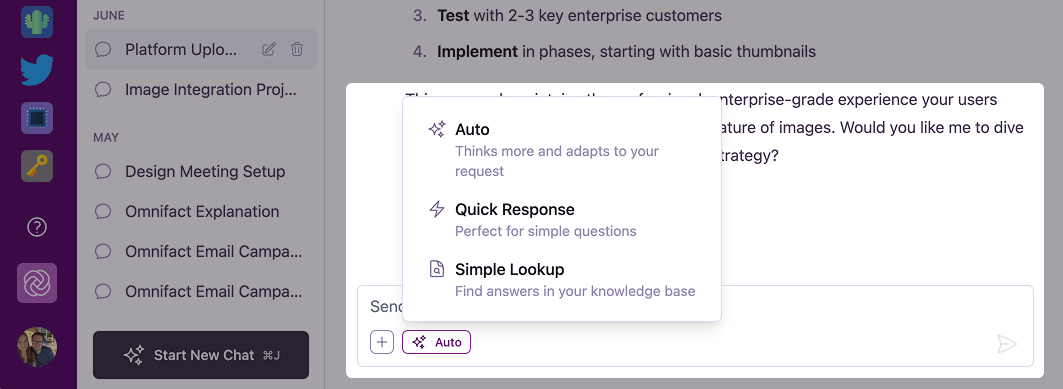 The default mode. Uses all available capabilities to provide the most comprehensive answer.
Fast and direct. Best for simple questions that don't require external tools or document search.
Strictly uses your Knowledge Base. Only answers based on the documents you have uploaded.
### Auto Mode (Default)
This is the most powerful mode and is selected by default. In **Auto** mode, the AI "thinks" more about your request and autonomously decides which tools to use.
* **Capabilities:** Can [search the web](/en/platform/core-features/chats/web-search-browsing), retrieve documents from your [Knowledge Base](/en/platform/core-features/spaces/knowledge-base-retrieval), [generate images](/en/platform/core-features/chats/image-generation), and fetch URLs.
* **Best for:** Complex questions, research, tasks requiring up-to-date information from the web, or when you're unsure which mode to use.
### Quick Response
**Quick Response** is designed for speed. The AI answers directly from its internal training data without using any extra tools (like web search or document retrieval).
* **Capabilities:** Fast text generation only. No web search or Knowledge Base access.
* **Best for:** General knowledge questions, brainstorming, drafting emails, or when you need an immediate answer without waiting for tool processing.
### Simple Lookup
**Simple Lookup** focuses exclusively on your internal data. It forces the AI to answer *only* using the information found in the Space's Knowledge Base without any web search or other tools.
* **Capabilities:** Retrieves information strictly from uploaded documents. No web search or other tools.
* **Best for:** Answering specific questions about company policies, technical specifications, or any query where you want to avoid "hallucinations" or outside information.
* **Note:** This mode is only available in Spaces that have a Knowledge Base with documents uploaded.
## Switching Modes
You can change the response mode at any time before sending a message. The selected mode applies to the next message you send.
Look for the **Response Mode** button in the bottom-left corner of the chat input area (it will show the icon of the current mode).
Click the button to open the menu and select the desired mode from the list.
Type your message and press **Enter**. The AI will process it using the selected mode.
The default mode. Uses all available capabilities to provide the most comprehensive answer.
Fast and direct. Best for simple questions that don't require external tools or document search.
Strictly uses your Knowledge Base. Only answers based on the documents you have uploaded.
### Auto Mode (Default)
This is the most powerful mode and is selected by default. In **Auto** mode, the AI "thinks" more about your request and autonomously decides which tools to use.
* **Capabilities:** Can [search the web](/en/platform/core-features/chats/web-search-browsing), retrieve documents from your [Knowledge Base](/en/platform/core-features/spaces/knowledge-base-retrieval), [generate images](/en/platform/core-features/chats/image-generation), and fetch URLs.
* **Best for:** Complex questions, research, tasks requiring up-to-date information from the web, or when you're unsure which mode to use.
### Quick Response
**Quick Response** is designed for speed. The AI answers directly from its internal training data without using any extra tools (like web search or document retrieval).
* **Capabilities:** Fast text generation only. No web search or Knowledge Base access.
* **Best for:** General knowledge questions, brainstorming, drafting emails, or when you need an immediate answer without waiting for tool processing.
### Simple Lookup
**Simple Lookup** focuses exclusively on your internal data. It forces the AI to answer *only* using the information found in the Space's Knowledge Base without any web search or other tools.
* **Capabilities:** Retrieves information strictly from uploaded documents. No web search or other tools.
* **Best for:** Answering specific questions about company policies, technical specifications, or any query where you want to avoid "hallucinations" or outside information.
* **Note:** This mode is only available in Spaces that have a Knowledge Base with documents uploaded.
## Switching Modes
You can change the response mode at any time before sending a message. The selected mode applies to the next message you send.
Look for the **Response Mode** button in the bottom-left corner of the chat input area (it will show the icon of the current mode).
Click the button to open the menu and select the desired mode from the list.
Type your message and press **Enter**. The AI will process it using the selected mode.
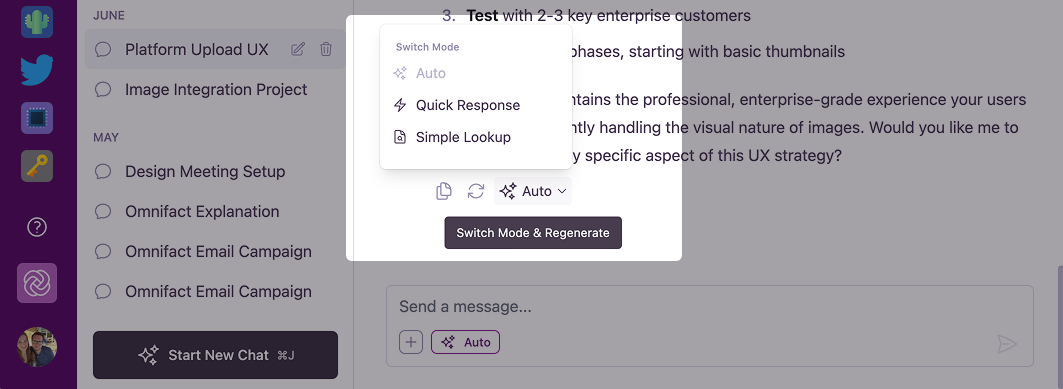 You can even switch modes for a previous message! On any AI response, look for the **Response Mode** dropdown to regenerate the answer using a different mode. This is great for comparing how different modes handle the same question.