> ## Documentation Index
> Fetch the complete documentation index at: https://docs.omnifact.ai/llms.txt
> Use this file to discover all available pages before exploring further.
# Starting a New Chat
> Learn how to begin a fresh conversation with the Omnifact assistant
export const Glossary = ({children, term}) => {
const glossaryDefinitions = {
'ai': 'Artificial Intelligence - computer systems that can perform tasks typically requiring human intelligence',
'artificial-intelligence-ai': 'Computer systems that can perform tasks typically requiring human intelligence',
'ai-assistant': 'An AI system designed to help users with tasks through conversation',
'space': 'A dedicated environment with a specialized AI assistant and optional Uploaded Files',
'spaces': 'Dedicated environments with specialized AI assistants and optional Uploaded Files',
'knowledge': 'The sub-menu in Space settings where you manage Uploaded Files and Connected Sources',
'uploaded-files': 'Documents manually uploaded to a Space under the Knowledge tab',
'prompt': 'Instructions or questions you give to an AI assistant',
'response': 'The AI assistant\'s answer to your prompt or question',
'query': 'A question or request for information',
'context': 'Background information that helps the AI understand your request',
'llm': 'Large Language Model - an AI system trained on vast amounts of text data to understand and generate human language',
'large-language-model-llm': 'An AI system trained on vast amounts of text data to understand and generate human language',
'privacy-filter': 'A system that automatically detects and masks sensitive information before it reaches AI models, and restricts images from being sent to non-EU hosted models for compliance',
'chat-instructions': 'Custom guidelines that define how an AI assistant behaves and responds in a Space',
'pattern-matching': 'The process by which AI recognizes and uses patterns in data to provide responses',
'patterns': 'Recognizable structures or trends in data that AI systems can identify and use',
'training-data': 'The text and information used to teach an AI system how to understand and respond to requests',
'natural-language': 'Everyday human language that people use to communicate, as opposed to computer code or formal syntax',
'hallucination': 'When an AI generates information that sounds plausible but is actually incorrect or fabricated',
'filtering': 'The process of automatically detecting and temporarily replacing sensitive information to protect it during AI processing',
'masking': 'Temporarily replacing sensitive information with generic labels to protect it from being seen by external AI models',
're-insertion': 'The automatic process of putting original sensitive information back into AI responses after they\'ve been generated with filtered data',
'retrieval': 'The process of finding and accessing relevant documents from Uploaded Files to answer questions',
'hosting': 'Where an AI model is deployed and made available for use - either by third-party providers, on your organization\'s own servers, or in private cloud environments',
'cite': 'To reference or mention the source of information, helping you know where an AI\'s answer came from',
'sidebar': 'A panel that appears on the side of the screen showing additional information and options',
'toggle': 'A button or control that switches something on or off, like opening and closing a sidebar',
'navigation': 'The system of menus and buttons that help you move between different parts of Omnifact',
'favoriting': 'Marking a Space as a favorite to pin it to the main navigation for quick access',
'pinning': 'Attaching a Space to the main navigation bar so it\'s always visible and easily accessible'
};
const definition = glossaryDefinitions[term];
return {children};
};
Starting a new chat in Omnifact is the first step to getting AI-powered help with your work tasks. Each new chat you create is a separate conversation thread that allows you to focus on a specific topic or task.
## How to Start a New Chat
A new chat screen is opened automatically when you sign in to Omnifact. If you want to start a new chat at any time during your session, simply click the "Start New Chat" button located at the bottom of the left sidebar, or press **Cmd/Ctrl + J**.
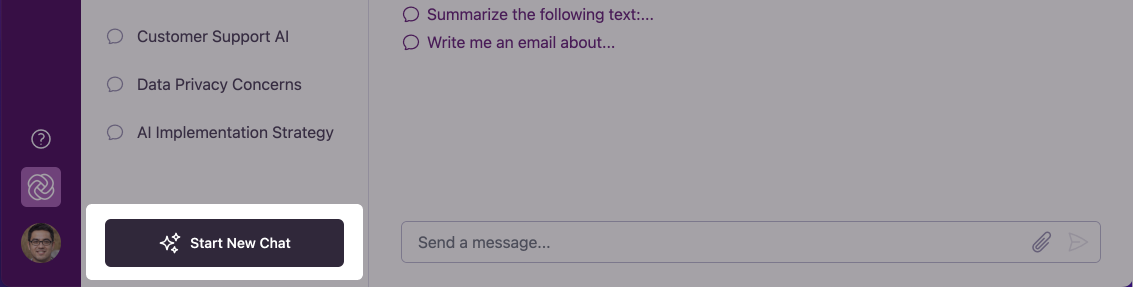 After starting a new chat, you'll see the Omnifact welcome message with example prompts to help you get started. You can then begin typing your message in the input field at the bottom of the screen.
## Writing Messages
Once your new chat is open, simply type your question or request in the input field at the bottom of the screen and press Enter or click the send button. Your message can be as simple or detailed as needed - Omnifact works best when you clearly explain what you're looking for.
For the best results, be specific about what you need. For example, instead of
asking "Tell me about reports," try "How do I create a quarterly sales report
with data from our CRM?"
After sending your message, Omnifact will process your request and respond conversationally. You can continue the discussion with follow-up questions or new requests within the same chat. For more details on how to have effective conversations with Omnifact, see our page on [Conversational Flow & Follow-Up Questions](/en/platform/core-features/chats/conversational-flow).
## Why Start a New Chat?
Each new chat you create has these important characteristics:
Every new chat is a distinct conversation. This helps you organize different
topics or tasks without mixing contexts.
Your chat history is saved automatically. You can return to previous chats
from the sidebar list at any time.
Within a single chat, Omnifact remembers the full conversation context, allowing for natural follow-up questions.
You can rename any chat to create a meaningful title that reflects its content or purpose, making it easier to find and reference specific conversations later.
## When to Start a New Chat
It's a good practice to start a new chat when:
* You're switching to a completely different topic
* You want to begin a fresh context without reference to previous exchanges
* Your current chat has become very long and you want to improve performance
* You're starting a new task or project
When you need to continue working on the same topic but the current
conversation has become very long, starting a new chat and briefly summarizing
the previous context can help maintain optimal performance.
## Deleting Chats
If you no longer need a conversation, you can easily delete it to keep your sidebar organized.
1. Hover over the chat title in the left sidebar.
2. Click the **Trash** icon that appears next to the title.
3. A confirmation dialog will appear to ensure you want to delete the chat.
4. Once confirmed, the chat is permanently removed, and you will be automatically redirected to a new, empty chat.
## Next Steps
Now that you know how to start a new chat, you can:
* Learn about [Attaching Documents](/en/platform/core-features/chats/attaching-documents) to your chats
* Discover [Exploring and Navigating Spaces](/en/platform/core-features/spaces/navigating-spaces) for specialized AI assistance
* Explore our guide on [Writing Effective Prompts](/en/guides/prompt-engineering/beginner/basic-structure)
* Understand [Chat Best Practices](/en/guides/ai-fundamentals/how-to-interact) for efficient communication
After starting a new chat, you'll see the Omnifact welcome message with example prompts to help you get started. You can then begin typing your message in the input field at the bottom of the screen.
## Writing Messages
Once your new chat is open, simply type your question or request in the input field at the bottom of the screen and press Enter or click the send button. Your message can be as simple or detailed as needed - Omnifact works best when you clearly explain what you're looking for.
For the best results, be specific about what you need. For example, instead of
asking "Tell me about reports," try "How do I create a quarterly sales report
with data from our CRM?"
After sending your message, Omnifact will process your request and respond conversationally. You can continue the discussion with follow-up questions or new requests within the same chat. For more details on how to have effective conversations with Omnifact, see our page on [Conversational Flow & Follow-Up Questions](/en/platform/core-features/chats/conversational-flow).
## Why Start a New Chat?
Each new chat you create has these important characteristics:
Every new chat is a distinct conversation. This helps you organize different
topics or tasks without mixing contexts.
Your chat history is saved automatically. You can return to previous chats
from the sidebar list at any time.
Within a single chat, Omnifact remembers the full conversation context, allowing for natural follow-up questions.
You can rename any chat to create a meaningful title that reflects its content or purpose, making it easier to find and reference specific conversations later.
## When to Start a New Chat
It's a good practice to start a new chat when:
* You're switching to a completely different topic
* You want to begin a fresh context without reference to previous exchanges
* Your current chat has become very long and you want to improve performance
* You're starting a new task or project
When you need to continue working on the same topic but the current
conversation has become very long, starting a new chat and briefly summarizing
the previous context can help maintain optimal performance.
## Deleting Chats
If you no longer need a conversation, you can easily delete it to keep your sidebar organized.
1. Hover over the chat title in the left sidebar.
2. Click the **Trash** icon that appears next to the title.
3. A confirmation dialog will appear to ensure you want to delete the chat.
4. Once confirmed, the chat is permanently removed, and you will be automatically redirected to a new, empty chat.
## Next Steps
Now that you know how to start a new chat, you can:
* Learn about [Attaching Documents](/en/platform/core-features/chats/attaching-documents) to your chats
* Discover [Exploring and Navigating Spaces](/en/platform/core-features/spaces/navigating-spaces) for specialized AI assistance
* Explore our guide on [Writing Effective Prompts](/en/guides/prompt-engineering/beginner/basic-structure)
* Understand [Chat Best Practices](/en/guides/ai-fundamentals/how-to-interact) for efficient communication