> ## Documentation Index
> Fetch the complete documentation index at: https://docs.omnifact.ai/llms.txt
> Use this file to discover all available pages before exploring further.
# Stopping and Regenerating Responses
> Learn how to control AI response generation and get alternative answers when needed
export const Glossary = ({children, term}) => {
const glossaryDefinitions = {
'ai': 'Artificial Intelligence - computer systems that can perform tasks typically requiring human intelligence',
'artificial-intelligence-ai': 'Computer systems that can perform tasks typically requiring human intelligence',
'ai-assistant': 'An AI system designed to help users with tasks through conversation',
'space': 'A dedicated environment with a specialized AI assistant and optional Uploaded Files',
'spaces': 'Dedicated environments with specialized AI assistants and optional Uploaded Files',
'knowledge': 'The sub-menu in Space settings where you manage Uploaded Files and Connected Sources',
'uploaded-files': 'Documents manually uploaded to a Space under the Knowledge tab',
'prompt': 'Instructions or questions you give to an AI assistant',
'response': 'The AI assistant\'s answer to your prompt or question',
'query': 'A question or request for information',
'context': 'Background information that helps the AI understand your request',
'llm': 'Large Language Model - an AI system trained on vast amounts of text data to understand and generate human language',
'large-language-model-llm': 'An AI system trained on vast amounts of text data to understand and generate human language',
'privacy-filter': 'A system that automatically detects and masks sensitive information before it reaches AI models, and restricts images from being sent to non-EU hosted models for compliance',
'chat-instructions': 'Custom guidelines that define how an AI assistant behaves and responds in a Space',
'pattern-matching': 'The process by which AI recognizes and uses patterns in data to provide responses',
'patterns': 'Recognizable structures or trends in data that AI systems can identify and use',
'training-data': 'The text and information used to teach an AI system how to understand and respond to requests',
'natural-language': 'Everyday human language that people use to communicate, as opposed to computer code or formal syntax',
'hallucination': 'When an AI generates information that sounds plausible but is actually incorrect or fabricated',
'filtering': 'The process of automatically detecting and temporarily replacing sensitive information to protect it during AI processing',
'masking': 'Temporarily replacing sensitive information with generic labels to protect it from being seen by external AI models',
're-insertion': 'The automatic process of putting original sensitive information back into AI responses after they\'ve been generated with filtered data',
'retrieval': 'The process of finding and accessing relevant documents from Uploaded Files to answer questions',
'hosting': 'Where an AI model is deployed and made available for use - either by third-party providers, on your organization\'s own servers, or in private cloud environments',
'cite': 'To reference or mention the source of information, helping you know where an AI\'s answer came from',
'sidebar': 'A panel that appears on the side of the screen showing additional information and options',
'toggle': 'A button or control that switches something on or off, like opening and closing a sidebar',
'navigation': 'The system of menus and buttons that help you move between different parts of Omnifact',
'favoriting': 'Marking a Space as a favorite to pin it to the main navigation for quick access',
'pinning': 'Attaching a Space to the main navigation bar so it\'s always visible and easily accessible'
};
const definition = glossaryDefinitions[term];
return {children};
};
Omnifact gives you full control over the AI's response generation process. Sometimes you may want to stop a response that's heading in the wrong direction or request a different approach to your question. These powerful features help you get exactly the information you need.
## Take Control of the Conversation
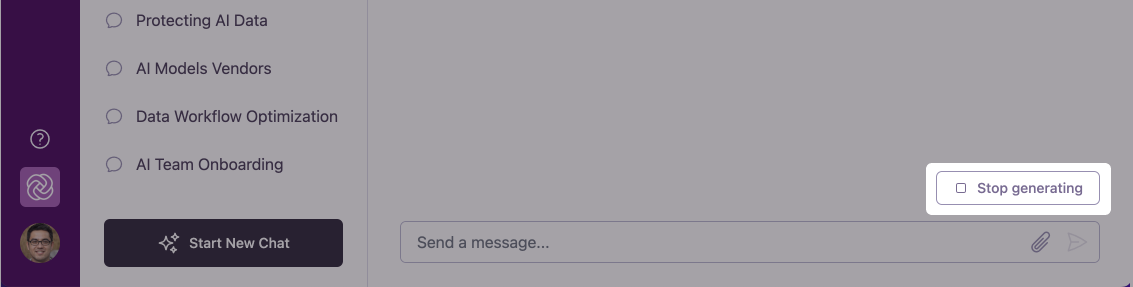 While Omnifact is generating a response, you have the ability to stop the process immediately if you notice it's not providing what you need.
### When to Stop a Response
The AI is answering a different question than what you intended to ask.
The AI is providing more detail than you need or going into unnecessary tangents.
You realize your question could be clearer or more specific.
You've thought of a better way to approach your question while waiting.
### How to Stop Response Generation
While the AI assistant is actively generating a response, look for the "Stop generating" button above the message input field.
Click the "Stop generating" button to halt the response generation instantly. You'll see a brief "Generating response cancelled" message confirming the action.
After stopping, you'll have three options:
* **Continue Generating**: Resume from where the AI left off
* **Regenerate Response**: Start a completely new response
* **Write a Follow-up Question**: Type a new or rephrased question in the input field to redirect the conversation
Stopping generation is particularly useful when you're in a hurry and want to quickly refocus the conversation without waiting for a lengthy response to complete.
## Regenerating AI Responses
While Omnifact is generating a response, you have the ability to stop the process immediately if you notice it's not providing what you need.
### When to Stop a Response
The AI is answering a different question than what you intended to ask.
The AI is providing more detail than you need or going into unnecessary tangents.
You realize your question could be clearer or more specific.
You've thought of a better way to approach your question while waiting.
### How to Stop Response Generation
While the AI assistant is actively generating a response, look for the "Stop generating" button above the message input field.
Click the "Stop generating" button to halt the response generation instantly. You'll see a brief "Generating response cancelled" message confirming the action.
After stopping, you'll have three options:
* **Continue Generating**: Resume from where the AI left off
* **Regenerate Response**: Start a completely new response
* **Write a Follow-up Question**: Type a new or rephrased question in the input field to redirect the conversation
Stopping generation is particularly useful when you're in a hurry and want to quickly refocus the conversation without waiting for a lengthy response to complete.
## Regenerating AI Responses
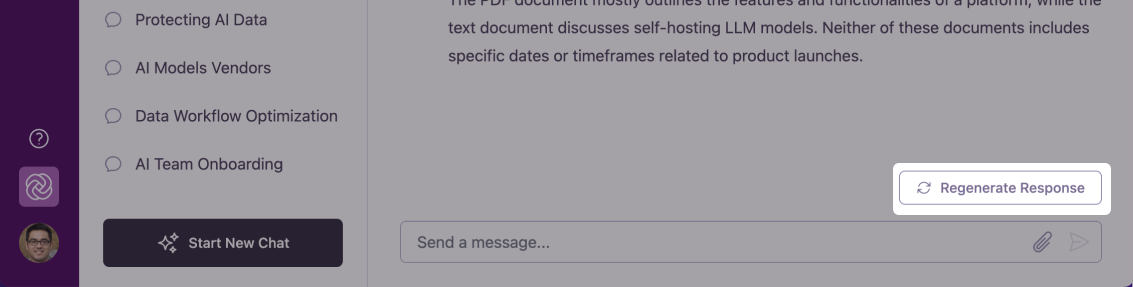 If you're not satisfied with a completed response, you can ask Omnifact to generate a new one without needing to retype your question.
### When to Regenerate a Response
The response didn't fully address your question or needs improvement.
You're looking for different suggestions, approaches, or perspectives.
The response was too general and you want more specific information.
The response was too detailed and you want a more concise summary.
### How to Regenerate a Response
After the AI assistant has completed its response, look for the "Regenerate Response" button above the message input field.
Click the "Regenerate Response" button. You'll see the loading indicator appear as Omnifact creates a fresh response to your question.
Omnifact will provide a completely new response to your original question, not just a variation of the previous answer.
Each regenerated response is created independently, which means you may receive significantly different information or approaches each time you regenerate.
## Continuing Responses
Sometimes, especially with complex requests or long outputs like code, the AI might stop generating a response before it's completely finished because it reached a hidden limit called a "token limit".
If a response feels abruptly cut short, look for the **Continue** button next to the "Regenerate Response" button.
### Continue vs. Regenerate
* **Continue:** Tells the AI to pick up exactly where it left off, appending the rest of its thoughts to the existing response.
* **Regenerate Response:** Tells the AI to discard the current response and start over with a brand new answer.
## Using These Features Effectively
For creative work like brainstorming campaigns or content ideas, regenerating responses gives you multiple sets of suggestions from different angles, helping spark your creativity.
If you notice early in a response that it's not going to be helpful, stop the generation quickly and either regenerate, write a follow-up question, or rephrase your original question to save time and get better results.
For the best results, consider editing your original message to be more specific before regenerating. This gives the AI clearer instructions for the new response.
You can regenerate a response multiple times if needed. Each attempt will produce a different approach to answering your question.
## Examples of Effective Regeneration
Here are scenarios where regenerating is particularly useful:
**Original Question:** "Write a product announcement email for our new software feature."
**First Response:** *\[A formal, detailed announcement]*
**Why Regenerate:** You want to see a more casual, customer-friendly tone
**After Regeneration:** You receive a completely different style of announcement email that may better match your needs
**Original Question:** "How can we improve our customer onboarding process?"
**First Response:** *\[Suggestions focused on technical improvements]*
**Why Regenerate:** You want to explore different aspects of the onboarding process
**After Regeneration:** You receive new suggestions focused on communication or training approaches
**Original Question:** "Summarize the key points of this market research report."
**First Response:** *\[A chronological summary of the report]*
**Why Regenerate:** You want a different organization of the information
**After Regeneration:** You might receive a thematic summary organized by trends instead
## Next Steps
Now that you understand how to control response generation in Omnifact, you can:
* Learn about the [Privacy Filter](/en/platform/core-features/privacy-security/how-privacy-filter-works) that protects your sensitive information
* Explore [Spaces](/en/platform/core-features/spaces/introduction) for domain-specific AI interactions
* Discover how to [Write Effective Prompts](/en/guides/prompt-engineering/beginner/basic-structure) to get better AI responses from the start
If you're not satisfied with a completed response, you can ask Omnifact to generate a new one without needing to retype your question.
### When to Regenerate a Response
The response didn't fully address your question or needs improvement.
You're looking for different suggestions, approaches, or perspectives.
The response was too general and you want more specific information.
The response was too detailed and you want a more concise summary.
### How to Regenerate a Response
After the AI assistant has completed its response, look for the "Regenerate Response" button above the message input field.
Click the "Regenerate Response" button. You'll see the loading indicator appear as Omnifact creates a fresh response to your question.
Omnifact will provide a completely new response to your original question, not just a variation of the previous answer.
Each regenerated response is created independently, which means you may receive significantly different information or approaches each time you regenerate.
## Continuing Responses
Sometimes, especially with complex requests or long outputs like code, the AI might stop generating a response before it's completely finished because it reached a hidden limit called a "token limit".
If a response feels abruptly cut short, look for the **Continue** button next to the "Regenerate Response" button.
### Continue vs. Regenerate
* **Continue:** Tells the AI to pick up exactly where it left off, appending the rest of its thoughts to the existing response.
* **Regenerate Response:** Tells the AI to discard the current response and start over with a brand new answer.
## Using These Features Effectively
For creative work like brainstorming campaigns or content ideas, regenerating responses gives you multiple sets of suggestions from different angles, helping spark your creativity.
If you notice early in a response that it's not going to be helpful, stop the generation quickly and either regenerate, write a follow-up question, or rephrase your original question to save time and get better results.
For the best results, consider editing your original message to be more specific before regenerating. This gives the AI clearer instructions for the new response.
You can regenerate a response multiple times if needed. Each attempt will produce a different approach to answering your question.
## Examples of Effective Regeneration
Here are scenarios where regenerating is particularly useful:
**Original Question:** "Write a product announcement email for our new software feature."
**First Response:** *\[A formal, detailed announcement]*
**Why Regenerate:** You want to see a more casual, customer-friendly tone
**After Regeneration:** You receive a completely different style of announcement email that may better match your needs
**Original Question:** "How can we improve our customer onboarding process?"
**First Response:** *\[Suggestions focused on technical improvements]*
**Why Regenerate:** You want to explore different aspects of the onboarding process
**After Regeneration:** You receive new suggestions focused on communication or training approaches
**Original Question:** "Summarize the key points of this market research report."
**First Response:** *\[A chronological summary of the report]*
**Why Regenerate:** You want a different organization of the information
**After Regeneration:** You might receive a thematic summary organized by trends instead
## Next Steps
Now that you understand how to control response generation in Omnifact, you can:
* Learn about the [Privacy Filter](/en/platform/core-features/privacy-security/how-privacy-filter-works) that protects your sensitive information
* Explore [Spaces](/en/platform/core-features/spaces/introduction) for domain-specific AI interactions
* Discover how to [Write Effective Prompts](/en/guides/prompt-engineering/beginner/basic-structure) to get better AI responses from the start