> ## Documentation Index
> Fetch the complete documentation index at: https://docs.omnifact.ai/llms.txt
> Use this file to discover all available pages before exploring further.
# Using Click to Reveal
> Learn how to selectively reveal filtered information in your messages and when you should use it
export const Glossary = ({children, term}) => {
const glossaryDefinitions = {
'ai': 'Artificial Intelligence - computer systems that can perform tasks typically requiring human intelligence',
'artificial-intelligence-ai': 'Computer systems that can perform tasks typically requiring human intelligence',
'ai-assistant': 'An AI system designed to help users with tasks through conversation',
'space': 'A dedicated environment with a specialized AI assistant and optional Uploaded Files',
'spaces': 'Dedicated environments with specialized AI assistants and optional Uploaded Files',
'knowledge': 'The sub-menu in Space settings where you manage Uploaded Files and Connected Sources',
'uploaded-files': 'Documents manually uploaded to a Space under the Knowledge tab',
'prompt': 'Instructions or questions you give to an AI assistant',
'response': 'The AI assistant\'s answer to your prompt or question',
'query': 'A question or request for information',
'context': 'Background information that helps the AI understand your request',
'llm': 'Large Language Model - an AI system trained on vast amounts of text data to understand and generate human language',
'large-language-model-llm': 'An AI system trained on vast amounts of text data to understand and generate human language',
'privacy-filter': 'A system that automatically detects and masks sensitive information before it reaches AI models, and restricts images from being sent to non-EU hosted models for compliance',
'chat-instructions': 'Custom guidelines that define how an AI assistant behaves and responds in a Space',
'pattern-matching': 'The process by which AI recognizes and uses patterns in data to provide responses',
'patterns': 'Recognizable structures or trends in data that AI systems can identify and use',
'training-data': 'The text and information used to teach an AI system how to understand and respond to requests',
'natural-language': 'Everyday human language that people use to communicate, as opposed to computer code or formal syntax',
'hallucination': 'When an AI generates information that sounds plausible but is actually incorrect or fabricated',
'filtering': 'The process of automatically detecting and temporarily replacing sensitive information to protect it during AI processing',
'masking': 'Temporarily replacing sensitive information with generic labels to protect it from being seen by external AI models',
're-insertion': 'The automatic process of putting original sensitive information back into AI responses after they\'ve been generated with filtered data',
'retrieval': 'The process of finding and accessing relevant documents from Uploaded Files to answer questions',
'hosting': 'Where an AI model is deployed and made available for use - either by third-party providers, on your organization\'s own servers, or in private cloud environments',
'cite': 'To reference or mention the source of information, helping you know where an AI\'s answer came from',
'sidebar': 'A panel that appears on the side of the screen showing additional information and options',
'toggle': 'A button or control that switches something on or off, like opening and closing a sidebar',
'navigation': 'The system of menus and buttons that help you move between different parts of Omnifact',
'favoriting': 'Marking a Space as a favorite to pin it to the main navigation for quick access',
'pinning': 'Attaching a Space to the main navigation bar so it\'s always visible and easily accessible'
};
const definition = glossaryDefinitions[term];
return {children};
};
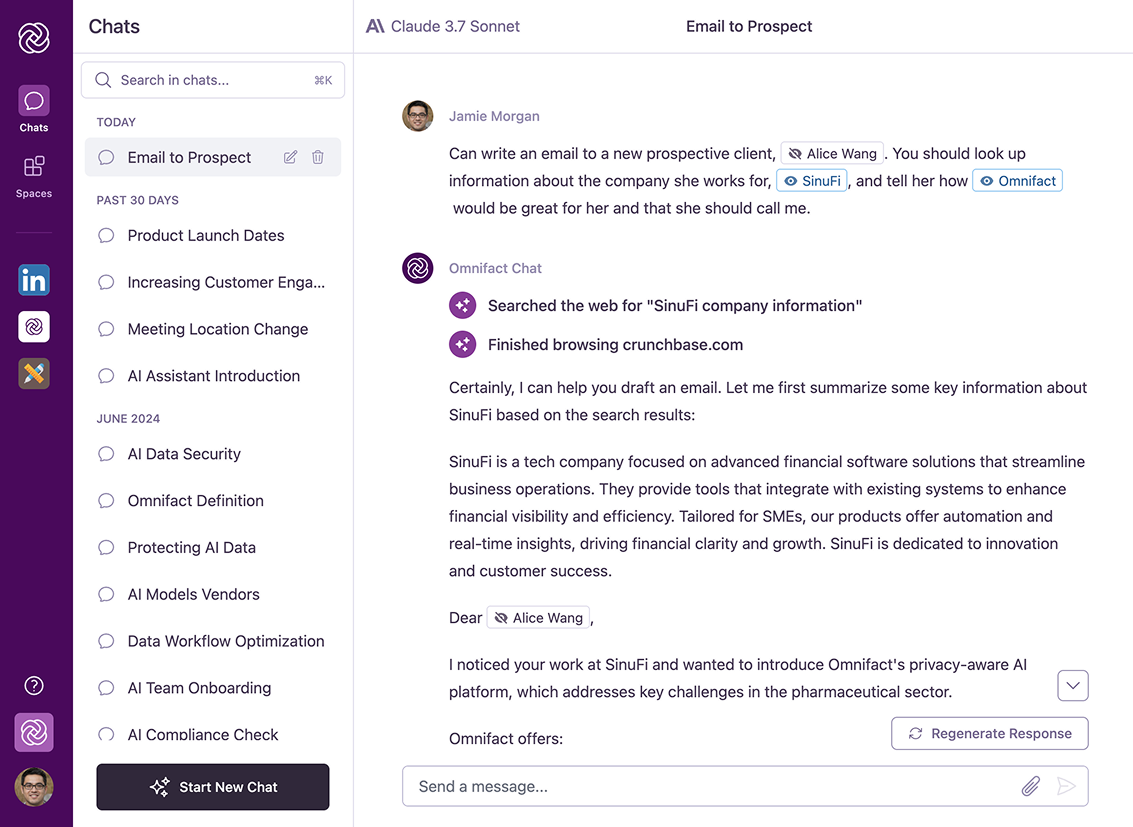
The Omnifact Privacy Filter™ automatically protects sensitive information in your messages by filtering out personal details, company data, and other private content before it reaches external AI models. While this filtering keeps your data secure, there may be times when you need to share specific details to get a meaningful response.
That's where Click to Reveal comes in - it gives you control over filtered information in your messages, allowing you to selectively share specific details with the AI when needed for your task, while maintaining privacy for everything else.
 ## When to Use Click to Reveal
The Privacy Filter automatically protects potentially sensitive information, but sometimes you may need to reveal specific details to get a meaningful response:
* When the filtered information is **non-sensitive** but required for the AI to provide a useful answer
* Example: "Can you help me understand what `[COMPANY_1]` does based on their website content?"
* When asking specific questions about a person, organization, or other filtered entity
* Example: "What is `[PERSON_1]`'s role and responsibilities based on the org chart?"
* When the context of your question depends on the exact details that were filtered
* Example: "What industry regulations apply to `[ORGANIZATION_1]` given their business type?"
Only reveal information if it is not sensitive. Consider whether you would be comfortable sharing this information on a public platform like Google or Facebook. Remember that revealing information means sending it to an external AI model.
## How to Use Click to Reveal
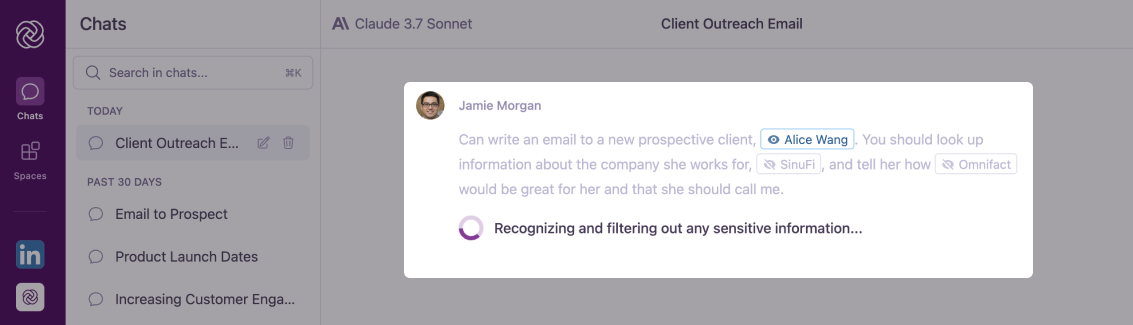
Filtered information in your messages appears with a crossed-out eye icon.
## When to Use Click to Reveal
The Privacy Filter automatically protects potentially sensitive information, but sometimes you may need to reveal specific details to get a meaningful response:
* When the filtered information is **non-sensitive** but required for the AI to provide a useful answer
* Example: "Can you help me understand what `[COMPANY_1]` does based on their website content?"
* When asking specific questions about a person, organization, or other filtered entity
* Example: "What is `[PERSON_1]`'s role and responsibilities based on the org chart?"
* When the context of your question depends on the exact details that were filtered
* Example: "What industry regulations apply to `[ORGANIZATION_1]` given their business type?"
Only reveal information if it is not sensitive. Consider whether you would be comfortable sharing this information on a public platform like Google or Facebook. Remember that revealing information means sending it to an external AI model.
## How to Use Click to Reveal
Filtered information in your messages appears with a crossed-out eye icon.
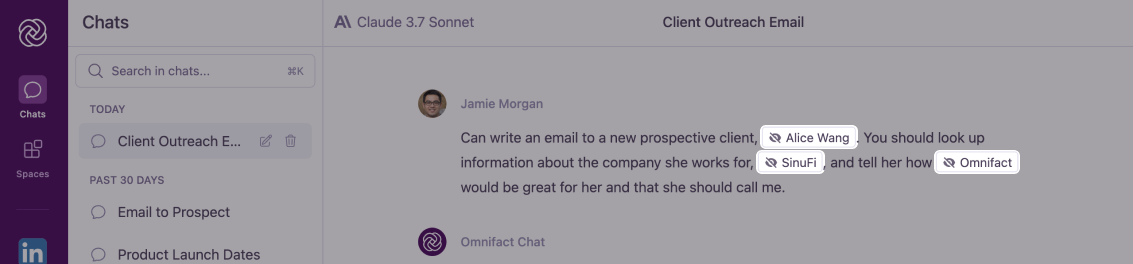 Click on any filtered information you want to share with the AI.
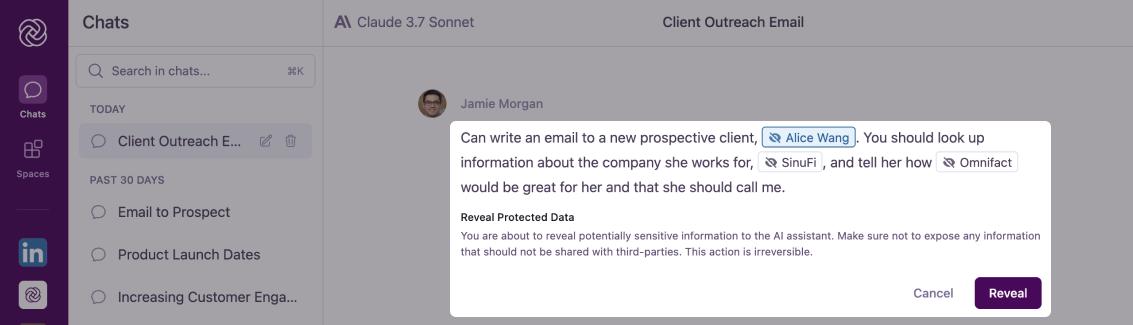 You can only reveal information in your own messages, not in AI responses.
Review and confirm that you want to reveal the selected information.
You can only reveal information in your own messages, not in AI responses.
Review and confirm that you want to reveal the selected information.
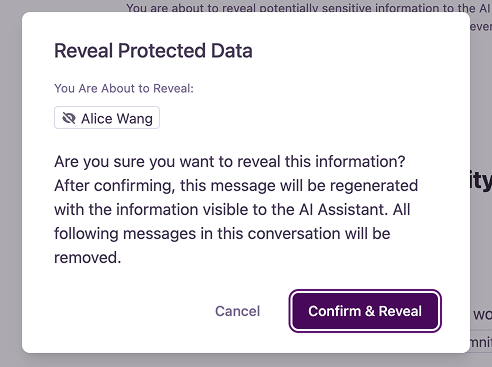 Revealing information will regenerate the AI response and delete all following messages in the conversation. If you need to preserve conversation history, consider starting a new chat before revealing information.
After confirming:
* The selected information becomes visible to the AI, displaying an open eye icon
* The AI updates its response using the newly revealed information
Revealing information will regenerate the AI response and delete all following messages in the conversation. If you need to preserve conversation history, consider starting a new chat before revealing information.
After confirming:
* The selected information becomes visible to the AI, displaying an open eye icon
* The AI updates its response using the newly revealed information
 Future messages will continue to filter sensitive information by default.
## Best Practices for Revealing Information
### When to Reveal Information
Only reveal if the information is necessary for the AI to provide a helpful response and is non-sensitive
When specific names or details are crucial for the task and you're comfortable sharing them externally
Ensure revealing the information complies with your organization's data handling policies and regulations
Reveal only the specific information needed, keeping other sensitive details filtered
## Proactively Preventing Masking
For advanced users who know beforehand that certain terms must be sent to the AI (and are authorized to do so), you can exclude text from the Privacy Filter.
Learn how to use `%%` syntax to prevent specific words from being masked in the first place.
## Deciding What to Reveal: A Simple Test
Before revealing any filtered information, ask yourself these three questions:
**1. Is it non-sensitive?**\
Would you be comfortable sharing this specific detail on a public website?
**2. Is it necessary?**\
Does the AI *need* this specific name or number to answer your question correctly?
**3. Is it worth the reset?**\
Are you okay with losing the subsequent messages in this chat to get a better answer?
## Want to Learn More?
Now that you understand Click to Reveal, you might want to explore:
* Learn about how we protect your privacy with [The Omnifact Privacy Filter™](/en/platform/core-features/privacy-security/how-privacy-filter-works)
* Return to [Why Data Privacy Matters](/en/platform/core-features/privacy-security/introduction) for our broader privacy commitment
Future messages will continue to filter sensitive information by default.
## Best Practices for Revealing Information
### When to Reveal Information
Only reveal if the information is necessary for the AI to provide a helpful response and is non-sensitive
When specific names or details are crucial for the task and you're comfortable sharing them externally
Ensure revealing the information complies with your organization's data handling policies and regulations
Reveal only the specific information needed, keeping other sensitive details filtered
## Proactively Preventing Masking
For advanced users who know beforehand that certain terms must be sent to the AI (and are authorized to do so), you can exclude text from the Privacy Filter.
Learn how to use `%%` syntax to prevent specific words from being masked in the first place.
## Deciding What to Reveal: A Simple Test
Before revealing any filtered information, ask yourself these three questions:
**1. Is it non-sensitive?**\
Would you be comfortable sharing this specific detail on a public website?
**2. Is it necessary?**\
Does the AI *need* this specific name or number to answer your question correctly?
**3. Is it worth the reset?**\
Are you okay with losing the subsequent messages in this chat to get a better answer?
## Want to Learn More?
Now that you understand Click to Reveal, you might want to explore:
* Learn about how we protect your privacy with [The Omnifact Privacy Filter™](/en/platform/core-features/privacy-security/how-privacy-filter-works)
* Return to [Why Data Privacy Matters](/en/platform/core-features/privacy-security/introduction) for our broader privacy commitment