> ## Documentation Index
> Fetch the complete documentation index at: https://docs.omnifact.ai/llms.txt
> Use this file to discover all available pages before exploring further.
# Accessing and Using Spaces
> Learn how to effectively use Spaces with their specialized AI assistants
export const Glossary = ({children, term}) => {
const glossaryDefinitions = {
'ai': 'Artificial Intelligence - computer systems that can perform tasks typically requiring human intelligence',
'artificial-intelligence-ai': 'Computer systems that can perform tasks typically requiring human intelligence',
'ai-assistant': 'An AI system designed to help users with tasks through conversation',
'space': 'A dedicated environment with a specialized AI assistant and optional Knowledge Base',
'knowledge': 'The sub-menu in Space settings where you manage Uploaded Files and Connected Sources',
'knowledge-base': 'The collection of documents in a Space (from Uploaded Files and Connected Sources) that the AI assistant can retrieve',
'uploaded-files': 'Documents manually uploaded to a Space under the Knowledge tab',
'prompt': 'Instructions or questions you give to an AI assistant',
'response': 'The AI assistant\'s answer to your prompt or question',
'query': 'A question or request for information',
'context': 'Background information that helps the AI understand your request',
'llm': 'Large Language Model - an AI system trained on vast amounts of text data to understand and generate human language',
'large-language-model-llm': 'An AI system trained on vast amounts of text data to understand and generate human language',
'privacy-filter': 'A system that automatically detects and masks sensitive information before it reaches AI models, and restricts images from being sent to non-EU hosted models for compliance',
'chat-instructions': 'Custom guidelines that define how an AI assistant behaves and responds in a Space',
'pattern-matching': 'The process by which AI recognizes and uses patterns in data to provide responses',
'patterns': 'Recognizable structures or trends in data that AI systems can identify and use',
'training-data': 'The text and information used to teach an AI system how to understand and respond to requests',
'natural-language': 'Everyday human language that people use to communicate, as opposed to computer code or formal syntax',
'hallucination': 'When an AI generates information that sounds plausible but is actually incorrect or fabricated',
'filtering': 'The process of automatically detecting and temporarily replacing sensitive information to protect it during AI processing',
'masking': 'Temporarily replacing sensitive information with generic labels to protect it from being seen by external AI models',
're-insertion': 'The automatic process of putting original sensitive information back into AI responses after they\'ve been generated with filtered data',
'retrieval': 'The process of finding and accessing relevant documents from Uploaded Files to answer questions',
'hosting': 'Where an AI model is deployed and made available for use - either by third-party providers, on your organization\'s own servers, or in private cloud environments',
'cite': 'To reference or mention the source of information, helping you know where an AI\'s answer came from',
'sidebar': 'A panel that appears on the side of the screen showing additional information and options',
'toggle': 'A button or control that switches something on or off, like opening and closing a sidebar',
'navigation': 'The system of menus and buttons that help you move between different parts of Omnifact',
'favoriting': 'Marking a Space as a favorite to pin it to the main navigation for quick access',
'pinning': 'Attaching a Space to the main navigation bar so it\'s always visible and easily accessible'
};
const definition = glossaryDefinitions[term];
return {children};
};
After [finding your Spaces](/en/platform/core-features/spaces/navigating-spaces), the next step is entering and interacting with them effectively. Each Space provides a dedicated environment with its own specialized AI assistant configured specifically for that Space's purpose.
## Entering a Space
Once you've found a Space, entering it transports you to a focused environment with an AI assistant trained for that specific context.
* **From the "Your Spaces" page:** Click on a Space card (in the "Favorite Spaces" section) or a Space list item (in the "All Spaces" section) to access its dedicated chat environment
* **Via the main navigation bar:** Click directly on a pinned Space icon in the main navigation bar for instant access to any Space you've marked as a favorite
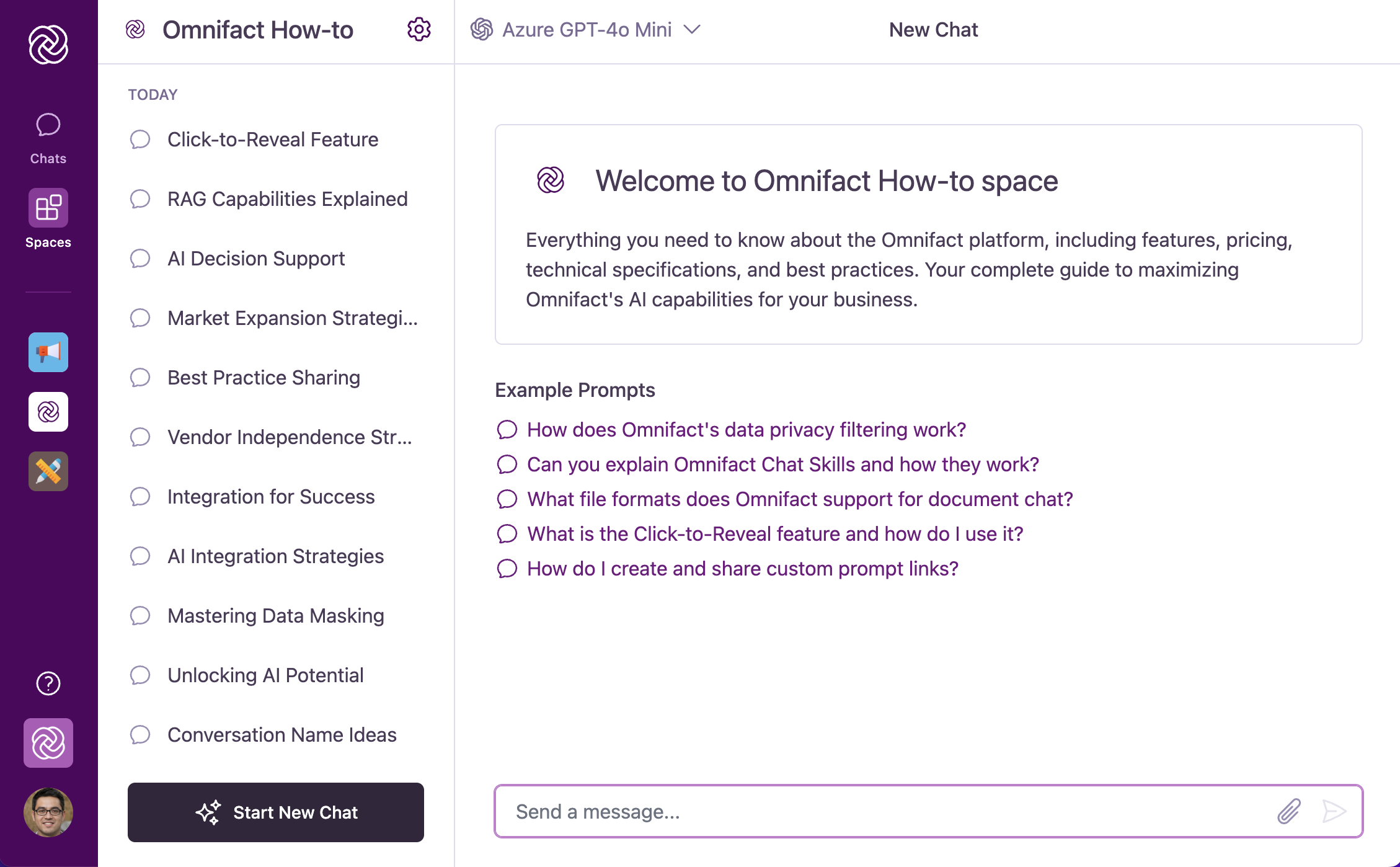
When you enter a Space, you'll be greeted with a familiar chat interface that maintains the core experience you're used to, while offering Space-specific enhancements. The Space Header at the top left will display the Space's name and icon, confirming which environment you're currently in.
 ### What's Different Inside a Space?
While the chat interface feels familiar, you'll notice key differences designed for specialized work:
Located at the top left, displays the Space name and icon, providing confirmation of which Space you're currently using.
Upon entering a Space, you'll see a "Welcome to \[Space Name]" card with a description of the Space's purpose and example prompts specifically relevant to that Space.
The main chat area functions similarly to general chats but is now connected to the Space's specialized AI assistant.
A button at the top right allows you to toggle the Space Details sidebar, which provides quick access to information about the Space's Uploaded Files and members.
## Interacting with the Space AI Assistant
Each Space contains its own specialized AI assistant, configured through custom Chat Instructions set by Space administrators. This creates a focused experience tailored to the Space's specific domain or purpose.
### What's Different Inside a Space?
While the chat interface feels familiar, you'll notice key differences designed for specialized work:
Located at the top left, displays the Space name and icon, providing confirmation of which Space you're currently using.
Upon entering a Space, you'll see a "Welcome to \[Space Name]" card with a description of the Space's purpose and example prompts specifically relevant to that Space.
The main chat area functions similarly to general chats but is now connected to the Space's specialized AI assistant.
A button at the top right allows you to toggle the Space Details sidebar, which provides quick access to information about the Space's Uploaded Files and members.
## Interacting with the Space AI Assistant
Each Space contains its own specialized AI assistant, configured through custom Chat Instructions set by Space administrators. This creates a focused experience tailored to the Space's specific domain or purpose.
 ### Chatting with the Space AI Assistant
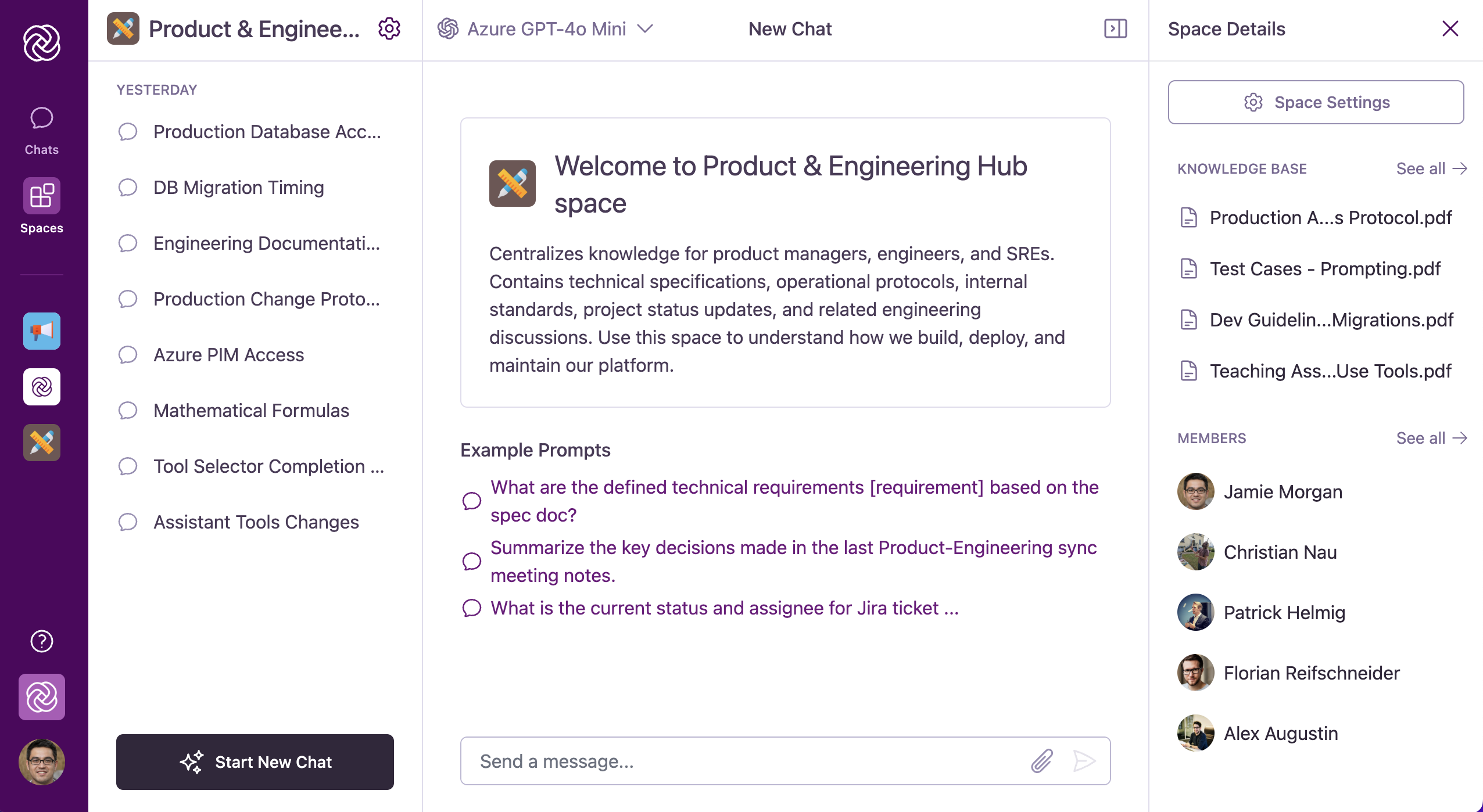
Conversations within a Space use the same familiar chat interface as general Omnifact chats, but with added capabilities:
Spaces support the same core chat functionality as general Omnifact chats:
* **Typing messages** in the "Send a message..." field at the bottom of the chat interface
* **Sending messages** using the send button or Enter key (Shift+Enter for line breaks)
* **[Attaching files](/en/platform/core-features/chats/attaching-documents)** using the paperclip icon for document and image uploads
* **[Editing your messages](/en/platform/core-features/chats/editing-messages)** with the Edit button
* **[Stopping and regenerating responses](/en/platform/core-features/chats/stopping-regenerating-responses)** when needed
* **Copying responses** with the Copy button
While the interface is familiar, remember that you're now interacting with the Space's specialized AI assistant rather than the general Omnifact assistant. This means responses will be tailored to the Space's specific domain or purpose.
### Uploaded Files Integration
In Spaces with a Uploaded Files, the Space-specific AI assistant can access and leverage documents to provide more accurate, contextually rich, and domain-specific responses.
When you ask questions relevant to the Space's Uploaded Files, the AI assistant automatically retrieves and processes information from these documents.
Information from Uploaded Files documents enhances the quality and specificity of AI responses, giving you answers grounded in your organization's own materials.
Even Spaces without Uploaded Files can provide valuable specialized assistance through customized Chat Instructions, which define the AI assistant's behavior and expertise.
## Viewing Space Details
Every Space provides additional information about its content and members through the Space Details sidebar. This feature gives you quick access to the Space's Uploaded Files documents, member list, and administration options without leaving your conversation.
### Accessing the Sidebar
### Chatting with the Space AI Assistant
Conversations within a Space use the same familiar chat interface as general Omnifact chats, but with added capabilities:
Spaces support the same core chat functionality as general Omnifact chats:
* **Typing messages** in the "Send a message..." field at the bottom of the chat interface
* **Sending messages** using the send button or Enter key (Shift+Enter for line breaks)
* **[Attaching files](/en/platform/core-features/chats/attaching-documents)** using the paperclip icon for document and image uploads
* **[Editing your messages](/en/platform/core-features/chats/editing-messages)** with the Edit button
* **[Stopping and regenerating responses](/en/platform/core-features/chats/stopping-regenerating-responses)** when needed
* **Copying responses** with the Copy button
While the interface is familiar, remember that you're now interacting with the Space's specialized AI assistant rather than the general Omnifact assistant. This means responses will be tailored to the Space's specific domain or purpose.
### Uploaded Files Integration
In Spaces with a Uploaded Files, the Space-specific AI assistant can access and leverage documents to provide more accurate, contextually rich, and domain-specific responses.
When you ask questions relevant to the Space's Uploaded Files, the AI assistant automatically retrieves and processes information from these documents.
Information from Uploaded Files documents enhances the quality and specificity of AI responses, giving you answers grounded in your organization's own materials.
Even Spaces without Uploaded Files can provide valuable specialized assistance through customized Chat Instructions, which define the AI assistant's behavior and expertise.
## Viewing Space Details
Every Space provides additional information about its content and members through the Space Details sidebar. This feature gives you quick access to the Space's Uploaded Files documents, member list, and administration options without leaving your conversation.
### Accessing the Sidebar
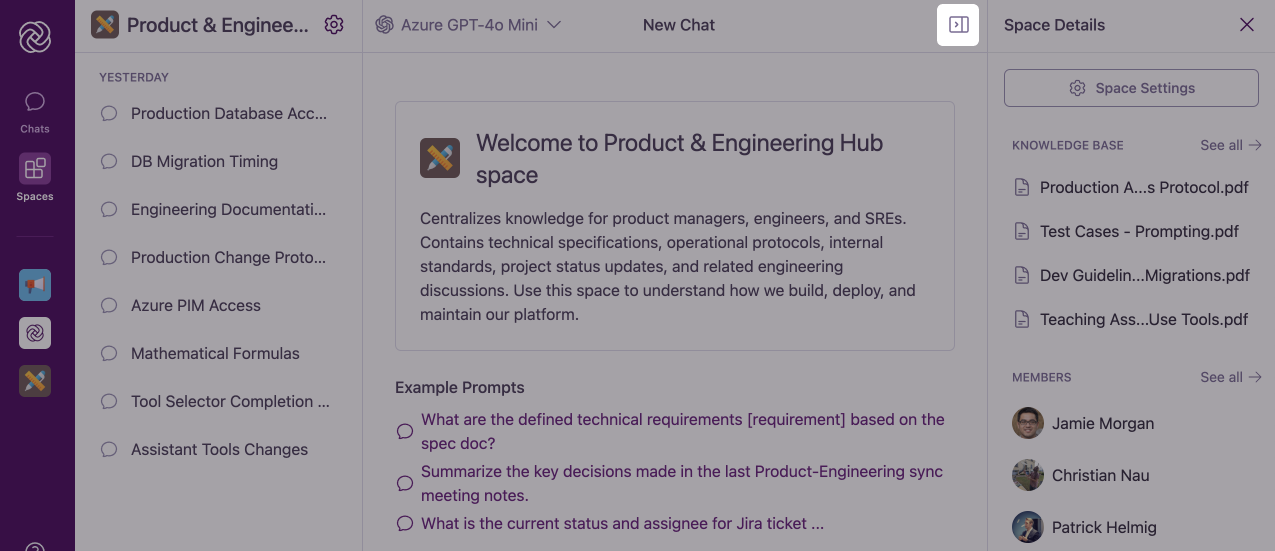 To view Space Details, click the sidebar icon button at the top right of the chat interface (shown in the image above). This toggles the Space Details sidebar open or closed.
Your sidebar preference (open or closed) will persist as you navigate between different Spaces, providing a consistent experience across your workspace.
### Space Details Content
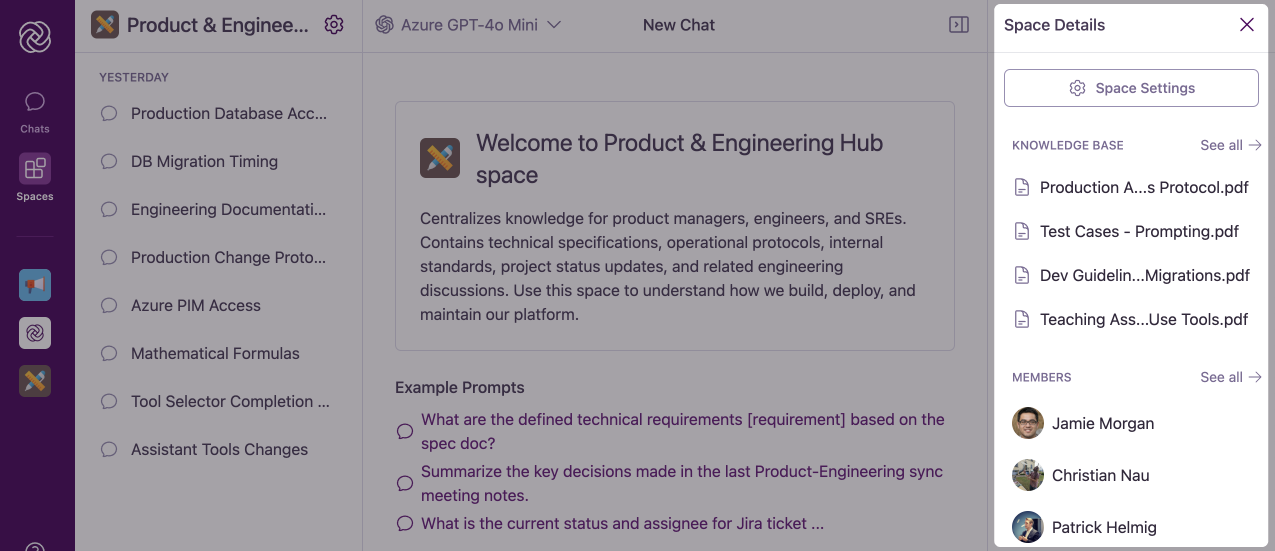
In the sidebar, you'll find:
* **Uploaded Files section:** Shows a preview of documents within the Space's Uploaded Files
* **Connected Sources section:** Displays any cloud storage folders linked to the Space
* **Members section:** Displays a preview of Space members
* **Space Settings button:** (For admins only) Provides access to comprehensive Space configuration
To view Space Details, click the sidebar icon button at the top right of the chat interface (shown in the image above). This toggles the Space Details sidebar open or closed.
Your sidebar preference (open or closed) will persist as you navigate between different Spaces, providing a consistent experience across your workspace.
### Space Details Content
In the sidebar, you'll find:
* **Uploaded Files section:** Shows a preview of documents within the Space's Uploaded Files
* **Connected Sources section:** Displays any cloud storage folders linked to the Space
* **Members section:** Displays a preview of Space members
* **Space Settings button:** (For admins only) Provides access to comprehensive Space configuration
 ## Best Practices for Using Spaces
Each Space typically includes example prompts in its welcome message. These are designed specifically for that Space's purpose and can help you get started with effective questions.
Frame your questions with the understanding that the AI assistant has been configured for the Space's specific domain. You can be more direct and domain-specific with your queries.
If the Space has Uploaded Files, explicitly ask for information from these documents when needed. For example: "Based on our company policies in the Uploaded Files, what is our approach to..."
For best results, keep your conversations relevant to the Space's intended purpose. This ensures you benefit from the specialized capabilities of the Space's AI assistant.
## Common Questions
Yes! All chat functionalities available in general Omnifact chats are also available within Spaces. This includes attaching documents and images, editing messages, stopping and regenerating responses, and copying responses.
Yes, the Space AI assistant maintains context within a conversation just like the general Omnifact assistant. Your conversation history is preserved within the Space, and the AI can reference previous parts of your discussion.
The Space Header at the top left of the interface clearly displays the current Space's name and icon. Additionally, the welcome message at the beginning of a new chat within the Space will indicate which Space you're using.
Yes, you can quickly switch between Spaces by using the main navigation bar (for favorited Spaces) or by returning to the "Your Spaces" page via the "Spaces" button in the main navigation. Your conversations in each Space will be preserved.
## Next Steps
Now that you know how to access and use Spaces, you might want to explore:
* Learn how to build custom AI assistants by [Creating Spaces](/en/platform/core-features/spaces/creating-spaces) for your specific needs
* Discover options for [Customizing Spaces](/en/platform/core-features/spaces/customizing-spaces) to optimize their functionality
* Improve your Space by [Managing Uploaded Files](/en/platform/core-features/spaces/managing-uploaded-files) with relevant documents
* Collaborate more effectively by [Sharing Spaces with Colleagues](/en/platform/core-features/spaces/sharing-spaces)
## Best Practices for Using Spaces
Each Space typically includes example prompts in its welcome message. These are designed specifically for that Space's purpose and can help you get started with effective questions.
Frame your questions with the understanding that the AI assistant has been configured for the Space's specific domain. You can be more direct and domain-specific with your queries.
If the Space has Uploaded Files, explicitly ask for information from these documents when needed. For example: "Based on our company policies in the Uploaded Files, what is our approach to..."
For best results, keep your conversations relevant to the Space's intended purpose. This ensures you benefit from the specialized capabilities of the Space's AI assistant.
## Common Questions
Yes! All chat functionalities available in general Omnifact chats are also available within Spaces. This includes attaching documents and images, editing messages, stopping and regenerating responses, and copying responses.
Yes, the Space AI assistant maintains context within a conversation just like the general Omnifact assistant. Your conversation history is preserved within the Space, and the AI can reference previous parts of your discussion.
The Space Header at the top left of the interface clearly displays the current Space's name and icon. Additionally, the welcome message at the beginning of a new chat within the Space will indicate which Space you're using.
Yes, you can quickly switch between Spaces by using the main navigation bar (for favorited Spaces) or by returning to the "Your Spaces" page via the "Spaces" button in the main navigation. Your conversations in each Space will be preserved.
## Next Steps
Now that you know how to access and use Spaces, you might want to explore:
* Learn how to build custom AI assistants by [Creating Spaces](/en/platform/core-features/spaces/creating-spaces) for your specific needs
* Discover options for [Customizing Spaces](/en/platform/core-features/spaces/customizing-spaces) to optimize their functionality
* Improve your Space by [Managing Uploaded Files](/en/platform/core-features/spaces/managing-uploaded-files) with relevant documents
* Collaborate more effectively by [Sharing Spaces with Colleagues](/en/platform/core-features/spaces/sharing-spaces)