> ## Documentation Index
> Fetch the complete documentation index at: https://docs.omnifact.ai/llms.txt
> Use this file to discover all available pages before exploring further.
# Connected Sources
> Automatically index and search files in your Spaces by connecting cloud storage from Google Drive, OneDrive, or SharePoint.
export const Glossary = ({children, term}) => {
const glossaryDefinitions = {
'ai': 'Artificial Intelligence - computer systems that can perform tasks typically requiring human intelligence',
'artificial-intelligence-ai': 'Computer systems that can perform tasks typically requiring human intelligence',
'ai-assistant': 'An AI system designed to help users with tasks through conversation',
'space': 'A dedicated environment with a specialized AI assistant and optional Knowledge Base',
'knowledge': 'The sub-menu in Space settings where you manage Uploaded Files and Connected Sources',
'knowledge-base': 'The collection of documents in a Space (from Uploaded Files and Connected Sources) that the AI assistant can retrieve',
'uploaded-files': 'Documents manually uploaded to a Space under the Knowledge tab',
'prompt': 'Instructions or questions you give to an AI assistant',
'response': 'The AI assistant\'s answer to your prompt or question',
'query': 'A question or request for information',
'context': 'Background information that helps the AI understand your request',
'llm': 'Large Language Model - an AI system trained on vast amounts of text data to understand and generate human language',
'large-language-model-llm': 'An AI system trained on vast amounts of text data to understand and generate human language',
'privacy-filter': 'A system that automatically detects and masks sensitive information before it reaches AI models, and restricts images from being sent to non-EU hosted models for compliance',
'chat-instructions': 'Custom guidelines that define how an AI assistant behaves and responds in a Space',
'pattern-matching': 'The process by which AI recognizes and uses patterns in data to provide responses',
'patterns': 'Recognizable structures or trends in data that AI systems can identify and use',
'training-data': 'The text and information used to teach an AI system how to understand and respond to requests',
'natural-language': 'Everyday human language that people use to communicate, as opposed to computer code or formal syntax',
'hallucination': 'When an AI generates information that sounds plausible but is actually incorrect or fabricated',
'filtering': 'The process of automatically detecting and temporarily replacing sensitive information to protect it during AI processing',
'masking': 'Temporarily replacing sensitive information with generic labels to protect it from being seen by external AI models',
're-insertion': 'The automatic process of putting original sensitive information back into AI responses after they\'ve been generated with filtered data',
'retrieval': 'The process of finding and accessing relevant documents from Uploaded Files to answer questions',
'hosting': 'Where an AI model is deployed and made available for use - either by third-party providers, on your organization\'s own servers, or in private cloud environments',
'cite': 'To reference or mention the source of information, helping you know where an AI\'s answer came from',
'sidebar': 'A panel that appears on the side of the screen showing additional information and options',
'toggle': 'A button or control that switches something on or off, like opening and closing a sidebar',
'navigation': 'The system of menus and buttons that help you move between different parts of Omnifact',
'favoriting': 'Marking a Space as a favorite to pin it to the main navigation for quick access',
'pinning': 'Attaching a Space to the main navigation bar so it\'s always visible and easily accessible'
};
const definition = glossaryDefinitions[term];
return {children};
};
Your Space's AI assistant can draw from more than just uploaded files. With **Connected Sources**, you can link folders from Google Drive, OneDrive, or SharePoint directly to a Space. Omnifact automatically indexes the content and keeps it up to date without requiring manual uploads.
Your original files remain securely in their home system. Omnifact indexes them for search and retrieval.
Connected Sources requires an organization admin to first enable the relevant cloud storage integrations. See [Integrations](/en/platform/team-administration/integrations) for setup instructions.
## How It Works
When you connect a cloud source to a Space, Omnifact:
1. **Authenticates** with your cloud storage provider via a secure connection.
2. **Indexes** the files in your selected folders, making them searchable for the AI assistant.
3. **Keeps content synced** by automatically detecting changes, new files, and deletions in the background.
4. **Cites sources** when the AI assistant uses information from a connected source, showing the file name, provider, and a direct link to the original.
Connected Sources and Uploaded Files work side by side. A single Space can have both manually uploaded documents and live-synced cloud storage folders feeding its AI assistant.
 ## Connecting a Source
You need **Space Admin** permissions to connect sources. If the **Knowledge Base Manager** role is enabled for your organization, you also need that role.
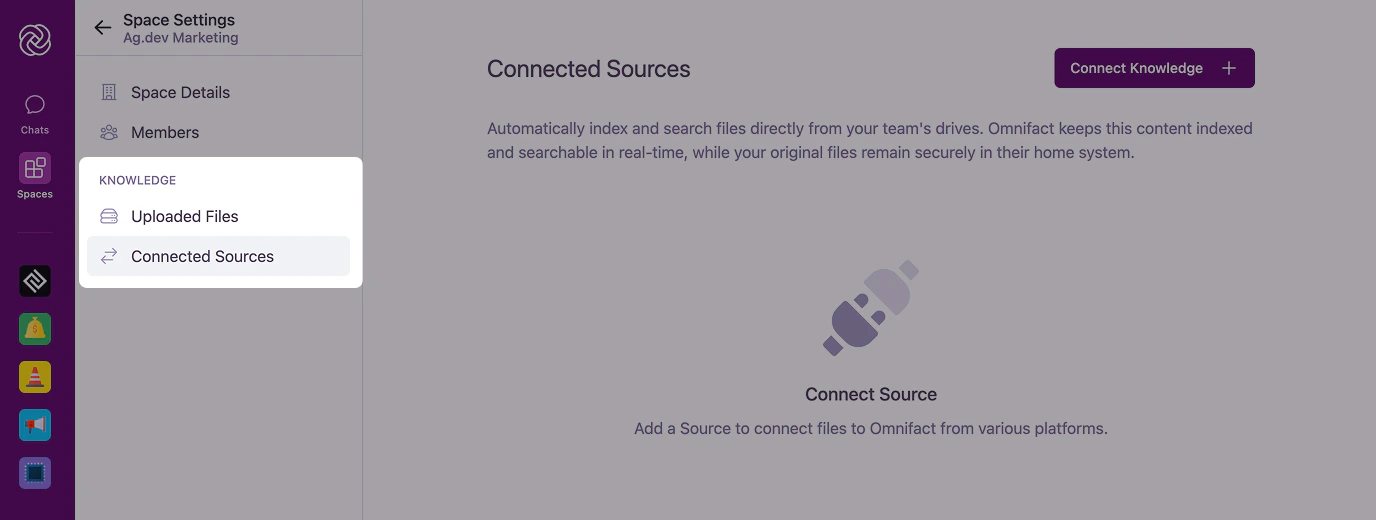
Click the settings icon in your Space header, then navigate to **Connected Sources** under the **KNOWLEDGE** section.
## Connecting a Source
You need **Space Admin** permissions to connect sources. If the **Knowledge Base Manager** role is enabled for your organization, you also need that role.
Click the settings icon in your Space header, then navigate to **Connected Sources** under the **KNOWLEDGE** section.
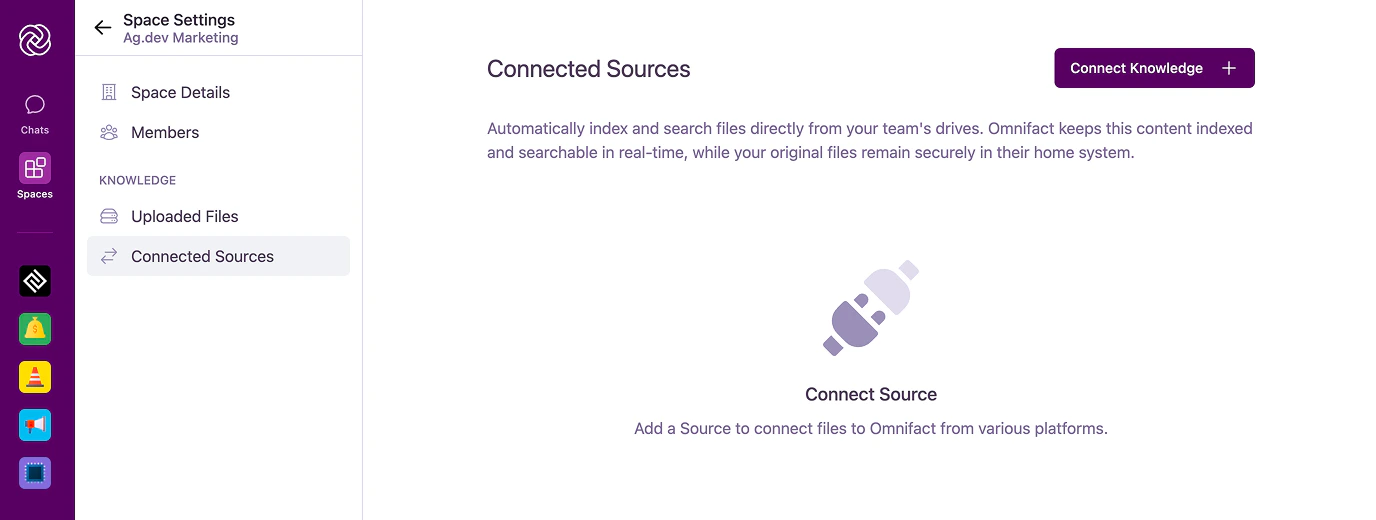 Click **Connect Source**. A modal appears showing the available cloud storage providers: Google Drive, OneDrive, OneDrive Business, and SharePoint. Select your provider and click **Grant Access**.
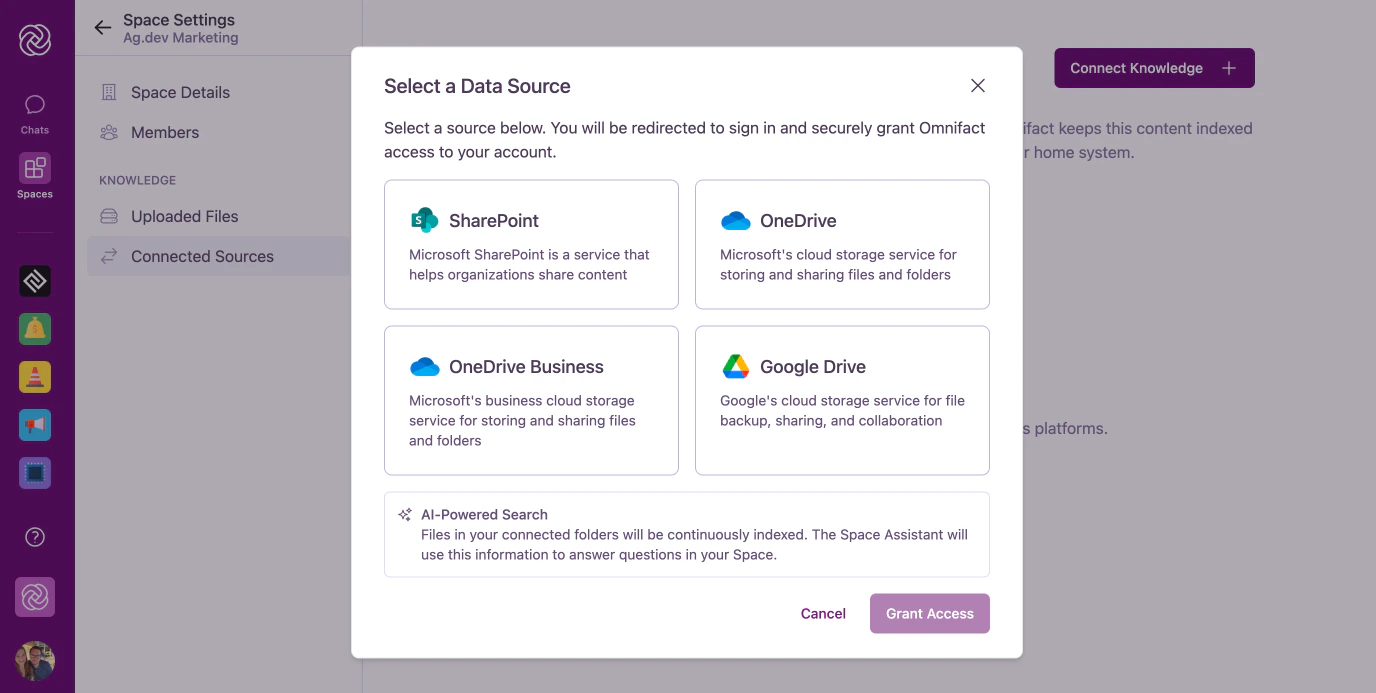 If you've already authorized this provider through your account connections, the button will show **Connect** instead.
You'll be redirected to your cloud storage provider to sign in and grant Omnifact permission to access your files. After authorizing, you'll be returned to Omnifact automatically.
Your provider's file picker opens. Select the folders you want to index in this Space. You can select one or multiple folders at once.
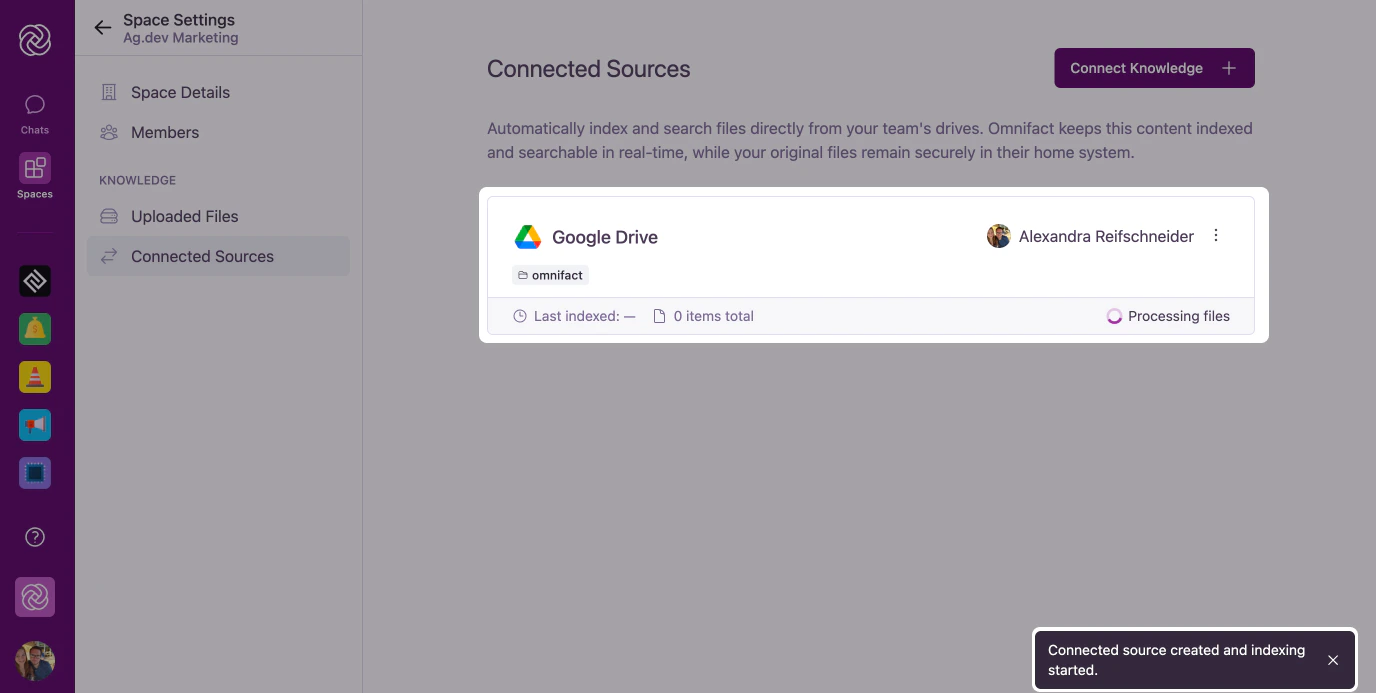
After connecting, your source appears on the Connected Sources page with a status indicator. Initial indexing may take a few minutes depending on the number of files.
If you've already authorized this provider through your account connections, the button will show **Connect** instead.
You'll be redirected to your cloud storage provider to sign in and grant Omnifact permission to access your files. After authorizing, you'll be returned to Omnifact automatically.
Your provider's file picker opens. Select the folders you want to index in this Space. You can select one or multiple folders at once.
After connecting, your source appears on the Connected Sources page with a status indicator. Initial indexing may take a few minutes depending on the number of files.
 ## Managing Connected Sources
Once you've connected one or more sources, the Connected Sources page shows a card for each connection.
## Managing Connected Sources
Once you've connected one or more sources, the Connected Sources page shows a card for each connection.
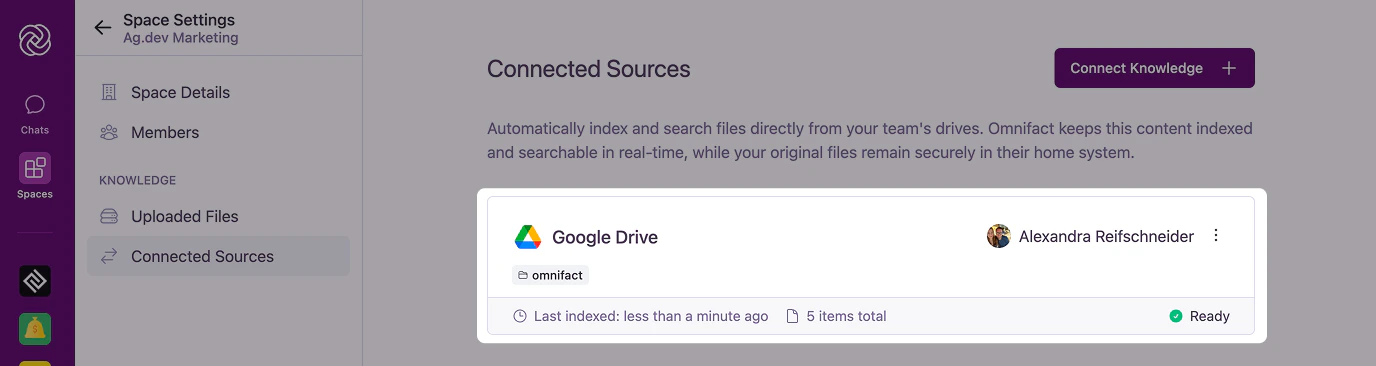 Each card displays the provider, selected folders, the team member who connected it, the number of indexed files, the last indexed time, and the current status.
### Status Indicators
| Status | Meaning |
| --------------------------- | ------------------------------------------------------------------------------------------------------------------ |
| **Ready** | Indexing is complete and the connection is healthy. Content is available to the AI assistant. |
| **Processing Files** | Indexing is in progress. This appears during initial setup and after content changes are detected. |
| **Reauthentication Needed** | The connection to your cloud storage has expired. The team member who set up the connection needs to re-authorize. |
If a connection shows **Reauthentication Needed**, only the team member who originally connected the source can restore it. A Space Admin can also disconnect and reconnect with their own credentials.
### Viewing Indexed Files
Click the folder tags on a connection card to see the full list of indexed files. The detail view shows files that are successfully processed and available to the AI assistant, as well as files that could not be processed.
Unsupported formats (such as video or audio files), password-protected documents, or files exceeding size limits will appear under "Files not Indexed."
### Disconnecting a Source
To remove a connected source, click the **Options** icon (⋮) on the connection card, select **Disconnect**, and confirm the action.
Disconnecting a source permanently removes all indexed content from that source in this Space. Your original files in the cloud storage service are not affected.
## Source Citations in Chat
When the AI assistant uses information from a connected source, the citation in the Sources panel shows the file name, the provider icon, and a direct link to the original file in your cloud storage.
## Supported File Types
Connected Sources supports the same file types as manual uploads:
* **Documents:** PDF, Word (.doc, .docx), PowerPoint (.ppt, .pptx), OpenDocument (.odt, .odp)
* **Plain text:** TXT, JSON, Markdown, CSV
* **Google native files:** Google Docs and Slides are automatically converted for indexing
## Data Privacy & Security
Connected Sources is designed with data protection at its core:
* **Per-Space connections:** Each Space has its own connections. Connecting a source to one Space does not make it available in others.
* **Owner-attributed:** Every connection is tied to the team member who authorized it.
* **Admin-controlled:** Organization admins control which cloud storage providers are available through the [Integrations](/en/platform/team-administration/integrations) settings.
## Common Questions
Connected Sources currently supports **Google Drive**, **OneDrive**, **OneDrive Business**, and **SharePoint**. Additional integrations are planned for future releases.
Currently, Omnifact automatically checks for changes every 5 minutes in the background and re-indexes updated content. You don't need to manually trigger a sync.
Yes. Multiple Space Admins can each connect their own cloud storage accounts. Each connection is attributed to the person who set it up.
On the next sync cycle, Omnifact detects the deletion and removes the indexed content from the Space.
Currently, connected source files are not counted against your organization's page quota. Only manually uploaded files count toward quota limits.
Your organization may require Microsoft admin consent before users can connect SharePoint or OneDrive. See our [Microsoft Admin Consent](/en/guides/troubleshooting/microsoft-admin-consent) guide for details.
## Next Steps
Enable cloud storage providers for your organization
Learn about uploading files directly to a Space
Each card displays the provider, selected folders, the team member who connected it, the number of indexed files, the last indexed time, and the current status.
### Status Indicators
| Status | Meaning |
| --------------------------- | ------------------------------------------------------------------------------------------------------------------ |
| **Ready** | Indexing is complete and the connection is healthy. Content is available to the AI assistant. |
| **Processing Files** | Indexing is in progress. This appears during initial setup and after content changes are detected. |
| **Reauthentication Needed** | The connection to your cloud storage has expired. The team member who set up the connection needs to re-authorize. |
If a connection shows **Reauthentication Needed**, only the team member who originally connected the source can restore it. A Space Admin can also disconnect and reconnect with their own credentials.
### Viewing Indexed Files
Click the folder tags on a connection card to see the full list of indexed files. The detail view shows files that are successfully processed and available to the AI assistant, as well as files that could not be processed.
Unsupported formats (such as video or audio files), password-protected documents, or files exceeding size limits will appear under "Files not Indexed."
### Disconnecting a Source
To remove a connected source, click the **Options** icon (⋮) on the connection card, select **Disconnect**, and confirm the action.
Disconnecting a source permanently removes all indexed content from that source in this Space. Your original files in the cloud storage service are not affected.
## Source Citations in Chat
When the AI assistant uses information from a connected source, the citation in the Sources panel shows the file name, the provider icon, and a direct link to the original file in your cloud storage.
## Supported File Types
Connected Sources supports the same file types as manual uploads:
* **Documents:** PDF, Word (.doc, .docx), PowerPoint (.ppt, .pptx), OpenDocument (.odt, .odp)
* **Plain text:** TXT, JSON, Markdown, CSV
* **Google native files:** Google Docs and Slides are automatically converted for indexing
## Data Privacy & Security
Connected Sources is designed with data protection at its core:
* **Per-Space connections:** Each Space has its own connections. Connecting a source to one Space does not make it available in others.
* **Owner-attributed:** Every connection is tied to the team member who authorized it.
* **Admin-controlled:** Organization admins control which cloud storage providers are available through the [Integrations](/en/platform/team-administration/integrations) settings.
## Common Questions
Connected Sources currently supports **Google Drive**, **OneDrive**, **OneDrive Business**, and **SharePoint**. Additional integrations are planned for future releases.
Currently, Omnifact automatically checks for changes every 5 minutes in the background and re-indexes updated content. You don't need to manually trigger a sync.
Yes. Multiple Space Admins can each connect their own cloud storage accounts. Each connection is attributed to the person who set it up.
On the next sync cycle, Omnifact detects the deletion and removes the indexed content from the Space.
Currently, connected source files are not counted against your organization's page quota. Only manually uploaded files count toward quota limits.
Your organization may require Microsoft admin consent before users can connect SharePoint or OneDrive. See our [Microsoft Admin Consent](/en/guides/troubleshooting/microsoft-admin-consent) guide for details.
## Next Steps
Enable cloud storage providers for your organization
Learn about uploading files directly to a Space