> ## Documentation Index
> Fetch the complete documentation index at: https://docs.omnifact.ai/llms.txt
> Use this file to discover all available pages before exploring further.
# Customizing Spaces
> Learn how to configure and manage your Space settings to create the perfect environment for your AI assistant
export const Glossary = ({children, term}) => {
const glossaryDefinitions = {
'ai': 'Artificial Intelligence - computer systems that can perform tasks typically requiring human intelligence',
'artificial-intelligence-ai': 'Computer systems that can perform tasks typically requiring human intelligence',
'ai-assistant': 'An AI system designed to help users with tasks through conversation',
'space': 'A dedicated environment with a specialized AI assistant and optional Uploaded Files',
'spaces': 'Dedicated environments with specialized AI assistants and optional Uploaded Files',
'knowledge': 'The sub-menu in Space settings where you manage Uploaded Files and Connected Sources',
'uploaded-files': 'Documents manually uploaded to a Space under the Knowledge tab',
'prompt': 'Instructions or questions you give to an AI assistant',
'response': 'The AI assistant\'s answer to your prompt or question',
'query': 'A question or request for information',
'context': 'Background information that helps the AI understand your request',
'llm': 'Large Language Model - an AI system trained on vast amounts of text data to understand and generate human language',
'large-language-model-llm': 'An AI system trained on vast amounts of text data to understand and generate human language',
'privacy-filter': 'A system that automatically detects and masks sensitive information before it reaches AI models, and restricts images from being sent to non-EU hosted models for compliance',
'chat-instructions': 'Custom guidelines that define how an AI assistant behaves and responds in a Space',
'pattern-matching': 'The process by which AI recognizes and uses patterns in data to provide responses',
'patterns': 'Recognizable structures or trends in data that AI systems can identify and use',
'training-data': 'The text and information used to teach an AI system how to understand and respond to requests',
'natural-language': 'Everyday human language that people use to communicate, as opposed to computer code or formal syntax',
'hallucination': 'When an AI generates information that sounds plausible but is actually incorrect or fabricated',
'filtering': 'The process of automatically detecting and temporarily replacing sensitive information to protect it during AI processing',
'masking': 'Temporarily replacing sensitive information with generic labels to protect it from being seen by external AI models',
're-insertion': 'The automatic process of putting original sensitive information back into AI responses after they\'ve been generated with filtered data',
'retrieval': 'The process of finding and accessing relevant documents from Uploaded Files to answer questions',
'hosting': 'Where an AI model is deployed and made available for use - either by third-party providers, on your organization\'s own servers, or in private cloud environments',
'cite': 'To reference or mention the source of information, helping you know where an AI\'s answer came from',
'sidebar': 'A panel that appears on the side of the screen showing additional information and options',
'toggle': 'A button or control that switches something on or off, like opening and closing a sidebar',
'navigation': 'The system of menus and buttons that help you move between different parts of Omnifact',
'favoriting': 'Marking a Space as a favorite to pin it to the main navigation for quick access',
'pinning': 'Attaching a Space to the main navigation bar so it\'s always visible and easily accessible'
};
const definition = glossaryDefinitions[term];
return {children};
};
Once you've created a Space, you can customize its settings at any time to better suit your evolving needs. Space customization allows you to refine the AI assistant's behavior, manage documents, and control team access—all essential for maintaining an effective AI environment.
## Who Can Customize Spaces?
Only users with **Admin** privileges for a Space can modify its settings. When you create a Space, you're automatically assigned as an Admin.
Space Admins have full control over:
* Space details (name, icon, description)
* AI assistant behavior (Chat Instructions)
* Uploaded Files documents
* Member access and permissions
If you're a member of a Space without Admin privileges, you can use the Space but cannot modify its settings. [Learn more about Space roles →](/en/platform/core-features/spaces/sharing-spaces#understanding-space-roles)
## Accessing Space Settings
There are three ways to access the settings for a Space.
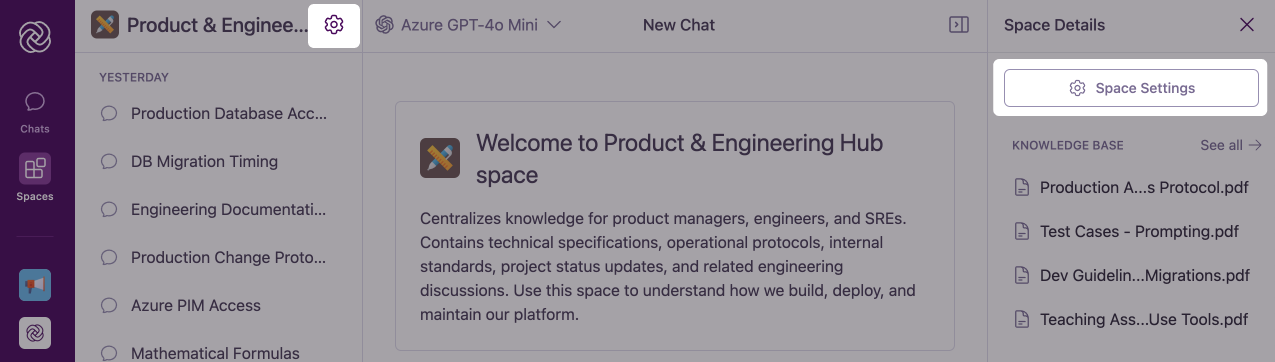
**Via Space Details Sidebar**: While in a Space, locate the Expand Sidebar icon at the top right of the chat interface. Click this button to open the Space Details sidebar. In the sidebar, click the **Space Settings** button (cog icon).
**Via Space Header**: Alternatively, look for the **cog icon** directly in the Space Header at the top of the chat history sidebar and click it to access Settings.
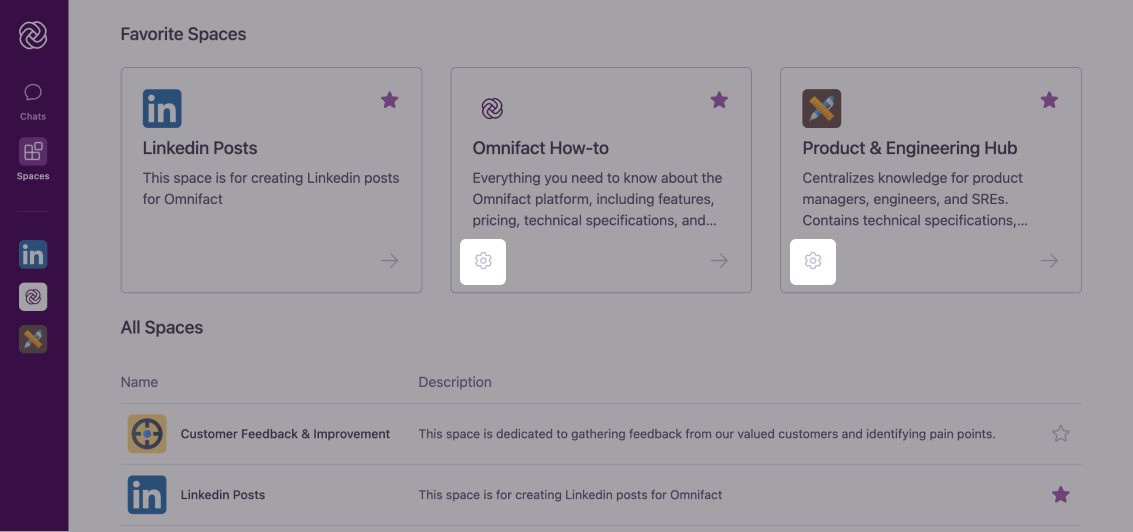
 **Via Your Spaces Page**: If you've favorited the Space, you can access its Settings directly from the "Your Spaces" page by clicking the cog icon on the Space card (available only to Space Admins).
 ## Space Settings Interface
The Space Settings interface is organized into tabs, each focusing on a different aspect of Space customization:
The **Details** tab allows you to modify basic Space information and AI behavior.
The **Knowledge** tab is where you manage the documents that power your AI assistant.
The **Members** tab controls who has access to your Space and their permission levels.
## Customizing Space Details
In the Details tab, you can modify all the elements you initially configured when creating the Space. The interface is similar to the Space creation form, allowing you to update:
* **Space Icon**: Change the visual identifier for your Space
* **Space Name**: Update the title that appears in Space listings and headers
* **Space Description**: Revise the description to better reflect the Space's purpose
* **Chat Instructions**: Fine-tune how your AI assistant behaves and responds
* **Example Prompts**: Add, edit, or remove prompts
Space Instructions are particularly important as they define your AI assistant's behavior and expertise. Even small adjustments can significantly impact how the AI responds to questions.
After making any changes, click the **"Save Changes"** button at the bottom of the page to apply your updates immediately.
For more detailed guidance on configuring these elements, refer to [Creating New Spaces](/en/platform/core-features/spaces/creating-spaces), which contains more detailed information about each setting.
## Managing Uploaded Files
The **Knowledge** tab allows you to add, remove, and manage documents and connections that provide specialized knowledge to your Space's AI assistant.
For detailed information on working with Uploaded Files documents, read: [Managing Uploaded Files within Spaces](/en/platform/core-features/spaces/managing-uploaded-files)
The Uploaded Files is what makes Spaces truly powerful - it enables your AI assistant to learn from and leverage your organization's unique documents, expertise, and proprietary information to provide highly relevant and contextual responses.
## Managing Space Members
The Members tab lets you control who has access to your Space and what level of permissions they have.
For more details on sharing Spaces and managing team access, refer to: [Sharing Spaces with Colleagues](/en/platform/core-features/spaces/sharing-spaces)
Proper member management ensures the right people have appropriate access to the Space while maintaining security and control.
## Best Practices for Space Customization
Schedule periodic reviews of your Space settings to ensure they remain aligned with current needs and goals.
Gradually refine your Space Instructions based on the quality of AI responses and user feedback.
Keep your Uploaded Files current by adding new documents and removing outdated ones.
Regularly review member access to ensure only appropriate team members have Admin privileges.
## Common Questions
Changes to Space settings (especially Space Instructions) will affect new messages in existing conversations, but won't retroactively change previous AI responses. For best results, start a fresh conversation after making significant changes.
Changes to Space settings are applied instantly, allowing you to immediately start testing your changes. The AI assistant will automatically incorporate the updates in its next response.
Omnifact's Space customization is highly adaptable, letting you fine-tune everything from the AI's behavior to document management. This flexibility ensures your Space can evolve alongside your team's needs.
When you update the Uploaded Files or Space Instructions, the changes take effect immediately for all Space members. The AI assistant will automatically adapt its behavior and responses according to the new settings, ensuring a consistent experience across your team.
## Next Steps
Now that you know how to customize your Spaces, you might want to explore:
* Discover how to collaborate with your team by [Sharing Spaces with Colleagues](/en/platform/core-features/spaces/sharing-spaces)
* Learn how to effectively add and organize documents by [Managing Uploaded Files within Spaces](/en/platform/core-features/spaces/managing-uploaded-files)
* Understand how the AI uses your documents with [Uploaded Files Retrieval](/en/platform/core-features/spaces/uploaded-files-retrieval)
## Space Settings Interface
The Space Settings interface is organized into tabs, each focusing on a different aspect of Space customization:
The **Details** tab allows you to modify basic Space information and AI behavior.
The **Knowledge** tab is where you manage the documents that power your AI assistant.
The **Members** tab controls who has access to your Space and their permission levels.
## Customizing Space Details
In the Details tab, you can modify all the elements you initially configured when creating the Space. The interface is similar to the Space creation form, allowing you to update:
* **Space Icon**: Change the visual identifier for your Space
* **Space Name**: Update the title that appears in Space listings and headers
* **Space Description**: Revise the description to better reflect the Space's purpose
* **Chat Instructions**: Fine-tune how your AI assistant behaves and responds
* **Example Prompts**: Add, edit, or remove prompts
Space Instructions are particularly important as they define your AI assistant's behavior and expertise. Even small adjustments can significantly impact how the AI responds to questions.
After making any changes, click the **"Save Changes"** button at the bottom of the page to apply your updates immediately.
For more detailed guidance on configuring these elements, refer to [Creating New Spaces](/en/platform/core-features/spaces/creating-spaces), which contains more detailed information about each setting.
## Managing Uploaded Files
The **Knowledge** tab allows you to add, remove, and manage documents and connections that provide specialized knowledge to your Space's AI assistant.
For detailed information on working with Uploaded Files documents, read: [Managing Uploaded Files within Spaces](/en/platform/core-features/spaces/managing-uploaded-files)
The Uploaded Files is what makes Spaces truly powerful - it enables your AI assistant to learn from and leverage your organization's unique documents, expertise, and proprietary information to provide highly relevant and contextual responses.
## Managing Space Members
The Members tab lets you control who has access to your Space and what level of permissions they have.
For more details on sharing Spaces and managing team access, refer to: [Sharing Spaces with Colleagues](/en/platform/core-features/spaces/sharing-spaces)
Proper member management ensures the right people have appropriate access to the Space while maintaining security and control.
## Best Practices for Space Customization
Schedule periodic reviews of your Space settings to ensure they remain aligned with current needs and goals.
Gradually refine your Space Instructions based on the quality of AI responses and user feedback.
Keep your Uploaded Files current by adding new documents and removing outdated ones.
Regularly review member access to ensure only appropriate team members have Admin privileges.
## Common Questions
Changes to Space settings (especially Space Instructions) will affect new messages in existing conversations, but won't retroactively change previous AI responses. For best results, start a fresh conversation after making significant changes.
Changes to Space settings are applied instantly, allowing you to immediately start testing your changes. The AI assistant will automatically incorporate the updates in its next response.
Omnifact's Space customization is highly adaptable, letting you fine-tune everything from the AI's behavior to document management. This flexibility ensures your Space can evolve alongside your team's needs.
When you update the Uploaded Files or Space Instructions, the changes take effect immediately for all Space members. The AI assistant will automatically adapt its behavior and responses according to the new settings, ensuring a consistent experience across your team.
## Next Steps
Now that you know how to customize your Spaces, you might want to explore:
* Discover how to collaborate with your team by [Sharing Spaces with Colleagues](/en/platform/core-features/spaces/sharing-spaces)
* Learn how to effectively add and organize documents by [Managing Uploaded Files within Spaces](/en/platform/core-features/spaces/managing-uploaded-files)
* Understand how the AI uses your documents with [Uploaded Files Retrieval](/en/platform/core-features/spaces/uploaded-files-retrieval)