> ## Documentation Index
> Fetch the complete documentation index at: https://docs.omnifact.ai/llms.txt
> Use this file to discover all available pages before exploring further.
# What are Spaces?
> Discover how Omnifact provides specialized environments with custom AI assistants for your topics, projects, and teams
export const Glossary = ({children, term}) => {
const glossaryDefinitions = {
'ai': 'Artificial Intelligence - computer systems that can perform tasks typically requiring human intelligence',
'artificial-intelligence-ai': 'Computer systems that can perform tasks typically requiring human intelligence',
'ai-assistant': 'An AI system designed to help users with tasks through conversation',
'space': 'A dedicated environment with a specialized AI assistant and optional Knowledge Base',
'knowledge': 'The sub-menu in Space settings where you manage Uploaded Files and Connected Sources',
'knowledge-base': 'The collection of documents in a Space (from Uploaded Files and Connected Sources) that the AI assistant can retrieve',
'uploaded-files': 'Documents manually uploaded to a Space under the Knowledge tab',
'prompt': 'Instructions or questions you give to an AI assistant',
'response': 'The AI assistant\'s answer to your prompt or question',
'query': 'A question or request for information',
'context': 'Background information that helps the AI understand your request',
'llm': 'Large Language Model - an AI system trained on vast amounts of text data to understand and generate human language',
'large-language-model-llm': 'An AI system trained on vast amounts of text data to understand and generate human language',
'privacy-filter': 'A system that automatically detects and masks sensitive information before it reaches AI models, and restricts images from being sent to non-EU hosted models for compliance',
'chat-instructions': 'Custom guidelines that define how an AI assistant behaves and responds in a Space',
'pattern-matching': 'The process by which AI recognizes and uses patterns in data to provide responses',
'patterns': 'Recognizable structures or trends in data that AI systems can identify and use',
'training-data': 'The text and information used to teach an AI system how to understand and respond to requests',
'natural-language': 'Everyday human language that people use to communicate, as opposed to computer code or formal syntax',
'hallucination': 'When an AI generates information that sounds plausible but is actually incorrect or fabricated',
'filtering': 'The process of automatically detecting and temporarily replacing sensitive information to protect it during AI processing',
'masking': 'Temporarily replacing sensitive information with generic labels to protect it from being seen by external AI models',
're-insertion': 'The automatic process of putting original sensitive information back into AI responses after they\'ve been generated with filtered data',
'retrieval': 'The process of finding and accessing relevant documents from Uploaded Files to answer questions',
'hosting': 'Where an AI model is deployed and made available for use - either by third-party providers, on your organization\'s own servers, or in private cloud environments',
'cite': 'To reference or mention the source of information, helping you know where an AI\'s answer came from',
'sidebar': 'A panel that appears on the side of the screen showing additional information and options',
'toggle': 'A button or control that switches something on or off, like opening and closing a sidebar',
'navigation': 'The system of menus and buttons that help you move between different parts of Omnifact',
'favoriting': 'Marking a Space as a favorite to pin it to the main navigation for quick access',
'pinning': 'Attaching a Space to the main navigation bar so it\'s always visible and easily accessible'
};
const definition = glossaryDefinitions[term];
return {children};
};
Spaces are specialized environments within Omnifact that extend the core Chat functionality, giving you focused, organized, and customizable workspaces for AI interactions around specific topics, projects, or knowledge domains. Each Space features its own specialized AI assistant that's distinct from the general Omnifact assistant — configured specifically for that Space's purpose. Think of Spaces as dedicated rooms where your AI assistant has been specially trained and instructed to excel at particular subjects or tasks.
 ## Accessing and Using Spaces
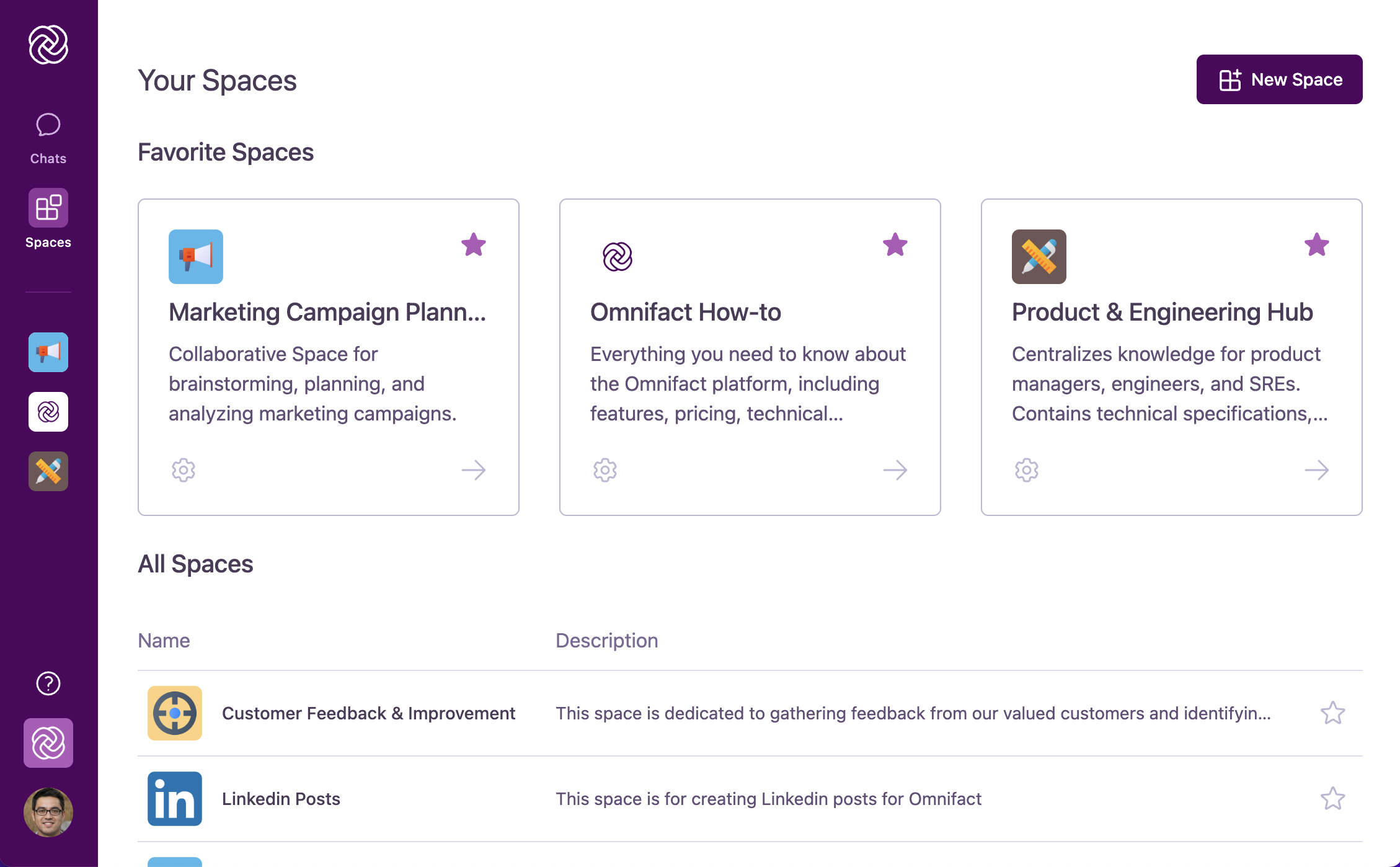
Spaces are easily accessible from anywhere in Omnifact through the main navigation bar on the left side of the screen.
### Finding Your Spaces
1. Click the **"Spaces"** icon in the main navigation bar to view all available Spaces
2. Browse through the **"Your Spaces"** page, where you'll see:
* **Favorite Spaces** displayed prominently at the top
* **All Spaces** you have access to listed below
Mark Spaces you use frequently as favorites by clicking the star icon. Favorited Spaces will appear directly in the main navigation bar for quick access from anywhere in the platform.
### Entering a Space
When you click on a Space, you enter a dedicated environment with its own specialized AI assistant. Inside a Space, you'll find:
* The **Space name and icon** at the top, confirming which Space you're in
* A **chat interface** similar to general Omnifact chats, but now connected to the specialized AI assistant for that Space
* A **welcome message** introducing the Space's purpose and suggested prompts
### Using Chats Within Spaces
Spaces leverage the same familiar chat interface you use elsewhere in Omnifact, but with added capabilities:
* Your conversations are with the **Space's specialized AI assistant** rather than the general Omnifact assistant
* The AI assistant can access documents from the Space's **Uploaded Files** when answering your questions
* All your conversations are **saved within the Space**, keeping related discussions organized together
* You can still use features like **document attachments** and **message editing** just like in general chats
Even without any documents in the Uploaded Files, a Space with well-crafted instructions creates a specialized
AI assistant that's more relevant for specific topics than the general Omnifact assistant.
## Key Benefits of Spaces
Spaces can be used to create custom AI assistants with specialized roles. From creative brainstorming partners to technical specialists,
Space Instructions allow you to define the personality, tone, and behavior of your AI assistant.
Spaces can access your company's proprietary information through their Uploaded Files. This gives your AI assistant the ability to
work with internal data that general AI tools can't access, delivering answers based on your organization's confidential materials.
Spaces offer a structured way to centralize related documents and conversations. By grouping knowledge resources by topic or project,
you can streamline information access, reduce content fragmentation, and create a more intuitive information architecture.
Spaces enable seamless teamwork around specific topics or projects. By sharing Spaces with colleagues, everyone can interact with the same
specialized AI assistant, access consistent information, and contribute to building collective organizational knowledge.
Link cloud storage from Google Drive, OneDrive, or SharePoint — content is automatically indexed and kept up to date
## Real-World Examples
Spaces can be customized for virtually any professional purpose, with each Space getting its own specialized AI assistant. Here are some examples of how different departments might use them:
A dedicated Space with an AI assistant configured to understand marketing terminology and strategy. Unlike the general Omnifact assistant, this specialized AI focuses on marketing concepts. The Space might include:
* Uploaded Files with brand guidelines, campaign performance data, and market research, alongside a Connected Source syncing the team's active Google Drive campaign folder
* Custom AI instructions to emphasize creative thinking and brand voice
* Example prompts for generating marketing copy, analyzing campaign metrics, and brainstorming ideas
A specialized Space with an AI assistant configured specifically for legal professionals to assist with document review and analysis:
* Uploaded Files containing relevant legal references, precedents, and company policies, plus a Connected Source linking to the SharePoint legal repository
* Custom AI instructions to focus on precision, legal terminology, and compliance considerations
* Example prompts for summarizing legal documents, identifying risks, and drafting responses
A project-specific Space with a dedicated AI assistant familiar with all aspects of the project:
* Uploaded Files with project plans, requirements, specifications, and status reports, supplemented by a Connected Source to the project's OneDrive folder
* Custom AI instructions tailored to understanding project context and priorities
* Team members with appropriate access to ensure consistent project information
## When to Use Spaces vs. General Chats
* You need specialized AI assistance for a specific topic or project repeatedly
* You want an AI assistant with domain-specific expertise
* You want to reference a collection of related documents
* You're collaborating with team members on the same subject
* You need the AI to have consistent, specialized knowledge or behavior
* You want to organize your AI interactions by topic/project
* You have a one-time or standalone question
* The general-purpose Omnifact assistant is sufficient for your needs
* You don't need to reference specific documents
* Your query doesn't require specialized domain knowledge
* You're working independently on a variety of topics
* You prefer a simpler, more direct interaction
Spaces shine when used for ongoing work in specific domains. For best results,
create Spaces for areas where you need consistent, specialized AI support
rather than one-off questions. Each Space's dedicated AI assistant will become
more valuable as it's configured specifically for your needs.
## Start Your Spaces Journey
Ready to build your own custom AI assistant?
Build a custom AI assistant in minutes.
Find and join existing Spaces in your organization.
Teach your AI with your own documents.
Share your specialized AI with your team.
## Accessing and Using Spaces
Spaces are easily accessible from anywhere in Omnifact through the main navigation bar on the left side of the screen.
### Finding Your Spaces
1. Click the **"Spaces"** icon in the main navigation bar to view all available Spaces
2. Browse through the **"Your Spaces"** page, where you'll see:
* **Favorite Spaces** displayed prominently at the top
* **All Spaces** you have access to listed below
Mark Spaces you use frequently as favorites by clicking the star icon. Favorited Spaces will appear directly in the main navigation bar for quick access from anywhere in the platform.
### Entering a Space
When you click on a Space, you enter a dedicated environment with its own specialized AI assistant. Inside a Space, you'll find:
* The **Space name and icon** at the top, confirming which Space you're in
* A **chat interface** similar to general Omnifact chats, but now connected to the specialized AI assistant for that Space
* A **welcome message** introducing the Space's purpose and suggested prompts
### Using Chats Within Spaces
Spaces leverage the same familiar chat interface you use elsewhere in Omnifact, but with added capabilities:
* Your conversations are with the **Space's specialized AI assistant** rather than the general Omnifact assistant
* The AI assistant can access documents from the Space's **Uploaded Files** when answering your questions
* All your conversations are **saved within the Space**, keeping related discussions organized together
* You can still use features like **document attachments** and **message editing** just like in general chats
Even without any documents in the Uploaded Files, a Space with well-crafted instructions creates a specialized
AI assistant that's more relevant for specific topics than the general Omnifact assistant.
## Key Benefits of Spaces
Spaces can be used to create custom AI assistants with specialized roles. From creative brainstorming partners to technical specialists,
Space Instructions allow you to define the personality, tone, and behavior of your AI assistant.
Spaces can access your company's proprietary information through their Uploaded Files. This gives your AI assistant the ability to
work with internal data that general AI tools can't access, delivering answers based on your organization's confidential materials.
Spaces offer a structured way to centralize related documents and conversations. By grouping knowledge resources by topic or project,
you can streamline information access, reduce content fragmentation, and create a more intuitive information architecture.
Spaces enable seamless teamwork around specific topics or projects. By sharing Spaces with colleagues, everyone can interact with the same
specialized AI assistant, access consistent information, and contribute to building collective organizational knowledge.
Link cloud storage from Google Drive, OneDrive, or SharePoint — content is automatically indexed and kept up to date
## Real-World Examples
Spaces can be customized for virtually any professional purpose, with each Space getting its own specialized AI assistant. Here are some examples of how different departments might use them:
A dedicated Space with an AI assistant configured to understand marketing terminology and strategy. Unlike the general Omnifact assistant, this specialized AI focuses on marketing concepts. The Space might include:
* Uploaded Files with brand guidelines, campaign performance data, and market research, alongside a Connected Source syncing the team's active Google Drive campaign folder
* Custom AI instructions to emphasize creative thinking and brand voice
* Example prompts for generating marketing copy, analyzing campaign metrics, and brainstorming ideas
A specialized Space with an AI assistant configured specifically for legal professionals to assist with document review and analysis:
* Uploaded Files containing relevant legal references, precedents, and company policies, plus a Connected Source linking to the SharePoint legal repository
* Custom AI instructions to focus on precision, legal terminology, and compliance considerations
* Example prompts for summarizing legal documents, identifying risks, and drafting responses
A project-specific Space with a dedicated AI assistant familiar with all aspects of the project:
* Uploaded Files with project plans, requirements, specifications, and status reports, supplemented by a Connected Source to the project's OneDrive folder
* Custom AI instructions tailored to understanding project context and priorities
* Team members with appropriate access to ensure consistent project information
## When to Use Spaces vs. General Chats
* You need specialized AI assistance for a specific topic or project repeatedly
* You want an AI assistant with domain-specific expertise
* You want to reference a collection of related documents
* You're collaborating with team members on the same subject
* You need the AI to have consistent, specialized knowledge or behavior
* You want to organize your AI interactions by topic/project
* You have a one-time or standalone question
* The general-purpose Omnifact assistant is sufficient for your needs
* You don't need to reference specific documents
* Your query doesn't require specialized domain knowledge
* You're working independently on a variety of topics
* You prefer a simpler, more direct interaction
Spaces shine when used for ongoing work in specific domains. For best results,
create Spaces for areas where you need consistent, specialized AI support
rather than one-off questions. Each Space's dedicated AI assistant will become
more valuable as it's configured specifically for your needs.
## Start Your Spaces Journey
Ready to build your own custom AI assistant?
Build a custom AI assistant in minutes.
Find and join existing Spaces in your organization.
Teach your AI with your own documents.
Share your specialized AI with your team.