> ## Documentation Index
> Fetch the complete documentation index at: https://docs.omnifact.ai/llms.txt
> Use this file to discover all available pages before exploring further.
# Managing Uploaded Files
> Learn how to effectively manage uploaded files in your Space to enhance your AI assistant's capabilities
export const Glossary = ({children, term}) => {
const glossaryDefinitions = {
'ai': 'Artificial Intelligence - computer systems that can perform tasks typically requiring human intelligence',
'artificial-intelligence-ai': 'Computer systems that can perform tasks typically requiring human intelligence',
'ai-assistant': 'An AI system designed to help users with tasks through conversation',
'space': 'A dedicated environment with a specialized AI assistant and optional Knowledge Base',
'knowledge': 'The sub-menu in Space settings where you manage Uploaded Files and Connected Sources',
'knowledge-base': 'The collection of documents in a Space (from Uploaded Files and Connected Sources) that the AI assistant can retrieve',
'uploaded-files': 'Documents manually uploaded to a Space under the Knowledge tab',
'prompt': 'Instructions or questions you give to an AI assistant',
'response': 'The AI assistant\'s answer to your prompt or question',
'query': 'A question or request for information',
'context': 'Background information that helps the AI understand your request',
'llm': 'Large Language Model - an AI system trained on vast amounts of text data to understand and generate human language',
'large-language-model-llm': 'An AI system trained on vast amounts of text data to understand and generate human language',
'privacy-filter': 'A system that automatically detects and masks sensitive information before it reaches AI models, and restricts images from being sent to non-EU hosted models for compliance',
'chat-instructions': 'Custom guidelines that define how an AI assistant behaves and responds in a Space',
'pattern-matching': 'The process by which AI recognizes and uses patterns in data to provide responses',
'patterns': 'Recognizable structures or trends in data that AI systems can identify and use',
'training-data': 'The text and information used to teach an AI system how to understand and respond to requests',
'natural-language': 'Everyday human language that people use to communicate, as opposed to computer code or formal syntax',
'hallucination': 'When an AI generates information that sounds plausible but is actually incorrect or fabricated',
'filtering': 'The process of automatically detecting and temporarily replacing sensitive information to protect it during AI processing',
'masking': 'Temporarily replacing sensitive information with generic labels to protect it from being seen by external AI models',
're-insertion': 'The automatic process of putting original sensitive information back into AI responses after they\'ve been generated with filtered data',
'retrieval': 'The process of finding and accessing relevant documents from Uploaded Files to answer questions',
'hosting': 'Where an AI model is deployed and made available for use - either by third-party providers, on your organization\'s own servers, or in private cloud environments',
'cite': 'To reference or mention the source of information, helping you know where an AI\'s answer came from',
'sidebar': 'A panel that appears on the side of the screen showing additional information and options',
'toggle': 'A button or control that switches something on or off, like opening and closing a sidebar',
'navigation': 'The system of menus and buttons that help you move between different parts of Omnifact',
'favoriting': 'Marking a Space as a favorite to pin it to the main navigation for quick access',
'pinning': 'Attaching a Space to the main navigation bar so it\'s always visible and easily accessible'
};
const definition = glossaryDefinitions[term];
return {children};
};
A Space's **Uploaded Files** are a collection of documents that provides specialized knowledge to your AI assistant. By managing these documents effectively, you can create a powerful, context-aware AI assistant that understands your organization's specific information.
Looking to connect cloud storage instead of uploading files manually? See [Connected Sources](/en/platform/core-features/spaces/connected-sources) to automatically index and search files from Google Drive, OneDrive, or SharePoint.
## Accessing Uploaded Files
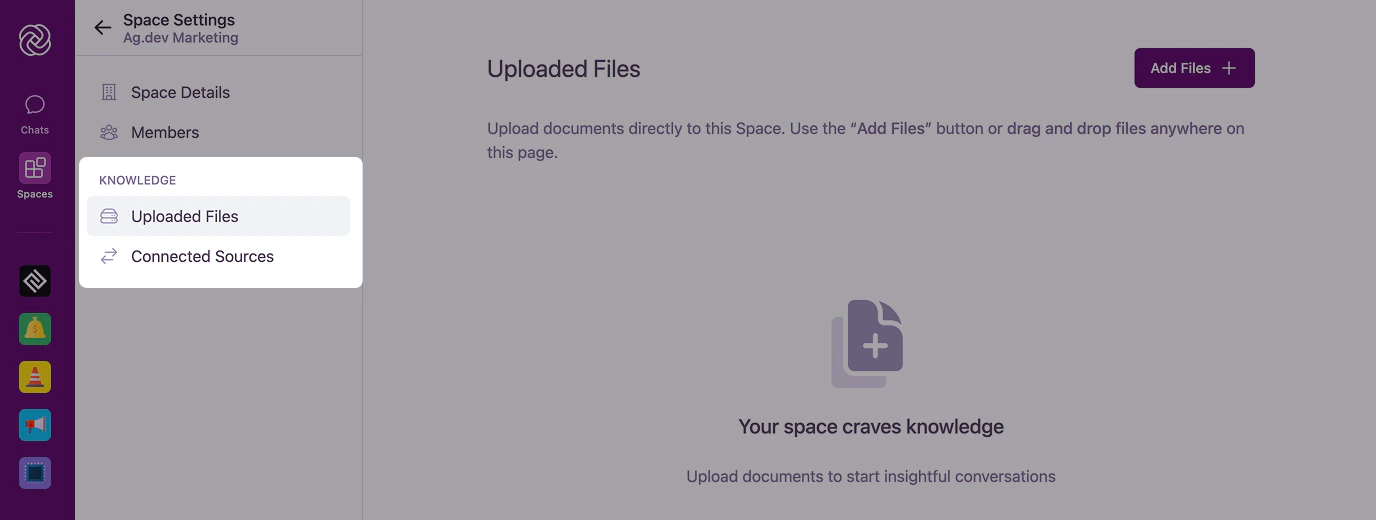
To access your Space's uploaded files, navigate to the Space Settings (via the "Cog" icon in the Space header or the "Space Settings" button in the sidebar). Next, navigate to the "Uploaded Files" tab. This will take you to the complete document management interface where you can add, remove, and organize your files.
 You need [admin permissions](/en/platform/core-features/spaces/sharing-spaces#understanding-space-roles) in a Space to manage its uploaded files. If your organization has enabled the `KnowledgeBaseManagerRole` feature, you must also be assigned the organization-level **Knowledge Base Manager** role in addition to being a Space Admin to manage document content.
## Adding Documents
Adding documents to your Space is a straightforward process:
In the Knowledge tab, you'll see a prominent upload area with "Drag & Drop" functionality.
You need [admin permissions](/en/platform/core-features/spaces/sharing-spaces#understanding-space-roles) in a Space to manage its uploaded files. If your organization has enabled the `KnowledgeBaseManagerRole` feature, you must also be assigned the organization-level **Knowledge Base Manager** role in addition to being a Space Admin to manage document content.
## Adding Documents
Adding documents to your Space is a straightforward process:
In the Knowledge tab, you'll see a prominent upload area with "Drag & Drop" functionality.
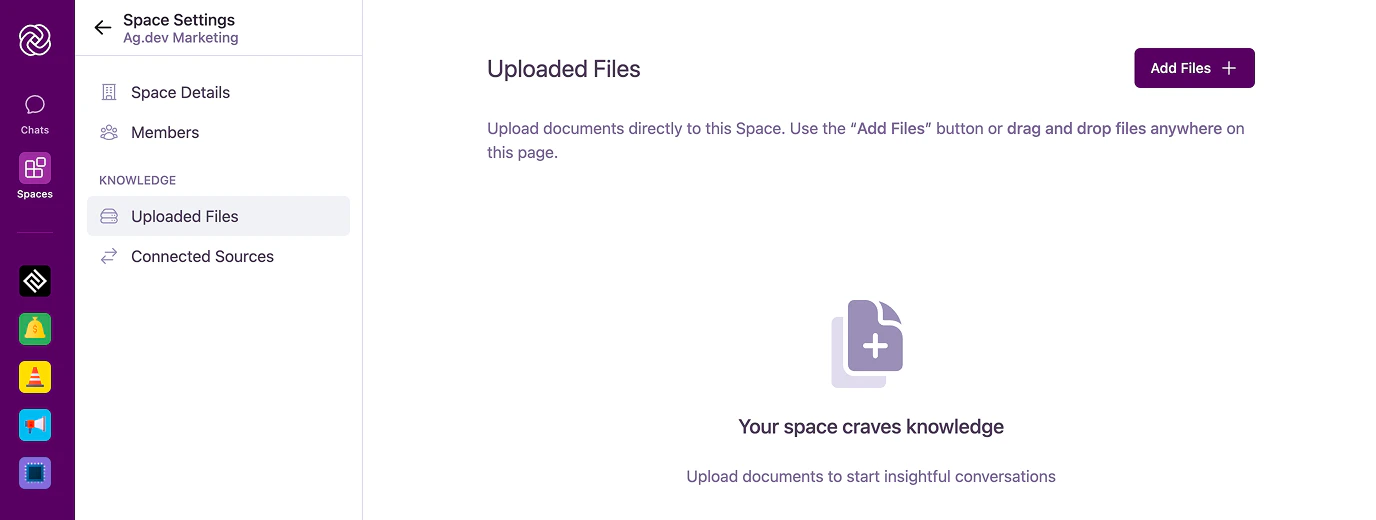 Either drag files directly into the upload area or click "Browse" to select files from your computer or cloud storage (Google Drive, OneDrive, SharePoint). To use cloud storage, connect your accounts first in [Account Settings > Connections](/en/platform/core-features/account-settings/user-profile-and-personalization#connections).
For ongoing access to cloud storage files that change frequently, consider using [Connected Sources](/en/platform/core-features/spaces/connected-sources) instead of manual uploads. Connected Sources automatically keeps content synced and up to date.
Supported formats include PDFs, common office document types (Word, PowerPoint, OpenDocument text/presentation formats), plain text files (TXT, JSON, Markdown, CSV, SVG), and images (PNG, JPEG, WebP, HEIC/HEIF, AVIF, BMP, GIF, ICO, SVG, and TIFF). Images are automatically optimized for efficient processing while maintaining quality.
A progress bar will show the upload and processing status for each document.
Either drag files directly into the upload area or click "Browse" to select files from your computer or cloud storage (Google Drive, OneDrive, SharePoint). To use cloud storage, connect your accounts first in [Account Settings > Connections](/en/platform/core-features/account-settings/user-profile-and-personalization#connections).
For ongoing access to cloud storage files that change frequently, consider using [Connected Sources](/en/platform/core-features/spaces/connected-sources) instead of manual uploads. Connected Sources automatically keeps content synced and up to date.
Supported formats include PDFs, common office document types (Word, PowerPoint, OpenDocument text/presentation formats), plain text files (TXT, JSON, Markdown, CSV, SVG), and images (PNG, JPEG, WebP, HEIC/HEIF, AVIF, BMP, GIF, ICO, SVG, and TIFF). Images are automatically optimized for efficient processing while maintaining quality.
A progress bar will show the upload and processing status for each document.
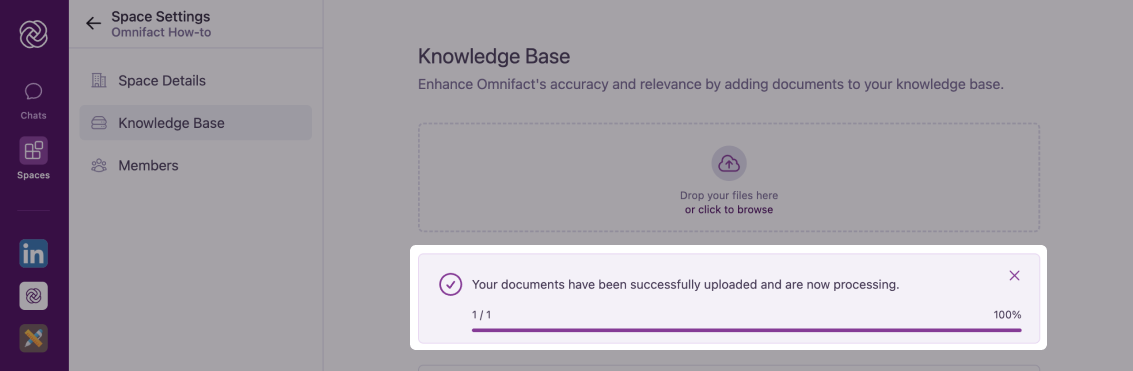 You can continue using Omnifact while documents are being processed. The AI will be able to use them once processing is complete.
## Document Processing Pipeline
After you upload a document, it goes through several steps before it's ready for the AI to use:
1. **Content Extraction:** Text and structure are extracted from the file. For scanned PDFs or images, Optical Character Recognition (OCR) powered by Apache Tika is used to read the text.
2. **Validation & Chunking:** The extracted text is validated and broken down into smaller, searchable pieces (chunks).
3. **Embedding:** These chunks are converted into vector representations so the AI can perform semantic searches.
4. **Summarization:** An LLM-powered process generates a summary of the document for quick reference.
**Status Indicators:**
* **Processing:** The document is actively going through the pipeline. This can take some time depending on the file size and complexity.
* **Ready:** The document is fully processed and available for the AI to retrieve.
* **Failed/Error:** The document could not be processed. This might happen if you exceed your document quota or if the file content cannot be extracted.
## Document Source References
When the AI assistant uses information from your uploaded files, it will automatically cite its sources in the response. This helps you:
* Track which documents contain specific information
* Verify the accuracy of AI responses
* Understand which documents are most frequently referenced
* Build trust in the AI's answers
You can continue using Omnifact while documents are being processed. The AI will be able to use them once processing is complete.
## Document Processing Pipeline
After you upload a document, it goes through several steps before it's ready for the AI to use:
1. **Content Extraction:** Text and structure are extracted from the file. For scanned PDFs or images, Optical Character Recognition (OCR) powered by Apache Tika is used to read the text.
2. **Validation & Chunking:** The extracted text is validated and broken down into smaller, searchable pieces (chunks).
3. **Embedding:** These chunks are converted into vector representations so the AI can perform semantic searches.
4. **Summarization:** An LLM-powered process generates a summary of the document for quick reference.
**Status Indicators:**
* **Processing:** The document is actively going through the pipeline. This can take some time depending on the file size and complexity.
* **Ready:** The document is fully processed and available for the AI to retrieve.
* **Failed/Error:** The document could not be processed. This might happen if you exceed your document quota or if the file content cannot be extracted.
## Document Source References
When the AI assistant uses information from your uploaded files, it will automatically cite its sources in the response. This helps you:
* Track which documents contain specific information
* Verify the accuracy of AI responses
* Understand which documents are most frequently referenced
* Build trust in the AI's answers
 For more details about how the AI references and uses uploaded files in its responses, see [Knowledge Base Retrieval](/en/platform/core-features/spaces/knowledge-base-retrieval).
## Managing Existing Documents
Once documents are uploaded, you have several management options:
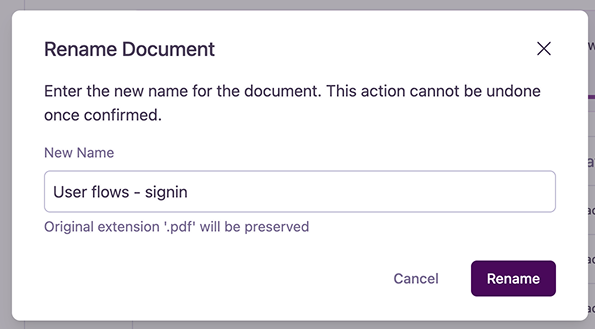
1. Click the "Options" icon next to the document
2. Select "Rename Document"
3. Enter the new name in the popup dialog
4. Confirm the change
For more details about how the AI references and uses uploaded files in its responses, see [Knowledge Base Retrieval](/en/platform/core-features/spaces/knowledge-base-retrieval).
## Managing Existing Documents
Once documents are uploaded, you have several management options:
1. Click the "Options" icon next to the document
2. Select "Rename Document"
3. Enter the new name in the popup dialog
4. Confirm the change
 Use clear, descriptive names to help team members understand document contents at a glance.
1. Click the "Options" icon next to the document
2. Select "Delete Document"
3. Confirm deletion in the prompt
Use clear, descriptive names to help team members understand document contents at a glance.
1. Click the "Options" icon next to the document
2. Select "Delete Document"
3. Confirm deletion in the prompt
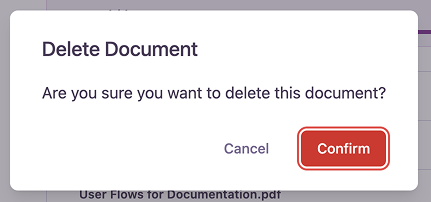 Document deletion is permanent and cannot be undone. Make sure you have a backup if needed.
## Best Practices
Follow these guidelines to maintain your uploaded files effectively:
Only include documents directly related to the Space's purpose. This helps the AI provide more accurate and focused responses.
Replace outdated documents with current versions to ensure your AI assistant always works with the latest information.
Use clear naming conventions and remove duplicate or redundant documents to maintain a clean, efficient collection of files.
Be mindful of document size limits. Large files may take longer to process and could impact performance.
## Tips for Success
* Use high-quality, well-formatted documents
* Ensure text is clear and readable
* Check for proper text formatting and layout
* Verify document accuracy before uploading
* Prioritize authoritative sources
* Add documents that directly support the Space's objectives
* Remove outdated or superseded documents
* Coordinate with other Space admins
* Communicate document updates to team members
* Establish clear document management guidelines
* Regular review and cleanup of the uploaded files
## Common Questions
The Uploaded Files feature supports PDFs, common office formats (Word, PowerPoint, OpenDocument text/presentation formats), plain text files (TXT, JSON, Markdown, CSV, SVG), and images (PNG, JPEG, WebP, HEIC/HEIF, AVIF, BMP, GIF, ICO, SVG, and TIFF).
No, there are no size limits on individual files or the total size of your uploaded files. However, larger documents will require more processing time when being analyzed by the AI assistant.
All members of the Space can see the names of the uploaded files. Only upload documents to a Space that you want all members to have access to.
## Next Steps
Now that you understand how to manage your uploaded files, you might want to explore:
* [Knowledge Base Retrieval](/en/platform/core-features/spaces/knowledge-base-retrieval) to learn how the AI uses these documents
* [Connected Sources](/en/platform/core-features/spaces/connected-sources) to automatically sync files from your cloud storage
Document deletion is permanent and cannot be undone. Make sure you have a backup if needed.
## Best Practices
Follow these guidelines to maintain your uploaded files effectively:
Only include documents directly related to the Space's purpose. This helps the AI provide more accurate and focused responses.
Replace outdated documents with current versions to ensure your AI assistant always works with the latest information.
Use clear naming conventions and remove duplicate or redundant documents to maintain a clean, efficient collection of files.
Be mindful of document size limits. Large files may take longer to process and could impact performance.
## Tips for Success
* Use high-quality, well-formatted documents
* Ensure text is clear and readable
* Check for proper text formatting and layout
* Verify document accuracy before uploading
* Prioritize authoritative sources
* Add documents that directly support the Space's objectives
* Remove outdated or superseded documents
* Coordinate with other Space admins
* Communicate document updates to team members
* Establish clear document management guidelines
* Regular review and cleanup of the uploaded files
## Common Questions
The Uploaded Files feature supports PDFs, common office formats (Word, PowerPoint, OpenDocument text/presentation formats), plain text files (TXT, JSON, Markdown, CSV, SVG), and images (PNG, JPEG, WebP, HEIC/HEIF, AVIF, BMP, GIF, ICO, SVG, and TIFF).
No, there are no size limits on individual files or the total size of your uploaded files. However, larger documents will require more processing time when being analyzed by the AI assistant.
All members of the Space can see the names of the uploaded files. Only upload documents to a Space that you want all members to have access to.
## Next Steps
Now that you understand how to manage your uploaded files, you might want to explore:
* [Knowledge Base Retrieval](/en/platform/core-features/spaces/knowledge-base-retrieval) to learn how the AI uses these documents
* [Connected Sources](/en/platform/core-features/spaces/connected-sources) to automatically sync files from your cloud storage