> ## Documentation Index
> Fetch the complete documentation index at: https://docs.omnifact.ai/llms.txt
> Use this file to discover all available pages before exploring further.
# Navigating Spaces
> Learn how to efficiently find, access, and organize Spaces in Omnifact
export const Glossary = ({children, term}) => {
const glossaryDefinitions = {
'ai': 'Artificial Intelligence - computer systems that can perform tasks typically requiring human intelligence',
'artificial-intelligence-ai': 'Computer systems that can perform tasks typically requiring human intelligence',
'ai-assistant': 'An AI system designed to help users with tasks through conversation',
'space': 'A dedicated environment with a specialized AI assistant and optional Knowledge Base',
'knowledge': 'The sub-menu in Space settings where you manage Uploaded Files and Connected Sources',
'knowledge-base': 'The collection of documents in a Space (from Uploaded Files and Connected Sources) that the AI assistant can retrieve',
'uploaded-files': 'Documents manually uploaded to a Space under the Knowledge tab',
'prompt': 'Instructions or questions you give to an AI assistant',
'response': 'The AI assistant\'s answer to your prompt or question',
'query': 'A question or request for information',
'context': 'Background information that helps the AI understand your request',
'llm': 'Large Language Model - an AI system trained on vast amounts of text data to understand and generate human language',
'large-language-model-llm': 'An AI system trained on vast amounts of text data to understand and generate human language',
'privacy-filter': 'A system that automatically detects and masks sensitive information before it reaches AI models, and restricts images from being sent to non-EU hosted models for compliance',
'chat-instructions': 'Custom guidelines that define how an AI assistant behaves and responds in a Space',
'pattern-matching': 'The process by which AI recognizes and uses patterns in data to provide responses',
'patterns': 'Recognizable structures or trends in data that AI systems can identify and use',
'training-data': 'The text and information used to teach an AI system how to understand and respond to requests',
'natural-language': 'Everyday human language that people use to communicate, as opposed to computer code or formal syntax',
'hallucination': 'When an AI generates information that sounds plausible but is actually incorrect or fabricated',
'filtering': 'The process of automatically detecting and temporarily replacing sensitive information to protect it during AI processing',
'masking': 'Temporarily replacing sensitive information with generic labels to protect it from being seen by external AI models',
're-insertion': 'The automatic process of putting original sensitive information back into AI responses after they\'ve been generated with filtered data',
'retrieval': 'The process of finding and accessing relevant documents from Uploaded Files to answer questions',
'hosting': 'Where an AI model is deployed and made available for use - either by third-party providers, on your organization\'s own servers, or in private cloud environments',
'cite': 'To reference or mention the source of information, helping you know where an AI\'s answer came from',
'sidebar': 'A panel that appears on the side of the screen showing additional information and options',
'toggle': 'A button or control that switches something on or off, like opening and closing a sidebar',
'navigation': 'The system of menus and buttons that help you move between different parts of Omnifact',
'favoriting': 'Marking a Space as a favorite to pin it to the main navigation for quick access',
'pinning': 'Attaching a Space to the main navigation bar so it\'s always visible and easily accessible'
};
const definition = glossaryDefinitions[term];
return {children};
};
Omnifact provides a clean and intuitive interface for finding and accessing Spaces. This page will help you navigate the Spaces section efficiently, understand the organization of Spaces, and learn how to quickly access your most frequently used Spaces.
## Accessing Your Spaces
The Spaces section is always accessible from anywhere within Omnifact through the main navigation bar on the left side of the screen.
Look at the vertical navigation bar on the far left side of the Omnifact interface.
Click the "Spaces" icon in the main navigation bar to open the "Your Spaces" page.
This will take you to the "Your Spaces" page, where you can browse all available Spaces.
## Understanding the "Your Spaces" Page
The "Your Spaces" page is designed to provide quick access to your most important Spaces while also giving you a complete overview of all available Spaces.
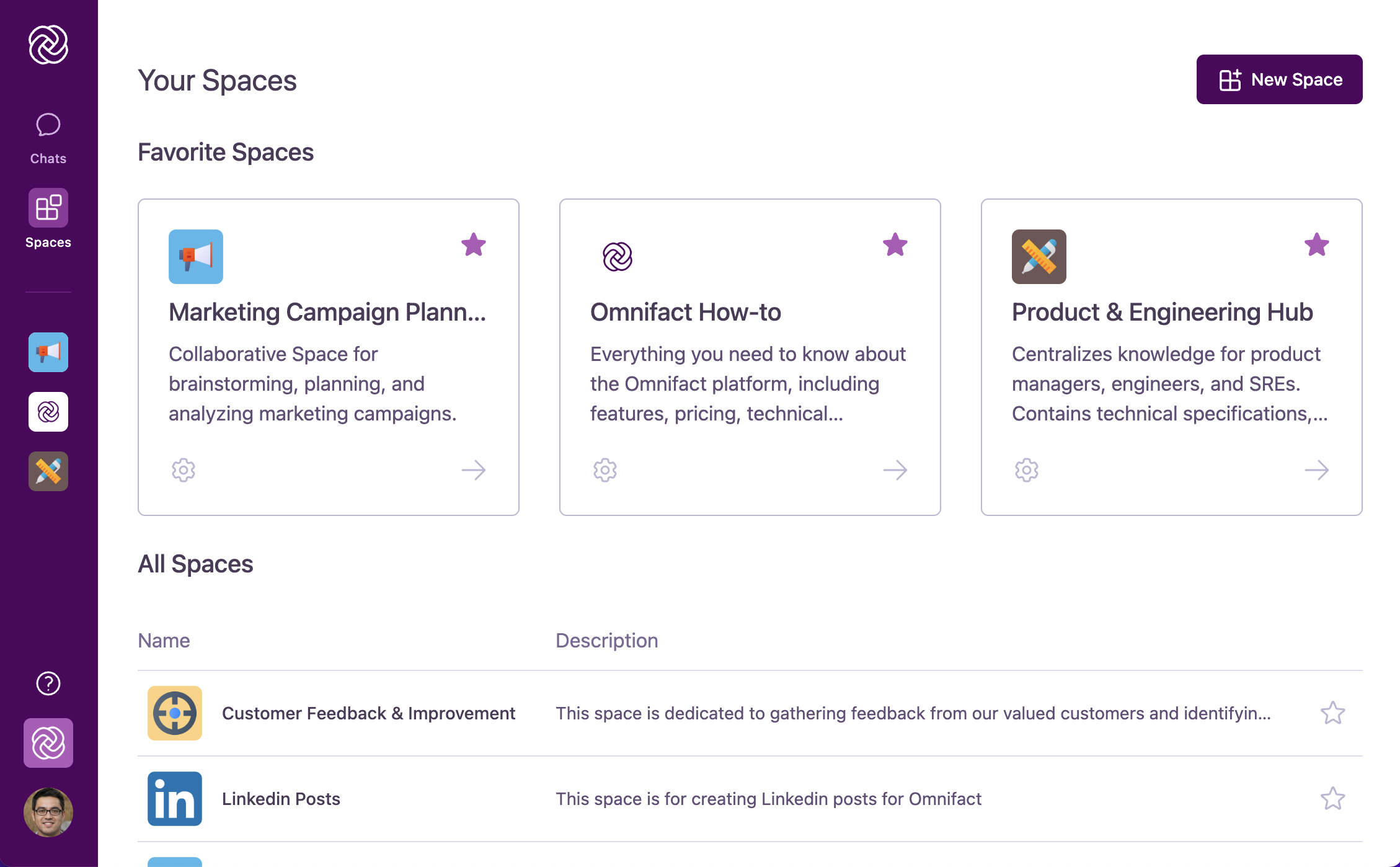 The page is organized into two main sections:
Displayed prominently at the top as larger, visually distinct cards. These are Spaces you've marked as favorites for quick access to your most frequently used environments.
Listed below the Favorite Spaces in a more compact format. This section shows all Spaces you have access to, providing a complete catalog of available Spaces.
## Space Cards and List Items
Each Space is represented either as a card (in the Favorite Spaces section) or as a list item (in the All Spaces section). Both formats contain key information to help you identify and access Spaces.
Each Space representation includes:
* **Space Icon:** A visual representation of the Space's topic or purpose
* **Space Name:** The name of the Space, describing its focus or intent
* **Space Description:** (Optional) A brief description providing additional context about the Space's purpose
* **Navigation Arrow:** Click this to enter the Space and access its dedicated chat environment
* **Favorite Star Icon:** Toggle this to mark/unmark a Space as a favorite
* **Settings Icon:** (For Space admins) Click this to access Space settings and configuration options
## Favoriting Spaces for Quick Access
Marking Spaces as favorites provides two key benefits:
1. **Prominent Display:** Favorite Spaces appear as larger cards at the top of the "Your Spaces" page
2. **Global Navigation Pinning:** Favorite Spaces are also pinned directly to the main navigation bar for instant access from anywhere in Omnifact
Locate the Space in the "All Spaces" section.
Click the star icon next to the Space name to toggle its favorite status.
When favorited, the star will appear filled. When unfavorited, it will appear as an outline.
After favoriting a Space, check the main navigation bar on the left edge of the screen. Your favorited Space should now appear as a pinned item for quick access.
To remove a Space from your favorites, simply click the filled star icon again. This will remove the Space from your Favorite Spaces section and unpin it from the main navigation bar, moving it back to the All Spaces section only.
Pin your most frequently used Spaces to the main navigation bar by favoriting them. This creates a personalized shortcut system that makes your workflow more efficient.
## Organizing Your Spaces
Effectively organizing your Spaces can significantly improve your productivity in Omnifact. Here are some best practices:
Mark your most frequently used Spaces as favorites to pin them to the main navigation bar, creating a personalized shortcut system.
If you create Spaces, use clear, descriptive names that instantly communicate the Space's purpose to both yourself and team members.
Periodically review your favorited Spaces and update them based on your current projects and priorities.
For shared Spaces, establish team conventions around naming and organization to maintain consistency across your organization.
## Next Steps
Now that you know how to navigate your Spaces, you might want to:
* Learn about [Accessing and Using Spaces](/en/platform/core-features/spaces/accessing-spaces)
* Discover how to [Create New Spaces](/en/platform/core-features/spaces/creating-spaces) with custom AI assistants
* Explore [Customizing Spaces](/en/platform/core-features/spaces/customizing-spaces) to better suit your needs
* Understand the benefits of [Sharing Spaces with Your Colleagues](/en/platform/core-features/spaces/sharing-spaces)
The page is organized into two main sections:
Displayed prominently at the top as larger, visually distinct cards. These are Spaces you've marked as favorites for quick access to your most frequently used environments.
Listed below the Favorite Spaces in a more compact format. This section shows all Spaces you have access to, providing a complete catalog of available Spaces.
## Space Cards and List Items
Each Space is represented either as a card (in the Favorite Spaces section) or as a list item (in the All Spaces section). Both formats contain key information to help you identify and access Spaces.
Each Space representation includes:
* **Space Icon:** A visual representation of the Space's topic or purpose
* **Space Name:** The name of the Space, describing its focus or intent
* **Space Description:** (Optional) A brief description providing additional context about the Space's purpose
* **Navigation Arrow:** Click this to enter the Space and access its dedicated chat environment
* **Favorite Star Icon:** Toggle this to mark/unmark a Space as a favorite
* **Settings Icon:** (For Space admins) Click this to access Space settings and configuration options
## Favoriting Spaces for Quick Access
Marking Spaces as favorites provides two key benefits:
1. **Prominent Display:** Favorite Spaces appear as larger cards at the top of the "Your Spaces" page
2. **Global Navigation Pinning:** Favorite Spaces are also pinned directly to the main navigation bar for instant access from anywhere in Omnifact
Locate the Space in the "All Spaces" section.
Click the star icon next to the Space name to toggle its favorite status.
When favorited, the star will appear filled. When unfavorited, it will appear as an outline.
After favoriting a Space, check the main navigation bar on the left edge of the screen. Your favorited Space should now appear as a pinned item for quick access.
To remove a Space from your favorites, simply click the filled star icon again. This will remove the Space from your Favorite Spaces section and unpin it from the main navigation bar, moving it back to the All Spaces section only.
Pin your most frequently used Spaces to the main navigation bar by favoriting them. This creates a personalized shortcut system that makes your workflow more efficient.
## Organizing Your Spaces
Effectively organizing your Spaces can significantly improve your productivity in Omnifact. Here are some best practices:
Mark your most frequently used Spaces as favorites to pin them to the main navigation bar, creating a personalized shortcut system.
If you create Spaces, use clear, descriptive names that instantly communicate the Space's purpose to both yourself and team members.
Periodically review your favorited Spaces and update them based on your current projects and priorities.
For shared Spaces, establish team conventions around naming and organization to maintain consistency across your organization.
## Next Steps
Now that you know how to navigate your Spaces, you might want to:
* Learn about [Accessing and Using Spaces](/en/platform/core-features/spaces/accessing-spaces)
* Discover how to [Create New Spaces](/en/platform/core-features/spaces/creating-spaces) with custom AI assistants
* Explore [Customizing Spaces](/en/platform/core-features/spaces/customizing-spaces) to better suit your needs
* Understand the benefits of [Sharing Spaces with Your Colleagues](/en/platform/core-features/spaces/sharing-spaces)