> ## Documentation Index
> Fetch the complete documentation index at: https://docs.omnifact.ai/llms.txt
> Use this file to discover all available pages before exploring further.
# Sharing Spaces with Colleagues
> Learn how to collaborate effectively by sharing your Spaces with team members and managing their access
export const Glossary = ({children, term}) => {
const glossaryDefinitions = {
'ai': 'Artificial Intelligence - computer systems that can perform tasks typically requiring human intelligence',
'artificial-intelligence-ai': 'Computer systems that can perform tasks typically requiring human intelligence',
'ai-assistant': 'An AI system designed to help users with tasks through conversation',
'space': 'A dedicated environment with a specialized AI assistant and optional Uploaded Files',
'spaces': 'Dedicated environments with specialized AI assistants and optional Uploaded Files',
'knowledge': 'The sub-menu in Space settings where you manage Uploaded Files and Connected Sources',
'uploaded-files': 'Documents manually uploaded to a Space under the Knowledge tab',
'prompt': 'Instructions or questions you give to an AI assistant',
'response': 'The AI assistant\'s answer to your prompt or question',
'query': 'A question or request for information',
'context': 'Background information that helps the AI understand your request',
'llm': 'Large Language Model - an AI system trained on vast amounts of text data to understand and generate human language',
'large-language-model-llm': 'An AI system trained on vast amounts of text data to understand and generate human language',
'privacy-filter': 'A system that automatically detects and masks sensitive information before it reaches AI models, and restricts images from being sent to non-EU hosted models for compliance',
'chat-instructions': 'Custom guidelines that define how an AI assistant behaves and responds in a Space',
'pattern-matching': 'The process by which AI recognizes and uses patterns in data to provide responses',
'patterns': 'Recognizable structures or trends in data that AI systems can identify and use',
'training-data': 'The text and information used to teach an AI system how to understand and respond to requests',
'natural-language': 'Everyday human language that people use to communicate, as opposed to computer code or formal syntax',
'hallucination': 'When an AI generates information that sounds plausible but is actually incorrect or fabricated',
'filtering': 'The process of automatically detecting and temporarily replacing sensitive information to protect it during AI processing',
'masking': 'Temporarily replacing sensitive information with generic labels to protect it from being seen by external AI models',
're-insertion': 'The automatic process of putting original sensitive information back into AI responses after they\'ve been generated with filtered data',
'retrieval': 'The process of finding and accessing relevant documents from Uploaded Files to answer questions',
'hosting': 'Where an AI model is deployed and made available for use - either by third-party providers, on your organization\'s own servers, or in private cloud environments',
'cite': 'To reference or mention the source of information, helping you know where an AI\'s answer came from',
'sidebar': 'A panel that appears on the side of the screen showing additional information and options',
'toggle': 'A button or control that switches something on or off, like opening and closing a sidebar',
'navigation': 'The system of menus and buttons that help you move between different parts of Omnifact',
'favoriting': 'Marking a Space as a favorite to pin it to the main navigation for quick access',
'pinning': 'Attaching a Space to the main navigation bar so it\'s always visible and easily accessible'
};
const definition = glossaryDefinitions[term];
return {children};
};
Spaces are designed to facilitate team collaboration and knowledge sharing. By sharing a Space with colleagues, you create a centralized AI environment where team members can work together, leveraging the same specialized AI assistant and shared Uploaded Files.
## Unlock Team Collaboration
Sharing a Space transforms it from a personal tool into a powerful team asset.
**Why share?**
* **Unified Uploaded Files:** Ensure everyone on your team gets answers from the same source of truth (your Uploaded Files).
* **Consistent Guidance:** Give your entire team access to an AI assistant that follows the same instructions and tone.
* **Faster Onboarding:** New team members can instantly access the collective knowledge and tools they need.
## Understanding Space Roles
Before sharing a Space, it's important to understand the different roles available:
* Full control over Space settings
* Can add/remove members
* Can modify Space Details and Instructions
* Can manage Uploaded Files
* Can grant/revoke admin access
* Can chat with the Space's AI assistant
* Can see referenced Uploaded Files Documents in the chat
* Can see names of documents in the Uploaded Files
* Can see users added to the Space
When you create a Space, you automatically become its admin. Choose carefully when granting admin privileges to others, as admins have full control over the Space.
## Managing Space Sharing
### Viewing the Sharing List
Open the Space Settings through either:
* The cog icon in the Space Header
* The "Space Settings" button in the Space Details sidebar
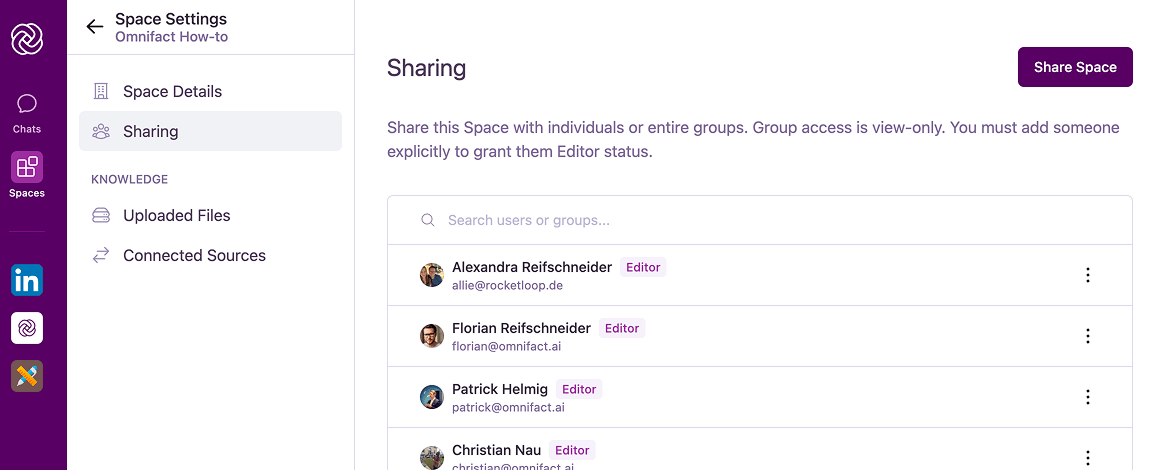
Click on the "Sharing" tab in the Space Settings interface to view users and groups that have access.
 ### Sharing with Users and Groups
You can share your Space with individual colleagues or entire [Groups](/en/platform/team-administration/groups).
Click the **Share Space** button in the Sharing tab.
Use the search field to find individual colleagues or organization groups (like the "Everyone" group or specific departments).
### Sharing with Users and Groups
You can share your Space with individual colleagues or entire [Groups](/en/platform/team-administration/groups).
Click the **Share Space** button in the Sharing tab.
Use the search field to find individual colleagues or organization groups (like the "Everyone" group or specific departments).
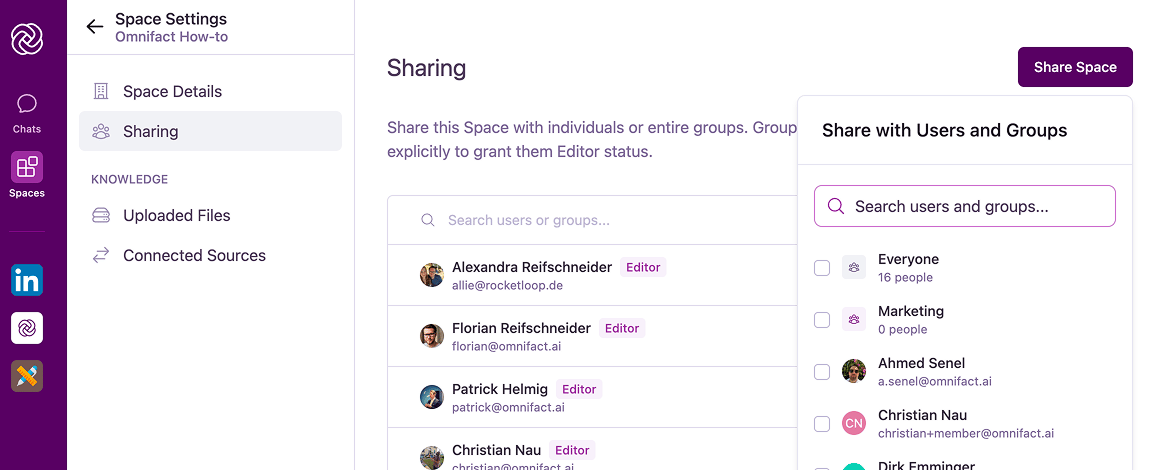 You can only share with users and groups that are part of your organization's Omnifact instance.
Click the "Add" button next to each user or group you want to include. They will immediately gain access to the Space.
### Managing Access and Editor Roles
To change a member's role or remove them from the Space:
Find the user or group in the list within the Sharing tab.
Click the **More Options** menu (three dots) next to the name.
Select from available options:
* **"Grant edit access" (Users only)** - Promotes the user to Editor/Admin role.
* **"Revoke edit access" (Users only)** - Removes Editor privileges.
* **"Remove from Space"** - Revokes access entirely.
**Group access is view-only.** If you share a Space with a group, all members of that group receive standard Member access. To make someone an Editor, you must add them individually and grant edit access.
When removing access, the user will lose access to the Space immediately, but their past contributions to the Space will remain.
## Use Cases for Shared Spaces
Shared Spaces are particularly valuable for:
Create a dedicated Space for project team members to:
* Access project documentation through the Uploaded Files
* Get consistent AI assistance for project-related questions
* Maintain alignment on project goals and requirements
Set up department-specific Spaces to:
* Share best practices and standard procedures
* Provide specialized AI support for department-specific tasks
* Maintain a central repository of department documentation
Foster collaboration across teams with Spaces that:
* Bridge knowledge gaps between different functions
* Provide consistent information to all stakeholders
* Create a shared understanding of cross-functional initiatives
Create an onboarding Space to help new employees get up to speed quickly:
* Upload company handbooks, policies, and procedures to the Uploaded Files
* Provide instant answers to common new hire questions
* Share organizational structure and team information
* Guide new employees through standard onboarding processes
* Maintain consistent onboarding experience across the organization
## Best Practices for Shared Spaces
Define and communicate the Space's purpose clearly to all members to ensure effective utilization.
Periodically review member access and remove those who no longer need it.
Keep the Uploaded Files organized and up-to-date to maximize value for all members.
Be selective with admin privileges, granting them only to those who need to manage the Space.
## Common Questions
Each member can only see their own conversations with the AI assistant. Conversations are private and not visible to other members of the Space.
Spaces don't have a single owner - instead, they can have multiple admins. Any admin can manage the Space equally, including adding or removing other admins.
Removed members immediately lose access to the Space but their past conversations remain in their own Space's history so they can be re-accessed later if needed.
The number of members you can add to a Space depends on your organization's Omnifact plan. Contact your administrator if you need to confirm your limits.
## Next Steps
Now that you know how to share Spaces with colleagues, you might want to explore:
* [Managing Uploaded Files](/en/platform/core-features/spaces/managing-uploaded-files) to provide valuable resources for your team
* [Customizing Spaces](/en/platform/core-features/spaces/customizing-spaces) to better suit your team's needs
* [Uploaded Files Retrieval](/en/platform/core-features/spaces/uploaded-files-retrieval) to understand how your team can leverage shared documents
You can only share with users and groups that are part of your organization's Omnifact instance.
Click the "Add" button next to each user or group you want to include. They will immediately gain access to the Space.
### Managing Access and Editor Roles
To change a member's role or remove them from the Space:
Find the user or group in the list within the Sharing tab.
Click the **More Options** menu (three dots) next to the name.
Select from available options:
* **"Grant edit access" (Users only)** - Promotes the user to Editor/Admin role.
* **"Revoke edit access" (Users only)** - Removes Editor privileges.
* **"Remove from Space"** - Revokes access entirely.
**Group access is view-only.** If you share a Space with a group, all members of that group receive standard Member access. To make someone an Editor, you must add them individually and grant edit access.
When removing access, the user will lose access to the Space immediately, but their past contributions to the Space will remain.
## Use Cases for Shared Spaces
Shared Spaces are particularly valuable for:
Create a dedicated Space for project team members to:
* Access project documentation through the Uploaded Files
* Get consistent AI assistance for project-related questions
* Maintain alignment on project goals and requirements
Set up department-specific Spaces to:
* Share best practices and standard procedures
* Provide specialized AI support for department-specific tasks
* Maintain a central repository of department documentation
Foster collaboration across teams with Spaces that:
* Bridge knowledge gaps between different functions
* Provide consistent information to all stakeholders
* Create a shared understanding of cross-functional initiatives
Create an onboarding Space to help new employees get up to speed quickly:
* Upload company handbooks, policies, and procedures to the Uploaded Files
* Provide instant answers to common new hire questions
* Share organizational structure and team information
* Guide new employees through standard onboarding processes
* Maintain consistent onboarding experience across the organization
## Best Practices for Shared Spaces
Define and communicate the Space's purpose clearly to all members to ensure effective utilization.
Periodically review member access and remove those who no longer need it.
Keep the Uploaded Files organized and up-to-date to maximize value for all members.
Be selective with admin privileges, granting them only to those who need to manage the Space.
## Common Questions
Each member can only see their own conversations with the AI assistant. Conversations are private and not visible to other members of the Space.
Spaces don't have a single owner - instead, they can have multiple admins. Any admin can manage the Space equally, including adding or removing other admins.
Removed members immediately lose access to the Space but their past conversations remain in their own Space's history so they can be re-accessed later if needed.
The number of members you can add to a Space depends on your organization's Omnifact plan. Contact your administrator if you need to confirm your limits.
## Next Steps
Now that you know how to share Spaces with colleagues, you might want to explore:
* [Managing Uploaded Files](/en/platform/core-features/spaces/managing-uploaded-files) to provide valuable resources for your team
* [Customizing Spaces](/en/platform/core-features/spaces/customizing-spaces) to better suit your team's needs
* [Uploaded Files Retrieval](/en/platform/core-features/spaces/uploaded-files-retrieval) to understand how your team can leverage shared documents