> ## Documentation Index
> Fetch the complete documentation index at: https://docs.omnifact.ai/llms.txt
> Use this file to discover all available pages before exploring further.
# Omnifact Quickstart
> Get started with Omnifact in 5 minutes and experience AI assistance in your workplace right away
export const Glossary = ({children, term}) => {
const glossaryDefinitions = {
'ai': 'Artificial Intelligence - computer systems that can perform tasks typically requiring human intelligence',
'artificial-intelligence-ai': 'Computer systems that can perform tasks typically requiring human intelligence',
'ai-assistant': 'An AI system designed to help users with tasks through conversation',
'space': 'A dedicated environment with a specialized AI assistant and optional Knowledge Base',
'knowledge': 'The sub-menu in Space settings where you manage Uploaded Files and Connected Sources',
'knowledge-base': 'The collection of documents in a Space (from Uploaded Files and Connected Sources) that the AI assistant can retrieve',
'uploaded-files': 'Documents manually uploaded to a Space under the Knowledge tab',
'prompt': 'Instructions or questions you give to an AI assistant',
'response': 'The AI assistant\'s answer to your prompt or question',
'query': 'A question or request for information',
'context': 'Background information that helps the AI understand your request',
'llm': 'Large Language Model - an AI system trained on vast amounts of text data to understand and generate human language',
'large-language-model-llm': 'An AI system trained on vast amounts of text data to understand and generate human language',
'privacy-filter': 'A system that automatically detects and masks sensitive information before it reaches AI models, and restricts images from being sent to non-EU hosted models for compliance',
'chat-instructions': 'Custom guidelines that define how an AI assistant behaves and responds in a Space',
'pattern-matching': 'The process by which AI recognizes and uses patterns in data to provide responses',
'patterns': 'Recognizable structures or trends in data that AI systems can identify and use',
'training-data': 'The text and information used to teach an AI system how to understand and respond to requests',
'natural-language': 'Everyday human language that people use to communicate, as opposed to computer code or formal syntax',
'hallucination': 'When an AI generates information that sounds plausible but is actually incorrect or fabricated',
'filtering': 'The process of automatically detecting and temporarily replacing sensitive information to protect it during AI processing',
'masking': 'Temporarily replacing sensitive information with generic labels to protect it from being seen by external AI models',
're-insertion': 'The automatic process of putting original sensitive information back into AI responses after they\'ve been generated with filtered data',
'retrieval': 'The process of finding and accessing relevant documents from Uploaded Files to answer questions',
'hosting': 'Where an AI model is deployed and made available for use - either by third-party providers, on your organization\'s own servers, or in private cloud environments',
'cite': 'To reference or mention the source of information, helping you know where an AI\'s answer came from',
'sidebar': 'A panel that appears on the side of the screen showing additional information and options',
'toggle': 'A button or control that switches something on or off, like opening and closing a sidebar',
'navigation': 'The system of menus and buttons that help you move between different parts of Omnifact',
'favoriting': 'Marking a Space as a favorite to pin it to the main navigation for quick access',
'pinning': 'Attaching a Space to the main navigation bar so it\'s always visible and easily accessible'
};
const definition = glossaryDefinitions[term];
return {children};
};
You can start using Omnifact right away with this simple 5-step guide. Omnifact is designed to be intuitive, so you'll be having productive AI-assisted conversations in no time!
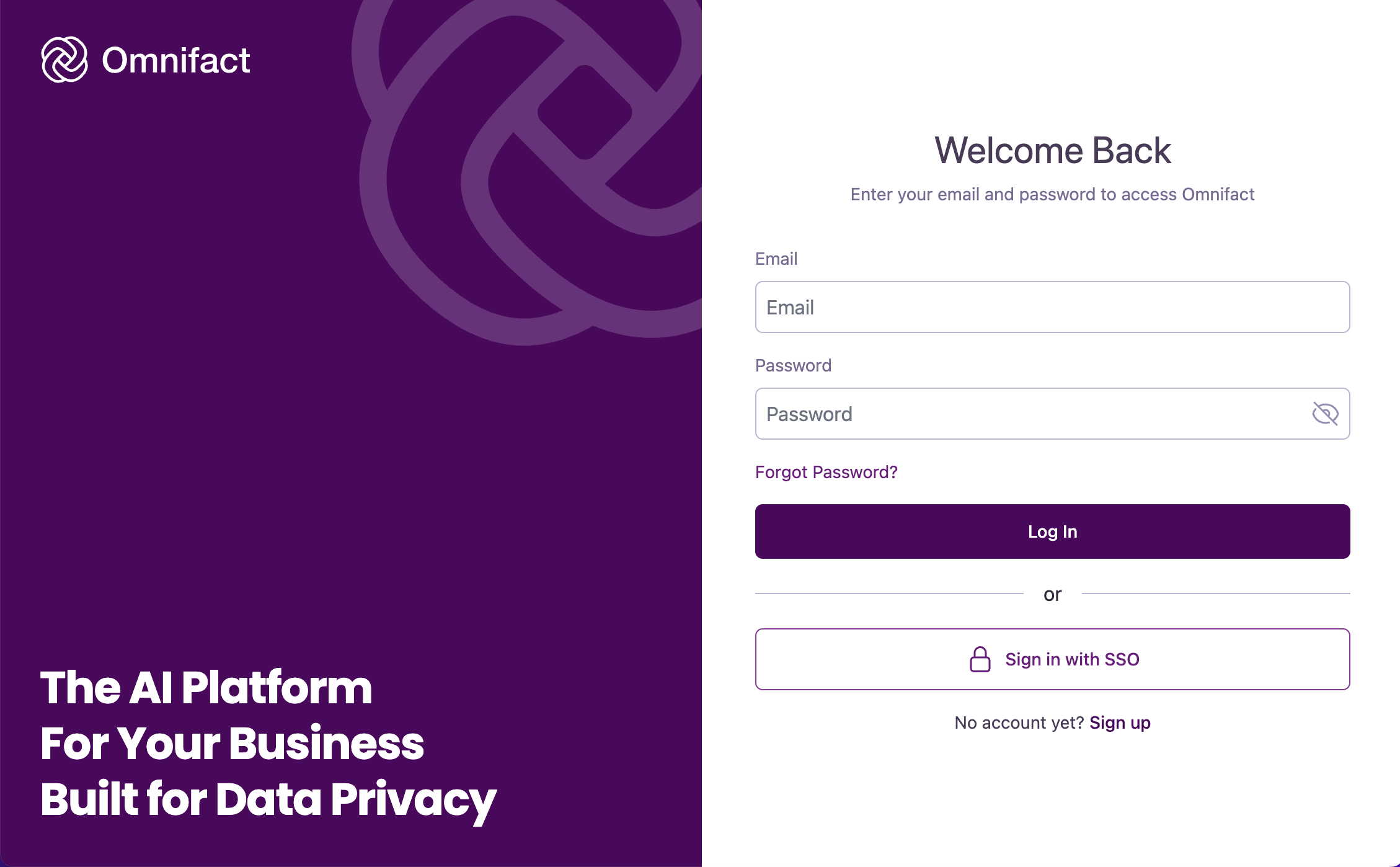
Open your web browser and navigate to [https://chat.omnifact.ai](https://chat.omnifact.ai). Enter
your account credentials or use Single Sign-On (SSO) if your organization
has set it up.
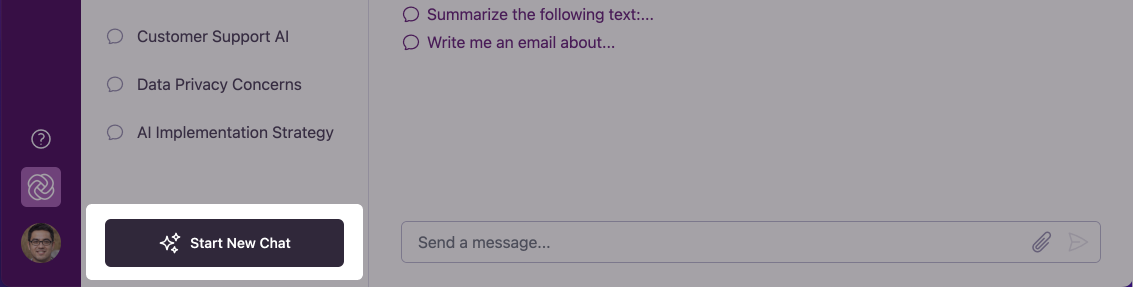
 Once logged in, you will land automatically on a new chat. To start a new chat, locate the "Start New Chat" button at the bottom of the left sidebar.
The "Start New Chat" button is always visible in the sidebar, no matter how many previous chats you have.
Once logged in, you will land automatically on a new chat. To start a new chat, locate the "Start New Chat" button at the bottom of the left sidebar.
The "Start New Chat" button is always visible in the sidebar, no matter how many previous chats you have.
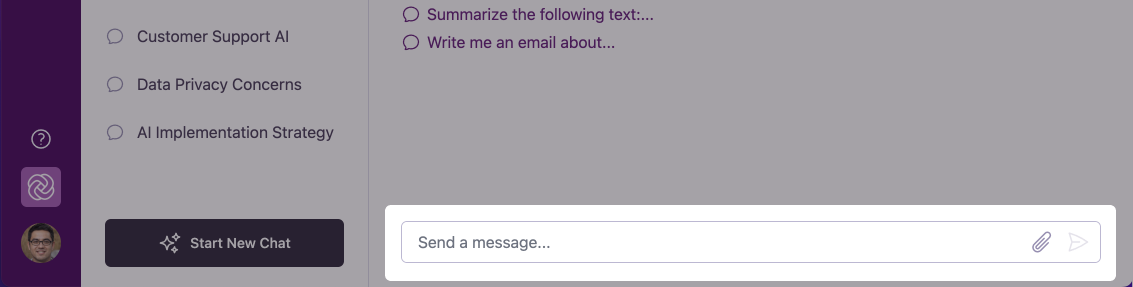
 In the chat input field at the bottom of the screen, type your question or
request. Start with something simple to get a feel for how Omnifact works.
"What are the key benefits of using AI in the workplace?"
"Help me draft a brief email to my team about our upcoming meeting."
Press Enter or click the send button (arrow icon) to submit your message.
In the chat input field at the bottom of the screen, type your question or
request. Start with something simple to get a feel for how Omnifact works.
"What are the key benefits of using AI in the workplace?"
"Help me draft a brief email to my team about our upcoming meeting."
Press Enter or click the send button (arrow icon) to submit your message.
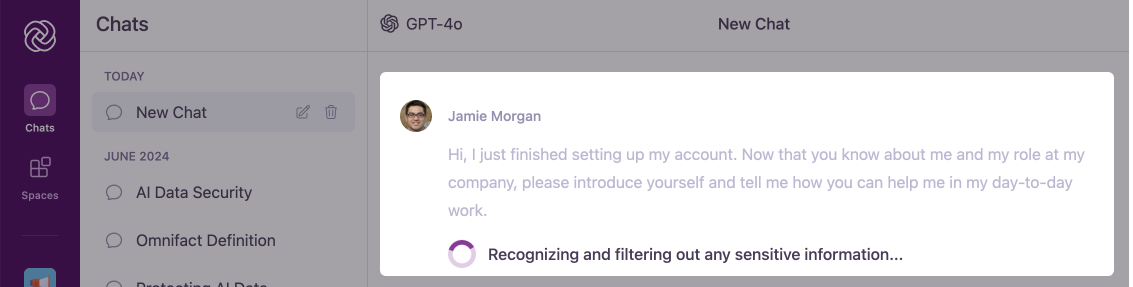
 Watch as Omnifact processes your request. You'll briefly see a message indicating that the system is "Recognizing and filtering out any sensitive information..." - this is the Privacy Filter at work, protecting your data. The AI response will appear word by word in a streaming fashion, allowing you to start reading before the full response is complete.
Omnifact responses are generated in real-time and tailored to your specific
question, making each interaction personalized to your needs.
Watch as Omnifact processes your request. You'll briefly see a message indicating that the system is "Recognizing and filtering out any sensitive information..." - this is the Privacy Filter at work, protecting your data. The AI response will appear word by word in a streaming fashion, allowing you to start reading before the full response is complete.
Omnifact responses are generated in real-time and tailored to your specific
question, making each interaction personalized to your needs.
 Once you're comfortable with basic chat, explore Spaces by clicking the "Spaces" icon in the main navigation bar on the far left of the screen. Spaces are specialized environments for work with the AI on specific topics or projects. Your organization may already have created Spaces you can use.
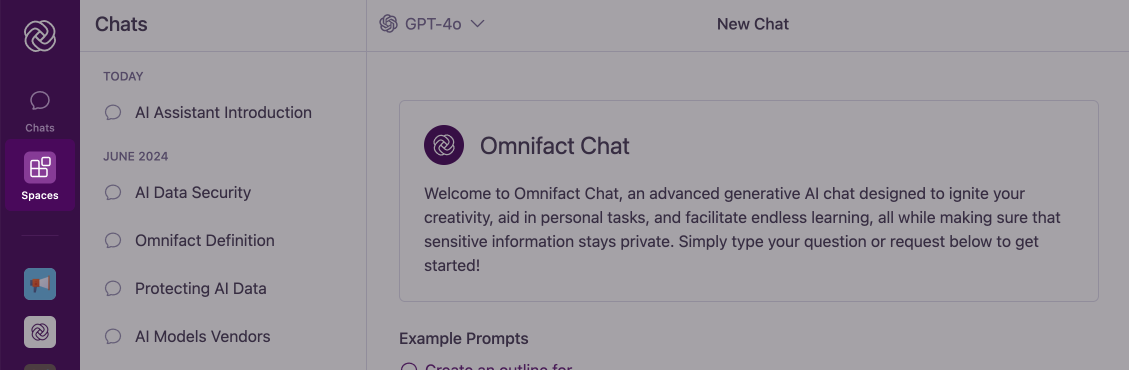 You have the flexibility to select the AI model that best fits your task. In the chat header, click the model dropdown to switch between different models from various providers (like OpenAI, Anthropic, or Mistral AI) depending on what your organization has enabled.
Omnifact offers different ways to respond. Look for the response mode selector in the chat input area to switch between:
* **Auto:** The AI uses all available tools like web search or image generation.
* **Quick Response:** The AI answers directly and quickly without external tools.
* **Simple Lookup:** The AI exclusively uses documents from your Space's Knowledge Base.
Click the **+** (Plus) icon next to the chat input to attach files. You can upload documents (PDFs, Word files, etc.) or images for the AI to analyze, summarize, or reference in its responses.
Make the AI work better for you by setting up your profile. Navigate to your **Account Settings > Personalization** to add details about your role ("About") and how you prefer the AI to respond ("Response Preference Description").
If enabled by your organization, you can connect your Google Drive, OneDrive, or SharePoint accounts. Go to **Account Settings > Connections** to link them, allowing you to easily import files directly into your chats and Knowledge Base.
If you are an administrator, explore the **Team Settings** section in the left navigation bar. Here you can invite users, manage billing, configure AI assistant capabilities, and set up your company profile.
## You're Ready to Go!
Congratulations! You've just used Omnifact for the first time. Here are some quick tips to enhance your experience:
Ask follow-up questions to dive deeper into any topic - Omnifact remembers
your conversation context.
Use the paperclip icon to attach documents and images you want Omnifact to analyze or
reference.
The more specific your questions, the more helpful Omnifact's responses will
be.
## Next Steps
Now that you've started using Omnifact, you might want to explore these resources:
* [Starting Your First Chat](/en/platform/core-features/chats/starting-new-chat) - More detailed guidance on effective chatting
* [Exploring Spaces](/en/platform/core-features/spaces/introduction) - Learn more about how Spaces can organize your AI interactions
* [Privacy and Security](/en/platform/core-features/privacy-security/introduction) - Understand how Omnifact protects your sensitive information
Remember, Omnifact is designed to assist you, not replace you. It's a powerful
tool to enhance your productivity and decision-making in the workplace.
You have the flexibility to select the AI model that best fits your task. In the chat header, click the model dropdown to switch between different models from various providers (like OpenAI, Anthropic, or Mistral AI) depending on what your organization has enabled.
Omnifact offers different ways to respond. Look for the response mode selector in the chat input area to switch between:
* **Auto:** The AI uses all available tools like web search or image generation.
* **Quick Response:** The AI answers directly and quickly without external tools.
* **Simple Lookup:** The AI exclusively uses documents from your Space's Knowledge Base.
Click the **+** (Plus) icon next to the chat input to attach files. You can upload documents (PDFs, Word files, etc.) or images for the AI to analyze, summarize, or reference in its responses.
Make the AI work better for you by setting up your profile. Navigate to your **Account Settings > Personalization** to add details about your role ("About") and how you prefer the AI to respond ("Response Preference Description").
If enabled by your organization, you can connect your Google Drive, OneDrive, or SharePoint accounts. Go to **Account Settings > Connections** to link them, allowing you to easily import files directly into your chats and Knowledge Base.
If you are an administrator, explore the **Team Settings** section in the left navigation bar. Here you can invite users, manage billing, configure AI assistant capabilities, and set up your company profile.
## You're Ready to Go!
Congratulations! You've just used Omnifact for the first time. Here are some quick tips to enhance your experience:
Ask follow-up questions to dive deeper into any topic - Omnifact remembers
your conversation context.
Use the paperclip icon to attach documents and images you want Omnifact to analyze or
reference.
The more specific your questions, the more helpful Omnifact's responses will
be.
## Next Steps
Now that you've started using Omnifact, you might want to explore these resources:
* [Starting Your First Chat](/en/platform/core-features/chats/starting-new-chat) - More detailed guidance on effective chatting
* [Exploring Spaces](/en/platform/core-features/spaces/introduction) - Learn more about how Spaces can organize your AI interactions
* [Privacy and Security](/en/platform/core-features/privacy-security/introduction) - Understand how Omnifact protects your sensitive information
Remember, Omnifact is designed to assist you, not replace you. It's a powerful
tool to enhance your productivity and decision-making in the workplace.