> ## Documentation Index
> Fetch the complete documentation index at: https://docs.omnifact.ai/llms.txt
> Use this file to discover all available pages before exploring further.
# Billing & Usage
> View your current plan, monitor credit usage, and manage your subscription from the Billing & Usage dashboard.
## Manage Plan & Usage
Keep track of your subscription and monitor your team's AI usage in real-time. The **Billing & Usage** dashboard gives you complete transparency into your costs and credit consumption.
 ### Understanding Your Current Plan
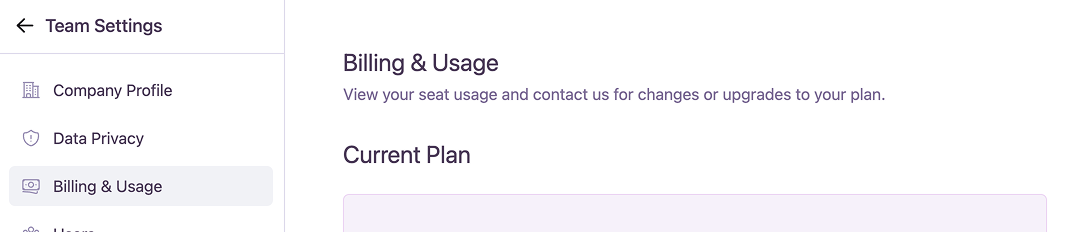
The **Plan Card** at the top of the page provides a snapshot of your team's subscription status. This card is dynamic and will update to display relevant information and actions based on your plan.
Every card shows:
* Your plan status
* The number of users you are paying for
* A button to **Manage Team Members**
Clicking **Manage Team Members** will take you directly to the [User Management](/en/platform/team-administration/users) page.
Below are examples of the different states you might encounter.
#### Standard Plan Statuses
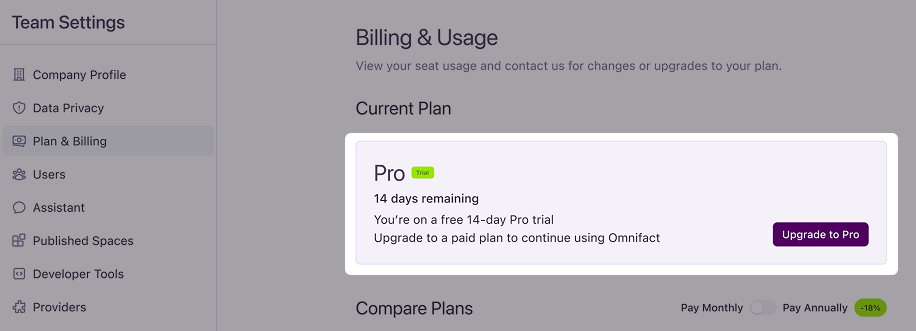
During your free trial, this section shows the remaining days and provides an option to upgrade to a paid plan.
### Understanding Your Current Plan
The **Plan Card** at the top of the page provides a snapshot of your team's subscription status. This card is dynamic and will update to display relevant information and actions based on your plan.
Every card shows:
* Your plan status
* The number of users you are paying for
* A button to **Manage Team Members**
Clicking **Manage Team Members** will take you directly to the [User Management](/en/platform/team-administration/users) page.
Below are examples of the different states you might encounter.
#### Standard Plan Statuses
During your free trial, this section shows the remaining days and provides an option to upgrade to a paid plan.
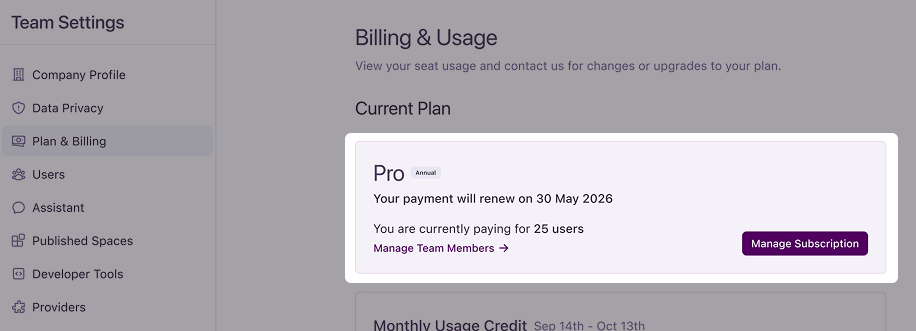
 If you have an annual subscription, you'll see an "Annual" badge next to your plan name, with a renewal date reflecting your yearly billing cycle.
On this card, you'll find a **Manage Subscription** button. Clicking this opens the Plan Management modal, where you can choose to switch to a monthly plan in Stripe or contact our team to discuss other options. If you switch, your subscription will automatically convert to a monthly plan at the current rate once your annual term is complete.
If you have an annual subscription, you'll see an "Annual" badge next to your plan name, with a renewal date reflecting your yearly billing cycle.
On this card, you'll find a **Manage Subscription** button. Clicking this opens the Plan Management modal, where you can choose to switch to a monthly plan in Stripe or contact our team to discuss other options. If you switch, your subscription will automatically convert to a monthly plan at the current rate once your annual term is complete.
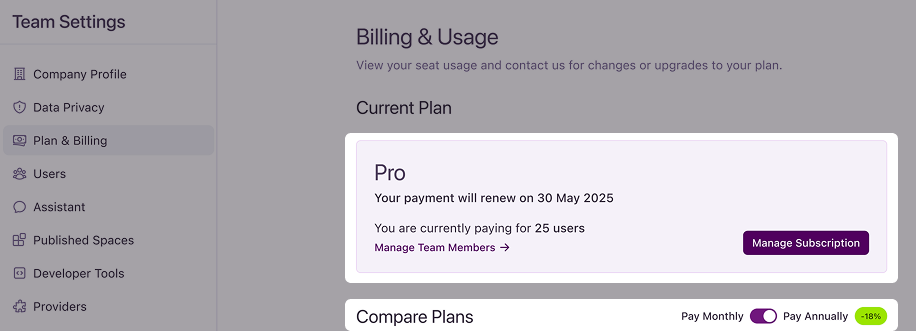
 If you are on a monthly subscription, this section will show the plan's end date and offer an option to Change Plan. This will open the Plan Management modal and allow you to switch to an annual plan or contact Omnifact to discuss your options.
If you switch, your subscription will automatically convert to an annual plan with a prorated amount based on the number of days remaining in your monthly billing cycle.
If you are on a monthly subscription, this section will show the plan's end date and offer an option to Change Plan. This will open the Plan Management modal and allow you to switch to an annual plan or contact Omnifact to discuss your options.
If you switch, your subscription will automatically convert to an annual plan with a prorated amount based on the number of days remaining in your monthly billing cycle.
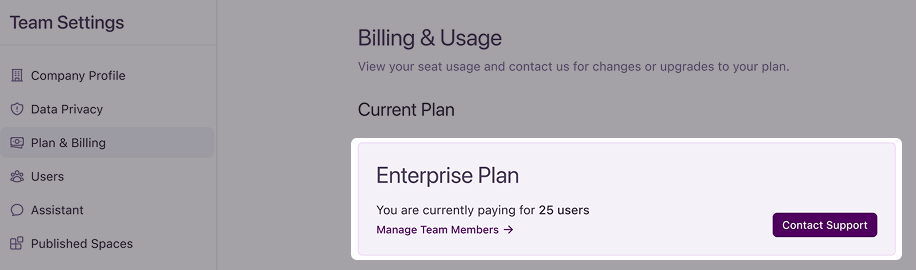
 For customers on an Enterprise plan, this section shows your plan and provides a button to contact support for any changes.
 #### Alerts & Expired Statuses
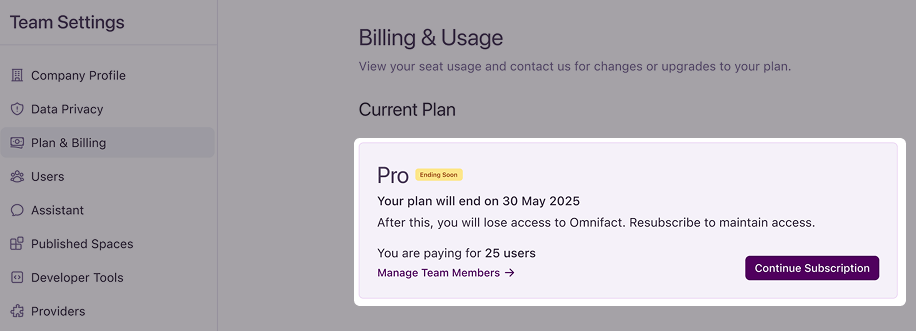
When your free trial is about to expire, a "Trial Ending Soon" notice will appear, prompting you to upgrade.
#### Alerts & Expired Statuses
When your free trial is about to expire, a "Trial Ending Soon" notice will appear, prompting you to upgrade.
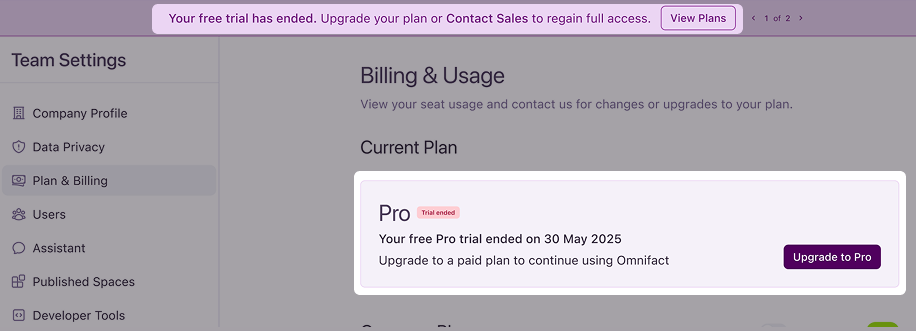
 After your free trial has ended, you will be prompted to upgrade to a paid plan to continue using Omnifact.
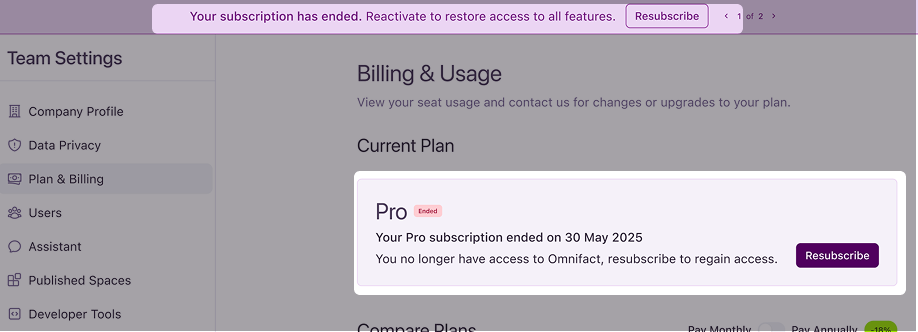
 Once your Pro subscription has ended, you will see the end date of your subscription and have an option to resubscribe to regain access.
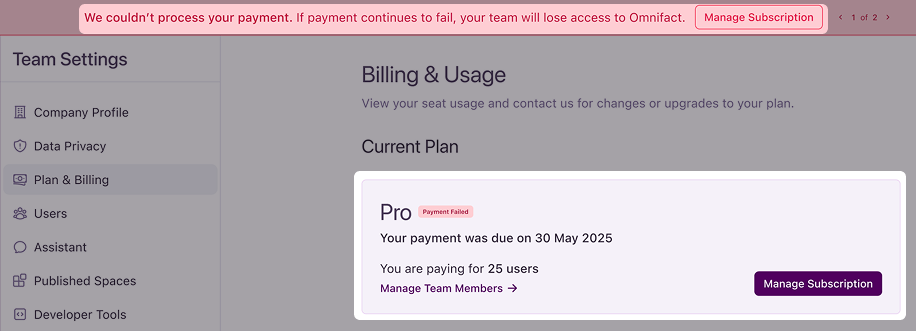
 If a payment fails, a "Payment Failed" notice will be displayed, indicating that we couldn’t process your payment. You will be directed to manage your subscription details to resolve the issue. If payment continues to fail, your team will lose access to Omnifact.
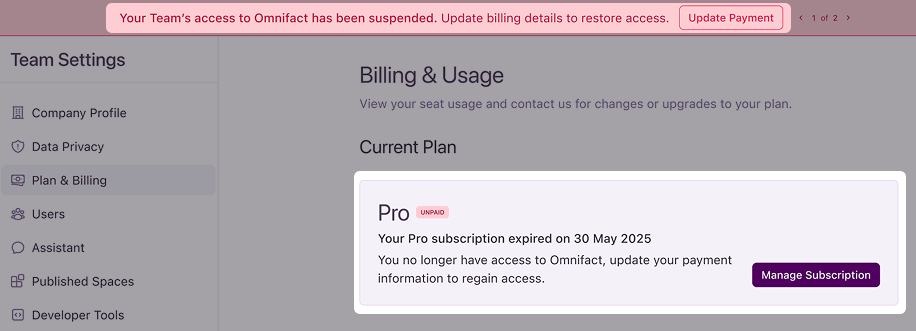
 If your subscription expires due to non-payment, an "Unpaid" notice will appear, prompting you to update your payment information to regain access to Omnifact.
 ### Seat Management
Your subscription billing is directly tied to your seat count (the total number of active and invited users in your organization).
* When you add or remove users in the [User Management](/en/platform/team-administration/users) section, you will see a **cost impact preview** detailing how the change will affect your upcoming invoice.
* Adding a new seat will prorate the cost for the remainder of your current billing cycle. Removing a seat will apply a prorated credit to your next invoice.
### Monthly Usage Credit
The **Monthly Usage Credit** section provides a real-time view of your team's AI credit consumption for the current billing period. This includes usage from the chat interface, Spaces, and the [API Gateway](/en/platform/team-administration/api-gateway). This helps you track costs and usage alongside your [Team Analytics](/en/platform/team-administration/team-analytics).
Learn more about how credits work and what happens when they are exhausted in our guide to [Understanding Usage, Credits, and Model Fallback](/en/guides/troubleshooting/usage-and-credits).
For our custom enterprise plan customers, you can continue to see your total credits used. We're working to bring the same detailed, real-time dashboard to you soon.
### Seat Management
Your subscription billing is directly tied to your seat count (the total number of active and invited users in your organization).
* When you add or remove users in the [User Management](/en/platform/team-administration/users) section, you will see a **cost impact preview** detailing how the change will affect your upcoming invoice.
* Adding a new seat will prorate the cost for the remainder of your current billing cycle. Removing a seat will apply a prorated credit to your next invoice.
### Monthly Usage Credit
The **Monthly Usage Credit** section provides a real-time view of your team's AI credit consumption for the current billing period. This includes usage from the chat interface, Spaces, and the [API Gateway](/en/platform/team-administration/api-gateway). This helps you track costs and usage alongside your [Team Analytics](/en/platform/team-administration/team-analytics).
Learn more about how credits work and what happens when they are exhausted in our guide to [Understanding Usage, Credits, and Model Fallback](/en/guides/troubleshooting/usage-and-credits).
For our custom enterprise plan customers, you can continue to see your total credits used. We're working to bring the same detailed, real-time dashboard to you soon.
 * **Usage Meter:** A progress bar shows how much of your monthly credit has been used. The total credit is calculated based on the number of users in your plan (e.g., 25 users × $5/user = $125/month).
* **Usage Forecast:** A projection estimates when you might run out of credits based on current usage patterns.
* **Add More Credits:** If you are running low, you can click here to contact the Omnifact team to discuss your options for purchasing additional credits.
### Billing History
This section provides a historical record of your past billing statements.
* **Statement Period:** Lists previous billing cycles.
* **Used Credit Amount:** Shows the total credit amount used for each period.
### Plan Management
When you click **"Change Plan"**, you can review and switch between different pricing plans. This will open the Plan Management modal, where you can compare the features and pricing of each plan and choose the one that best suits your team's needs.
* **Usage Meter:** A progress bar shows how much of your monthly credit has been used. The total credit is calculated based on the number of users in your plan (e.g., 25 users × $5/user = $125/month).
* **Usage Forecast:** A projection estimates when you might run out of credits based on current usage patterns.
* **Add More Credits:** If you are running low, you can click here to contact the Omnifact team to discuss your options for purchasing additional credits.
### Billing History
This section provides a historical record of your past billing statements.
* **Statement Period:** Lists previous billing cycles.
* **Used Credit Amount:** Shows the total credit amount used for each period.
### Plan Management
When you click **"Change Plan"**, you can review and switch between different pricing plans. This will open the Plan Management modal, where you can compare the features and pricing of each plan and choose the one that best suits your team's needs.
 * Per-user monthly or annual billing
* Includes usage credits for leading AI models
* Supports up to 50 users per team
* Up to 5,000 pages for Spaces
* Custom pricing and flexible terms
* Includes all features of the Pro plan
* Bring Your Own API Key (BYOK)
* Advanced Analytics & Insights
* API access to Omnifact Spaces
* Custom Service Level Agreements (SLAs)
* Single Sign-On (SSO)
* Cloud or on-premise deployment options
* Dedicated Account Manager
Visit our pricing page for a detailed breakdown of all plan features.
* Per-user monthly or annual billing
* Includes usage credits for leading AI models
* Supports up to 50 users per team
* Up to 5,000 pages for Spaces
* Custom pricing and flexible terms
* Includes all features of the Pro plan
* Bring Your Own API Key (BYOK)
* Advanced Analytics & Insights
* API access to Omnifact Spaces
* Custom Service Level Agreements (SLAs)
* Single Sign-On (SSO)
* Cloud or on-premise deployment options
* Dedicated Account Manager
Visit our pricing page for a detailed breakdown of all plan features.