> ## Documentation Index
> Fetch the complete documentation index at: https://docs.omnifact.ai/llms.txt
> Use this file to discover all available pages before exploring further.
# Group Management
> Organize users, manage SCIM synchronization, and assign additive permissions across your organization.
export const Glossary = ({children, term}) => {
const glossaryDefinitions = {
'ai': 'Artificial Intelligence - computer systems that can perform tasks typically requiring human intelligence',
'artificial-intelligence-ai': 'Computer systems that can perform tasks typically requiring human intelligence',
'ai-assistant': 'An AI system designed to help users with tasks through conversation',
'space': 'A dedicated environment with a specialized AI assistant and optional Knowledge Base',
'knowledge': 'The sub-menu in Space settings where you manage Uploaded Files and Connected Sources',
'knowledge-base': 'The collection of documents in a Space (from Uploaded Files and Connected Sources) that the AI assistant can retrieve',
'uploaded-files': 'Documents manually uploaded to a Space under the Knowledge tab',
'prompt': 'Instructions or questions you give to an AI assistant',
'response': 'The AI assistant\'s answer to your prompt or question',
'query': 'A question or request for information',
'context': 'Background information that helps the AI understand your request',
'llm': 'Large Language Model - an AI system trained on vast amounts of text data to understand and generate human language',
'large-language-model-llm': 'An AI system trained on vast amounts of text data to understand and generate human language',
'privacy-filter': 'A system that automatically detects and masks sensitive information before it reaches AI models, and restricts images from being sent to non-EU hosted models for compliance',
'chat-instructions': 'Custom guidelines that define how an AI assistant behaves and responds in a Space',
'pattern-matching': 'The process by which AI recognizes and uses patterns in data to provide responses',
'patterns': 'Recognizable structures or trends in data that AI systems can identify and use',
'training-data': 'The text and information used to teach an AI system how to understand and respond to requests',
'natural-language': 'Everyday human language that people use to communicate, as opposed to computer code or formal syntax',
'hallucination': 'When an AI generates information that sounds plausible but is actually incorrect or fabricated',
'filtering': 'The process of automatically detecting and temporarily replacing sensitive information to protect it during AI processing',
'masking': 'Temporarily replacing sensitive information with generic labels to protect it from being seen by external AI models',
're-insertion': 'The automatic process of putting original sensitive information back into AI responses after they\'ve been generated with filtered data',
'retrieval': 'The process of finding and accessing relevant documents from Uploaded Files to answer questions',
'hosting': 'Where an AI model is deployed and made available for use - either by third-party providers, on your organization\'s own servers, or in private cloud environments',
'cite': 'To reference or mention the source of information, helping you know where an AI\'s answer came from',
'sidebar': 'A panel that appears on the side of the screen showing additional information and options',
'toggle': 'A button or control that switches something on or off, like opening and closing a sidebar',
'navigation': 'The system of menus and buttons that help you move between different parts of Omnifact',
'favoriting': 'Marking a Space as a favorite to pin it to the main navigation for quick access',
'pinning': 'Attaching a Space to the main navigation bar so it\'s always visible and easily accessible'
};
const definition = glossaryDefinitions[term];
return {children};
};
The **Groups** section in Team Settings allows administrators to seamlessly manage user access and permissions at scale. Groups are central to how your team interacts with Omnifact, enabling you to grant specific chat capabilities, model tiers, and Space access to different subsets of your organization.
If your organization uses an Identity Provider (IdP), Groups also serve as the foundation for SCIM synchronization, automatically aligning your internal directory with Omnifact.
## Understanding Groups
Groups act as an organizational layer to simplify user and permission management. They are designed around an **additive permission model**.
* **Additive permissions:** A user receives the *union* of all capabilities granted by every group they belong to. Groups can only *add* permissions; they never restrict or deny access granted elsewhere.
* **Bulk Space sharing:** Instead of inviting users to a Space one by one, you can share a Space with an entire group.
### Types of Groups
There are three kinds of groups within Omnifact:
1. **Everyone (Built-in)**
This group is automatically created for every organization and cannot be deleted. It implicitly includes every active user. The permissions assigned to the **Everyone** group define your organization's baseline access.
2. **Synced Groups**
These groups are automatically provisioned and updated via your Identity Provider (SCIM). While you cannot manually add or remove members from Synced groups in Omnifact, you **can** manage their Omnifact permissions.
3. **Manual Groups**
These are custom groups you create directly within Omnifact. You have full control over their names, membership, and permissions.
## SCIM Synchronization & Identity Providers
SCIM Provisioning is an exclusive feature available for customers on the **Enterprise Plan**.
For mid-to-large organizations, **SCIM synced groups** are often the primary reason for using the Groups feature. When you connect your Identity Provider (like Azure AD, Okta, or Google Workspace) to Omnifact:
* Groups from your directory are automatically mirrored into Omnifact as **Synced Groups**.
* User membership is automatically updated as people join, move, or leave your company.
* You map specific Omnifact permissions to these Synced Groups. For example, your "Data Science" IdP group can be granted access to Premium models without requiring any manual setup in Omnifact.
When SCIM is active, manual member management for these groups is locked to maintain your Identity Provider as the single source of truth.
## Managing Manual Groups
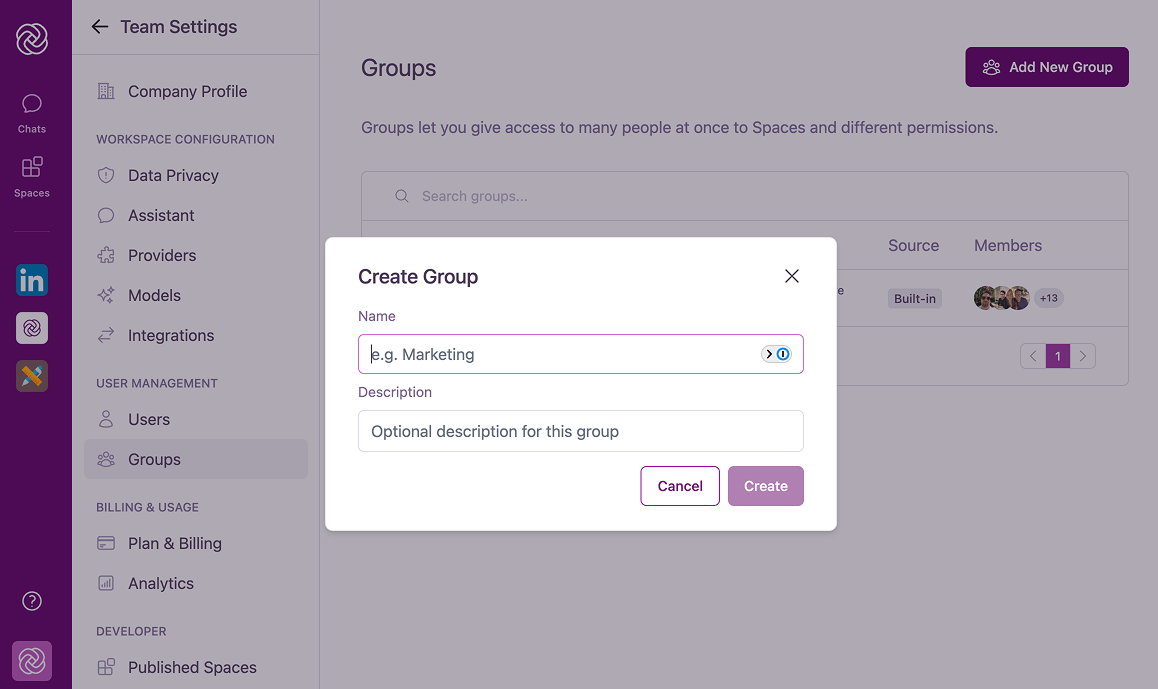
1. Navigate to **Team Settings > Groups**.
2. Click the **Add New Group** button.
3. Enter a **Name** (required) and a **Description** (optional).
4. Click **Create**.
 1. Click on your newly created group to open its details.
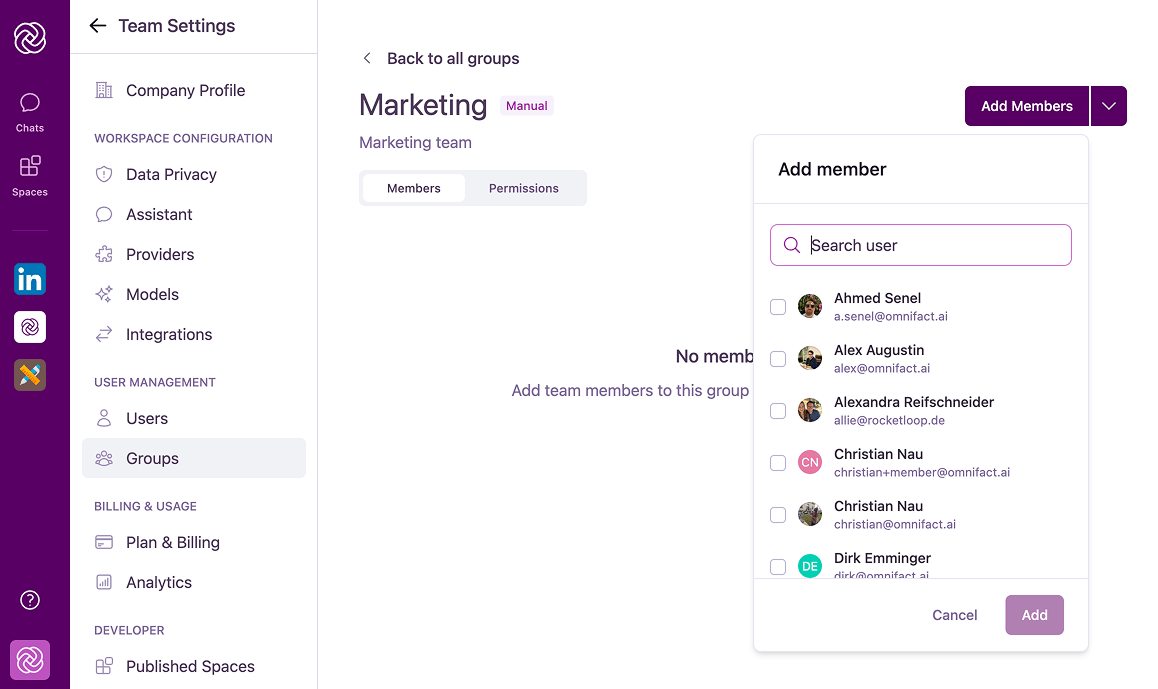
2. Under the **Members** tab, click **Add Members**.
3. Search for existing organization users and click **Add**.
1. Click on your newly created group to open its details.
2. Under the **Members** tab, click **Add Members**.
3. Search for existing organization users and click **Add**.
 You can rename or delete manual groups at any time using the "More Options" menu in the group details view. Deleting a group will immediately revoke any permissions and Space access that members received *exclusively* through that group.
## Group Permissions
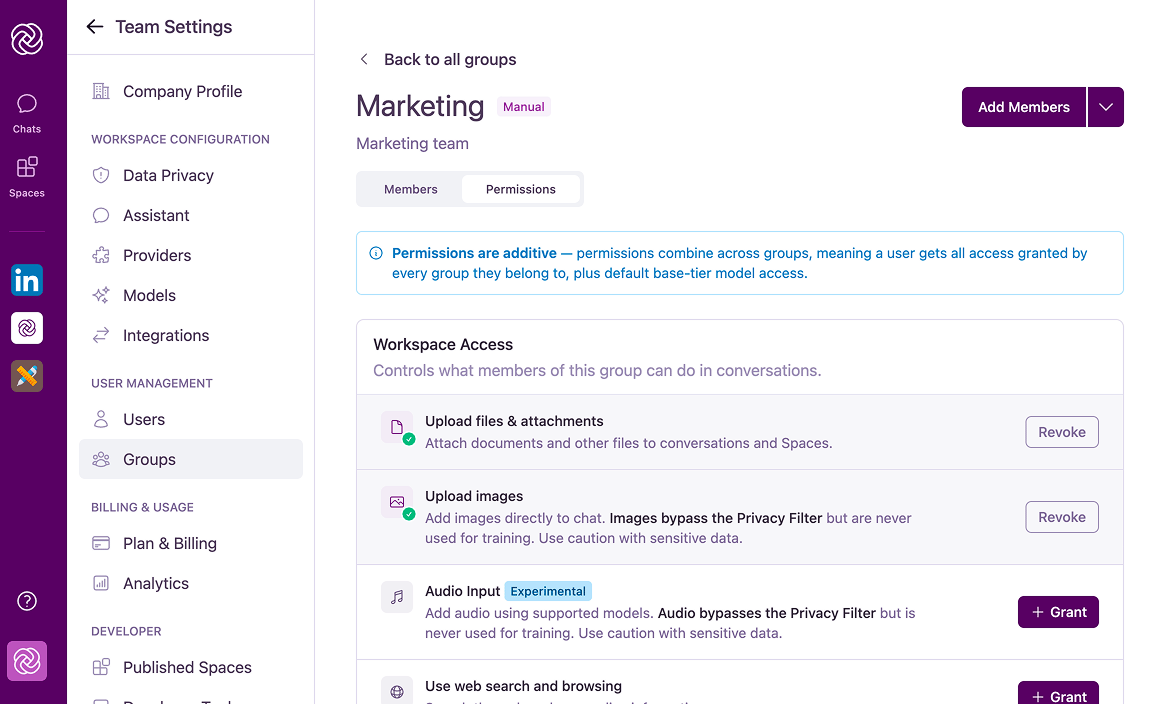
Permissions are managed in the **Permissions** tab of any group's detail page. Remember that grants are additive; if a capability is turned off here, a user might still have it through another group or the **Everyone** group.
You can rename or delete manual groups at any time using the "More Options" menu in the group details view. Deleting a group will immediately revoke any permissions and Space access that members received *exclusively* through that group.
## Group Permissions
Permissions are managed in the **Permissions** tab of any group's detail page. Remember that grants are additive; if a capability is turned off here, a user might still have it through another group or the **Everyone** group.
 ### Workspace Access
These permissions control which chat features are available to group members:
Allows members to upload documents directly into their chats for analysis.
Allows members to add images directly into a chat to support multimodal interactions, such as asking questions about a chart or diagram.
**Privacy Note**
Images uploaded via this feature **do not** pass through the [Omnifact Privacy Filter™](/en/platform/core-features/privacy-security/introduction). While images are never used for training by the underlying model provider, any sensitive data contained within the images will be sent directly to the model.
Please ensure your users are aware when handling sensitive data.
This experimental feature allows users to add audio files directly into a chat to support multimodal interactions with audio-capable models.
**Privacy Note**
Audio files uploaded via this feature **do not** pass through the [Omnifact Privacy Filter™](/en/platform/core-features/privacy-security/introduction). While audio files are never used for training by the underlying model provider, any sensitive data contained within the audio will be sent directly to the model.
Please ensure your users are aware when handling sensitive data.
When enabled, this grants the AI the ability to search the internet and browse web pages. This capability is useful for providing up-to-the-minute information and gathering broader context for user queries that cannot be answered by the selected AI model alone.
Enabling this feature allows users to transform their ideas into visuals by requesting AI-generated images.
### Model Access
By default, all users have access to base tier AI models. You can grant access to more capable (and potentially more expensive) models:
* **Use standard models:** Unlocks standard models.
* **Use premium models:** Unlocks premium models (e.g., GPT-4, Claude 3.5 Sonnet).
**Organization availability applies:** A group permission only works if the specific model or feature is actually enabled for your organization in [Models](/en/platform/team-administration/models). If your organization has disabled premium models entirely, the group permission will have no effect.
### Privacy & Compliance
These settings control data residency and privacy exemptions:
* **Enable US-hosted models access:** Grants access to models hosted on US servers (Data Residency).
* **Privacy Filter Exemption:** When assigned, this allows group members to temporarily disable the [Privacy Filter](/en/platform/core-features/privacy-security/introduction) for specific conversations where unmasked data is explicitly required.
## Sharing Spaces with Groups
Instead of inviting users individually to a Space, you can share it with an entire group.
1. Navigate to your Space and open **Space Settings > Sharing**.
2. Click **Share Space**.
3. Select any of your organization's groups.
Group access to a Space is **view-only** (Member role). If you need someone to manage the Space's instructions or Uploaded Files, you must add them individually as an **Editor**.
### Workspace Access
These permissions control which chat features are available to group members:
Allows members to upload documents directly into their chats for analysis.
Allows members to add images directly into a chat to support multimodal interactions, such as asking questions about a chart or diagram.
**Privacy Note**
Images uploaded via this feature **do not** pass through the [Omnifact Privacy Filter™](/en/platform/core-features/privacy-security/introduction). While images are never used for training by the underlying model provider, any sensitive data contained within the images will be sent directly to the model.
Please ensure your users are aware when handling sensitive data.
This experimental feature allows users to add audio files directly into a chat to support multimodal interactions with audio-capable models.
**Privacy Note**
Audio files uploaded via this feature **do not** pass through the [Omnifact Privacy Filter™](/en/platform/core-features/privacy-security/introduction). While audio files are never used for training by the underlying model provider, any sensitive data contained within the audio will be sent directly to the model.
Please ensure your users are aware when handling sensitive data.
When enabled, this grants the AI the ability to search the internet and browse web pages. This capability is useful for providing up-to-the-minute information and gathering broader context for user queries that cannot be answered by the selected AI model alone.
Enabling this feature allows users to transform their ideas into visuals by requesting AI-generated images.
### Model Access
By default, all users have access to base tier AI models. You can grant access to more capable (and potentially more expensive) models:
* **Use standard models:** Unlocks standard models.
* **Use premium models:** Unlocks premium models (e.g., GPT-4, Claude 3.5 Sonnet).
**Organization availability applies:** A group permission only works if the specific model or feature is actually enabled for your organization in [Models](/en/platform/team-administration/models). If your organization has disabled premium models entirely, the group permission will have no effect.
### Privacy & Compliance
These settings control data residency and privacy exemptions:
* **Enable US-hosted models access:** Grants access to models hosted on US servers (Data Residency).
* **Privacy Filter Exemption:** When assigned, this allows group members to temporarily disable the [Privacy Filter](/en/platform/core-features/privacy-security/introduction) for specific conversations where unmasked data is explicitly required.
## Sharing Spaces with Groups
Instead of inviting users individually to a Space, you can share it with an entire group.
1. Navigate to your Space and open **Space Settings > Sharing**.
2. Click **Share Space**.
3. Select any of your organization's groups.
Group access to a Space is **view-only** (Member role). If you need someone to manage the Space's instructions or Uploaded Files, you must add them individually as an **Editor**.