> ## Documentation Index
> Fetch the complete documentation index at: https://docs.omnifact.ai/llms.txt
> Use this file to discover all available pages before exploring further.
# MCP Servers
> Connect business systems and custom tools to Omnifact using open-standard Model Context Protocol servers.
export const Glossary = ({children, term}) => {
const glossaryDefinitions = {
'ai': 'Artificial Intelligence - computer systems that can perform tasks typically requiring human intelligence',
'artificial-intelligence-ai': 'Computer systems that can perform tasks typically requiring human intelligence',
'ai-assistant': 'An AI system designed to help users with tasks through conversation',
'space': 'A dedicated environment with a specialized AI assistant and optional Uploaded Files',
'spaces': 'Dedicated environments with specialized AI assistants and optional Uploaded Files',
'knowledge': 'The sub-menu in Space settings where you manage Uploaded Files and Connected Sources',
'uploaded-files': 'Documents manually uploaded to a Space under the Knowledge tab',
'prompt': 'Instructions or questions you give to an AI assistant',
'response': 'The AI assistant\'s answer to your prompt or question',
'query': 'A question or request for information',
'context': 'Background information that helps the AI understand your request',
'llm': 'Large Language Model - an AI system trained on vast amounts of text data to understand and generate human language',
'large-language-model-llm': 'An AI system trained on vast amounts of text data to understand and generate human language',
'privacy-filter': 'A system that automatically detects and masks sensitive information before it reaches AI models, and restricts images from being sent to non-EU hosted models for compliance',
'chat-instructions': 'Custom guidelines that define how an AI assistant behaves and responds in a Space',
'pattern-matching': 'The process by which AI recognizes and uses patterns in data to provide responses',
'patterns': 'Recognizable structures or trends in data that AI systems can identify and use',
'training-data': 'The text and information used to teach an AI system how to understand and respond to requests',
'natural-language': 'Everyday human language that people use to communicate, as opposed to computer code or formal syntax',
'hallucination': 'When an AI generates information that sounds plausible but is actually incorrect or fabricated',
'filtering': 'The process of automatically detecting and temporarily replacing sensitive information to protect it during AI processing',
'masking': 'Temporarily replacing sensitive information with generic labels to protect it from being seen by external AI models',
're-insertion': 'The automatic process of putting original sensitive information back into AI responses after they\'ve been generated with filtered data',
'retrieval': 'The process of finding and accessing relevant documents from Uploaded Files to answer questions',
'hosting': 'Where an AI model is deployed and made available for use - either by third-party providers, on your organization\'s own servers, or in private cloud environments',
'cite': 'To reference or mention the source of information, helping you know where an AI\'s answer came from',
'sidebar': 'A panel that appears on the side of the screen showing additional information and options',
'toggle': 'A button or control that switches something on or off, like opening and closing a sidebar',
'navigation': 'The system of menus and buttons that help you move between different parts of Omnifact',
'favoriting': 'Marking a Space as a favorite to pin it to the main navigation for quick access',
'pinning': 'Attaching a Space to the main navigation bar so it\'s always visible and easily accessible'
};
const definition = glossaryDefinitions[term];
return {children};
};
Connecting workplace AI to internal software traditionally required custom API wrappers or closed vendor ecosystems. Omnifact natively supports the **Model Context Protocol (MCP)**, an open industry standard that connects autonomous chat agents directly to your organization's business systems, databases, and internal tools under complete administrative control.
Because MCP is an open standard, your organization avoids vendor lock-in. You can connect off-the-shelf MCP servers provided by software vendors or deploy lightweight internal servers for proprietary databases. Because these integrations connect at the platform level, changing default AI models or adding new reasoning tiers never disrupts your existing connections.
 ## How MCP Works in Omnifact
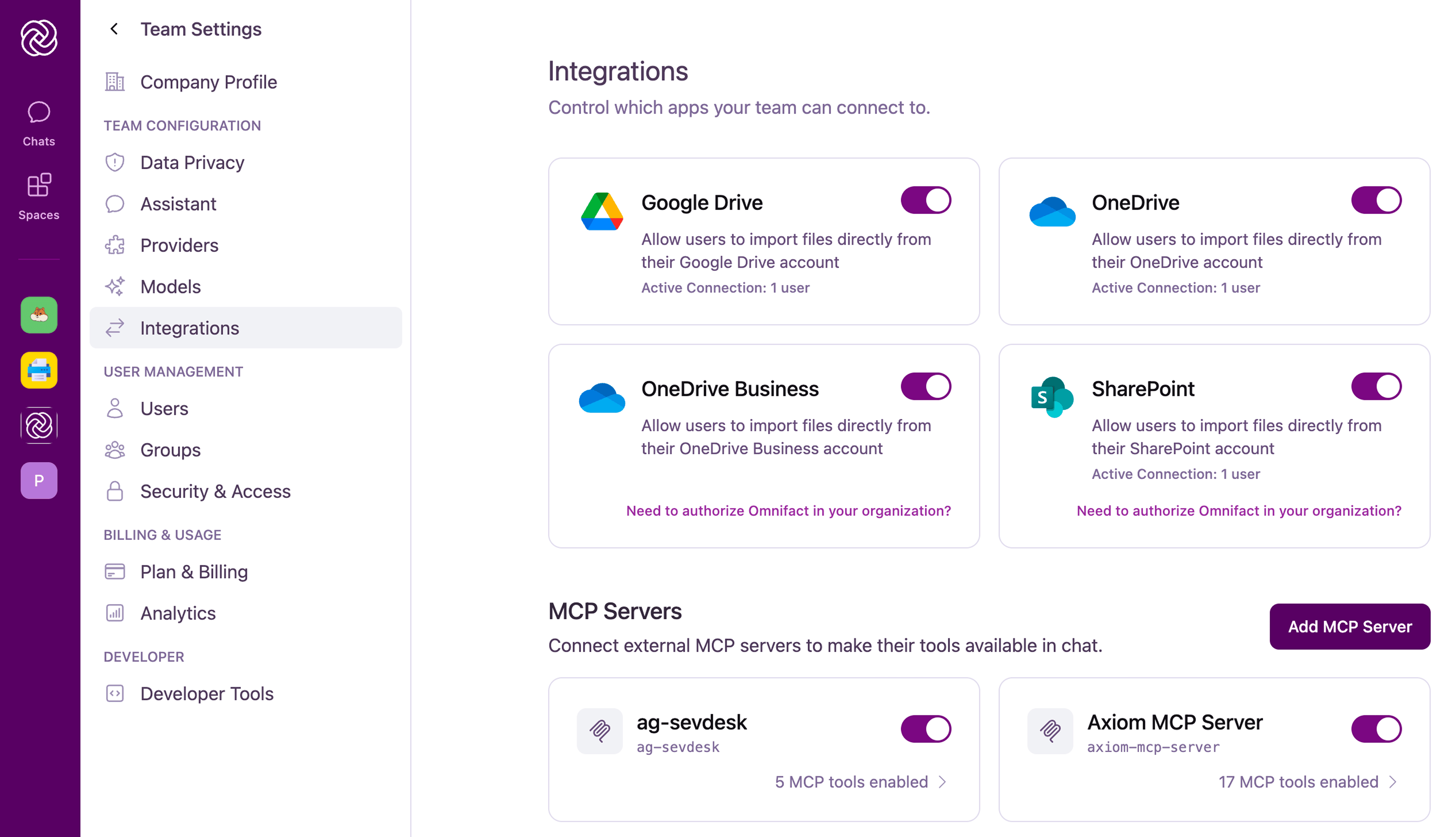
1. **Platform Connection:** Administrators configure remote MCP server endpoints in **Team Settings > Integrations**.
2. **Automatic Tool Discovery:** Omnifact connects to the server, queries its available capabilities, and registers the discovered tool schemas for agent use.
3. **Administrative Access Control:** Administrators assign an explicit execution policy (**Always**, **Approval**, or **Disable**) to each discovered tool.
4. **Agent Invocation:** When users interact with the assistant in chat, agents intelligently invoke enabled tools to look up live records, run calculations, or update systems.
5. **Interactive Confirmation:** For sensitive tools configured for approval, the user reviews the exact request payload in chat before the action executes.
## Adding an MCP Server
Team administrators can configure remote MCP servers over HTTP directly from the administration dashboard.
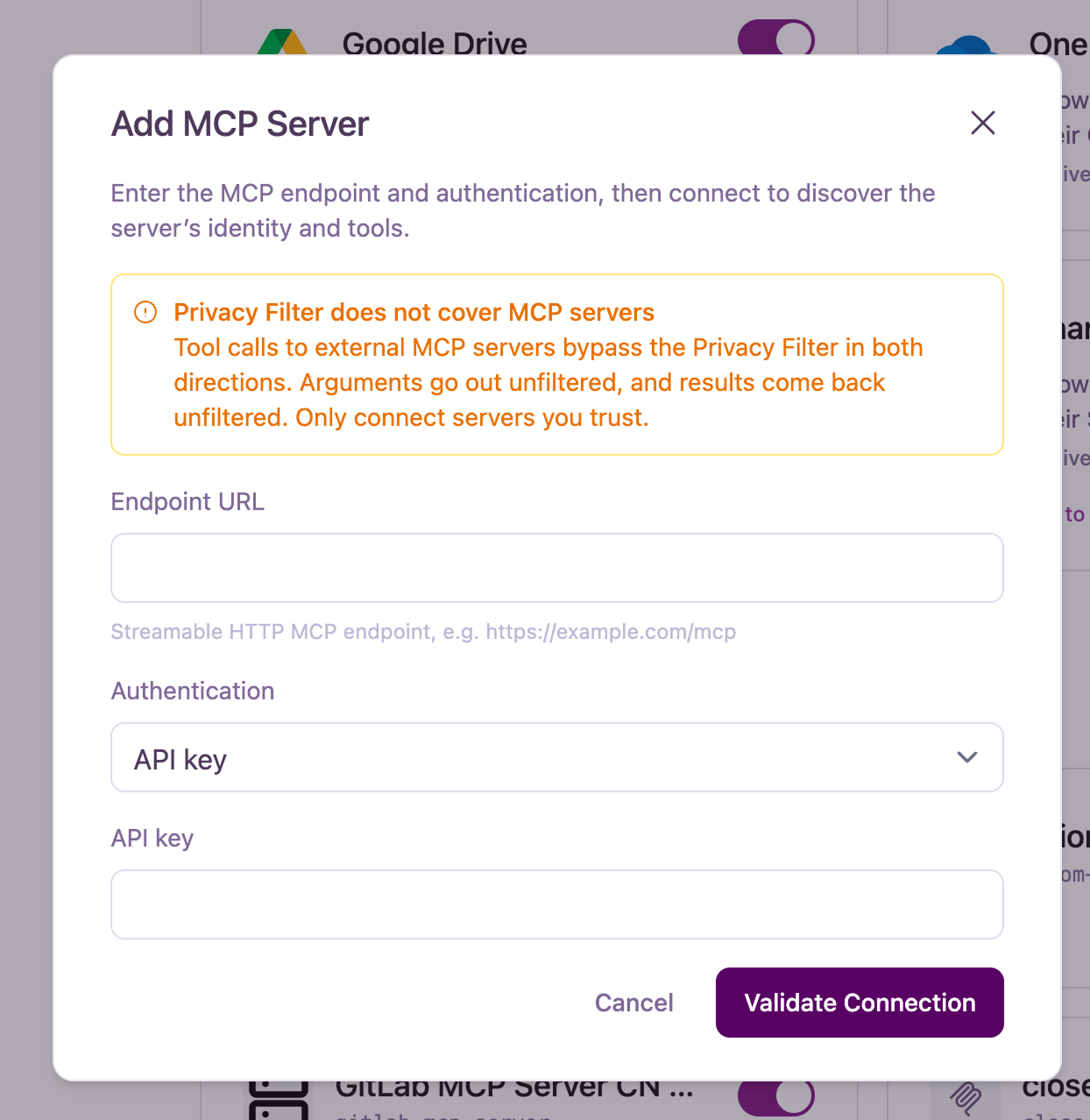
Go to **Team Settings > Integrations**. Scroll down to the **MCP Servers** section and click **Add MCP Server**.
Enter the server identity details:
* **Name:** A descriptive display name shown across the administration interface (for example, "Salesforce CRM" or "Internal Inventory API").
* **Slug:** A unique identifier containing only lowercase letters, digits, and hyphens (up to 24 characters). The slug serves as a model-facing tool prefix (for example, a slug of `salesforce` prefixes tools as `salesforce__lookup`).
Enter the connection details:
* **Endpoint URL:** A streamable HTTP MCP endpoint (for example, `https://mcp.internal.example.com/mcp`). Private network addresses, loopback addresses, and internal subnets are blocked by default to prevent unauthorized intranet requests.
* **Authentication:** Choose your server's authentication method:
* **None:** For unauthenticated public or internal test endpoints.
* **API key:** Sends the key in an API key header.
* **Bearer token:** Sends standard `Authorization: Bearer ` authentication.
* **Custom header:** Allows specifying a custom header name and secret value.
Click **Validate Connection**. Omnifact tests connectivity to the endpoint and retrieves all exposed tools. If validation succeeds, you will see the list of discovered tools.
Click **Add MCP Server** to finalize the setup. The server will appear in your MCP Servers list.
## How MCP Works in Omnifact
1. **Platform Connection:** Administrators configure remote MCP server endpoints in **Team Settings > Integrations**.
2. **Automatic Tool Discovery:** Omnifact connects to the server, queries its available capabilities, and registers the discovered tool schemas for agent use.
3. **Administrative Access Control:** Administrators assign an explicit execution policy (**Always**, **Approval**, or **Disable**) to each discovered tool.
4. **Agent Invocation:** When users interact with the assistant in chat, agents intelligently invoke enabled tools to look up live records, run calculations, or update systems.
5. **Interactive Confirmation:** For sensitive tools configured for approval, the user reviews the exact request payload in chat before the action executes.
## Adding an MCP Server
Team administrators can configure remote MCP servers over HTTP directly from the administration dashboard.
Go to **Team Settings > Integrations**. Scroll down to the **MCP Servers** section and click **Add MCP Server**.
Enter the server identity details:
* **Name:** A descriptive display name shown across the administration interface (for example, "Salesforce CRM" or "Internal Inventory API").
* **Slug:** A unique identifier containing only lowercase letters, digits, and hyphens (up to 24 characters). The slug serves as a model-facing tool prefix (for example, a slug of `salesforce` prefixes tools as `salesforce__lookup`).
Enter the connection details:
* **Endpoint URL:** A streamable HTTP MCP endpoint (for example, `https://mcp.internal.example.com/mcp`). Private network addresses, loopback addresses, and internal subnets are blocked by default to prevent unauthorized intranet requests.
* **Authentication:** Choose your server's authentication method:
* **None:** For unauthenticated public or internal test endpoints.
* **API key:** Sends the key in an API key header.
* **Bearer token:** Sends standard `Authorization: Bearer ` authentication.
* **Custom header:** Allows specifying a custom header name and secret value.
Click **Validate Connection**. Omnifact tests connectivity to the endpoint and retrieves all exposed tools. If validation succeeds, you will see the list of discovered tools.
Click **Add MCP Server** to finalize the setup. The server will appear in your MCP Servers list.
 ## Per-Tool Governance and Access Policies
Opening internal systems to AI agents demands clear administrative boundaries. Omnifact gives IT teams complete authority over which tools run and how they execute.
Click on any configured server in **Team Settings > Integrations** to view its tool management page. Every tool exposed by the server operates under one of three policies:
## Per-Tool Governance and Access Policies
Opening internal systems to AI agents demands clear administrative boundaries. Omnifact gives IT teams complete authority over which tools run and how they execute.
Click on any configured server in **Team Settings > Integrations** to view its tool management page. Every tool exposed by the server operates under one of three policies:
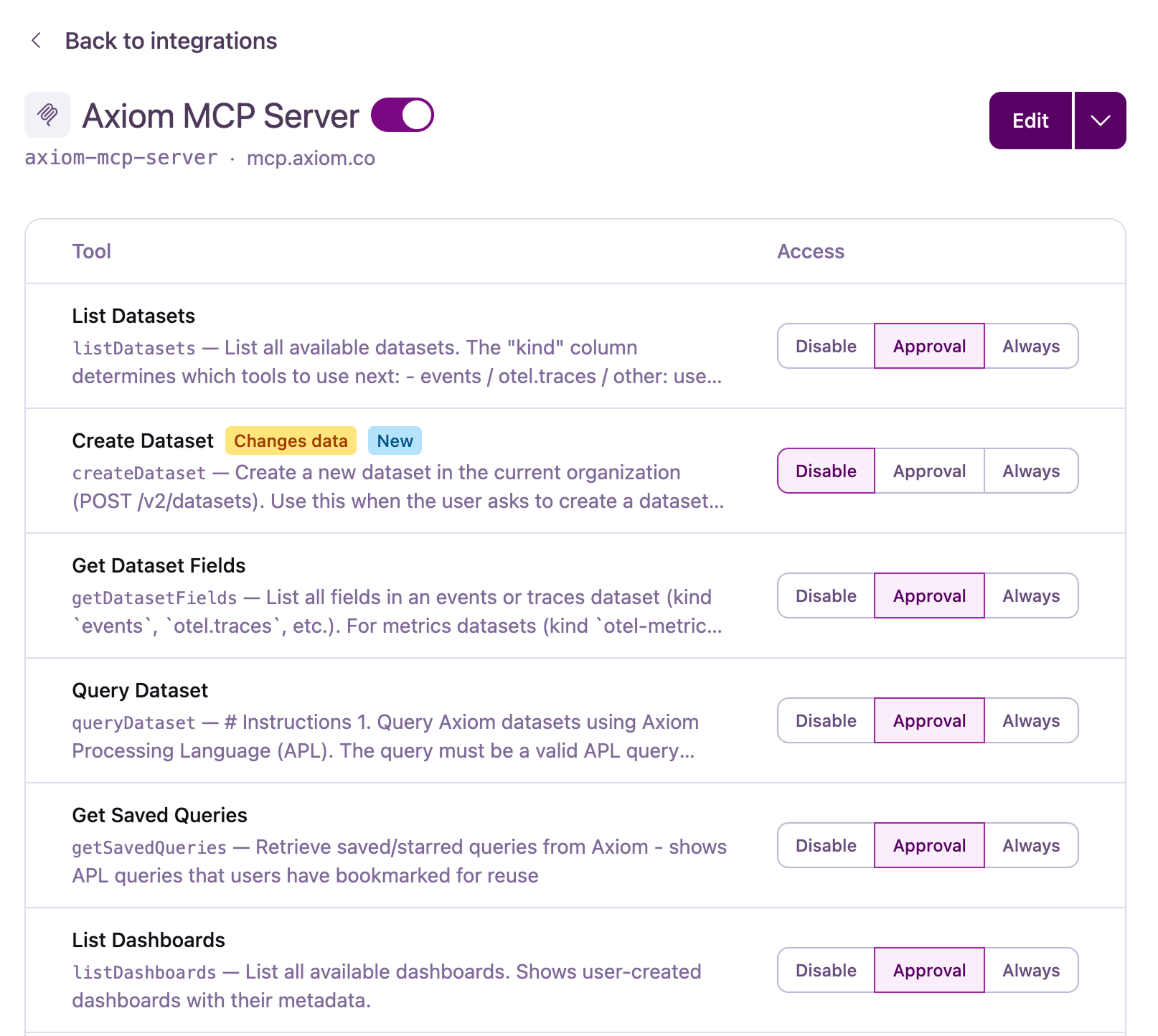 Runs safe, read-only lookups (such as documentation searches or customer status checks) autonomously without prompting the user.
Pauses state-changing operations and sensitive updates (such as updating records or sending emails) until confirmed in chat.
Keeps the tool off-limits and hides its schema so AI models never see or invoke it.
### Managing Stale and Updated Tools
When connection settings or remote tools change:
* Click **Edit** on the server details page and select **Validate & Save** to refresh the tool list.
* Existing tools retain their configured access policies.
* Newly discovered tools start in the **Disable** state by default until an administrator enables them.
* Tools no longer reported by the remote server are grouped under a **No longer reported** section, where they can be removed individually or with **Remove all**.
## Interactive In-Chat Approvals
For tools assigned the **Approval** policy, Omnifact prevents unauthorized state changes by placing a human in the loop.
When an AI agent decides to run an approval-gated tool:
1. Generation pauses, and an interactive **Tool Approval Banner** appears directly above the chat composer.
2. The banner clearly identifies the tool name, target MCP server, and total actions queued (for example, "1 of 2 actions").
3. Users can expand the parameter view to inspect the exact argument payload before deciding.
4. Users click **Allow** to permit execution or **Deny** to cancel the call.
Runs safe, read-only lookups (such as documentation searches or customer status checks) autonomously without prompting the user.
Pauses state-changing operations and sensitive updates (such as updating records or sending emails) until confirmed in chat.
Keeps the tool off-limits and hides its schema so AI models never see or invoke it.
### Managing Stale and Updated Tools
When connection settings or remote tools change:
* Click **Edit** on the server details page and select **Validate & Save** to refresh the tool list.
* Existing tools retain their configured access policies.
* Newly discovered tools start in the **Disable** state by default until an administrator enables them.
* Tools no longer reported by the remote server are grouped under a **No longer reported** section, where they can be removed individually or with **Remove all**.
## Interactive In-Chat Approvals
For tools assigned the **Approval** policy, Omnifact prevents unauthorized state changes by placing a human in the loop.
When an AI agent decides to run an approval-gated tool:
1. Generation pauses, and an interactive **Tool Approval Banner** appears directly above the chat composer.
2. The banner clearly identifies the tool name, target MCP server, and total actions queued (for example, "1 of 2 actions").
3. Users can expand the parameter view to inspect the exact argument payload before deciding.
4. Users click **Allow** to permit execution or **Deny** to cancel the call.
 If a user denies the tool run, the assistant receives an explicit denial status and continues the conversation, explaining that the action was cancelled without modifying any data.
## Privacy Filter and Security Considerations
Omnifact is built privacy-first, but external integrations require special awareness:
**Privacy Filter Bypass:** Tool calls to external MCP servers communicate directly with your configured endpoints. External MCP tool calls **bypass the Privacy Filter in both directions**. Arguments sent to external MCP servers go out unfiltered, and returned tool results enter the conversation unfiltered. Only connect endpoints and servers that your organization trusts.
To ensure security across your workspace:
* **Server Authorization:** Only administrators with access to Team Settings can add or edit MCP servers.
* **Default Disabling:** Newly discovered tools are disabled until an administrator explicitly assigns an active policy.
* **SSRF Defense:** Omnifact validates destination endpoints to prevent access to private network resources and metadata services.
## Related Resources
* [Integrations Overview](/en/platform/team-administration/integrations): Manage cloud storage integrations and connected data.
* [Group Management](/en/platform/team-administration/groups): Assign chat capabilities and model access across user groups.
* [How the Privacy Filter Works](/en/platform/core-features/privacy-security/how-privacy-filter-works): Learn how data masking operates across general chat interactions.
If a user denies the tool run, the assistant receives an explicit denial status and continues the conversation, explaining that the action was cancelled without modifying any data.
## Privacy Filter and Security Considerations
Omnifact is built privacy-first, but external integrations require special awareness:
**Privacy Filter Bypass:** Tool calls to external MCP servers communicate directly with your configured endpoints. External MCP tool calls **bypass the Privacy Filter in both directions**. Arguments sent to external MCP servers go out unfiltered, and returned tool results enter the conversation unfiltered. Only connect endpoints and servers that your organization trusts.
To ensure security across your workspace:
* **Server Authorization:** Only administrators with access to Team Settings can add or edit MCP servers.
* **Default Disabling:** Newly discovered tools are disabled until an administrator explicitly assigns an active policy.
* **SSRF Defense:** Omnifact validates destination endpoints to prevent access to private network resources and metadata services.
## Related Resources
* [Integrations Overview](/en/platform/team-administration/integrations): Manage cloud storage integrations and connected data.
* [Group Management](/en/platform/team-administration/groups): Assign chat capabilities and model access across user groups.
* [How the Privacy Filter Works](/en/platform/core-features/privacy-security/how-privacy-filter-works): Learn how data masking operates across general chat interactions.