

What is the Omnifact Privacy Filter™?
Our Omnifact Privacy Filter™ is an AI safety tool that automatically detects and anonymizes sensitive information in your messages and documents before they’re processed by AI models. It’s especially valuable when using non-EU or third-party models where data privacy is a concern.In Short: We automatically replace sensitive details (like names and credit cards) with generic labels before sending your request to the AI. Once the AI responds, we put the original details back so the answer makes sense to you.
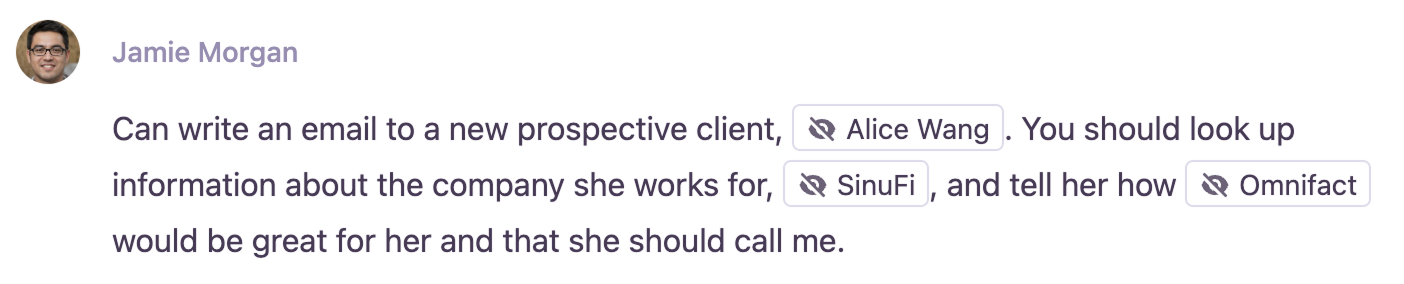
The Privacy Filter is enabled by default across the Omnifact platform and serves as an additional layer of protection against accidental data sharing.
The Privacy Filter Process
Finding Sensitive Information
When you send a message or upload documents, the Privacy Filter immediately checks for sensitive information like names, phone numbers, and addresses.
This check happens within Omnifact’s secure systems before any information reaches external AI models.
Filtering the Sensitive Parts
The Privacy Filter replaces sensitive information with generic, unidentifiable labels while preserving the meaning of your message.
These labels keep your message readable while protecting the private details from external AI models.
Safe AI Processing
Your message is processed using only the filtered version, ensuring your private information never reaches external models. For additional protection, when the Privacy Filter is enabled, images are restricted from being sent to AI models not hosted within the EU.
If the identity of filtered terms is essential for a meaningful answer (e.g., asking a specific question about a person), the AI model won’t have access to this information and may not be able to provide a helpful response. In such cases, you may need to selectively reveal certain information using Click to Reveal.
What You’ll See When Information Gets Filtered
When you send a message with sensitive information, you’ll notice some changes in how your message appears: In your message: You’ll see certain words or phrases highlighted with a special visual indicator (like a crossed-out eye icon) where your sensitive information was detected. This shows you exactly what information was protected. What this means: If you see these highlighted areas in your message, it means the Privacy Filter detected sensitive information and is protecting it from being shared with the AI assistant.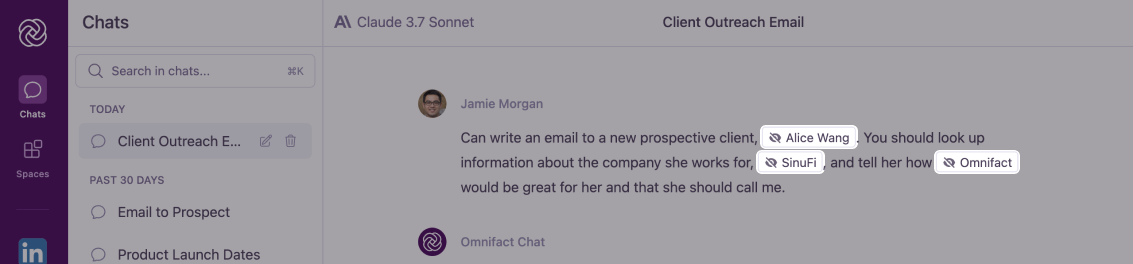
Types of Sensitive Information Detected
The Privacy Filter is designed to detect and a wide range of sensitive information:- Personal Information (PII)
- Financial Data
- Organization Data
- Full names
- Individual names
- Email addresses
- IP addresses
- Phone numbers
- Personal addresses
- Social Security Numbers
- Driver’s license numbers
- ID card/passport numbers
The Privacy Filter is regularly updated to recognize new types of sensitive information.
Responsible AI Usage
While the Privacy Filter provides technical protection, Omnifact Academy helps users build confidence in working with AI through comprehensive training. Users learn how to effectively leverage AI capabilities while maintaining security best practices, making adoption smoother across your organization. This combination of technical safeguards and practical knowledge empowers teams to embrace AI tools with confidence.When the Privacy Filter is enabled, images are restricted from being sent to AI models not hosted within the EU to ensure compliance with data privacy standards. This provides an additional layer of protection for visual content that may contain sensitive information.
Next Steps
Now that you understand how the Privacy Filter works, you might want to explore:- Learn how to selectively reveal filtered information with Click to Reveal
- Discover how to proactively prevent masking with Excluding Text from the Privacy Filter
- Return to Why Data Privacy Matters for our broader privacy commitment