

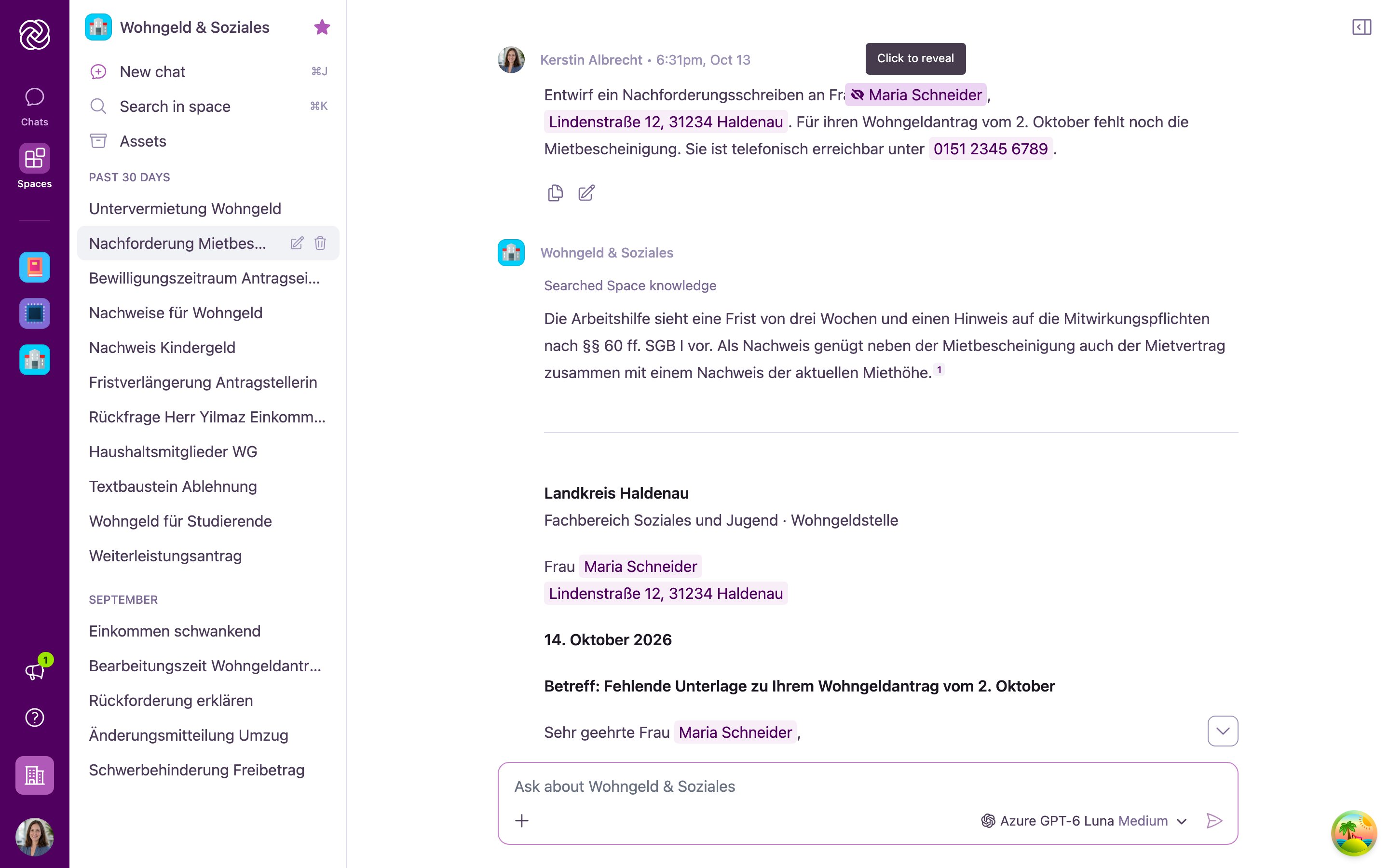
When to Use Click to Reveal
Before you reveal a highlighted term, the external AI model sees only a neutral placeholder such as[Organization:1] or [Person:1]. Revealing is useful when:
- The masked entity is public or non-sensitive and essential for the task (for example, asking the AI to research or summarize public facts about
[Organization:1]). - A tool call needs the real name (for example, unblocking Web Search for a public company or product name).
- The exact term is a technical acronym or product name that happened to look like a person or organization name.
How to Use Click to Reveal
1
Identify Filtered Information
Filtered spans are highlighted in your message. Point at a highlight to see a crossed-out eye (Click to reveal).
2
Select One or More Spans to Reveal
Click the highlighted span (or multiple spans) in your own message that you want to share. A Reveal Protected Data bar with Cancel and Reveal appears beneath the message.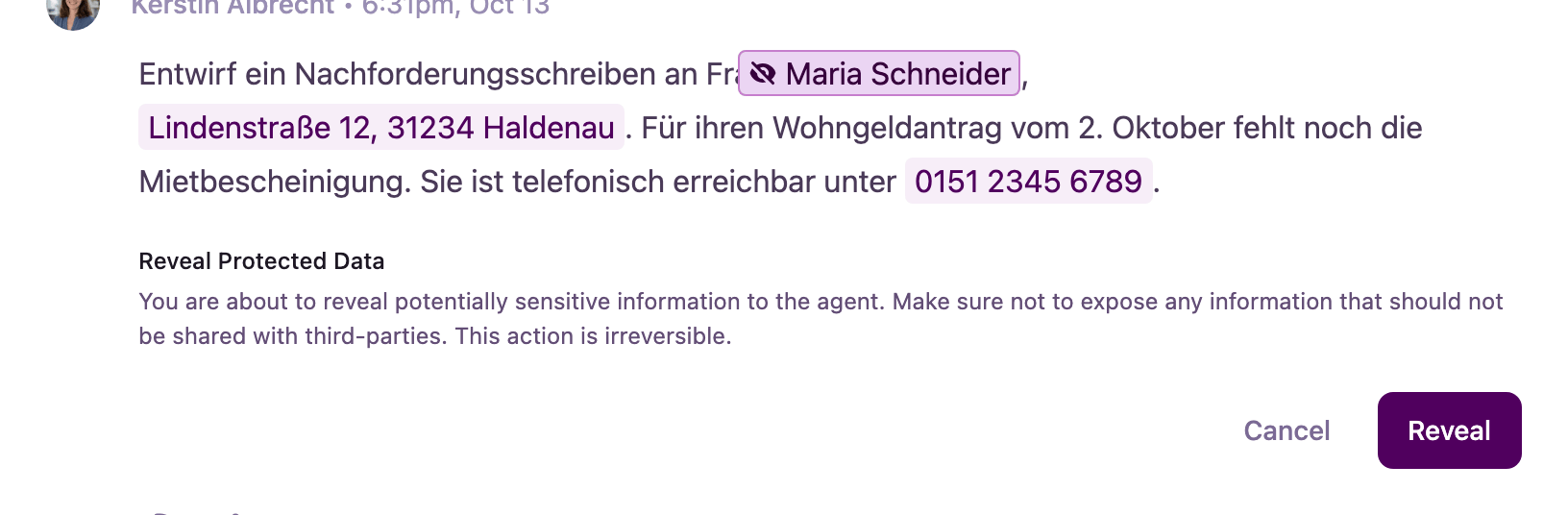
You initiate reveals on your own sent messages (hovering a masked span inside an assistant reply reminds you: “Reveal from within your original message”).
3
Confirm in the Dialog
Click Reveal, review the exact value(s) listed in the Reveal Protected Data confirmation dialog, and click Confirm & Reveal.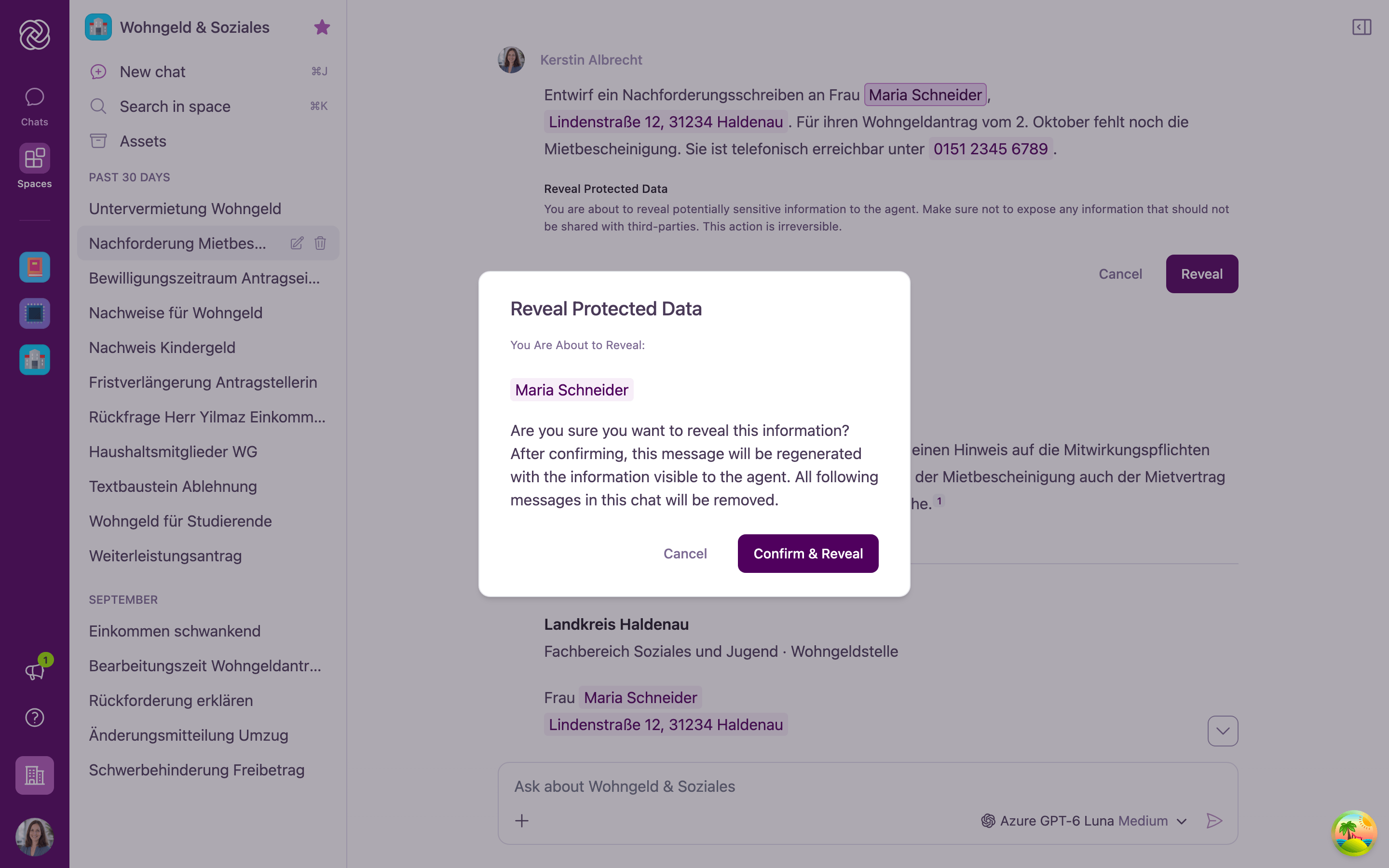
Revealing regenerates the AI response from that turn forward and removes any messages that followed it in the conversation. Copy any downstream text you want to keep before confirming.
4
View the Regenerated Response
After confirming:
- The revealed span displays with an open eye icon on hover.
- The AI regenerates its with full visibility into that specific value.
- Scoped to this conversation: Revealed values are stored on this conversation’s allowlist, so you do not need to reveal the same name again in follow-up messages within the same chat, and never unmask values in other chats.
All other sensitive values in the conversation and in future messages remain masked automatically. Starting a New chat starts with a clean allowlist where everything is masked again.
Best Practices for Revealing Information
Necessary for Task
Reveal a value only when the AI cannot answer accurately without knowing that exact name or term.
Authorized & Non-Sensitive
Confirm that sharing the unmasked value externally aligns with your organization’s data classification rules.
Minimal Scope
Select only the single name or company needed, leaving phone numbers, emails, and other identifiers masked.
Proactively Preventing Masking
Know before sending that a public company or product name shouldn’t be masked? Wrap it in%%...%% syntax so it goes through unmasked on the first turn without needing to regenerate:
Excluding Text & Bypassing the Privacy Filter
Learn how to use
%%text%% inline exclusions or per-chat Privacy Filter Bypass when permitted.Deciding What to Reveal: A Quick 3-Point Check
1. Is it non-sensitive? Would your organization be comfortable sending this specific name or term to the selected cloud AI provider?
2. Is it necessary? Does the AI actually need the real name rather than
[Organization:1] to complete your task?3. Ready to regenerate? Have you saved anything you needed from messages below the turn you are revealing?
Next Steps
- Learn what the filter covers and its boundaries in How the Privacy Filter Protects Your Data
- Return to Why Data Privacy Matters