

Accessing Your Account Settings
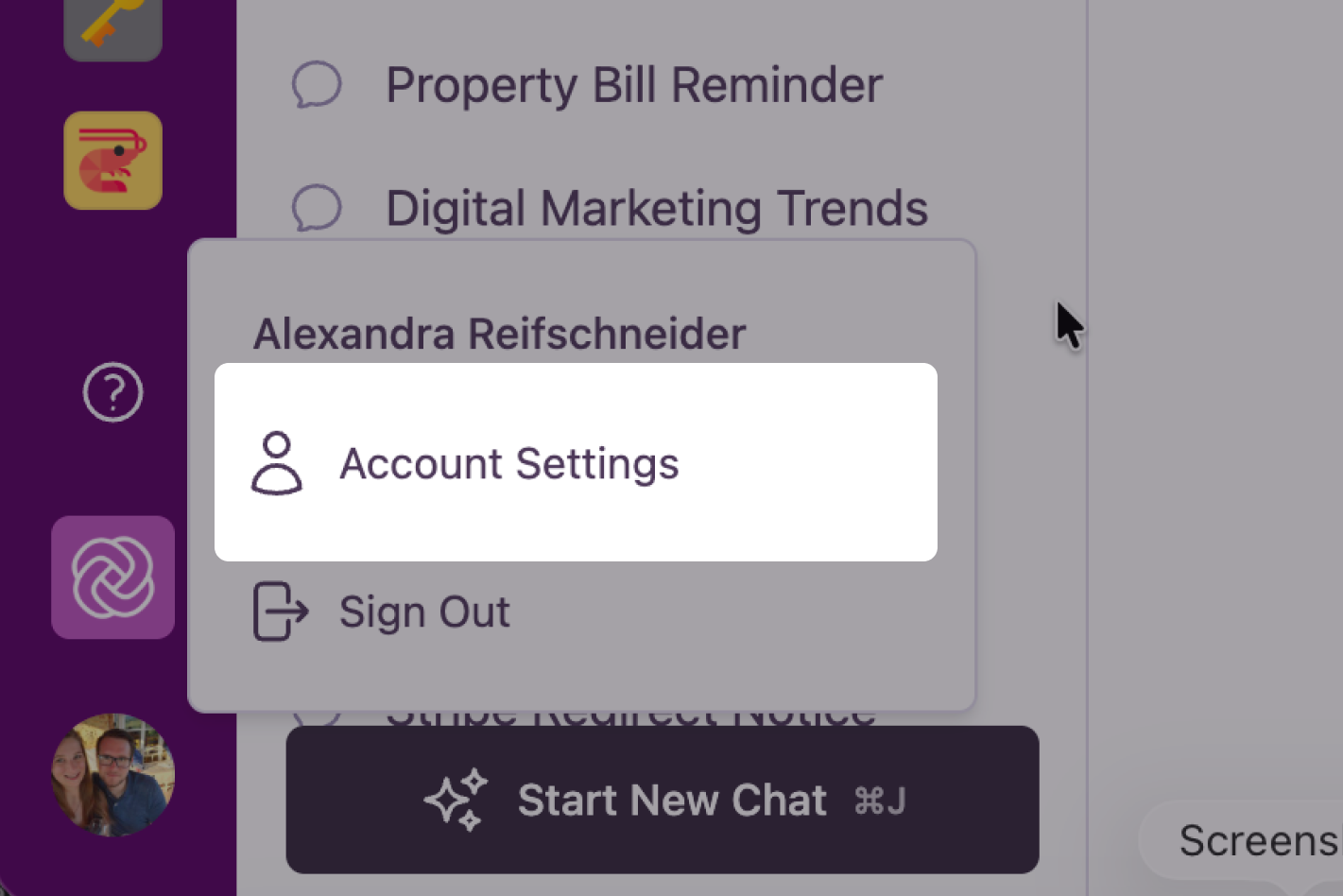
To access your settings:- Click on your User Avatar at the bottom of the main navigation bar.
- Select Settings from the menu.
Profile Settings
The Profile tab allows you to manage your personal information and application preferences.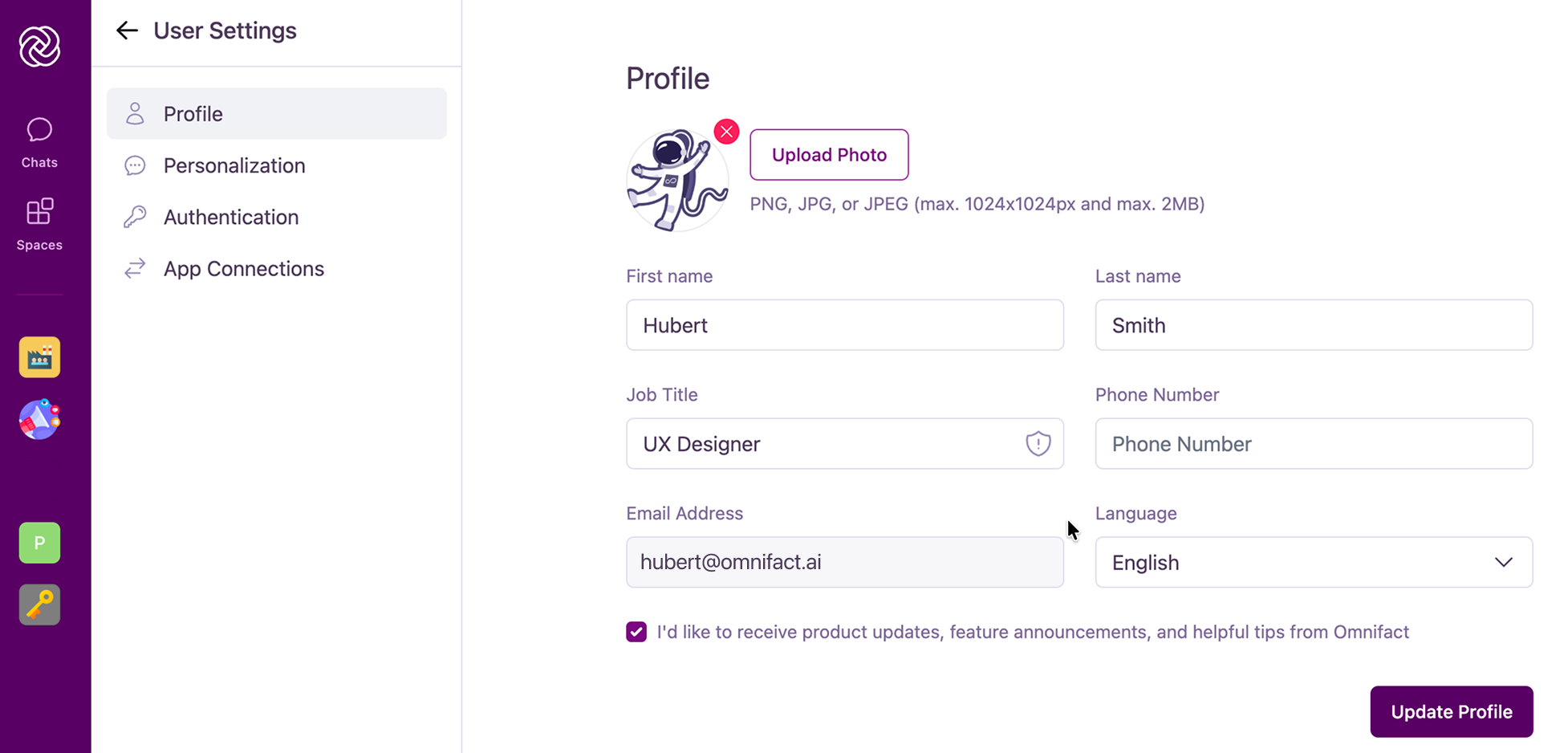
Personal Information
Here you can view and update your basic details:- Profile Picture: Upload a photo to be displayed in chats.
- Name & Job Title: Helps the AI understand your role within the organization.
- Contact Information: Email and phone number.
Language Preferences
Omnifact supports both English and German. You can manually select your preferred language here, and your preference will persist across all your sessions. If not set, the platform will automatically detect and use your browser’s language setting.Email Subscriptions
Manage your preferences for receiving updates and notifications from Omnifact.Add Your Role and Response Preferences (Personalization)
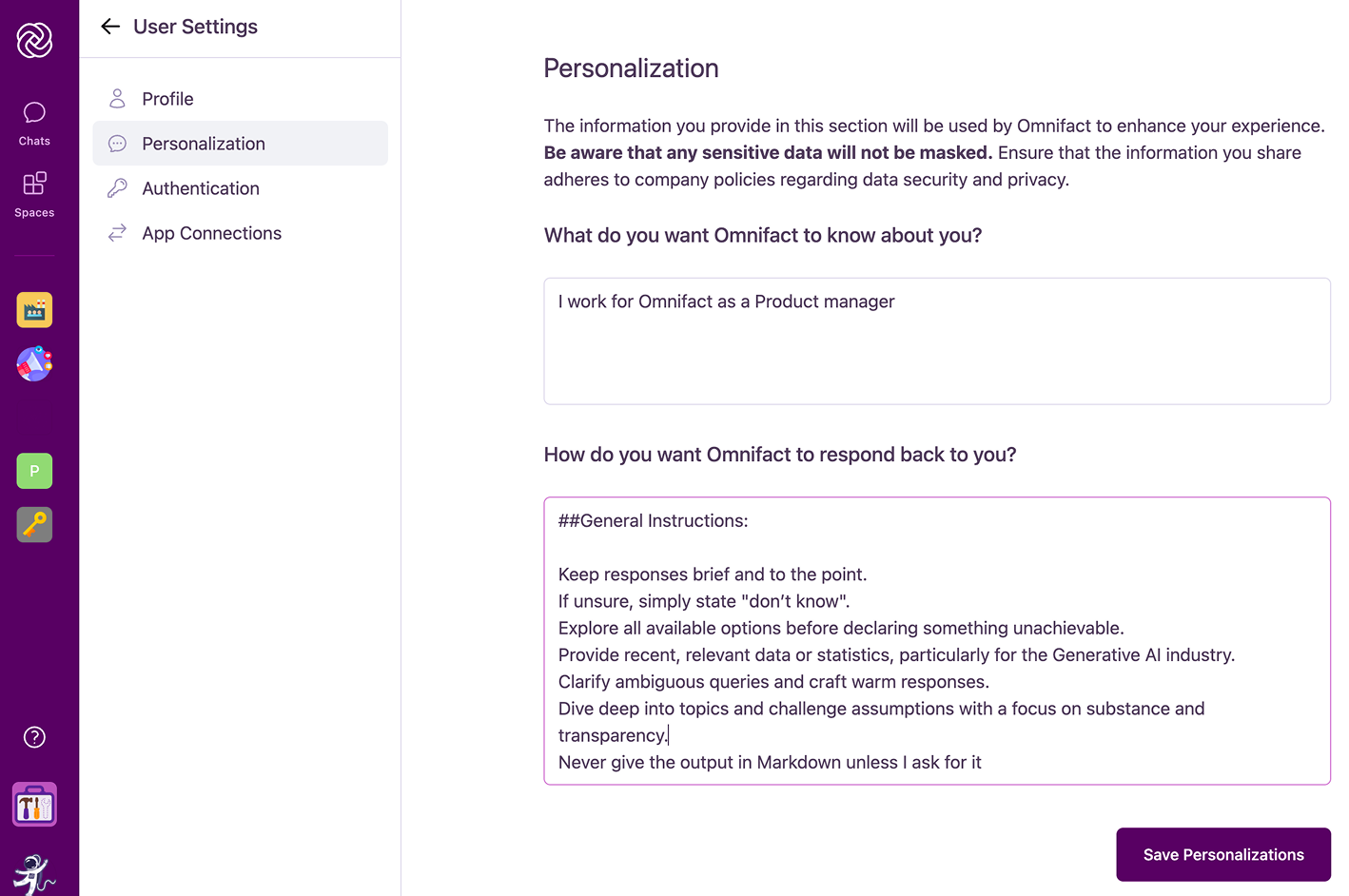
The information you provide here is used solely to improve the AI’s responses to you. It is not shared with other users.
What do you want Omnifact to know about you?
Use this field to tell the AI who you are and what you do.- What to include: Your role, daily responsibilities, key projects, or areas of expertise.
- Example: “I am a Senior Marketing Manager responsible for content strategy and social media. I prefer concise summaries and creative brainstorming partners.”
How do you want Omnifact to respond back to you?
Define how you want the AI to communicate with you.- Tone: Formal, casual, technical, or simple?
- Format: Do you prefer bullet points, detailed paragraphs, or code blocks?
- Style: Should the AI be direct and to the point, or more explanatory and educational?
- “Be concise and professional. Use bullet points for lists.”
- “Explain complex technical concepts in simple terms.”
- “Always cite sources when providing facts.”