

Accessing the Knowledge Base
To access your Space’s Knowledge Base, navigate to the Space Settings (via the “Cog” icon in the Space header or the “Space Settings” button in the sidebar). Next, navigate to the “Knowledge Base” tab. This will take you to the complete document management interface where you can add, remove, and organize your Knowledge Base documents.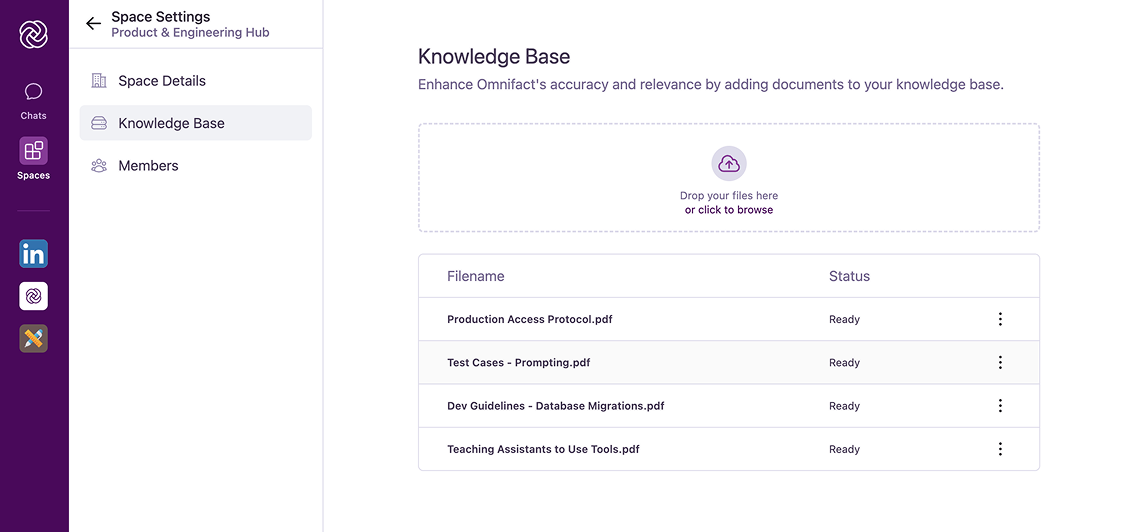
You need admin permissions in a Space to manage its Knowledge Base. If you don’t see these options, you might not have the required permissions.
Adding Documents
Adding documents to your Knowledge Base is a straightforward process:Open upload interface
In the Knowledge Base tab, you’ll see a prominent upload area with “Drag & Drop” functionality.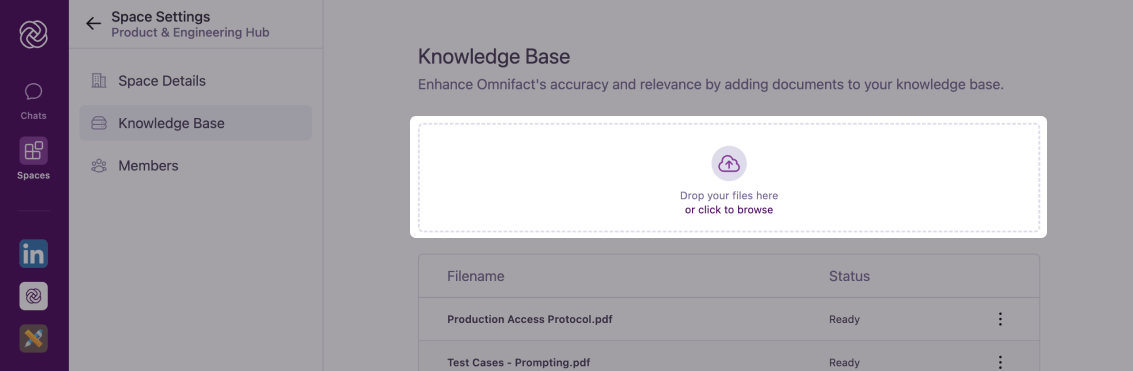
Choose files
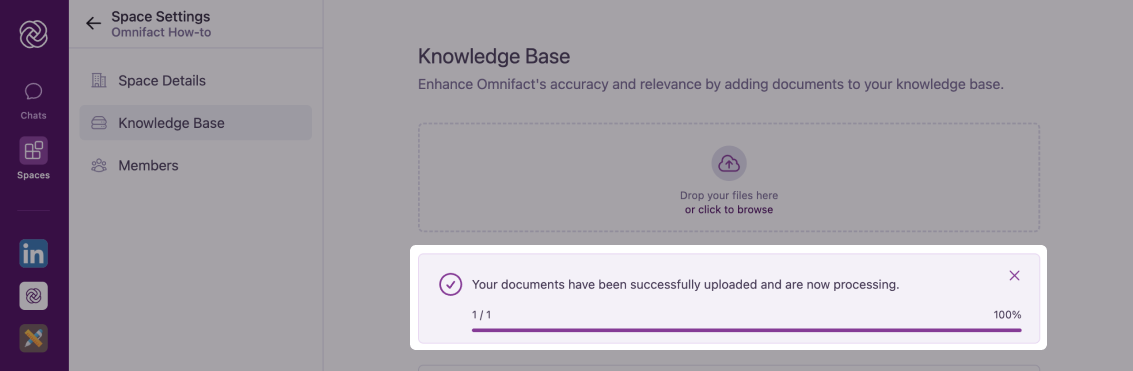
Either drag files directly into the upload area or click “Browse” to select files from your computer or cloud storage (Google Drive, OneDrive, SharePoint). To use cloud storage, connect your accounts first in Account Settings > Connections.
Supported formats include PDFs, common office document types (Word, PowerPoint, OpenDocument text/presentation formats), plain text files (TXT, JSON, Markdown, CSV, SVG), and images (PNG, JPEG, WebP, HEIC/HEIF, AVIF, BMP, GIF, ICO, SVG, and TIFF). Images are automatically optimized for efficient processing while maintaining quality.
Document Source References
When the AI assistant uses information from your Knowledge Base documents, it will automatically its sources in the . This helps you:- Track which documents contain specific information
- Verify the accuracy of AI responses
- Understand which documents are most frequently referenced
- Build trust in the AI’s answers
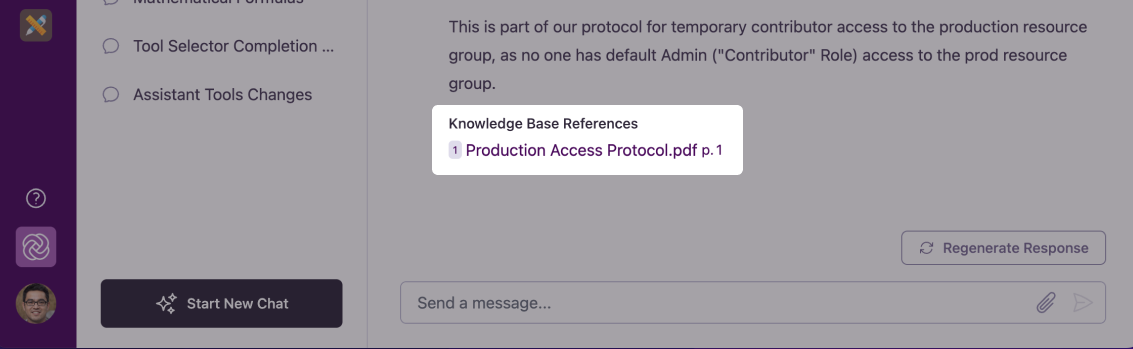
For more details about how the AI references and uses Knowledge Base documents in its responses, see Knowledge Base Retrieval.
Managing Existing Documents
Once documents are in your Knowledge Base, you have several management options:Renaming Documents
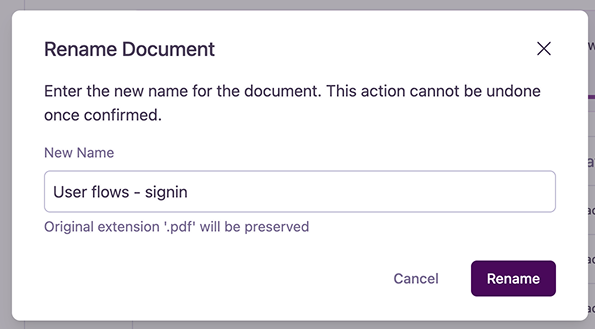
Renaming Documents
- Click the “Options” icon next to the document
- Select “Rename Document”
- Enter the new name in the popup dialog
- Confirm the change
Deleting Documents
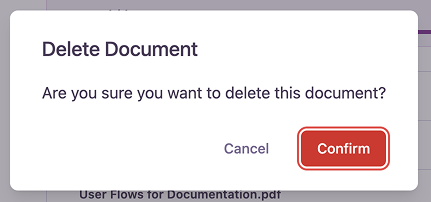
Deleting Documents
- Click the “Options” icon next to the document
- Select “Delete Document”
- Confirm deletion in the prompt
Best Practices
Follow these guidelines to maintain an effective Knowledge Base:Keep it Relevant
Only include documents directly related to the Space’s purpose. This helps the AI provide more accurate and focused responses.
Update Regularly
Replace outdated documents with current versions to ensure your AI assistant always works with the latest information.
Organize Thoughtfully
Use clear naming conventions and remove duplicate or redundant documents to maintain a clean, efficient Knowledge Base.
Monitor Size
Be mindful of document size limits. Large files may take longer to process and could impact performance.
Tips for Success
Document Quality Matters
Document Quality Matters
- Use high-quality, well-formatted documents
- Ensure text is clear and readable
- Check for proper text formatting and layout
- Verify document accuracy before uploading
Strategic Document Selection
Strategic Document Selection
- Prioritize authoritative sources
- Add documents that directly support the Space’s objectives
- Remove outdated or superseded documents
Collaborative Management
Collaborative Management
- Coordinate with other Space admins
- Communicate document updates to team members
- Establish clear document management guidelines
- Regular review and cleanup of the Knowledge Base
Common Questions
What file types are supported?
What file types are supported?
The Knowledge Base supports PDFs, common office formats (Word, PowerPoint, OpenDocument text/presentation formats), plain text files (TXT, JSON, Markdown, CSV, SVG), and images (PNG, JPEG, WebP, HEIC/HEIF, AVIF, BMP, GIF, ICO, SVG, and TIFF).
Is there a size limit for documents?
Is there a size limit for documents?
No, there are no size limits on individual files or total Knowledge Base size. However, larger documents will require more processing time when being analyzed by the AI assistant.
Who can see the documents I upload?
Who can see the documents I upload?
All members of the Space can see the document names in the Knowledge Base. Only upload documents to a Space that you want all members to have access to.
Next Steps
Now that you understand how to manage your Knowledge Base, you might want to explore:- Knowledge Base Retrieval to learn how the AI uses these documents
- Sharing Spaces with Colleagues to give others access to your Knowledge Base