

Entering a Space
- From Your Spaces: Click a Space card under Favorite Spaces or any row in the All Spaces table.
- From the main navigation bar: Click any pinned Space shortcut directly in the far-left navigation rail.
What’s Inside a Space Workspace?
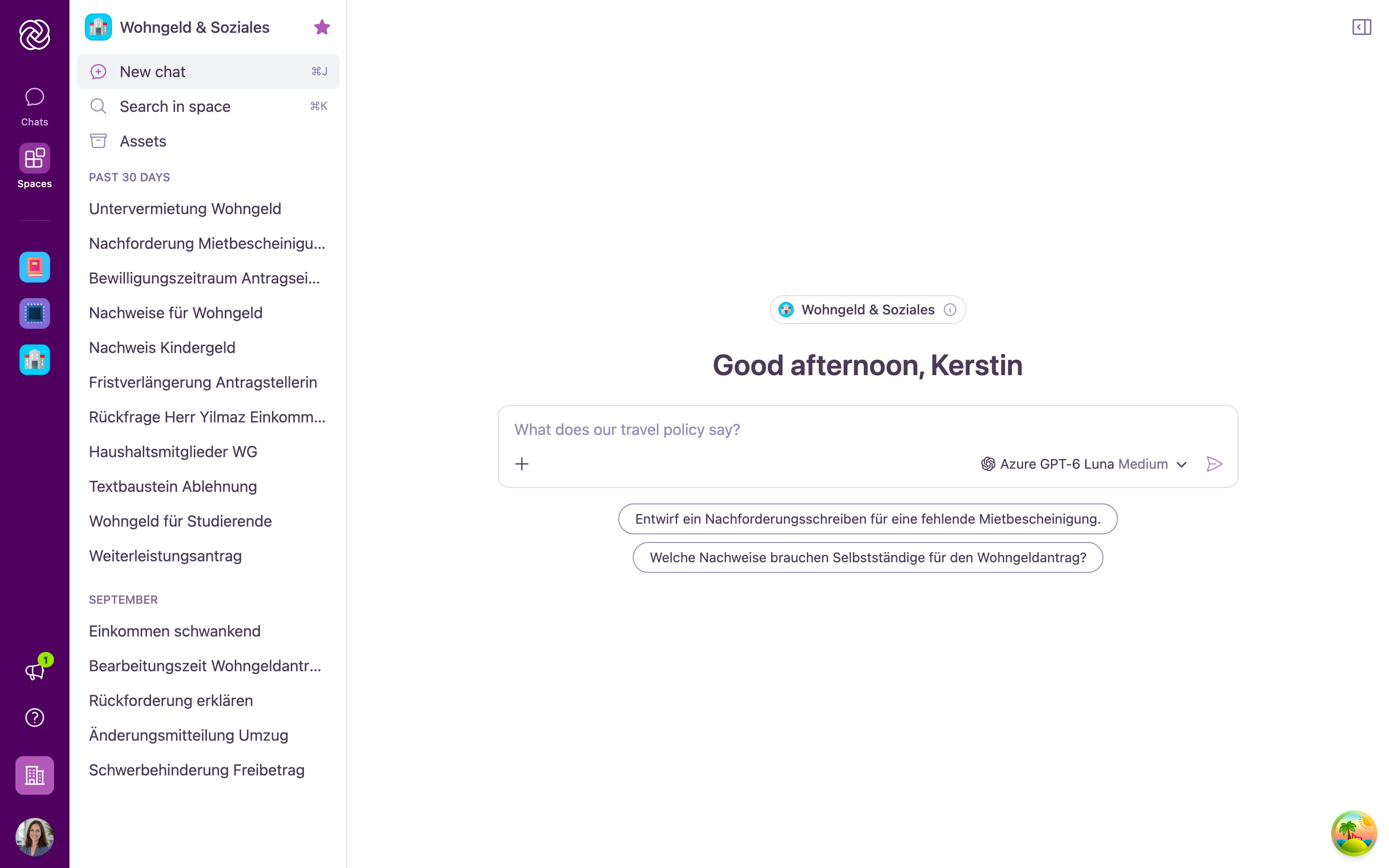
Space Header & Sidebar Actions
At the top of the left sidebar, you’ll see the Space icon and name alongside a Favorite star toggle and (for Space Editors) a Space settings cog button. Below that sit New chat (
Cmd/Ctrl + J), Search in space (Cmd/Ctrl + K), and Space-scoped Assets.Space Badge & Greeting
On a new chat, a centered Space badge sits above your personalized greeting (click or hover the
i icon on the badge to read About this space), and the Space’s custom example prompt chips appear below the "Ask about [Space Name]" input bar.Specialized Space Agent
Every chat in the Space automatically follows the Space’s Space Instructions and can search its Uploaded Files and Connected Sources.
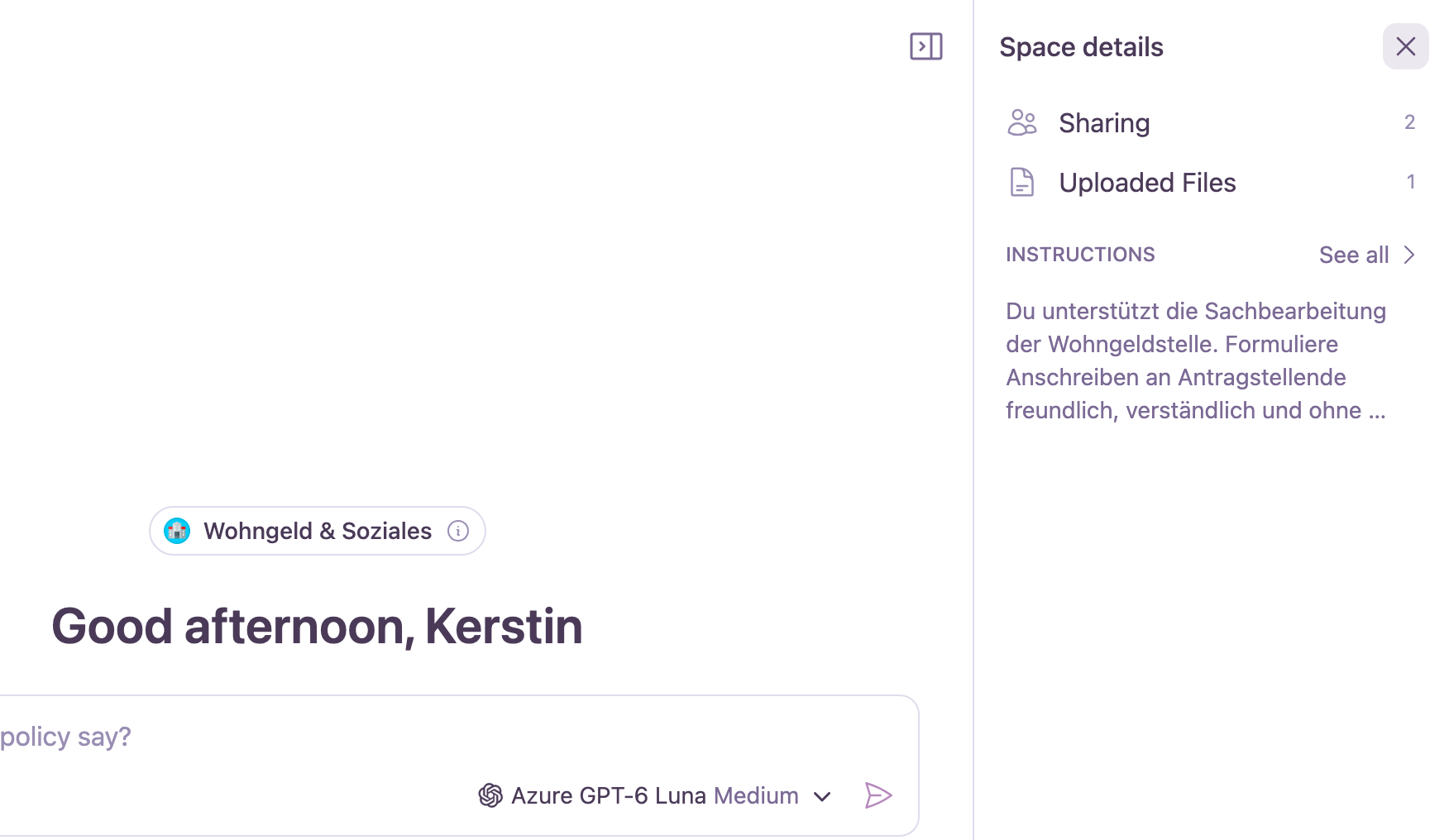
Space details Panel
A toggle button in the top-right corner opens or closes the resizable Space details sidebar so you can inspect instructions, files, and sharing without leaving your conversation.
Empty Space Knowledge Banner: If a Space has no uploaded files or connected sources yet, Space Editors (with knowledge management permissions) see an Add Knowledge to your Space prompt above the chat input with quick shortcuts to Upload files, Connect a source, or Don’t show again.
Interacting with the Space Agent
Each Space agent is shaped by configured in Space Details.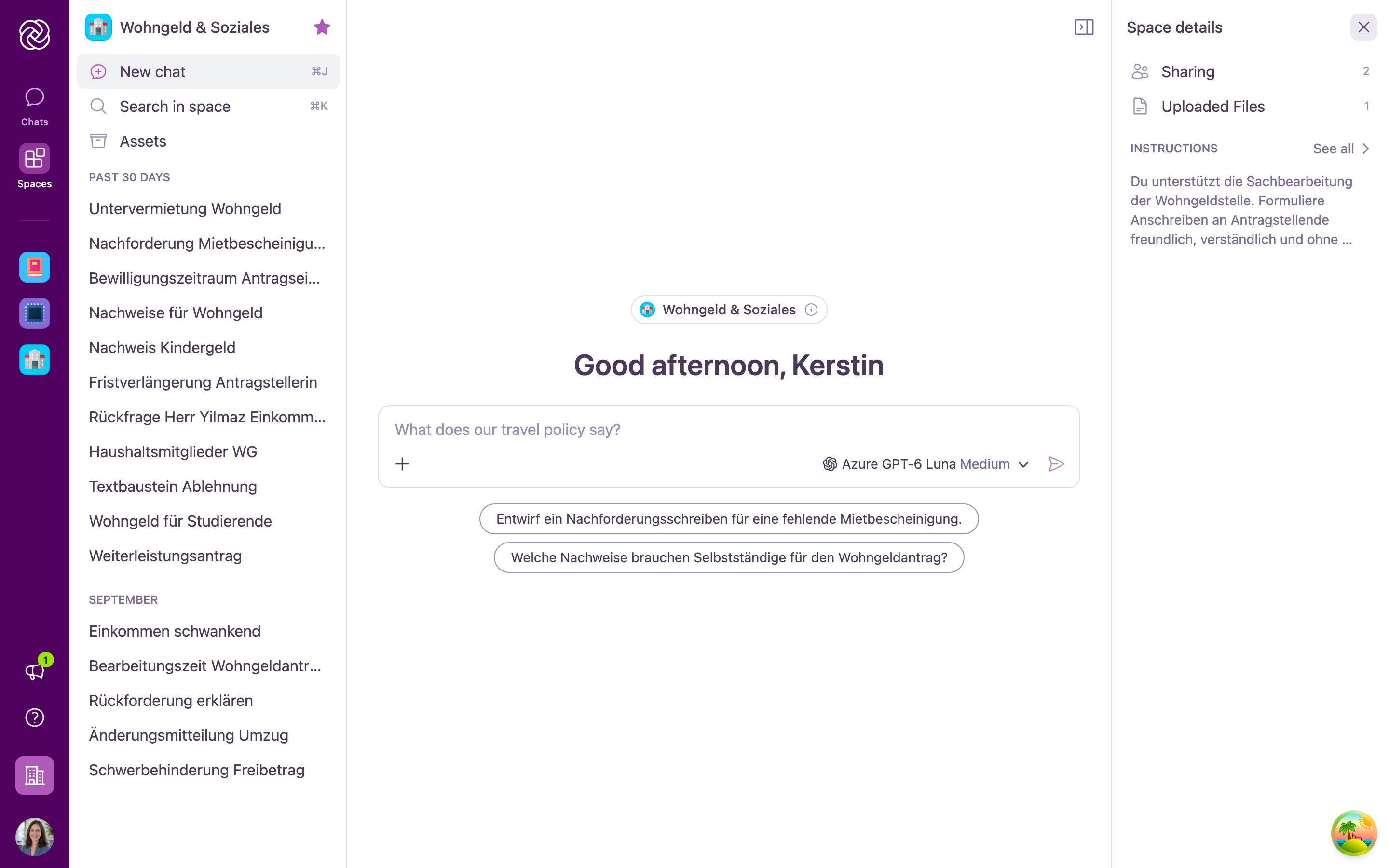
Chatting Inside a Space
Core Chat Functions in a Space
Core Chat Functions in a Space
Spaces support every chat capability available in general Chats:
- Typing or dictating messages in the
"Ask about [Space Name]"input bar (with rotating Space-specific example placeholders on new chats) - Searching past Space conversations via Search in space (
Cmd/Ctrl + K) and browsing images generated in this Space via Assets - Attaching files using the Plus (+) icon, drag-and-drop, or paste
- Generating documents (
.xlsx,.docx,.pptx,.pdf, charts) and images - Selecting AI models and adjusting Reasoning effort
- Editing messages and stopping or regenerating responses
Space Knowledge Integration
In Spaces with or Connected Sources, the Space agent automatically searches and reads relevant passages to ground its answers in your organization’s materials:Targeted Knowledge Search
The agent searches Space documents automatically when your question relates to internal policies, specs, or reports (shown inline as Searching Space knowledge / Searched Space knowledge).
Page & Slide Citations
Answers include numbered citations and a References list naming the exact document, page (
p. X) or slide (Slide X), and cloud source link when synced via Connected Sources.Viewing Space Details
Click the sidebar icon button at the top right of the chat header to open or close the resizable Space details panel. Omnifact remembers whether you prefer the panel open or closed across Spaces.
What Appears in the Space details Sidebar
Items in the Space details panel adapt to the Space’s configuration and your permissions:- Space settings (shown to Space Editors only): Opens the full Settings view for configuring Space Details, Sharing, Uploaded Files, and Connected Sources.
- Sharing: Shows the total number of shared users and groups. Clicking the row opens a modal listing all members (with Editor badges) and groups (with member counts), plus a Manage Sharing shortcut for Editors.
- Uploaded Files (shown when manual/API uploads exist): Shows the count of manually uploaded documents. Clicking the row opens a modal listing all uploaded files and their statuses, plus a Manage Uploaded Files link for Editors.
- Instructions (shown when Space Instructions are configured): Displays a 4-line preview of the Space Instructions with a See all button to read the full instructions in a modal.
- Connected Sources (shown to Space Editors with knowledge management access when cloud sources are linked): Previews up to 3 active connections (
{Integration} via {Creator Name}) with a count badge and See all modal.
Best Practices for Using Spaces
Try Example Prompts
Click the example prompt chips below the input bar on a new Space chat to see the types of tasks the Space was designed for.
Hover the Space Badge
Point at the
i icon on the Space badge above your greeting (or open Space details) to see what documents and instructions power the Space.Name Specific Files or Pages
When you know which handbook, contract ID, or page number matters, mention it directly so the Space agent can look it up right away.
Stay Topic-Focused
Keep conversations aligned with the Space’s domain so its Space Instructions work in your favor rather than against unrelated tasks.
Common Questions
Can I use the same chat features in Spaces as in general chats?
Can I use the same chat features in Spaces as in general chats?
Yes. Attachments, Document Creation, Image Generation, Web Search, Model Selection, Voice Dictation, and MCP tools all work inside Spaces according to your group permissions.
How do I know which Space I'm currently in?
How do I know which Space I'm currently in?
Check three places: the Space Header at the top of the left sidebar (showing the Space icon and name), the centered Space badge above the greeting on a new chat, and the
"Ask about [Space Name]" placeholder in the chat input bar.Next Steps
- Build custom agents by Creating New Spaces
- Configure instructions, knowledge, and sharing in Customizing Spaces
- Add reference materials in Managing Uploaded Files and Connected Sources
- Collaborate with teammates by Sharing Spaces