

Guide: Creating Images with AI
Master the art of effective image prompting and learn professional workflows.
Generating Images
Creating an image is as simple as asking for it. You can describe what you want to see, and the agent will generate it for you.1
Open a Chat
Start a new chat or continue an existing conversation.
2
Describe Your Image
Type a prompt that clearly describes the image you want. Be specific about the subject, style, colors, and mood.Examples:
- “Generate a minimalist icon for a settings menu.”
- “Create a professional illustration of a team collaborating around a whiteboard, in a flat vector style.”
- “Show me a futuristic cityscape at sunset.”
3
Receive Your Image
The agent will process your request and display the generated image directly in the chat window.
Image generation capabilities depend on the settings configured by your organization’s administrators. If you don’t see this feature, it may not be enabled for your team. Learn more in Group Management.
Using Reference Images
You can also use existing images as a starting point. This is useful when you want to modify an image, change its style, or use it as a composition reference.- Click the Attachment (+) icon on the left of the chat input area.
- Select Upload from Device (or cloud storage if connected - see Attaching Files) and choose your reference image.
- In your message, explain what you want to do with the image.
- “Turn this sketch into a realistic photo.”
- “Change the background color of this image to blue.”
- “Create a variation of this logo in a watercolor style.”
Generated Images
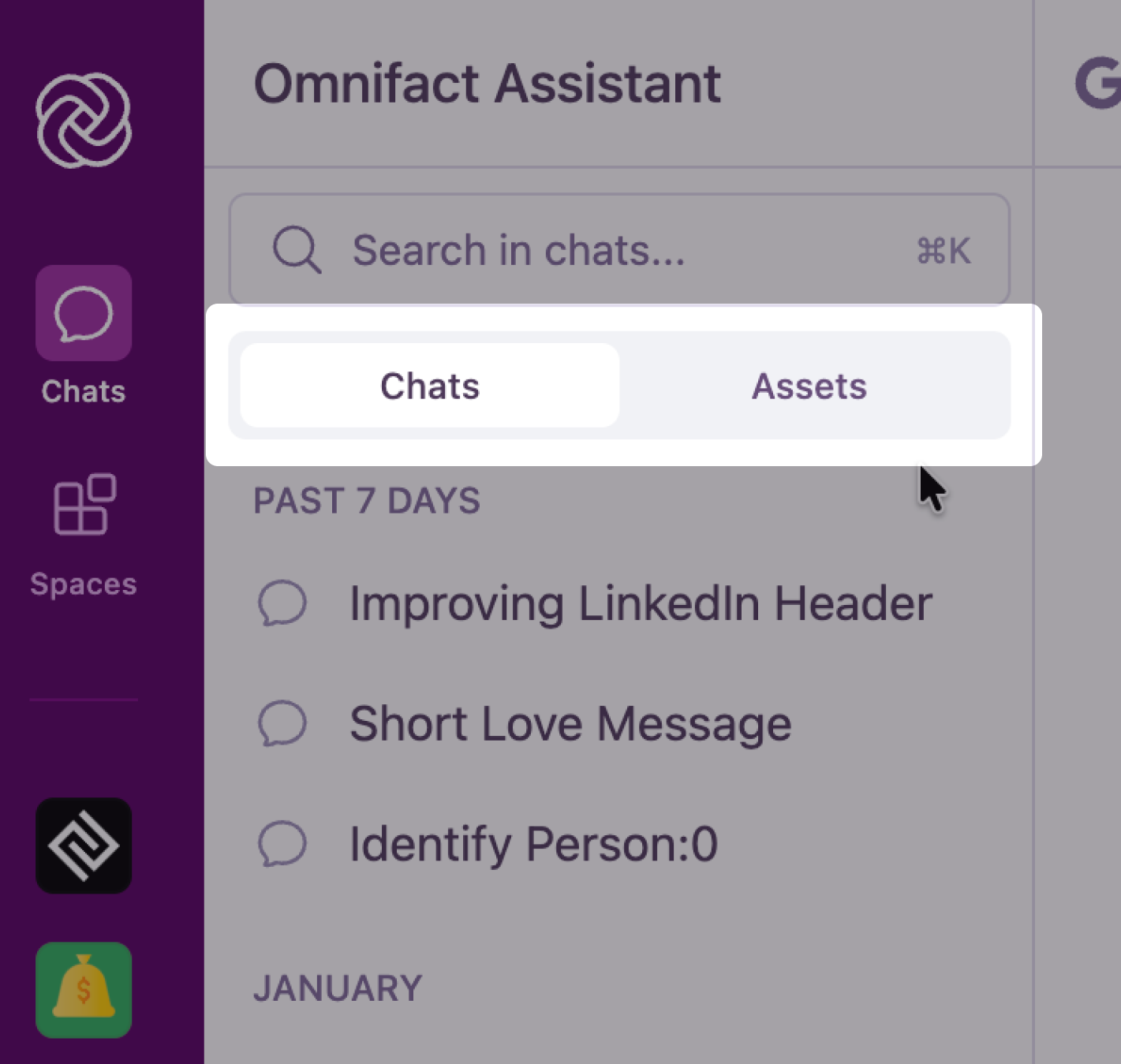
All images you create are automatically saved, making it easy to find and revisit them later. To access your images:- In the left sidebar, click Assets to view images and assets created during your conversations.
- Click Images in the main navigation bar to open the full gallery with all your images across the workspace, organized by date (Today, Yesterday, Past 7 Days, etc.).
Gallery Features
- View Full Size: Click any image to open it in a large lightbox view.
- Download: Hover over an image and click the Download button to save it to your device.
- Navigate to Chat: Click the Chat bubble icon on an image to jump back to the original conversation where it was created.
- Generate New: Click the Generate an image button to start a new creation flow.
Tips for Better Results
To get the best images, we recommend following our best practices guide. It covers advanced prompting techniques, style definitions, and iteration strategies.Privacy Note: When the Privacy Filter is enabled, images are restricted from being sent to AI models that do not comply with your organization’s data residency requirements.