

Where Everything Happens
Chats are where you’ll spend most of your time in Omnifact, whether in general
conversations or within specialized Spaces. Getting comfortable with Chats
will help you get the most from Omnifact.
Experience Natural AI Conversations
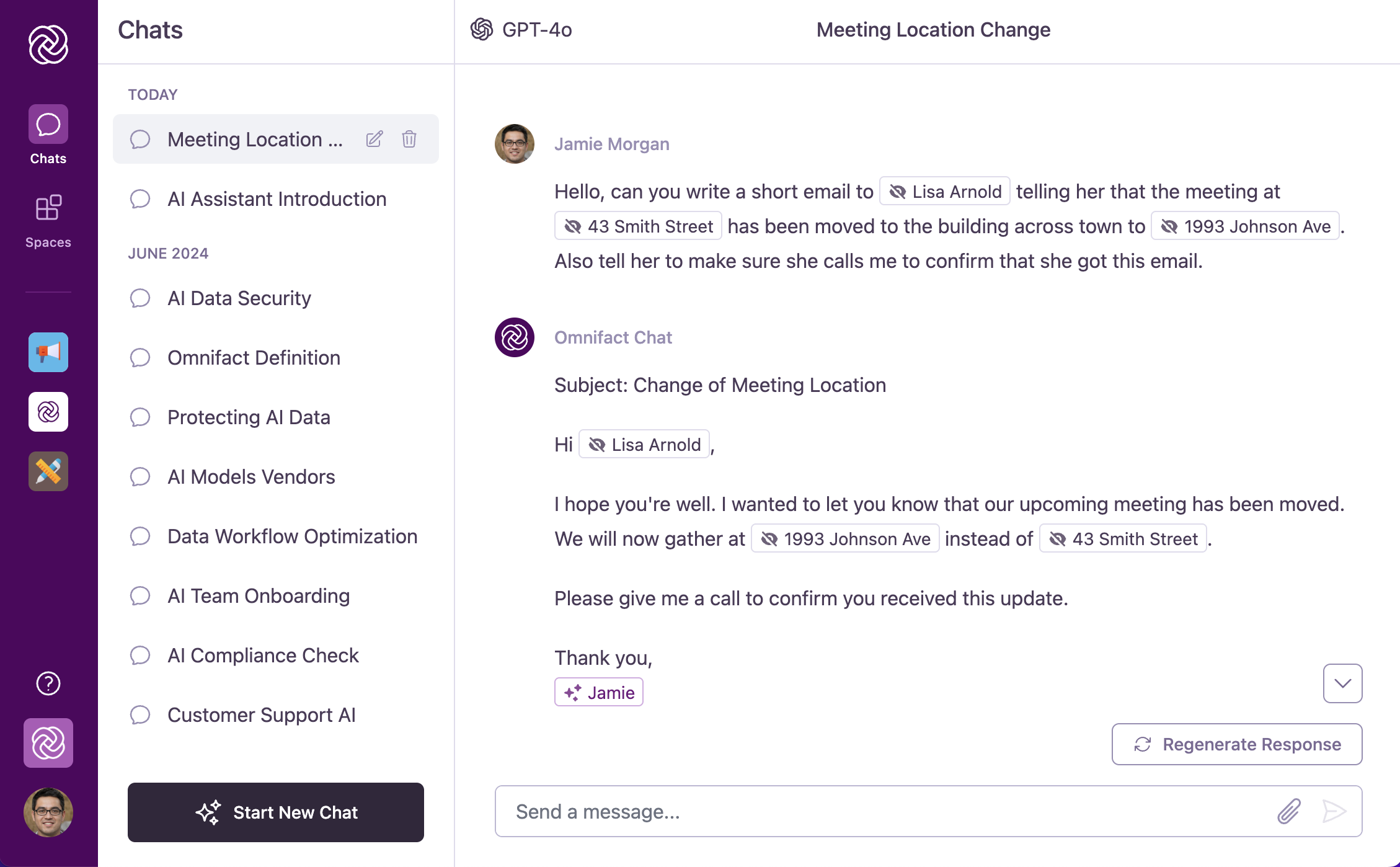
Chats are your primary workspace in Omnifact. Designed to feel like a conversation with a knowledgeable colleague, the interface allows you to ask questions, solve problems, and create content naturally.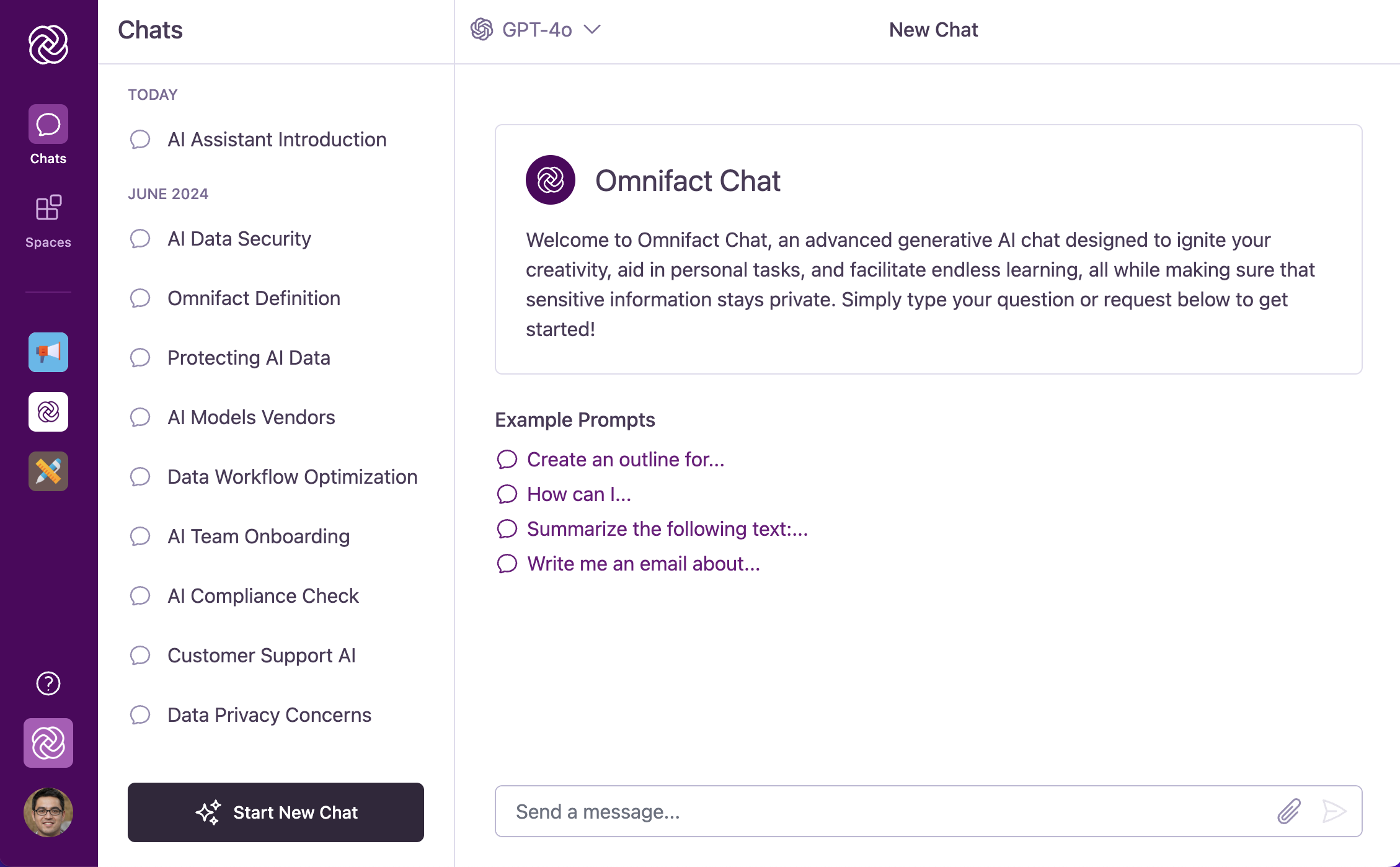
Having a Conversation
Returning to Past Conversations
Your conversations with Omnifact remain available whenever you need them. The sidebar organizes your chat history by timeframe, making it easy to find recent or older conversations. Each chat gets its own title that you can customize to help you quickly identify important conversations. When you want to continue a previous discussion, simply click on any chat in the list and you’ll pick up exactly where you left off—with the full context preserved.Need to find a specific conversation from the past? Press Cmd/Ctrl + K or click Search chats in the sidebar to open the conversation search dialog and find chats by keyword.
Key Features at a Glance
Chats include several helpful features to make your experience better:Natural Conversation
Talk with Omnifact just like you would with a colleague - it remembers
context and understands follow-up questions.
File Attachments
Add documents, images, or audio to your messages when you need Omnifact to review, summarize,
or extract information from them.
Message Editing
Change your messages after sending them if you need to clarify what you
meant or fix any mistakes.
One-Click Copying
Copy Omnifact’s responses with a single click to use them in other apps or
documents.
Model Selection
Switch between different AI models (like GPT-4o, Claude, or Gemini) directly in the chat input.
Web Search & Citations
Real-time internet search and source citations built directly into agent responses.
Document Creation
Generate native Excel spreadsheets with live formulas, Word documents, PowerPoint decks, and data charts.
Draft Auto-Save
If you start typing a message but navigate away before sending it, Omnifact automatically saves your work as a draft. Your unsent message will be preserved in that specific chat or Space, ready for you to finish when you return.Message Quotas & Daily Limits
To ensure fair resource distribution and reliable performance across your team, Omnifact tracks message usage per user within a 24-hour rolling window:- Remaining Count & Reset Time: The chat interface displays your remaining message count for the current period along with the exact time when your quota resets.
- Quota Exceeded Notice: When you reach your daily message quota, a warning notification appears and new message sending is temporarily disabled until the reset time.
- Plan Alignment: Daily message quotas are determined by your organization’s subscription plan. Team administrators can monitor overall credit usage in Billing & Usage. For details on credits and usage, see Understanding Usage, Credits, and Model Fallback.
Message & Attachment Limits
When composing messages in chat, keep the following limits in mind:- Message Length: Up to 8,000 characters per message.
- Attachments per Message: Up to 10 files attached to a single message.
- Image File Size: Up to 20 MB per image file.
- Audio File Size: Up to 25 MB per audio file.
Rich Response Rendering
Omnifact presents information clearly using rich text formatting. You’ll see:- Markdown Support: Formatted text including bolding, lists, tables, and strikethrough.
- Tables: Rendered markdown tables with a per-table Copy table action that copies the table as HTML for pasting into documents and spreadsheets.
- Code Blocks: Syntax-highlighted code snippets with a convenient Copy Code button.
- Math Equations: Complex formulas rendered beautifully using LaTeX/KaTeX (both inline and as blocks).
Omnifact includes a Privacy Filter that automatically hides sensitive
information in your messages to keep your data secure. Learn more in the
Privacy Filter
section.
Next Steps
Now that you understand the basics of chatting with Omnifact, explore these related topics:- Starting a New Chat - Learn the specifics of beginning a fresh conversation
- Selecting an AI Model - Learn how to switch between different AI models
- Model Guide - Detailed recommendations on choosing the right model
- Web Search and Browsing - Find up-to-date information with cited sources
- Image Generation - Create and edit images directly in chat
- Document Creation - Generate native Excel, Word, and PowerPoint files
- Conversational Flow & Follow-Up Questions - Master the art of effective communication with the AI
- Attaching Files - Discover how to use documents and images in your conversations
- Exploring Spaces - Learn about specialized AI environments for specific topics