

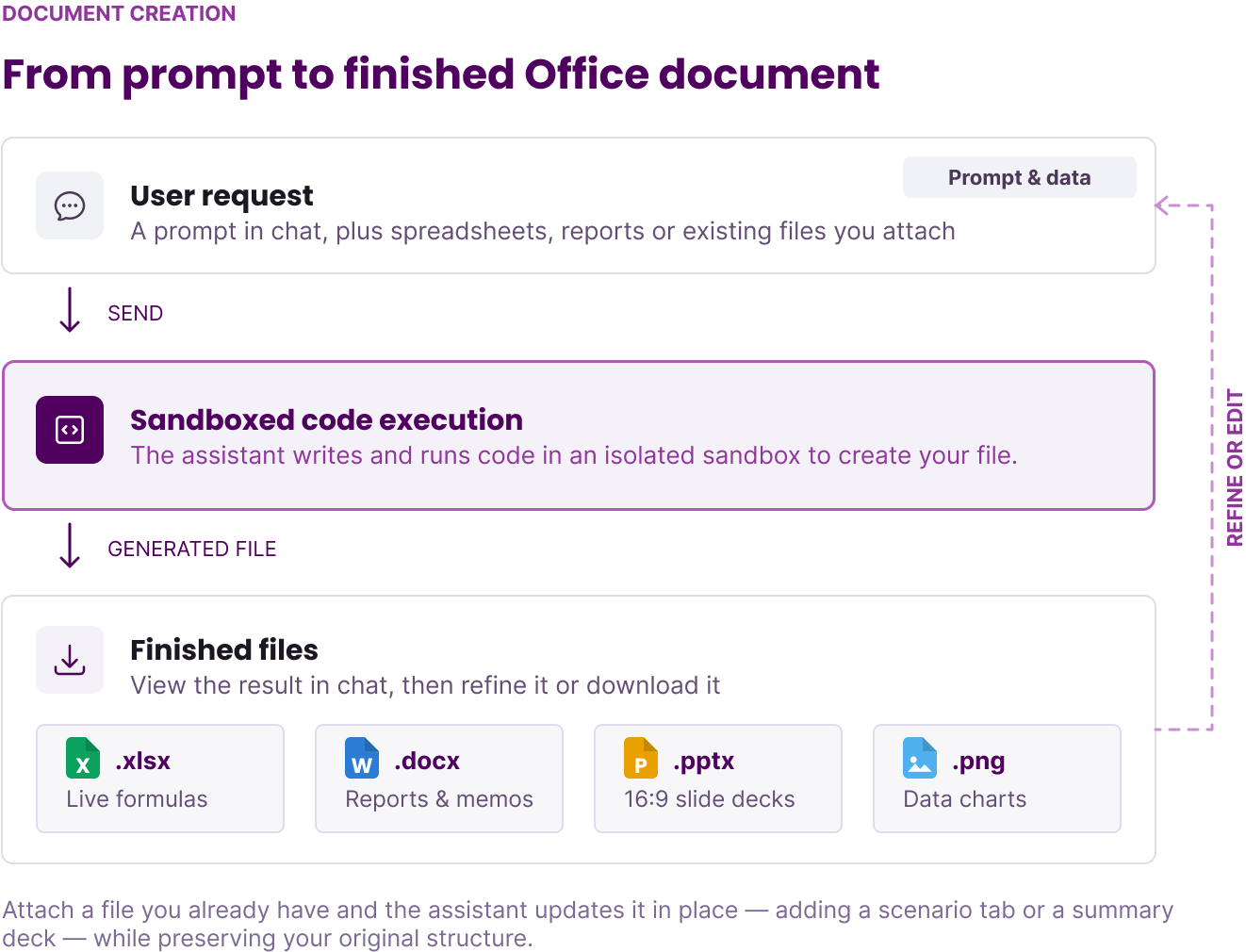
Supported Document Types
Every generated file is delivered as a standard Office or image file formatted for professional use. You can open, edit, and share them in Microsoft Office, Google Workspace, or Apple iWork without fixing misaligned tables or broken layouts.Excel Workbooks (.xlsx)
Spreadsheets with live mathematical formulas, clean number formatting, and frozen header rows that recalculate dynamically when inputs change.
Word Documents (.docx)
Structured memos, reports, and meeting summaries with proper heading hierarchies, styled tables, and clean margins.
PowerPoint Presentations (.pptx)
Clean 16:9 widescreen slide decks with strong typography, comparison columns, and metric callout cards.
Data Analysis & Charts
Deep analysis of attached datasets with inline charts and graphs rendered directly in chat for instant download.
Excel Spreadsheets with Dynamic Formulas
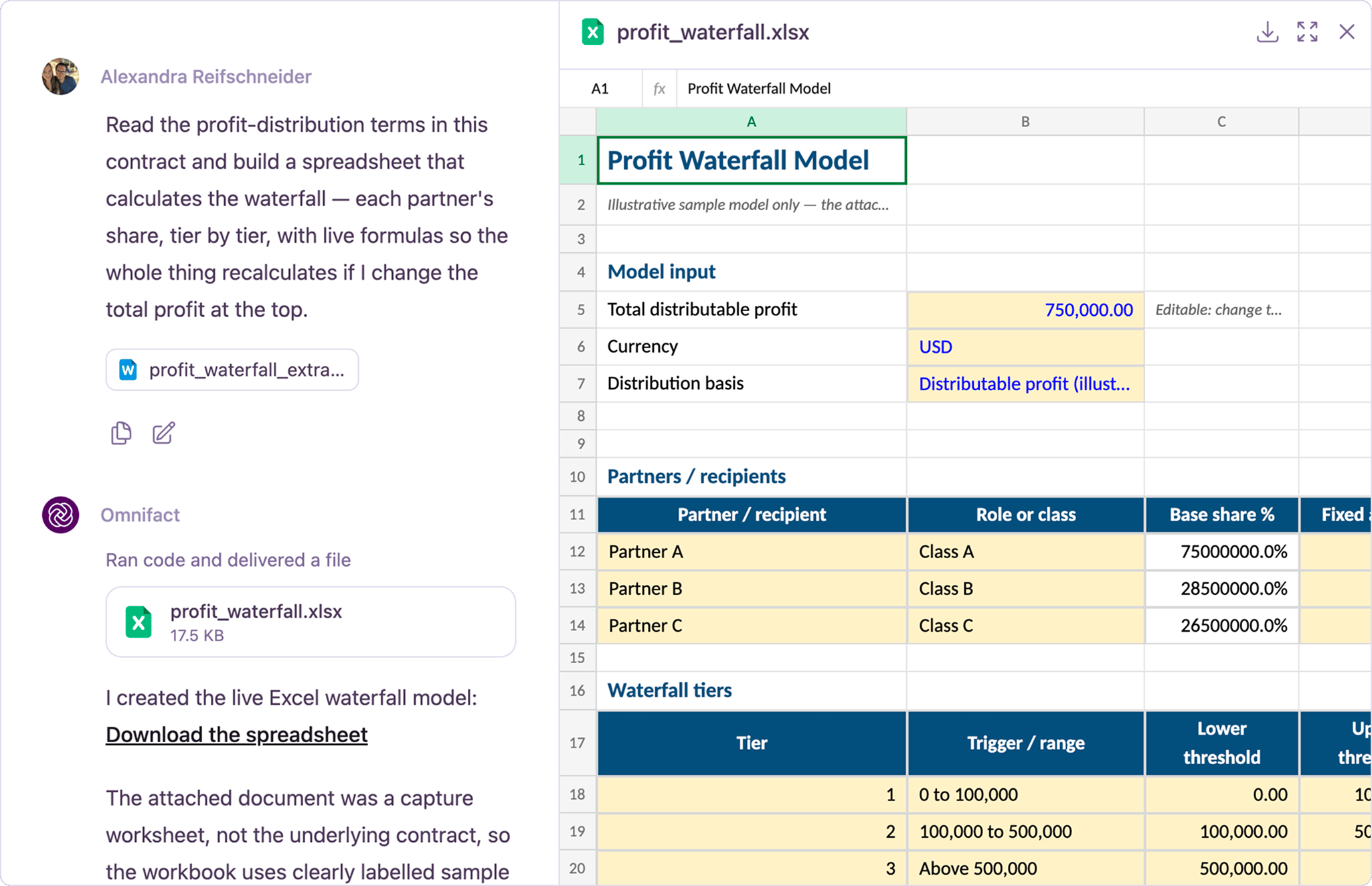
When Omnifact creates an Excel workbook (.xlsx), it includes active mathematical formulas rather than static values. Formulas such as SUM, IF, SUMIFS, and INDEX/MATCH recalculate automatically across the entire workbook whenever you update an assumption or change a figure.
The agent formats your data with readable column widths, currency and percentage styles, and frozen header rows so large tables remain easy to navigate.
Formatted Word Documents and Memos
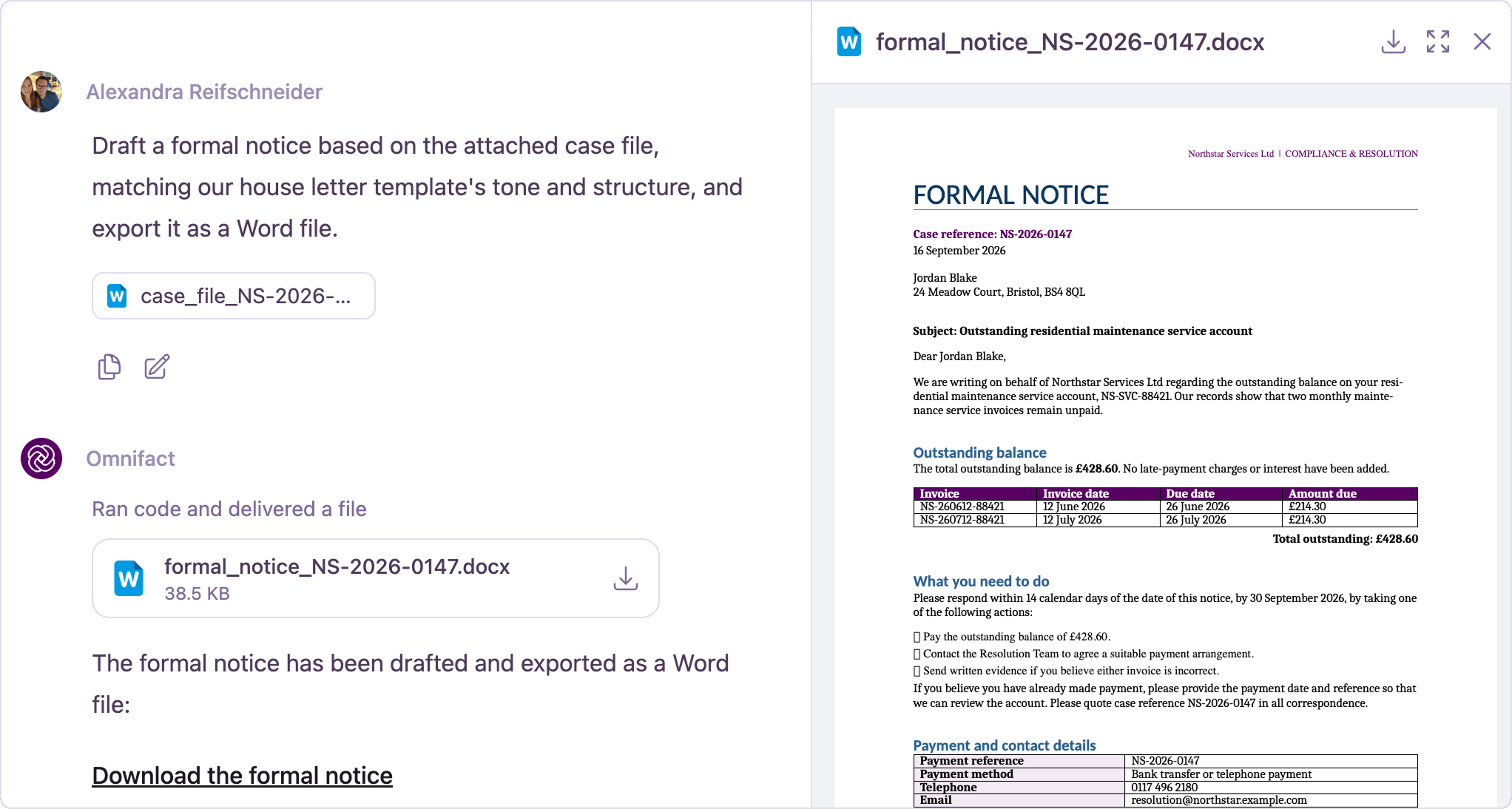
For project proposals, executive summaries, meeting protocols, and decision memos, Omnifact outputs structured Word documents (.docx).
The agent applies consistent heading styles, standard page margins, and styled tables. Rather than bolding plain text, it uses authentic Word styles so outlines and tables of contents function seamlessly when opened in Microsoft Word.
Professional PowerPoint Decks
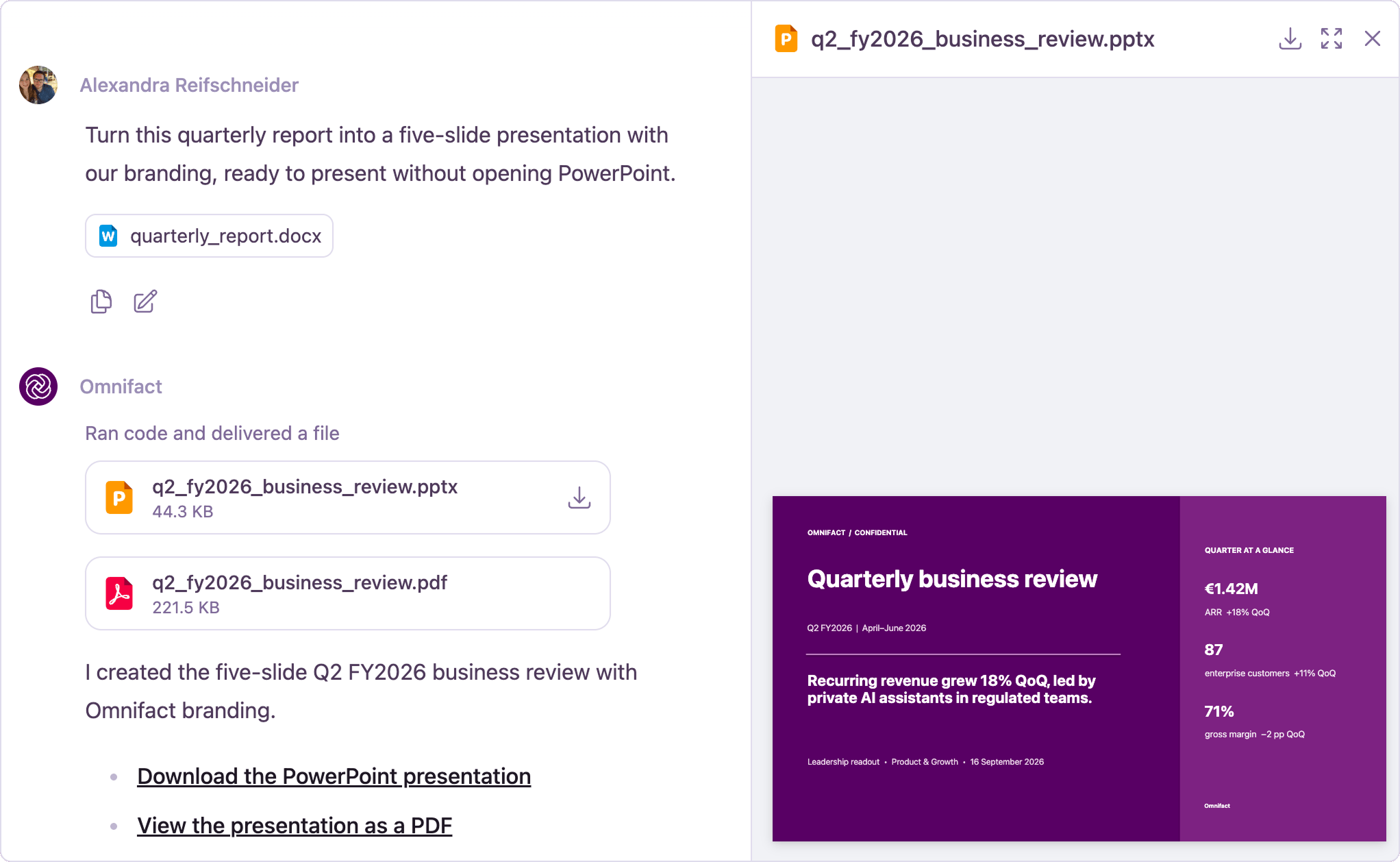
Presentations generated by Omnifact (.pptx) use standard 16:9 widescreen slides. Each slide highlights a single core takeaway with readable typography and balanced spacing.
You receive clear content layouts, side-by-side comparison tables, and key performance indicator (KPI) metric callouts that you can present immediately or customize to your brand guidelines.
Data Analysis and Visual Charts
Document creation also includes deep data analysis. You can upload spreadsheets, CSV files, or database exports and ask analytical questions in plain language. Omnifact processes your numbers, calculates summary metrics, and generates custom visual charts directly in the chat thread. You can request bar charts, trend lines, and distribution plots that render inline and can be downloaded as high-resolution images.Creating a Document
Generating a file requires only a clear description of your goals and any relevant source material.1
Open a Chat
Start a new chat or continue an existing conversation where you want to work.
2
Attach Your Source Data (Optional)
If you are building a document from existing data, click the Plus (+) icon on the left of the chat input and select Upload from Device or choose a connected cloud file. Learn more in Attaching Files.
3
Describe Your Document
Specify the file type, purpose, and key content you want included.Examples:
- “Create a 3-year financial model in Excel for a SaaS business, with an assumptions tab and dynamic revenue formulas.”
- “Generate a two-page executive memo in Word summarizing our Q3 product roadmap.”
- “Build an 8-slide PowerPoint deck in 16:9 presenting the key findings from the attached survey results.”
- “Analyze this sales CSV and generate a bar chart comparing regional revenue.”
4
Receive and Download Your File
The agent will process your request, verify the content, and deliver a Generated File Card directly in the conversation. Click the card to preview the document or click the download button to save it to your device.
Updating and Expanding Existing Files
You can also upload existing documents and ask the agent to modify or expand them. For example:- Attach a budget spreadsheet and ask the agent to add a scenario analysis sheet with updated formulas.
- Upload a long PDF or document and request a summary slide deck in PowerPoint.
- Provide a draft memo in Word and ask the agent to add formatted comparison tables.
Previewing and Downloading Files
When the agent completes a file, it appears directly in the conversation as a distinct Generated File Card:- File Metadata: Displays the filename, file type icon, and file size.
- Document Viewer: Clickable cards open the built-in Document Viewer so you can review content without leaving Omnifact.
- Direct Download: Click the download icon to save the file locally.
Security and Sandboxing
All document generation and data analysis take place in isolated, private execution environments:- Isolated Sessions: Each conversation has its own temporary processing environment. Sessions reset automatically so your conversation data stays isolated.
- Team Permissions: Administrators manage access to code execution and document creation per user group. Learn more in Group Management.
- Network Egress: The sandboxed execution environment has internet access enabled, allowing it to download public datasets or libraries when necessary.
Document creation and code execution capabilities depend on settings configured by your organization’s administrators. If you do not see this capability in chat, verify with your administrator that the Execute Code capability is enabled for your group in Group Management.