

How to Start a New Chat
Omnifact opens a new chat automatically when you sign in. To start a fresh chat at any time during your session, click New chat at the top of the left sidebar or press Cmd/Ctrl + J (inside a Space, Cmd/Ctrl + J starts a new chat inside that Space).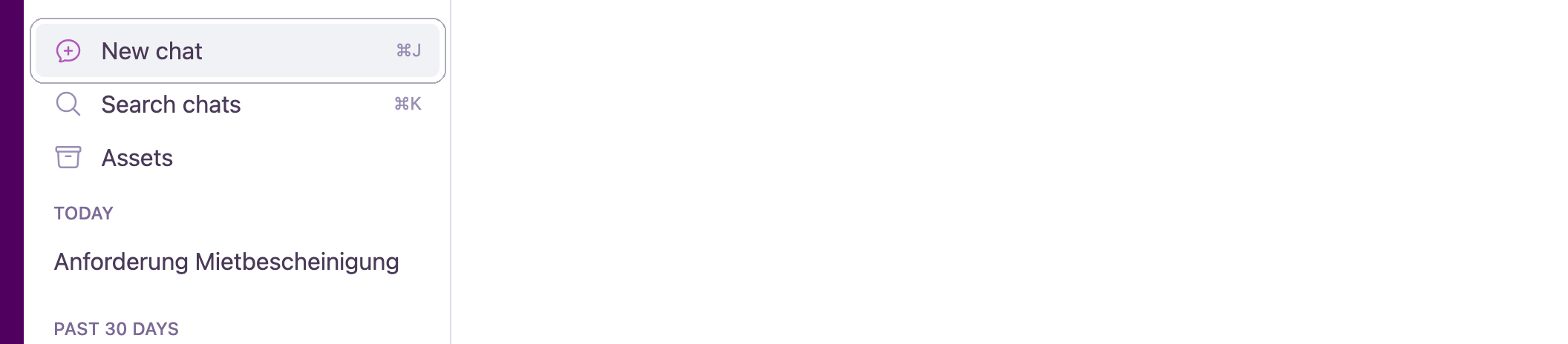
On a new chat screen, you’ll see a personalized greeting, rotating example prompt placeholders in the input bar, and clickable starter chips below the input to help you jump right in.
Writing or Dictating Your First Message
Once your new chat is open, you can start the conversation in several ways:- Type a prompt in the input field at the bottom of the screen and press Enter (use Shift+Enter for a new line) or click Send.
- Click a starter chip below the input bar to run an example prompt.
- Dictate by voice using the Microphone (Dictate message) icon in the input bar when enabled for your group.
- Send attachments on their own by attaching up to 10 files and pressing Enter even without typed text. Omnifact automatically generates a conversation title from your message or privacy-masked attachment filenames.
Why Start a New Chat?
Separate Conversation Thread
Every new chat is an independent thread, keeping different projects and topics cleanly separated.
Persistent History
Your chat history is saved automatically in the sidebar and searchable via Search chats (
Cmd/Ctrl + K).Focused Context
Within a single chat, Omnifact remembers your ongoing discussion without carrying over irrelevant instructions from earlier tasks.
Customizable Titles
Omnifact titles each chat automatically, and you can rename any open chat to make key threads easy to spot later.
When to Start a New Chat
Start a new chat whenever:- You are switching to a different topic, client, or project
- You want a clean slate without earlier assumptions or attachments influencing the answer
- You want to conserve tokens by not carrying a large set of earlier images or documents into a new task
Renaming and Deleting Chats
To rename or delete a conversation, open it first so it becomes the active chat in the left sidebar:- Click the conversation in the left sidebar to open it.
- Next to the active conversation title in the sidebar, click the Edit (pencil) icon to rename the title inline, or click the Delete (trash) icon to remove it.
- If deleting, click Delete in the Delete Chat confirmation dialog.
- The conversation is removed from your history and search, and Omnifact opens a fresh empty chat.
Next Steps
- Learn about Attaching Documents & Images to your chats
- Discover Navigating Spaces for shared team workspaces
- Explore Basic Prompt Structure
- Read Interacting with AI for everyday communication strategies