

Files + AI = Insights
Attach files to extract key numbers, review contracts, interpret screenshots and charts, or generate brand-new Office deliverables from your raw data.
Why Attach Documents & Images?
Quick Summaries
Distill long PDFs, reports, or slide decks into structured takeaways in seconds.
Data & Spreadsheet Analysis
Upload Excel workbooks or CSVs to calculate metrics, spot anomalies, and generate clean charts or updated
.xlsx files.Visual Understanding
Analyze charts, architecture diagrams, UI screenshots, and scanned pages with multimodal models.
Template Filling & Editing
Attach Word, Excel, or PowerPoint files so the agent can fill in templates or expand existing decks.
Multi-File Comparison
Compare two contract drafts, quarterly reports, or competitor sheets side by side in a single prompt.
Audio Analysis
Attach recorded clips or voice notes when using audio-capable Gemini models.
How to Attach Files to Your Chat
1
Start or continue a chat
Open a new chat or an existing conversation in Chats or a Space.
2
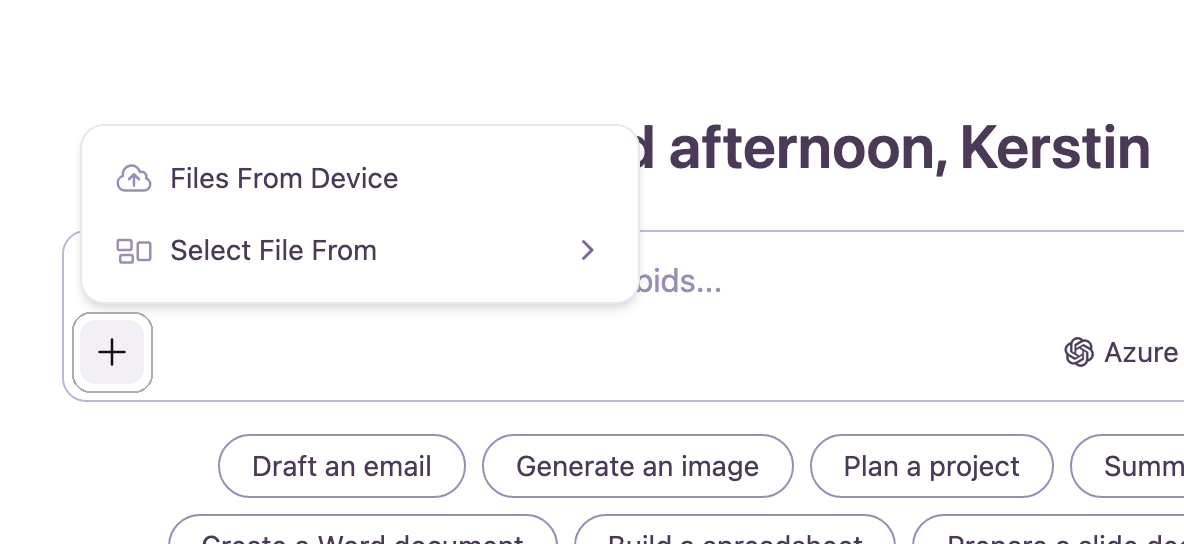
Click the Plus (+) button, drag and drop, or paste
3
Choose your file source
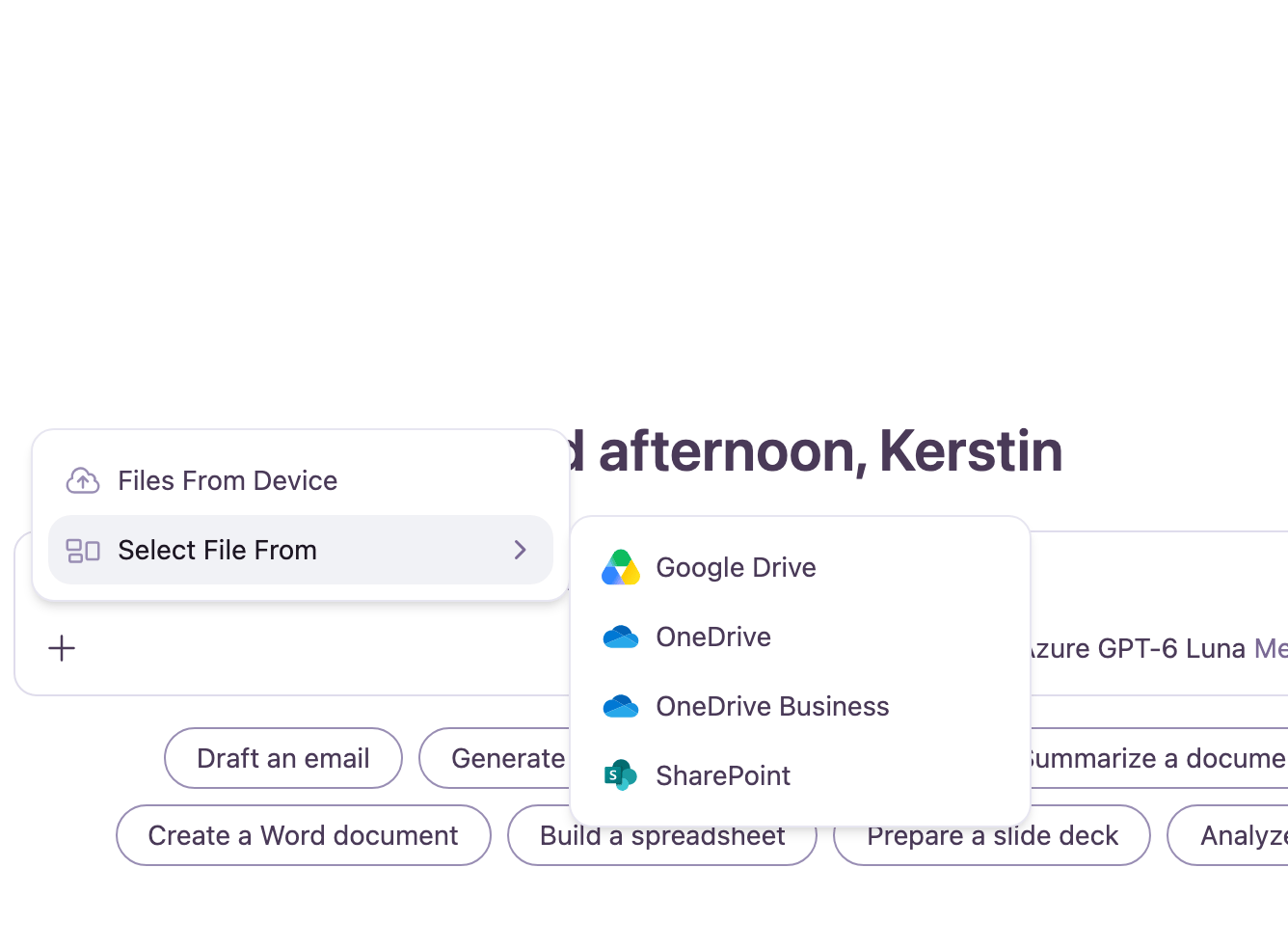
If no cloud storage integrations or per-chat Privacy Controls are enabled for your account, clicking + on desktop opens your computer’s file browser immediately. To link cloud storage accounts, visit Account Settings > App Connections. Administrators manage available integrations in Team Settings > Integrations.
4
Select supported files
Pick up to 10 files to attach to your message.
5
Review your attached file chips
Selected files appear above the input field with their filename and file icon. Click the remove (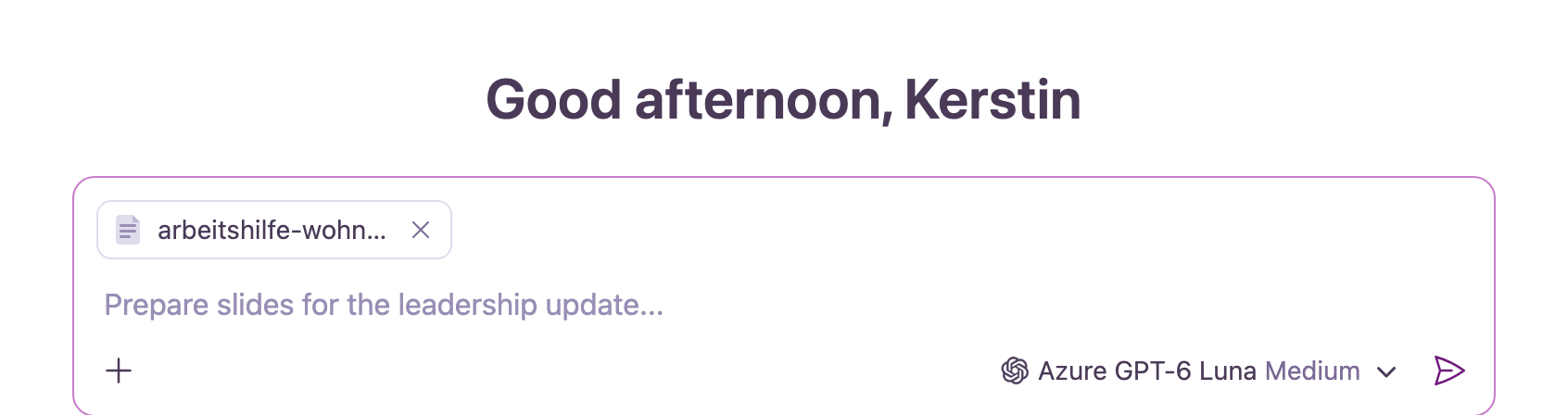
×) button on any chip if you want to remove it before sending.6
Add instructions (optional) and send
Add a question or instruction in the message field, or send the attachments on their own, and press Enter or click Send.
Specific instructions give the sharpest results, for example: “Summarize the top three renewal risks in this agreement” or “Build a PowerPoint summary from this spreadsheet.”
Attachment & Input Limits
10 Attachments per Message
Attach up to 10 files (documents, images, or audio) to a single message.
250,000 Typed Characters
Type up to 250,000 characters in the message field. Attached file contents do not count toward your typed character limit.
94 MB / 100 MB Document Limit
Documents can be up to 94 MB per file from your device, or up to 100 MB when imported from Google Drive, OneDrive, or SharePoint.
20 MB Image & 25 MB Audio Limits
Image files can be up to 20 MB each, and audio files can be up to 25 MB each.
Asking Effective Questions About Documents & Images
Be specific about what you need
Be specific about what you need
Instead of “What’s in this file?”, try:
- “What are the three main conclusions in this report?”
- “Extract all action items and owners mentioned in these meeting minutes.”
- “What trends or outliers stand out in this revenue chart?”
Request structured or downloadable outputs
Request structured or downloadable outputs
Ask Omnifact to format or export the result:
- “Create a Markdown table comparing all vendor quotes in these PDFs.”
- “Clean up this CSV and generate a formatted Excel workbook with department totals.”
- “Turn this Word brief into a 6-slide PowerPoint presentation.”
Combine visual and textual analysis
Combine visual and textual analysis
Attach spreadsheets alongside screenshots or diagrams:
- “Check whether the numbers in this dashboard screenshot match the attached Q3 Excel export.”
- “Explain how the architecture diagram relates to section 4 of the specification.”
Working with Multiple Files
When attaching multiple files across a long conversation, refer to filenames clearly so the agent knows which source to prioritize. Note that vision models re-process all images in a conversation on each turn; if a long thread reaches a model’s cumulative image limit, you can switch to a model with a higher image cap, edit your last message to remove images, or start a New chat.Next Steps
- Read Attachments vs. Uploaded Files to choose between one-off chat attachments and persistent Space knowledge
- Explore Document Creation to generate finished
.xlsx,.docx,.pptx, and.pdffiles - Discover how to Edit Your Messages to swap attachments or refine your prompt
- Learn about Spaces for specialized team workspaces with a dedicated Knowledge Base
- Learn how to Generate Images from text prompts and reference images