

Accessing and Using Spaces
Spaces are accessible from anywhere in Omnifact through the main navigation bar.Finding Your Spaces
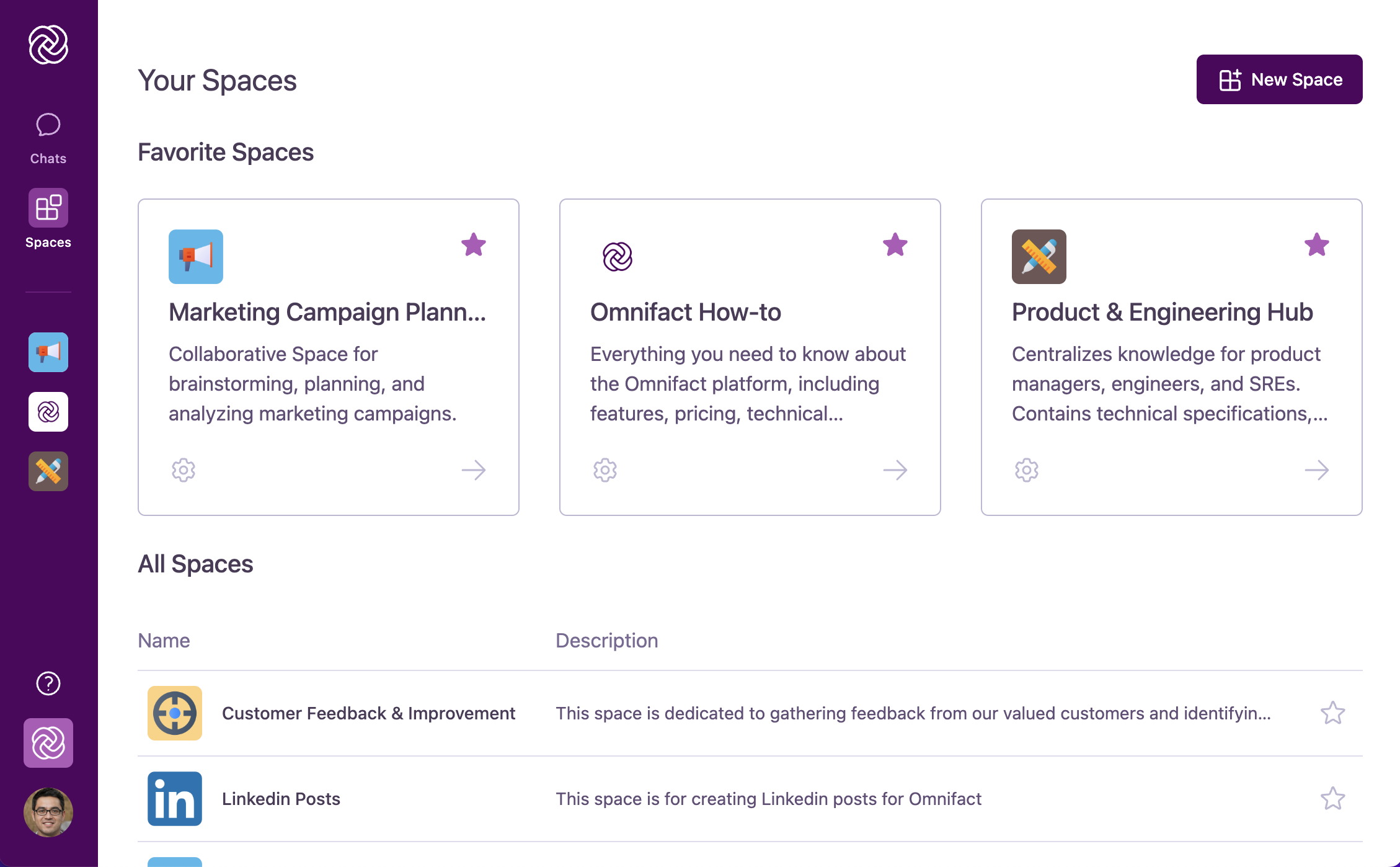
- Click Spaces in the main navigation bar to open Your Spaces.
- Browse Your Spaces, where you’ll see:
- Favorite Spaces displayed prominently as cards at the top (on desktop)
- All Spaces shared with you listed alphabetically below
Entering a Space
When you open a Space, you enter its dedicated workspace:- The Space name and icon at the top of the left sidebar confirm which Space you are in, alongside a Favorite star toggle and (for Space Editors) a Space settings cog icon.
- Above your personalized greeting, a centered Space badge displays the Space icon, name, and an info (
i) tooltip showing the Space description. - The message input displays
"Ask about [Space Name]"with clickable example prompt chips directly beneath it to help you get started.
Using Chats Within Spaces
Spaces use the same chat interface as general Chats, enhanced with Space-scoped context and navigation:- Your conversations run with the Space’s specialized agent, guided by its Space Instructions.
- The agent searches and reads both and Connected Sources when answering questions.
- Search in space (
Cmd/Ctrl + K) and Assets in the left sidebar stay scoped strictly to that Space, keeping your project history and generated visuals cleanly organized. - You can still use file attachments, Document Creation, Web Search, Model Selection, and message editing just like in general chats.
Key Benefits of Spaces
Custom Agents
Define the expertise, tone, and output structure of your Space agent using Space Instructions and Example Prompts.
Domain-Specific Knowledge
Ground answers in your organization’s internal handbooks, specs, and policies via Uploaded Files with cited page and slide references.
Structured Organization
Group related conversations, generated visuals, and reference documents by department, client, or project.
Team Collaboration
Share Spaces with individual colleagues or entire organization Groups so everyone works from the same source of truth.
Connected Sources
Link folders and files from Google Drive, OneDrive, OneDrive Business, or SharePoint so Space knowledge stays synced automatically.
Real-World Examples
Marketing Team Space
Marketing Team Space
A dedicated Space configured for brand voice and campaign planning:
- Space Knowledge: Uploaded brand guidelines and market research, plus a Connected Source syncing the active Google Drive campaign folder
- Space Instructions: Guidelines enforcing brand tone, audience personas, and channel formatting
- Example Prompts: Ready-to-click starters for campaign briefs, copy variations, and post-mortem summaries
Legal Document Review Space
Legal Document Review Space
A Space tailored for legal and compliance review:
- Space Knowledge: Standard playbooks, fallback clauses, and policies, plus a Connected Source linked to the SharePoint legal library
- Space Instructions: Instructions prioritizing precision, clause citations, and risk flagging
- Example Prompts: Starters for redline comparisons, DPA checks, and regulatory summaries
Project Alpha Space
Project Alpha Space
A cross-functional project hub:
- Space Knowledge: Architecture specs, roadmaps, and meeting notes synced from OneDrive Business
- Space Instructions: Context on project milestones, stakeholders, and decision formatting
- Sharing: Shared with the engineering and product groups so every member gets consistent answers
When to Use Spaces vs. General Chats
- Use Spaces When
- Use General Chats When
- You need specialized AI assistance for a recurring topic, department, or project
- You want answers grounded in a shared library of internal documents or cloud folders
- You are collaborating with teammates who need consistent guidance
- You want custom Space Instructions applied automatically to every conversation
Is Space knowledge available in general chats?No. Documents and instructions inside a Space are strictly isolated to that Space. General chats started from Chats in the main navigation cannot search or read documents from any Space.
Start Your Spaces Journey
Create a Space
Build a custom agent from scratch or start from the 10-template library.
Navigate Spaces
Find, open, and pin the Spaces shared with you.
Manage Uploaded Files
Upload and maintain documents in Space Knowledge.
Share Spaces
Share your Space with colleagues and organization groups.