

Take Control of the Conversation
When to Stop a Response
Response is Off-Track
The AI is answering a different question than what you intended to ask.
Response is Too Long
The AI is providing more detail than you need or going into unnecessary tangents.
You Want to Rephrase
You realize your question could be clearer or more specific.
You Have a Better Idea
You’ve thought of a better way to approach your question while waiting.
How to Stop Response Generation
1
Locate the Stop button
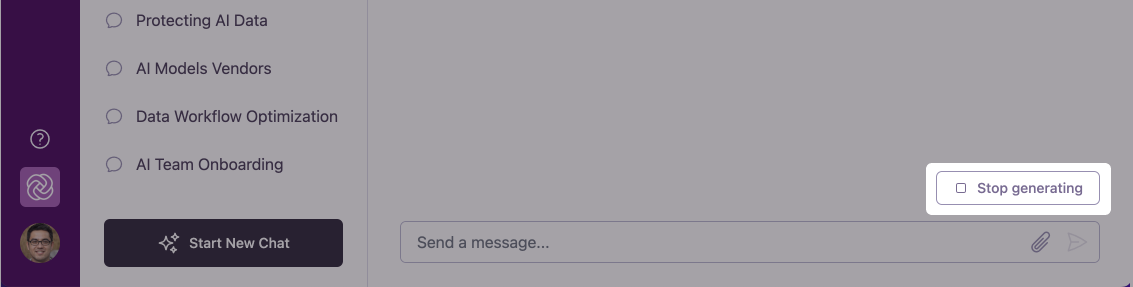
While the agent is actively generating a response, the send button in the chat input transforms into a Stop button (stop circle icon).
2
Click to stop immediately
Click the Stop button to halt the response generation instantly.
3
Choose your next action
After stopping, you can:
- Regenerate Response: Click the regenerate icon on the agent message to request a fresh answer
- Edit Your Message: Click the edit icon on your message to rephrase your prompt
- Write a Follow-up Question: Type a new or refined question in the input field to redirect the conversation
Regenerating AI Responses
When to Regenerate a Response
Unsatisfactory Answer
The response didn’t fully address your question or needs improvement.
Want an Alternative
You’re looking for different suggestions, approaches, or perspectives.
Need More Detail
The response was too general and you want more specific information.
Need Less Detail
The response was too detailed and you want a more concise summary.
How to Regenerate a Response
1
Find the Regenerate button
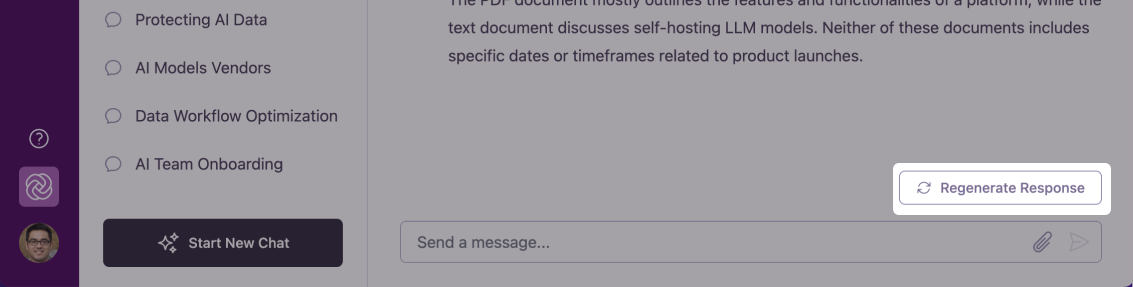
Below the completed agent response, locate the Regenerate Response button (circular arrow icon) in the message action bar.
2
Click to request a new response
Click the Regenerate Response icon. Omnifact will immediately stream a fresh response to your question.
3
Review the new response
Omnifact will provide a completely new response to your original prompt. If desired, you can switch the AI model in the chat input first before clicking regenerate to compare answers across providers.
Each regenerated response is created independently, which means you may receive significantly different information or approaches each time you regenerate.
Continuing Responses
Sometimes, especially with complex requests or long outputs like code, the AI might stop generating a response before it’s completely finished because it reached a hidden limit called a “token limit”. If a response feels abruptly cut short due to token output limits, look for the Continue option on the message.Continue vs. Regenerate
- Continue: Tells the AI to pick up exactly where it left off, appending the rest of its thoughts to the existing response.
- Regenerate Response: Tells the AI to discard the current response and start over with a brand new answer.
Using These Features Effectively
Try regenerating for creative tasks
Try regenerating for creative tasks
For creative work like brainstorming campaigns or content ideas, regenerating responses gives you multiple sets of suggestions from different angles, helping spark your creativity.
Use stopping for efficiency
Use stopping for efficiency
If you notice early in a response that it’s not going to be helpful, stop the generation quickly and either regenerate, write a follow-up question, or rephrase your original question to save time and get better results.
Combine with message editing
Combine with message editing
For the best results, consider editing your original message to be more specific before regenerating. This gives the AI clearer instructions for the new response.
Did you know?
You can regenerate a response multiple times if needed. Each attempt will produce a different approach to answering your question.
Examples of Effective Regeneration
Here are scenarios where regenerating is particularly useful:- Content Creation
- Problem Solving
- Research
Original Question: “Write a product announcement email for our new software feature.”First Response: [A formal, detailed announcement]Why Regenerate: You want to see a more casual, customer-friendly toneAfter Regeneration: You receive a completely different style of announcement email that may better match your needs
Next Steps
Now that you understand how to control response generation in Omnifact, you can:- Learn about the Privacy Filter that protects your sensitive information
- Explore Spaces for domain-specific AI interactions
- Discover how to Write Effective Prompts to get better AI responses from the start