

Think of message editing as your “second chance” control. It lets you refine a turn while preserving every earlier exchange in the conversation .
Why Edit Your Messages?
Fix Typos or Errors
Correct mistakes in names, numbers, or constraints that led the response astray.
Clarify Your Goal
Tighten vague instructions when the initial answer was too broad.
Update Attachments
Add a forgotten file, replace a draft attachment, or remove images if a long chat hits a model’s image limit.
Add Missing Context
Include audience details, tone preferences, or formatting rules right in your prompt.
How to Edit Your Messages
1
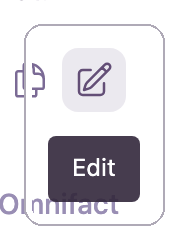
Locate the Edit button
2
Enter editing mode
Click Edit to turn your message into an editable composer directly inside the thread.
3
Make your text or attachment changes
Update your message as needed:
- Correct spelling, numbers, or instructions
- Rephrase your question or add new constraints
- Add, replace, or remove file attachments using the + button (Files From Device or Select File From cloud storage), drag-and-drop, or clipboard paste (you can even submit an attachment-only edit with blank text)
4
Save or cancel your edits
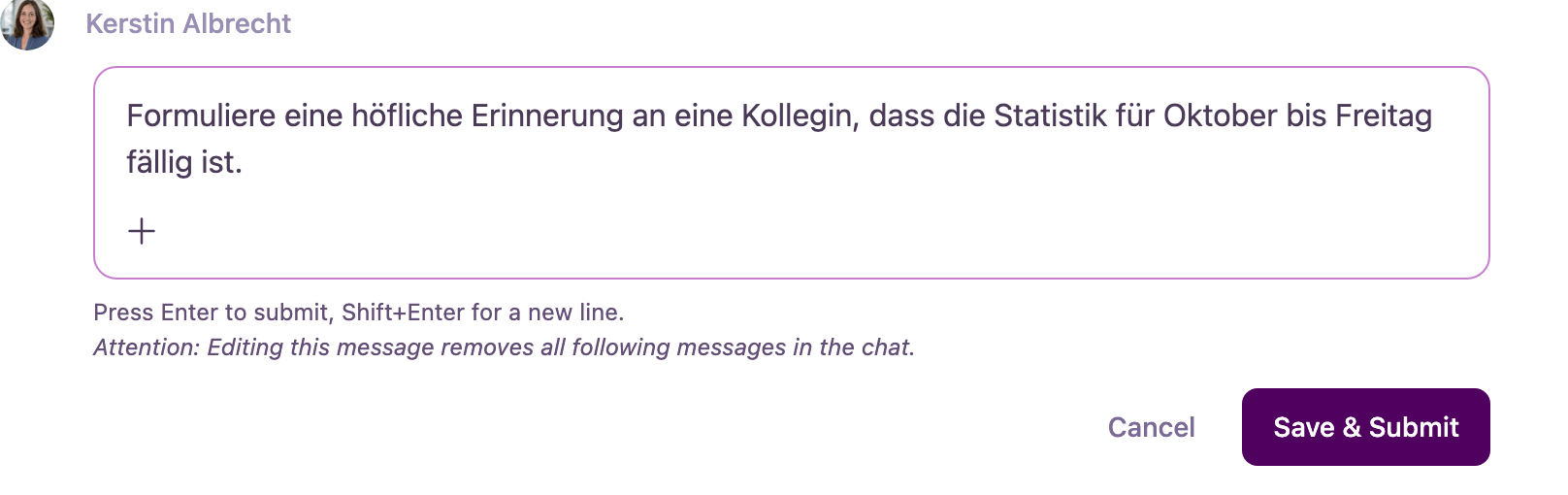
- Click Save & Submit (or press Enter) to update your message and generate a fresh response.
- Click Cancel to discard your text and attachment changes and keep the original conversation intact.
5
Review the updated response
Once you click Save & Submit, Omnifact replaces the edited turn, removes any messages that followed it, and streams a brand-new response.
Understanding the Impact of Editing
Why following messages are removed
Why following messages are removed
Editing an earlier message changes the foundation of everything that came after it. Removing subsequent turns ensures the agent responds cleanly to your updated prompt without conflicting history.
When to edit vs. ask a follow-up vs. start a new chat
When to edit vs. ask a follow-up vs. start a new chat
- Ask a follow-up when: The first answer is useful and you want to build on or refine it.
- Edit when: The prompt itself had the wrong file, wrong numbers, or wrong direction and you want to replace that branch cleanly.
- Start a new chat when: You are switching to a completely new topic and want to keep your previous thread saved in your sidebar history.
Best Practices for Editing Messages
Copy useful output first
If a subsequent response contains text, code, or files you want to keep, copy or download them before clicking Save & Submit on an earlier turn.
Use edits to free up image slots
If a visual chat hits a model’s cumulative image cap, click Edit on your last message to remove unneeded images and continue right away.
Next Steps
- Learn about Stopping and Regenerating Responses
- Discover how the Privacy Filter protects sensitive information
- Explore Basic Prompt Structure