

Who Can Customize a Space?
Users with Editor access in a Space can modify its settings and sharing (when you create a Space, you automatically become an Editor).
- Space Details: Icon, name, description, Space Instructions, example prompts, and Space deletion
- Sharing: Adding or removing users and groups, and granting or revoking Editor access
- Knowledge (
Uploaded Files&Connected Sources): Uploading/deleting documents and connecting cloud storage (if your organization restricts knowledge uploads by group, Space Editors, including Organization Owners and Admins, must also hold the Manage Knowledge group permission)
Three Ways to Open Space Settings
If you are a Space Editor, you can open Space Settings from three places:- From the Space header: Inside the Space, click the cog icon (
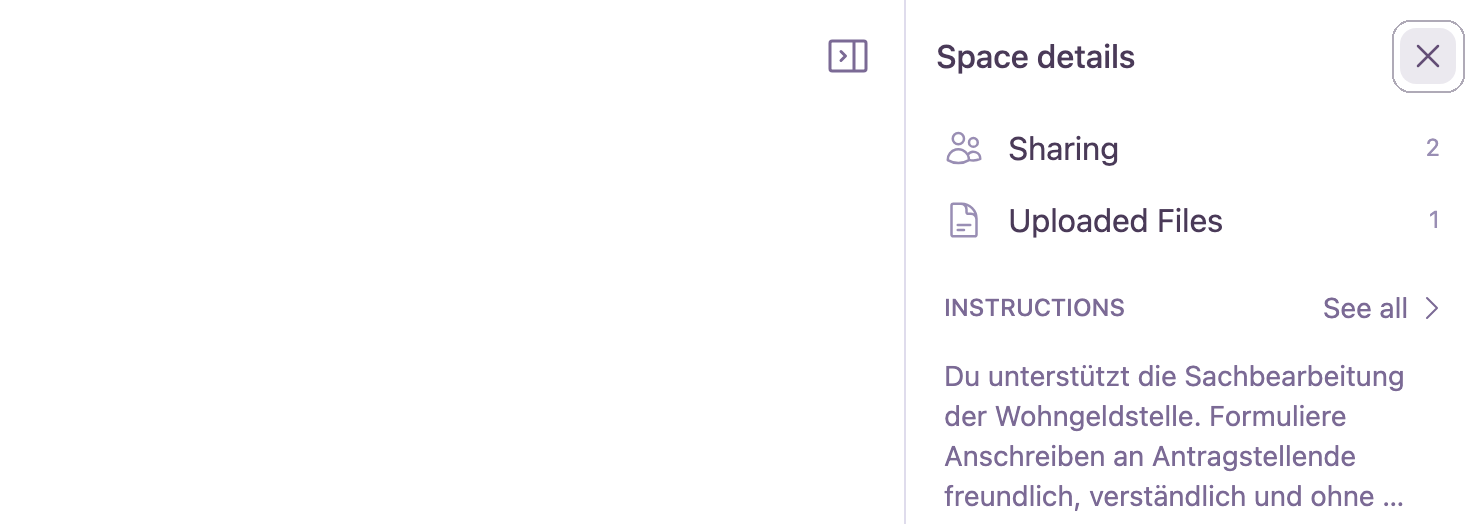
Space settings) next to the Space name at the top of the left chat sidebar (or in the top bar on mobile). - From the Space details sidebar: Open the right-hand Space details panel via the toggle icon in the top-right corner of the chat and click Space settings at the top of the panel.
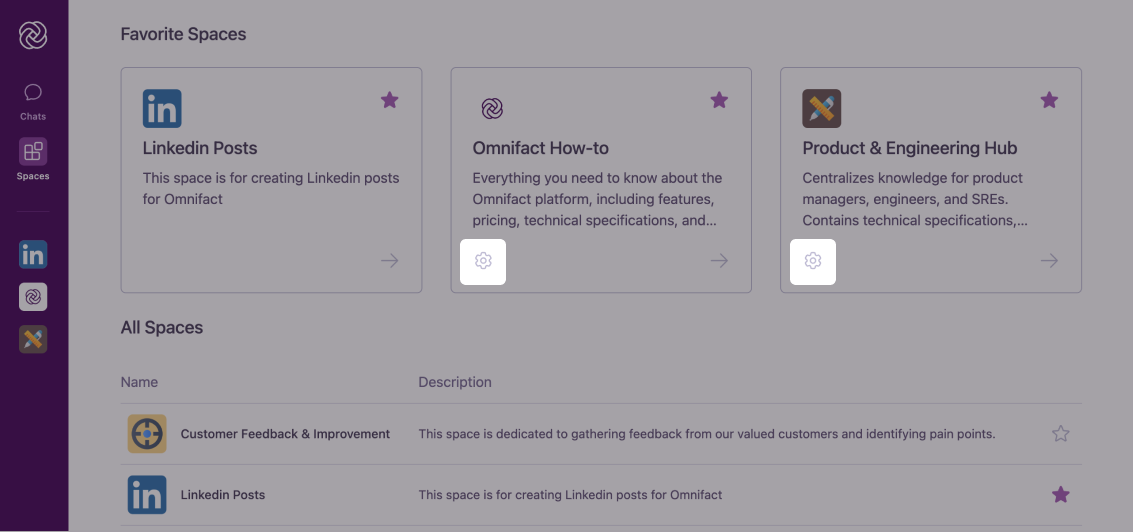
- From Your Spaces: On the Your Spaces page, click the cog icon in the bottom-left corner of any favorited Space card under Favorite Spaces.
Space Settings Navigation
The left Settings sidebar inside a Space is organized into four pages:- Space Details
- Knowledge: Uploaded Files
- Knowledge: Connected Sources
Edit the Space icon, name, description, Space Instructions, and example prompts, or permanently delete the Space.
Updating Space Details
On Space Details, you can refine every field configured during Space creation:- Space Icon: Pick an icon from the library via the corner chevron badge, or click Upload Icon to upload a PNG, JPG/JPEG, or SVG image (up to 2 MB).
- Space Name: Update the title shown in Your Spaces, pinned shortcuts, and headers.
- Space Description: Revise the summary shown on Your Spaces and in the Space badge tooltip.
- : Fine-tune the agent’s role, tone, formatting rules, and grounding instructions.
- Example : Add, edit, or remove starter prompt chips shown below the input on new Space chats.
Managing Space Knowledge
Under the Knowledge heading in Settings, you have two complementary ways to equip the Space agent with reference documents:- Uploaded Files: Drag and drop files or folders (or click Add Files) to index static documents directly in the Space.
- Connected Sources: Link cloud folders or files from SharePoint, OneDrive, or Google Drive for automatic background synchronization.
Managing Space Sharing
Select Sharing in Settings to invite colleagues or organization groups, promote co-maintainers with Grant Edit Access, or remove access when team responsibilities change. See Sharing Spaces with Colleagues for full details.Deleting a Space
At the bottom of Space Details, Space Editors can permanently remove an obsolete Space:- Open Space Settings > Space Details and scroll to the Delete Space section at the bottom of the page.
- Click Delete Space.
- Confirm in the Confirm Space Deletion dialog.
Common Questions
Do changes to Space Instructions affect ongoing conversations?
Do changes to Space Instructions affect ongoing conversations?
Yes. Updated Space Instructions apply immediately to the next turn in existing conversations as well as all new chats, without altering past messages already in the thread.
Why can I edit Space Details and Sharing, yet Uploaded Files is read-only?
Why can I edit Space Details and Sharing, yet Uploaded Files is read-only?
Your organization has enabled group-restricted knowledge management. Even as a Space Editor (or an Organization Admin/Owner), your account must belong to a group with the Manage Knowledge permission to add, rename, or delete Space documents or Connected Sources.
Next Steps
- Collaborate with teammates in Sharing Spaces with Colleagues
- Add reference files in Managing Uploaded Files and Connected Sources
- Learn how the agent searches Space documents in Uploaded Files Retrieval