

Connected Sources requires an organization admin to first enable the relevant cloud storage integrations. See Integrations for setup instructions.
How It Works
When you connect a cloud source to a Space, Omnifact:- Authenticates with your cloud storage provider via a secure connection.
- Indexes the files in your selected folders, making them searchable for the agent.
- Keeps content synced by automatically detecting changes, new files, and deletions in the background.
- Cites sources when the agent uses information from a connected source, showing the file name, provider, and a direct link to the original.
Connecting a Source
You need Space Admin permissions to connect sources. Your organization may also require the appropriate group permission.
1
Open Space Settings
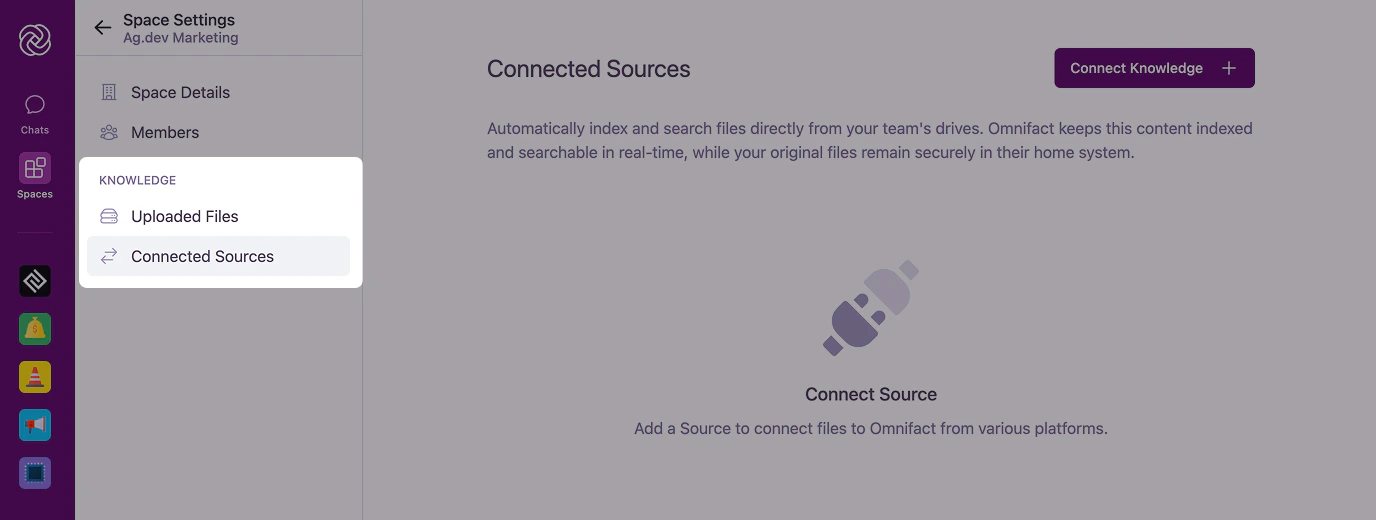
Click the settings icon in your Space header, then navigate to Connected Sources under the KNOWLEDGE section.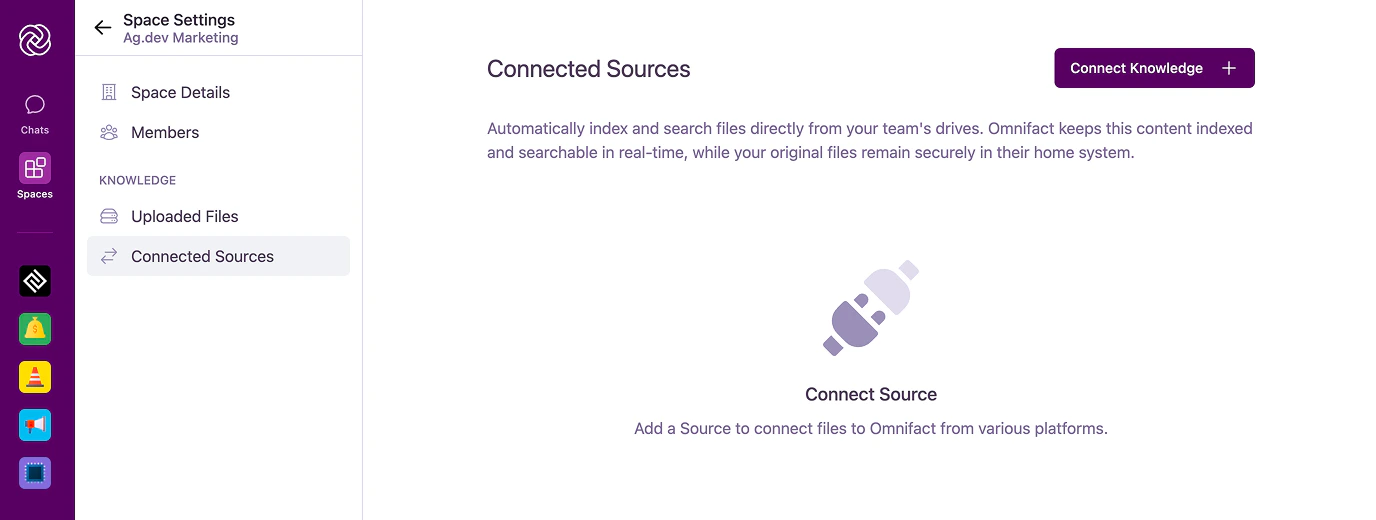
2
Select a data source
Click Connect Source. A modal appears showing the available cloud storage providers: Google Drive, OneDrive, OneDrive Business, and SharePoint. Select your provider and click Grant Access.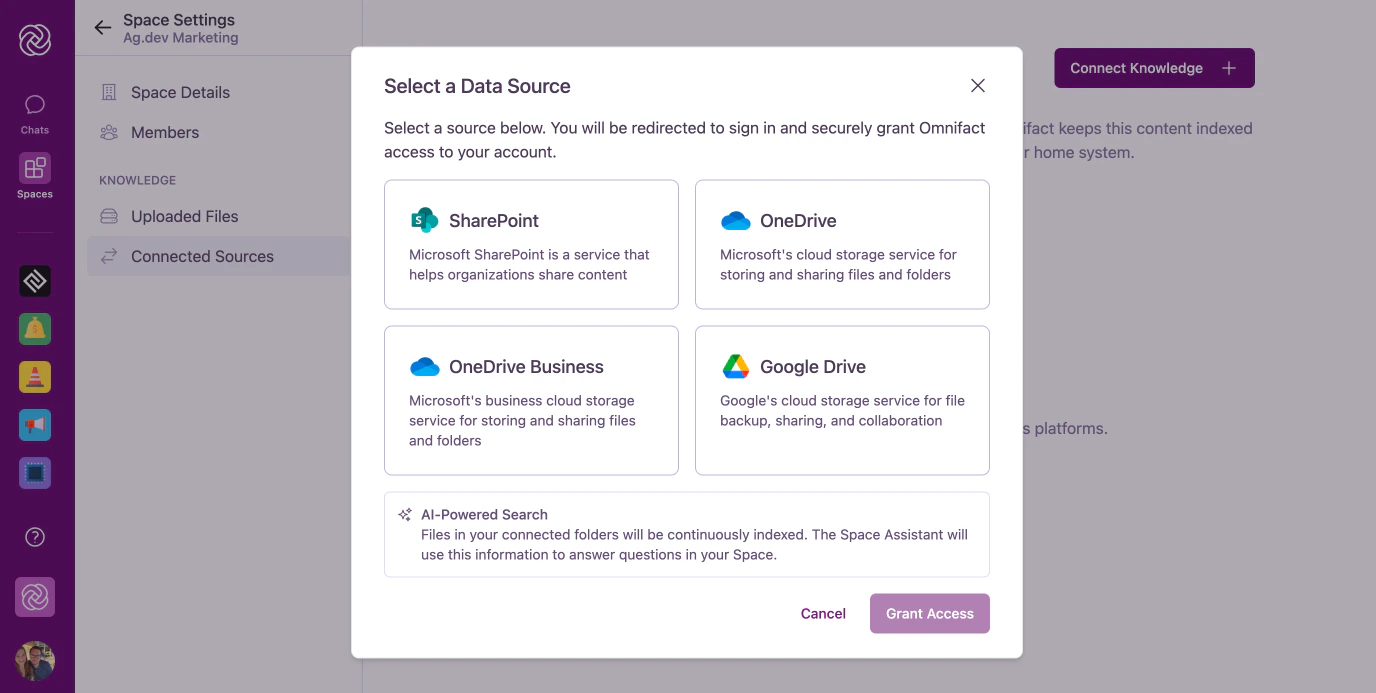
3
Authorize access
You’ll be redirected to your cloud storage provider to sign in and grant Omnifact permission to access your files. After authorizing, you’ll be returned to Omnifact automatically.
4
Select folders
Your provider’s file picker opens. Select the folders you want to index in this Space. You can select one or multiple folders at once.
5
Monitor indexing
After connecting, your source appears on the Connected Sources page with a status indicator. Initial indexing may take a few minutes depending on the number of files.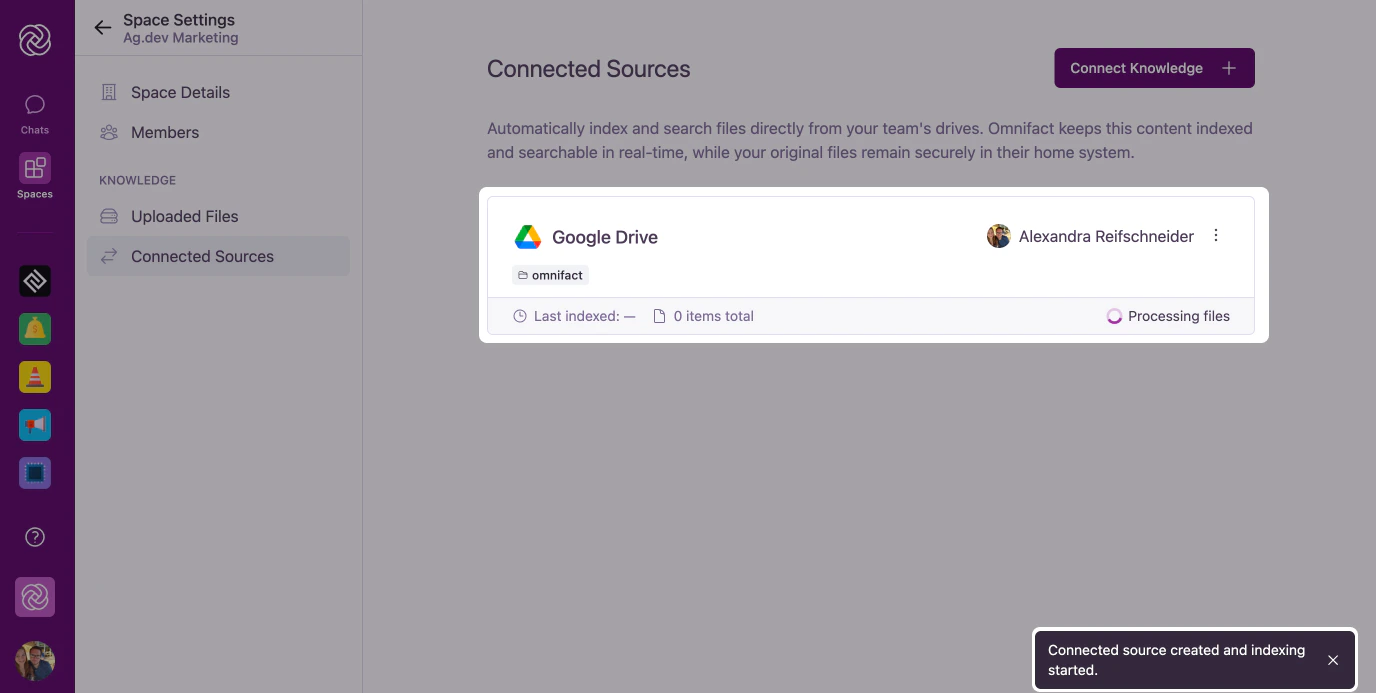
Managing Connected Sources
Once you’ve connected one or more sources, the Connected Sources page shows a card for each connection.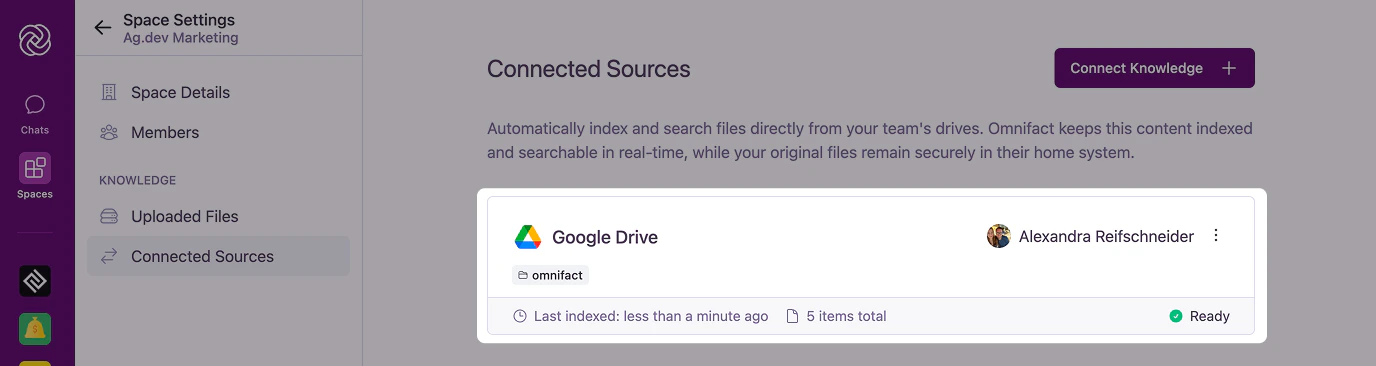
Status Indicators
Viewing Indexed Files
Click the folder tags on a connection card to see the full list of indexed files. The detail view shows files that are successfully processed and available to the agent, as well as files that could not be processed.Disconnecting a Source
To remove a connected source, click the Options icon (⋮) on the connection card, select Disconnect, and confirm the action.Source Citations in Chat
When the agent uses information from a connected source, the citation in the Sources panel shows the file name, the provider icon, and a direct link to the original file in your cloud storage.Supported File Types
Connected Sources supports the same file types as manual uploads:- Documents: PDF, Word (.doc, .docx), PowerPoint (.ppt, .pptx), OpenDocument (.odt, .odp)
- Plain text: TXT, JSON, Markdown, CSV
- Google native files: Google Docs and Slides are automatically converted for indexing
Data Privacy & Security
Connected Sources is designed with data protection at its core:- Per-Space connections: Each Space has its own connections. Connecting a source to one Space does not make it available in others.
- Owner-attributed: Every connection is tied to the team member who authorized it.
- Admin-controlled: Organization admins control which cloud storage providers are available through the Integrations settings.
Common Questions
Which cloud storage providers are supported?
Which cloud storage providers are supported?
Connected Sources currently supports Google Drive, OneDrive, OneDrive Business, and SharePoint. Additional integrations are planned for future releases.
How often does Omnifact sync with my cloud storage?
How often does Omnifact sync with my cloud storage?
Currently, Omnifact automatically checks for changes every 5 minutes in the background and re-indexes updated content. You don’t need to manually trigger a sync.
Can multiple team members connect sources to the same Space?
Can multiple team members connect sources to the same Space?
Yes. Multiple Space Admins can each connect their own cloud storage accounts. Each connection is attributed to the person who set it up.
What happens if I delete a file from my cloud storage?
What happens if I delete a file from my cloud storage?
On the next sync cycle, Omnifact detects the deletion and removes the indexed content from the Space.
Does connecting a source count against my document quota?
Does connecting a source count against my document quota?
Currently, connected source files are not counted against your organization’s page quota. Only manually uploaded files count toward quota limits.
Next Steps
Set Up Integrations
Enable cloud storage providers for your organization
Manage Uploaded Files
Learn about uploading files directly to a Space