

Accessing Your Spaces
1
Locate the main navigation bar
Look at the vertical navigation rail on the far left of Omnifact.
2
Click Spaces
Click Spaces in the main navigation bar to open Your Spaces.
Your Spaces lists every Space you created or were granted access to individually or through a Group (such as Everyone). Unshared Spaces created by other users remain private to their members.
Understanding the “Your Spaces” Page
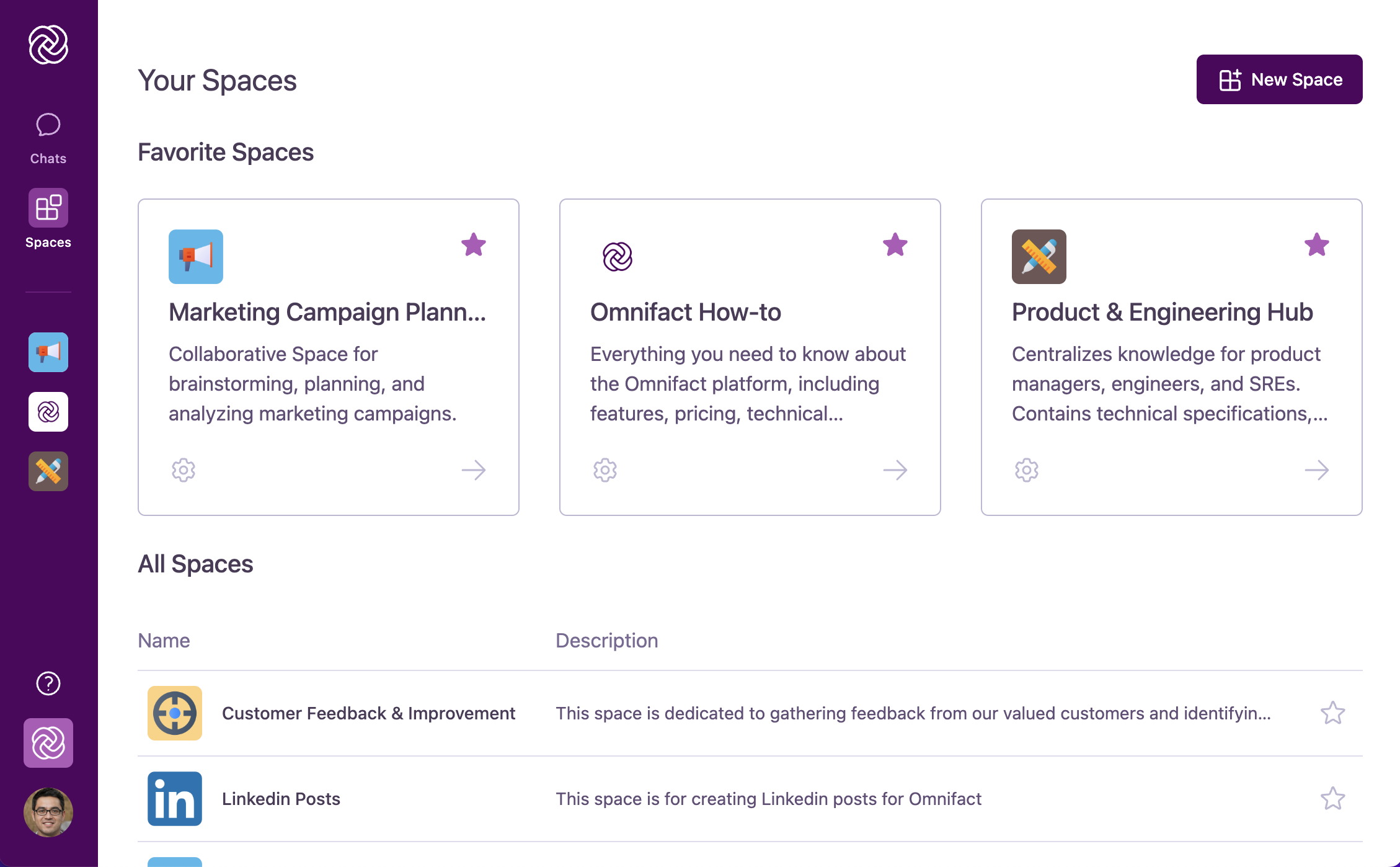
Favorite Spaces
Displayed prominently at the top on desktop whenever you have starred at least one Space, giving you quick visual cards for your most-used workspaces.
All Spaces
An alphabetical table below Favorite Spaces listing every Space you can access (including favorited Spaces, so your full catalog stays in one alphabetical list).
Space Cards vs. All Spaces Table Rows
Both views help you identify and open Spaces quickly, with extra quick actions on Favorite Spaces cards:What appears on Favorite cards vs. All Spaces rows
What appears on Favorite cards vs. All Spaces rows
Shown in both Favorite Spaces cards and All Spaces rows:
- Space Icon: Visual icon representing the Space’s topic
- Space Name: Click the card or row to open the Space’s chat environment
- Space Description: Brief summary of the Space’s purpose
- Favorite Star Icon: Click to star or unstar the Space
- Settings Icon (cog): Bottom-left shortcut to Space Settings, visible to Space Editors
- Navigation Arrow: Bottom-right visual cue to enter the Space
Favoriting Spaces for Quick Access
Marking a Space as a favorite provides two benefits:- Prominent Card View: Promotes the Space to Favorite Spaces at the top of Your Spaces on desktop.
- Main Navigation Pinning: Pins the Space directly to the main left navigation rail for one-click access from anywhere in Omnifact.
1
Find the Space
Locate the Space in All Spaces (or open the Space directly and look at its header in the left sidebar).
2
Click the star icon
Click the star icon next to the Space name. When favorited, the star fills in.
3
Access from the main rail
Your favorited Space now appears pinned in the main navigation bar on the far left. Click the filled star again anytime to unpin it.
Organizing Your Spaces
Pin Daily Spaces
Favorite the 3 to 5 Spaces you use most often so they stay one click away in your main navigation rail.
Use Clear Names & Descriptions
Give shared Spaces descriptive titles and concise descriptions so teammates immediately know which Space to open in All Spaces.
Review Favorites Periodically
Unpin completed project Spaces as priorities shift so your sidebar shortcuts stay focused.
Establish Team Naming Conventions
Prefix department or client Spaces consistently (for example, HR: Policies & Onboarding or Legal: Vendor Contracts) for easy alphabetical scanning.
Next Steps
- Learn about Accessing and Using Spaces
- Build custom agents by Creating New Spaces
- Configure settings and knowledge in Customizing Spaces
- Collaborate with teammates by Sharing Spaces