

Why Create a New Space?
Before creating a Space, it’s helpful to understand the key benefits and use cases:Custom Agents
Create specialized agents with personalities, areas of expertise, and behaviors tailored to specific domains or tasks.
Content Organization
Organize related AI interactions and knowledge resources around a specific topic, project, or function.
Team Collaboration
Build a shared AI environment where team members can collaborate with consistent AI interactions.
Domain-Specific Uploaded Files
Leverage your organization’s proprietary documents through the Uploaded Files.
Creating a New Space: Step-by-Step
1
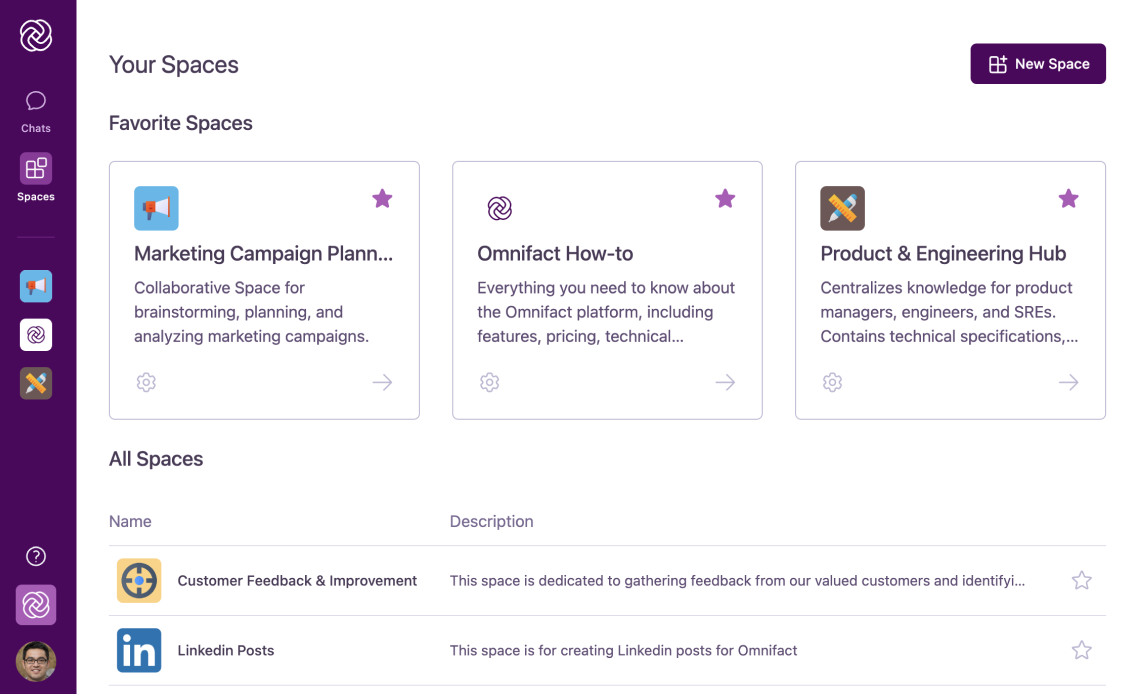
Access the 'Your Spaces' page
Click on the “Spaces” icon in the main navigation bar to access the “Your Spaces” page.
This is the central hub for managing all Spaces you have access to.
2
Start the creation process
Click the “New Space” button located at the top right of the “Your Spaces” page.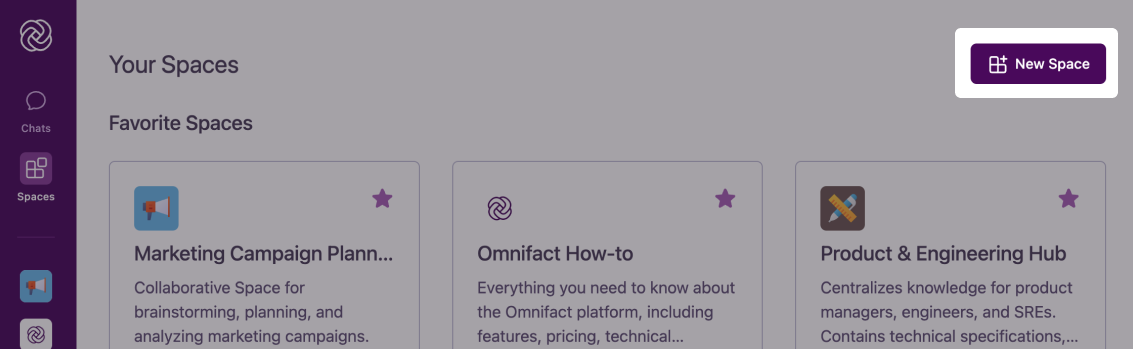
3
Consider Space Starters (Optional)
Space Starter templates appear in a sidebar within the creation interface.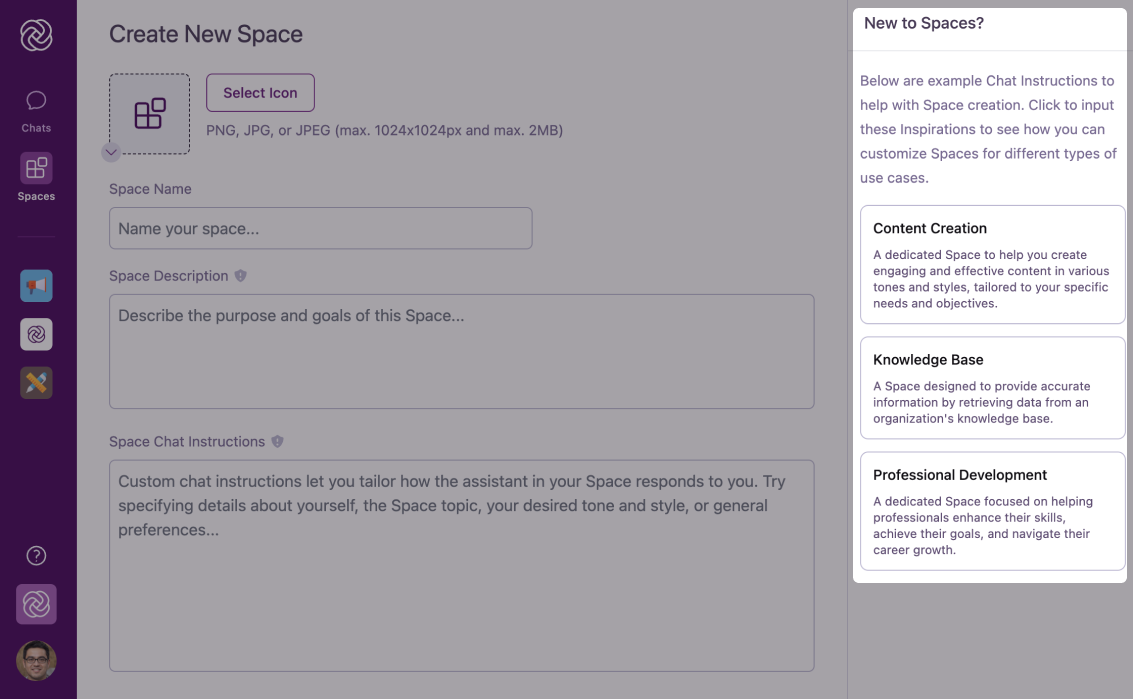
Content Creation
Optimized for brainstorming and generating various types of content.
Uploaded Files
Designed for question answering and information retrieval from documents.
Professional Development
Tailored for learning, skill enhancement, and career guidance.
You can click a Space Starter to pre-populate the creation form with template settings, or simply ignore them and configure your Space from scratch using the empty form.
4
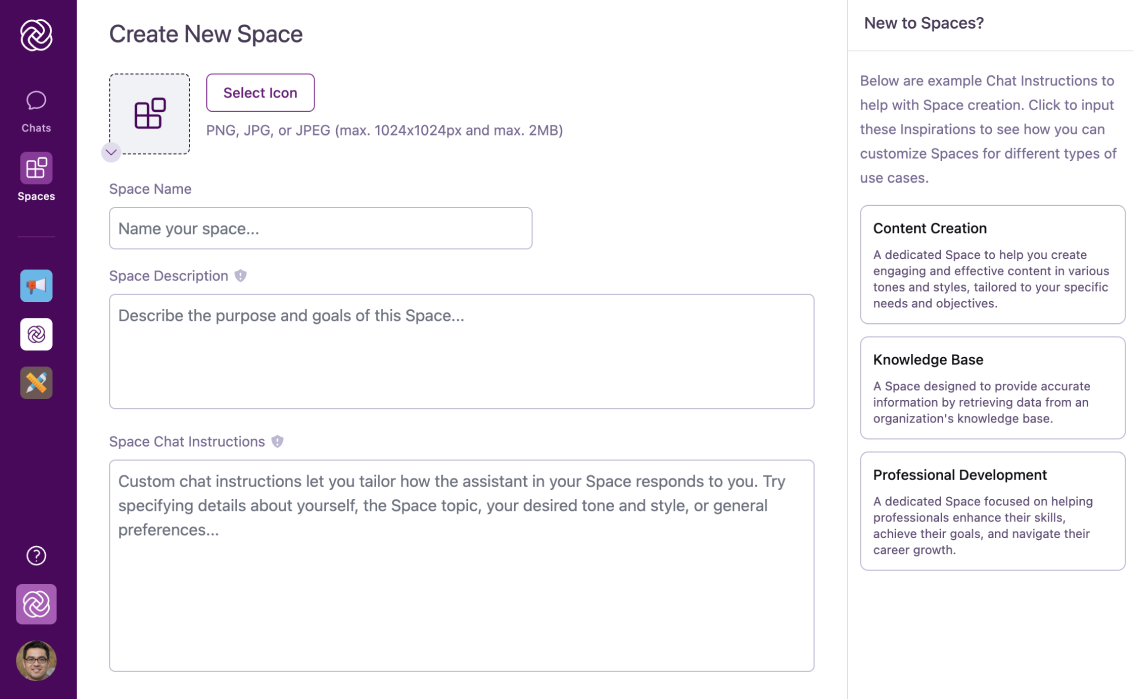
Configure Space basics
Fill out the core information that identifies your Space:
Space Icon
Space Icon
Click “Select icon” to choose a visual representation for your Space:
- Browse the popup icon library for a suitable option
- Or upload a custom icon (PNG, JPEG, WebP, HEIC/HEIF, AVIF, BMP, GIF, ICO, SVG, or TIFF format)
Space Name
Space Name
Enter a clear, descriptive name for your Space in the “Space Name” field.
Use specific, descriptive names like “Marketing Campaign Planning” or “Technical Support Uploaded Files” rather than generic names like “Work Space” or “Team Space.”
Space Description
Space Description
Provide a brief explanation of the Space’s purpose in the “Space Description” field.
While optional, a good description helps users understand what the Space is for and when to use it. The agent will also use this description to understand the Space’s purpose.
5
Define Space Chat Instructions
This is the most important step in creating a truly custom agent. The “Space ” define how your Space’s agent will behave.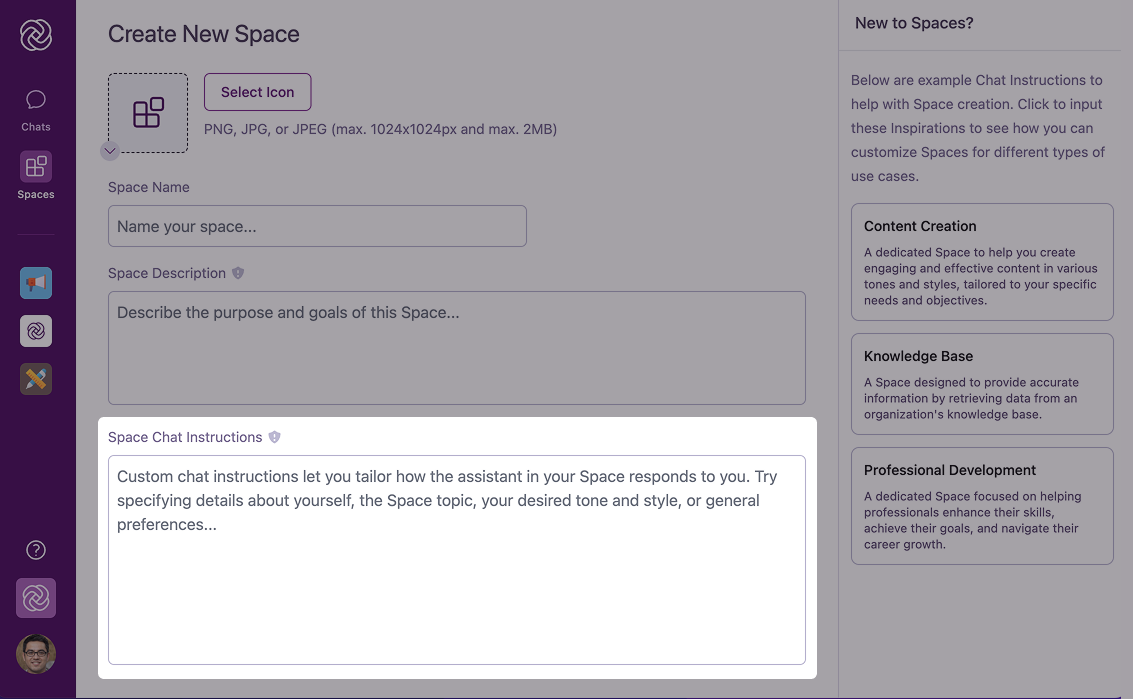
What to include in Instructions
What to include in Instructions
Effective Space Instructions typically define:
- The AI’s role and expertise: What is the AI an expert in? (e.g., “You are an experienced marketing strategist specialized in digital campaigns”)
- Tone and style: How should the AI communicate? (e.g., “Use a friendly, collaborative tone but maintain professional language”)
- Focus areas: What specific knowledge domains should the AI emphasize? (e.g., “Focus particularly on SEO best practices and social media strategy”)
- Response format preferences: How should information be structured? (e.g., “Present analysis in bullet points when possible”)
- Contextual considerations: Any special organizational context the AI should consider (e.g., “Our company targets enterprise B2B clients primarily”)
6
Add Example Prompts
Add suggested prompts to guide users on effectively interacting with this Space’s agent.
Creating Effective Example Prompts
Creating Effective Example Prompts
- Start with a few clear examples (3-5) that showcase the Space’s purpose
- Make prompts specific and actionable rather than vague
- Include diverse examples that demonstrate different capabilities
- Use the ”+ Add Additional Prompt” button to add more examples
Good example: “Analyze our Q2 marketing campaign results and suggest improvements for Q3”
7
Finalize Space creation
Once you’ve configured all settings to your satisfaction:
- Review your configuration to ensure everything is correct
- Click the “Create Space” button at the bottom of the page
If you need to abandon the creation process, you can click “Cancel Creation” to return to the Spaces interface without creating a new Space.
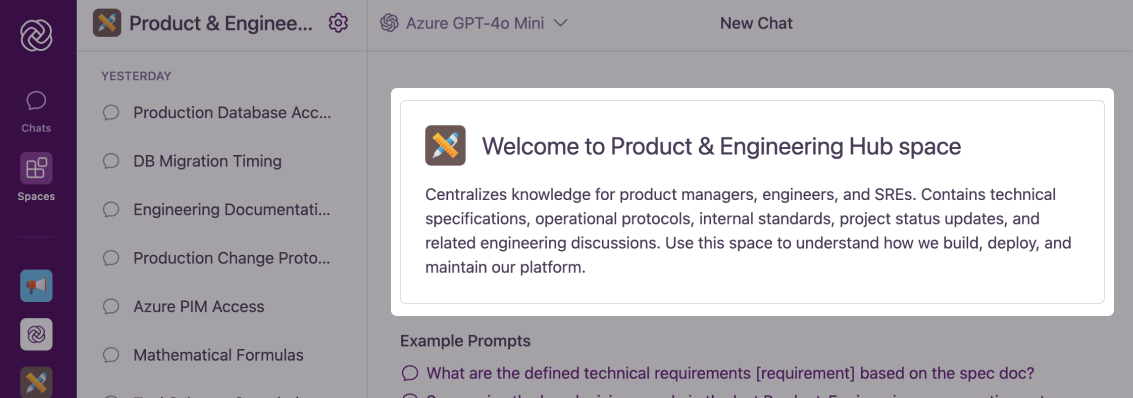
Example: Creating a Marketing Campaign Space
Practical example of Space creation
Practical example of Space creation
Let’s walk through creating a Space for marketing campaign planning:
- Space Name: “Marketing Campaign Planning”
- Space Icon: Select a megaphone or chart icon from the library
- Space Description: “Collaborative Space for brainstorming, planning, and analyzing marketing campaigns.”
-
Space Chat Instructions:
You are an experienced marketing strategist with expertise in digital campaign planning. Provide creative, data-driven advice on marketing campaign development, execution, and analysis. Emphasize current best practices in digital marketing, including social media, email campaigns, and content marketing.When discussing marketing strategies, consider:
- Our target audience of mid-sized businesses
- Budget efficiency and ROI focus
- Integration across marketing channels
- Performance measurement and KPIs
-
Example Prompts:
- “Help me brainstorm creative concepts for a [product/service] launch campaign”
- “What are the key metrics and KPIs I should track for a [campaign type] campaign?”
- “Review my campaign performance data and suggest optimization strategies”
- “Help me develop a content strategy and calendar for our marketing channels”
Best Practices for Creating Effective Spaces
Purpose-Driven Design
Create each Space with a specific purpose in mind. Focused Spaces with clear objectives deliver better results than generic ones.
Detailed Instructions
Invest time in crafting thorough Space Instructions. The more guidance you provide, the more effective your custom agent will be.
Strategic Naming
Use clear, descriptive names that instantly communicate the Space’s purpose to users browsing available Spaces.
Thoughtful Example Prompts
Craft example prompts that showcase the Space’s capabilities and guide users toward effective interactions.
After Creating Your Space
Once your Space is created, you have several options to enhance it further:Add Uploaded Files Documents
Add Uploaded Files Documents
Upload relevant documents to create a specialized knowledge foundation for your Space’s agent.Benefits:
- Provides context-specific information to your agent
- Enables responses based on your organization’s proprietary information
- Improves accuracy for domain-specific questions
Invite Team Members
Invite Team Members
Share your Space with colleagues who would benefit from its specialized agent.Collaboration benefits:Learn more about Sharing Spaces with Colleagues →
- Creates a shared AI environment for team members
- Ensures everyone has access to the same information and AI capabilities
- Facilitates knowledge sharing and consistent AI interactions
As the Space creator, you can assign different roles (Admin or Member) to control access levels for other team members added to the Space.
Refine Space Instructions
Refine Space Instructions
After using your Space for a while, you may want to fine-tune the Space Instructions.Why refine instructions:
- Improve the relevance and specificity of AI responses
- Adapt the AI’s behavior based on real-world usage patterns
- Add new focus areas or capabilities as your needs evolve
Favorite Your Space
Favorite Your Space
Mark your new Space as a favorite to pin it to the main navigation bar for quick access from anywhere in Omnifact.How to favorite a Space:
- Find your Space in the “Your Spaces” page
- Click the star icon next to the Space name
- Verify that the Space now appears in the main navigation bar
Common Questions
How many Spaces can I create?
How many Spaces can I create?
The number of Spaces you can create depends on your organization’s Omnifact plan. Contact your administrator if you’re unsure about your limits.
Can I edit a Space after creating it?
Can I edit a Space after creating it?
Yes! Space administrators can edit all aspects of a Space after creation through the Space Settings. This includes changing the name, description, icon, Space Instructions, and example prompts.
Do I need to add documents to my Space immediately?
Do I need to add documents to my Space immediately?
No, document upload is optional and can be done at any time after Space creation. Spaces can function effectively with just well-crafted Space Instructions, even without Uploaded Files.
Who can see the Spaces I create?
Who can see the Spaces I create?
By default, new Spaces are visible only to you until you explicitly share them with other users. You control who has access through Space member management.
Next Steps
Now that you’ve created your Space, you might want to explore:- Customizing Spaces to tailor them after creation
- How Managing Uploaded Files works
- Giving access by Sharing Spaces with Colleagues