

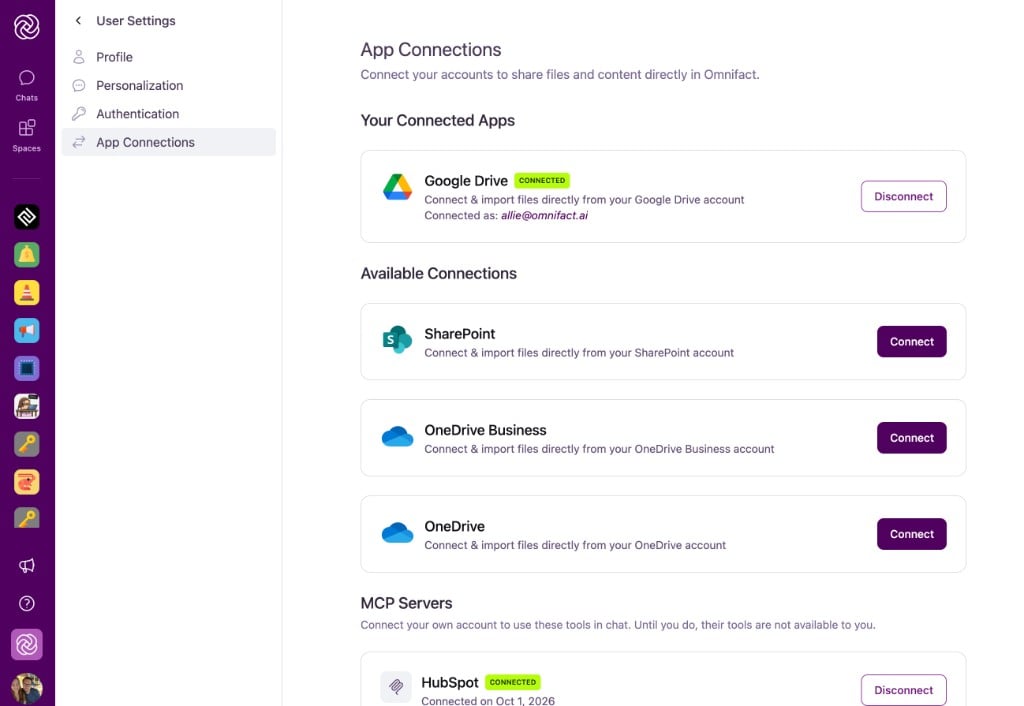
An organization administrator must first enable integrations or configure MCP servers in Team Settings > Integrations before they appear on your App Connections page.
Connecting Cloud Storage (App Connections)
Link your cloud storage to bring documents into conversations without manual downloading and re-uploading.1
Open App Connections
Click your avatar in the navigation bar, select Account Settings, and open App Connections.
2
Choose a provider
Under Available Connections, locate the cloud storage provider you want to link (Google Drive, OneDrive, OneDrive Business, or SharePoint).
3
Authorize access
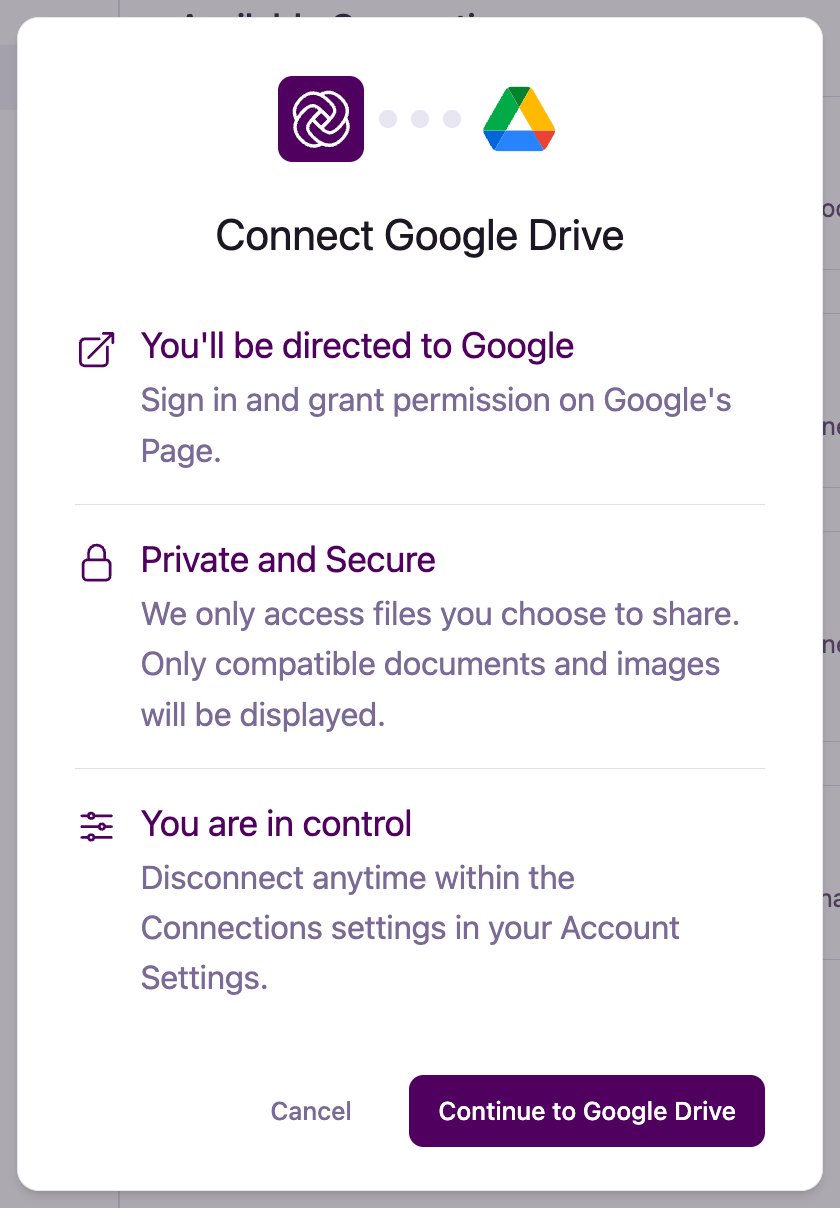
Click Connect next to the provider name, then click Continue in the confirmation dialog. A window from your cloud provider will prompt you to sign in and grant Omnifact read access.
4
Complete setup
Once authorized, the window closes automatically and the provider card moves to Your Connected Apps with a Connected badge.
Using Connected Cloud Files
Once connected, you can use your cloud files across two core platform workflows:- Chat Attachments: Click the + (Plus) icon in the chat input to browse and attach files from your connected drives into any individual conversation.
- Space Knowledge Bases: When configuring a Space, you can import files directly into the Space Knowledge tab, or link entire folders via Connected Sources for ongoing synchronization.
Connecting Workplace Tools (MCP Servers)
When your organization adds workplace tools that connect to individual accounts (OAuth), you can link your own account so the agent can help you with those tools in chat. Until you connect your account, that server’s tools are not available to you in chat. Because tools connect to your individual account, the agent only has access to the projects, tickets, and items you can already see in that tool.Linking a Tool Account
1
Find the tool in App Connections
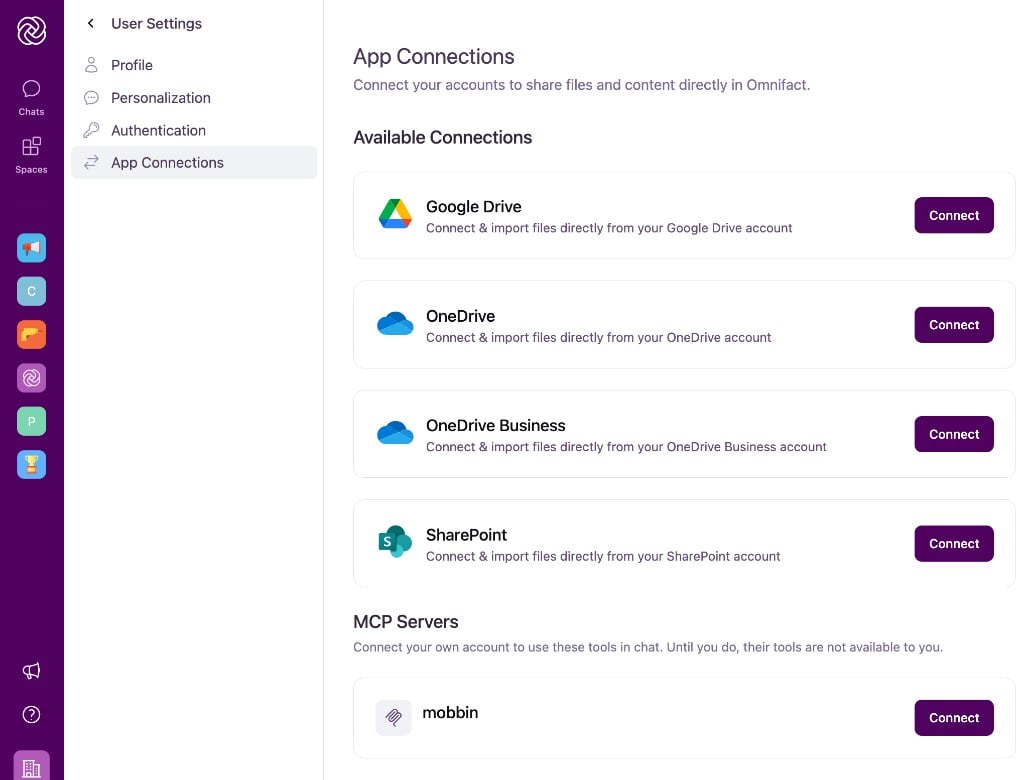
In Account Settings > App Connections, scroll down to the MCP Servers section. This section is shown when your organization has added a tool that uses your own account.
2
Connect your account
Click Connect on the card for the service you want to use.
3
Authorize access
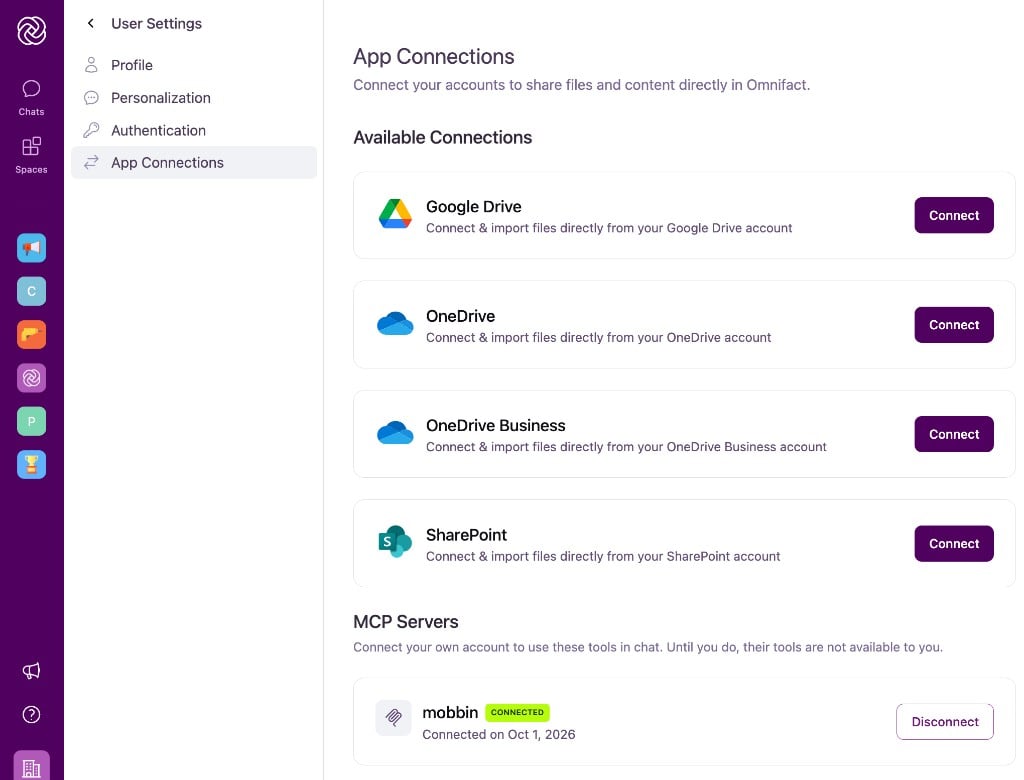
Sign in to your account in the popup window and grant Omnifact permission to use the tool.
Reconnecting an Expired Connection
Connections may occasionally expire. If a tool needs to be reconnected:- The card in App Connections will show Re-authorization required with a Reconnect button.
- If you ask the agent to use that tool in chat, it will let you know that you need to reconnect under Account Settings > App Connections.
Disconnecting an Account
You can disconnect any app or tool at any time:- Navigate to Account Settings > App Connections.
- Locate the connected service under Your Connected Apps or MCP Servers.
- Click Disconnect and confirm:
- Cloud storage: Revokes access to browse and import files. Files already attached to past chats remain preserved in those conversations. If a Space uses this source via Connected Sources, its files will no longer be indexed.
- Workplace tools (MCP): The server’s tools will no longer be available in your chats until you reconnect.
Data Behavior & Permissions
Understanding how Omnifact accesses and handles data across your connections:Read-Only Cloud Access
Omnifact requests strictly read-only permissions for cloud storage (Google Drive, OneDrive, OneDrive Business, and SharePoint). Omnifact never writes, modifies, renames, or deletes files in your storage accounts.
Chat Attachments: Point-in-Time Copy
When you attach a file to a chat from cloud storage, Omnifact creates a point-in-time copy for that conversation. Later edits in your cloud drive do not alter past chat messages.
Connected Sources: Continuous Sync
Folders linked to a Space via Connected Sources are indexed for search. Omnifact checks for updates in the background, indexing new or edited files and removing deleted files from the search index.
Privacy Filter Scope
Document text retrieved from cloud storage is processed through the . Note that tool calls to external MCP Servers communicate directly with configured endpoints and bypass the Privacy Filter.
Related Resources
- MCP Servers Overview: Learn how administrators configure remote MCP servers and tool governance policies.
- Integrations Settings: Enable cloud storage providers and manage team-wide integrations.
- Connected Sources: Automatically sync cloud storage folders into specialized Spaces.
- Conversational Flow: See how tool executions and in-chat approvals appear during conversations.