

How MCP Works in Omnifact
- Platform Connection: Administrators configure remote MCP server endpoints in Team Settings > Integrations.
- Automatic Tool Discovery: Omnifact connects to the server, queries its available capabilities, and registers the discovered tool schemas for agent use.
- Administrative Access Control: Administrators assign an explicit execution policy (Always, Approval, or Disable) to each discovered tool.
- Agent Invocation: When users interact with the agent in chat, agents intelligently invoke enabled tools to look up live records, run calculations, or update systems.
- Interactive Confirmation: For sensitive tools configured for approval, the user reviews the exact request payload in chat before the action executes.
Adding an MCP Server
Team administrators can configure remote MCP servers over HTTP directly from the administration dashboard, or choose from ready-to-connect servers in the in-app Integrations Catalog (also browsable publicly at omnifact.ai/integrations/catalog).1
Navigate to Integrations
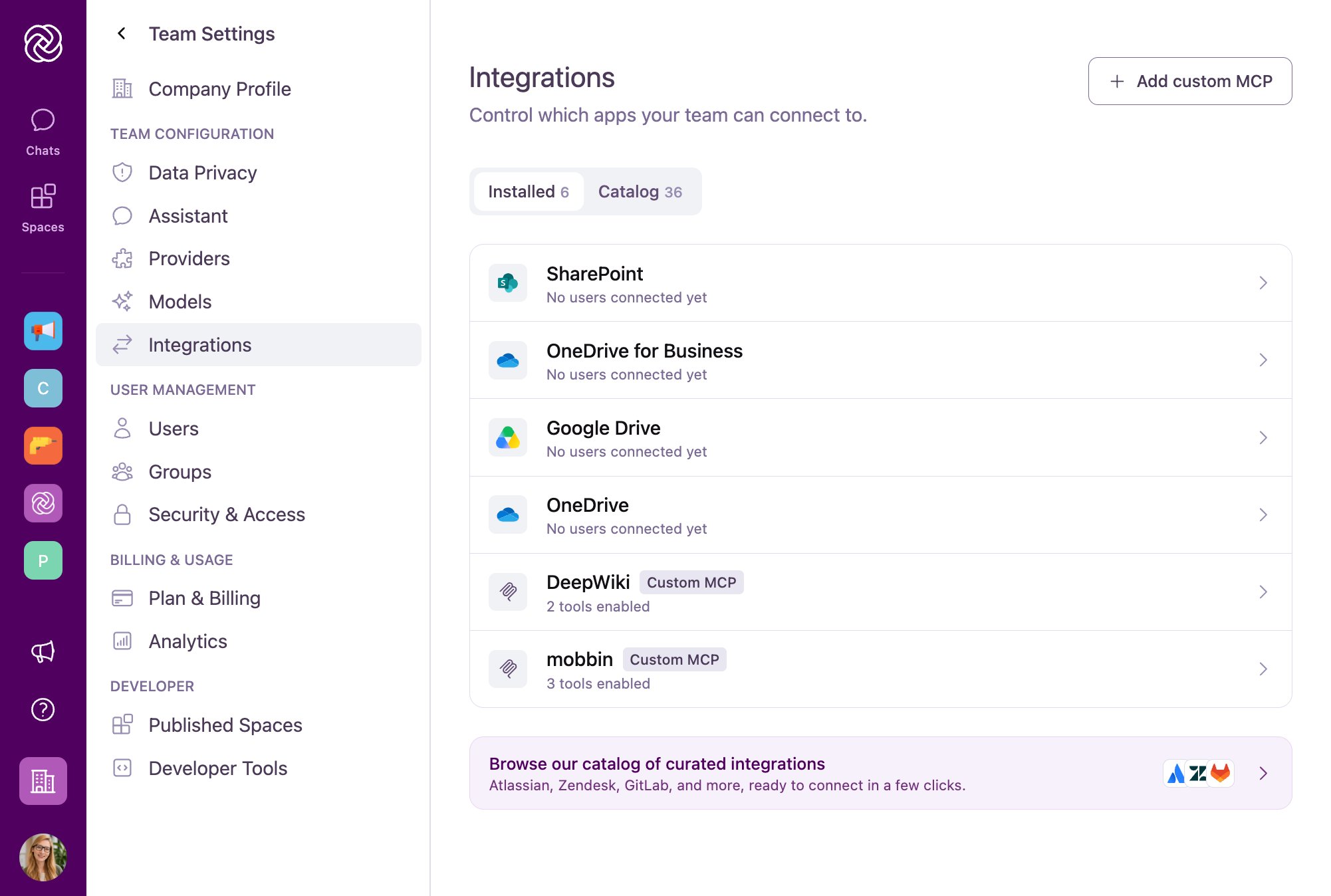
Go to Team Settings > Integrations. Click + Add custom MCP in the top right corner (or explore pre-configured servers in the Catalog tab).
2
Enter Endpoint URL and Authentication
Enter your server’s Endpoint URL (for example,
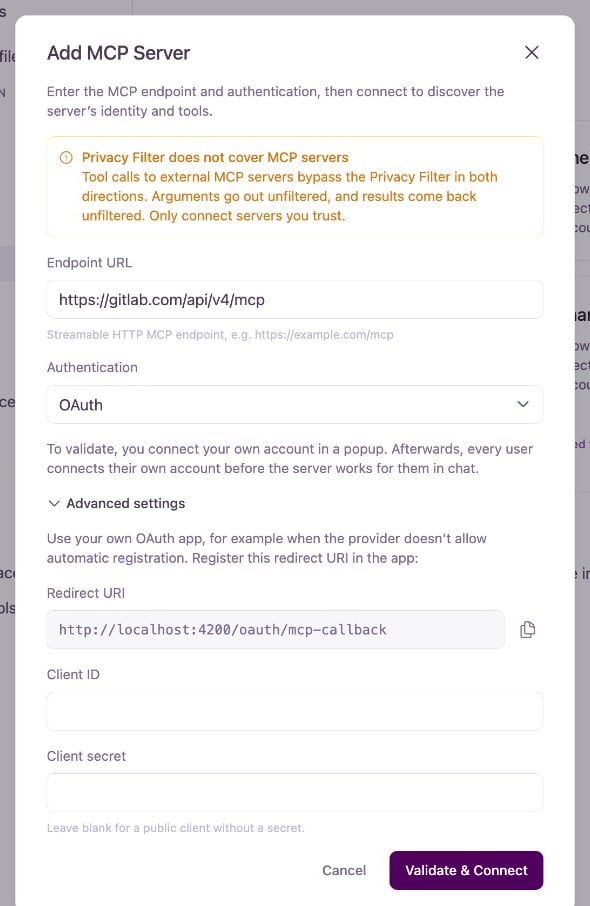
https://mcp.internal.example.com/mcp). Private network addresses, loopback addresses, and internal subnets are blocked by default to prevent unauthorized intranet requests.As you enter the endpoint, Omnifact automatically tests connectivity, detects the supported authentication method, and preselects it:- OAuth: For services that support OAuth (such as HubSpot, GitLab, GitHub, Jira, or Salesforce). If the provider requires an app registered in their developer portal (such as GitHub, Slack, Box, or HubSpot), you can optionally expand Advanced settings, copy the Redirect URI, and enter your app’s Client ID and Client secret.
- API key: Enter the API key shared across your team.
- Bearer token: Enter the Bearer token.
- Custom header: Specify your custom header name and secret value.
- None: For unauthenticated public or internal test endpoints.
Team-Wide Access vs. Personal Sign-In: For servers using API key, Bearer token, Custom header, or None, authentication credentials are configured centrally by an administrator. Enabled tools are immediately available to all team members in their chat sessions; individual user- or group-level permissions are currently not supported for these authentication types. With OAuth servers, an administrator configures the endpoint for the workspace, but each user must individually link their own account in Account Settings > App Connections before the tools can be used in chat.
3
Validate Connection
Click Validate Connection (or Validate & Connect when using OAuth).For OAuth servers, a popup window opens for you to sign in and grant access. Omnifact connects to the endpoint, tests connectivity, and discovers the available tools and server identity metadata.
4
Review Discovered Identity and Tools
Once validated, Omnifact automatically discovers and prefills the server details:
- Name: Automatically prefilled with the server’s reported name. You can customize the name if you prefer a different display label.
- Slug: Automatically generated from the endpoint address or name to serve as a tool prefix in chat (for example, a slug of
salesforceprefixes tools assalesforce__lookup). - Icon: Displayed automatically if provided by the server, with an option to remove it.
5
Save the Server
Click Add MCP Server to finalize the setup. Discovered tools are enabled by default, and you will be taken to the server details page to configure per-tool access policies.
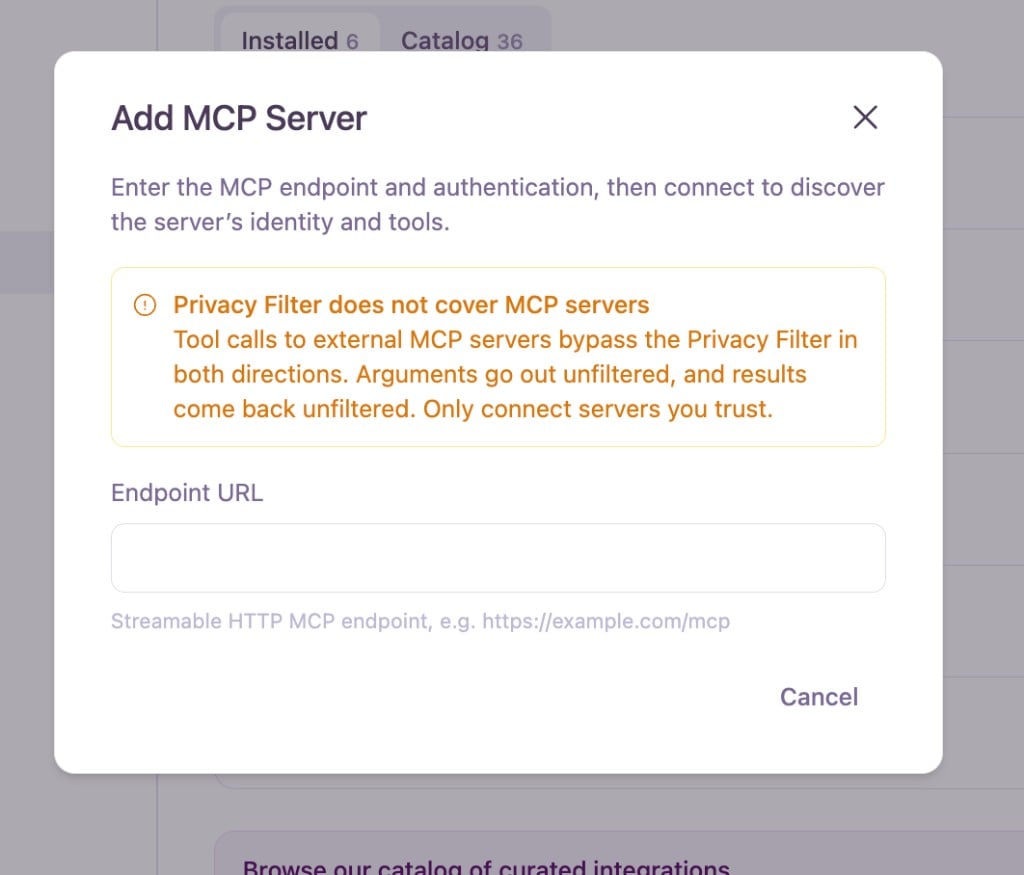
Best practice: Enabling an MCP server grants access to every tool that server exposes, including tools beyond the use case you have in mind. Enable a tool only when you actually need it, and leave the rest on Disable. Least privilege is safer than turning tools on just in case.
Registering Your Own OAuth Client (Custom Credentials)
By default, when you connect an OAuth-backed MCP server without entering credentials, Omnifact registers itself automatically with the provider’s authorization server as a public OAuth 2.1 client using PKCE (S256), either through its hosted Client ID Metadata Document (CIMD) or through Dynamic Client Registration (DCR). For select catalog integrations (such as GitHub and HubSpot), Omnifact also provides a pre-configured platform OAuth app for one-click setup.
However, you will need (or may choose) to register and use your own OAuth client credentials in the following cases:
- The provider requires a manually registered OAuth app: Services such as Slack, Box, Zoom, Asana, and Google Workspace do not allow automatic client registration and require an OAuth app created in their developer portal.
- Your organization requires its own OAuth app: You prefer to route sign-ins through an OAuth application owned and audited by your organization rather than using Omnifact’s client or dynamic registration.
- Open the OAuth client fields:
- Custom MCP server: In the Add MCP Server (or Edit MCP Server) dialog, select OAuth and expand Advanced settings.
- Catalog integration: In the Add integration dialog, the fields appear automatically if the provider requires a registered app (along with a Learn how to register a app guide link). Otherwise, click Use your own OAuth app at the bottom of the dialog.
- Register the Redirect URI with the provider: Copy the Redirect URI shown in the dialog (
https://chat.omnifact.ai/oauth/mcp-callbackon Omnifact Cloud, or your own web origin for custom domain and on-premise deployments) and add it as an allowed redirect/callback URL in the provider’s developer portal. - Enter your credentials: Paste the Client ID and Client secret issued by the provider. If the provider issues a public PKCE client without a secret, leave Client secret blank.
- Authenticate: Click Validate & Connect (or Sign in with ) to sign in and complete tool discovery.
Providers that require allowlisting: Some MCP providers support automatic OAuth registration in principle, but restrict it to an allowlist of approved redirect domains (rejecting registration with an error that the redirect domain is not permitted or that Omnifact could not register itself). In that case, use one of these two alternatives (do not combine them):
- Ask the provider to allowlist Omnifact (Automatic setup): Have the provider allowlist the redirect domain
chat.omnifact.ai(callback URLhttps://chat.omnifact.ai/oauth/mcp-callback, and client metadata URLhttps://chat.omnifact.ai/oauth-client-metadata.jsonif they use CIMD). Once allowlisted, leave Client ID and Client secret blank under Advanced settings. - Use a provider-issued OAuth client (Manual setup): Ask the provider for (or create) a dedicated Client ID with
https://chat.omnifact.ai/oauth/mcp-callbackas the redirect URI, and enter it under Advanced settings.
Per-Tool Governance and Access Policies
Opening internal systems to AI agents demands clear administrative boundaries. Omnifact gives IT teams complete authority over which tools run and how they execute. Click on any configured server in Team Settings > Integrations to view its tool management page. Every tool exposed by the server operates under one of three policies: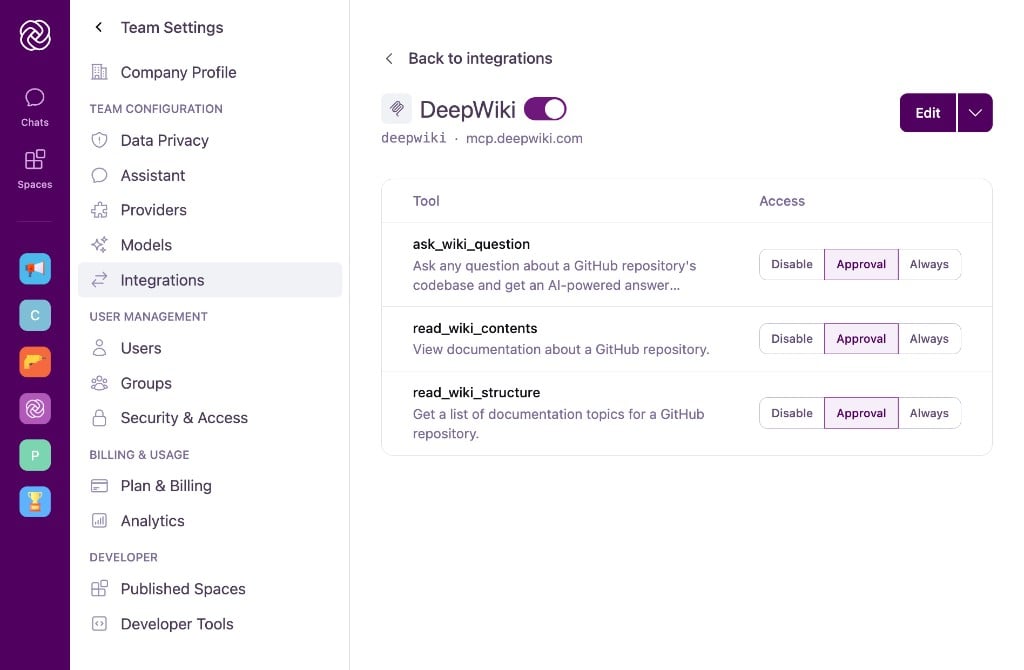
Always
Runs safe, read-only lookups (such as documentation searches or customer status checks) autonomously without prompting the user.
Approval
Pauses state-changing operations and sensitive updates (such as updating records or sending emails) until confirmed in chat.
Disable
Keeps the tool off-limits and hides its schema so AI models never see or invoke it.
Managing Stale and Updated Tools
When connection settings or remote tools change:- Click Edit on the server details page and select Validate & Save (or Connect & Save for OAuth) to refresh the tool list.
- Existing tools retain their configured access policies.
- Newly discovered tools start in the Disable state by default until an administrator enables them.
- Tools no longer reported by the remote server are grouped under a No longer reported section, where they can be removed individually or with Remove all.
OAuth Servers and Account Connections
When an MCP server uses OAuth, the deployment model differs significantly from Bearer token or API key configurations:- Central server registration: Administrators add the MCP server endpoint in Team Settings. Omnifact automatically checks whether the server supports direct client registration or if a pre-registered OAuth app (with Client ID and Client secret in optional Advanced settings) is required. Signing in during setup tests the connection and discovers available tools.
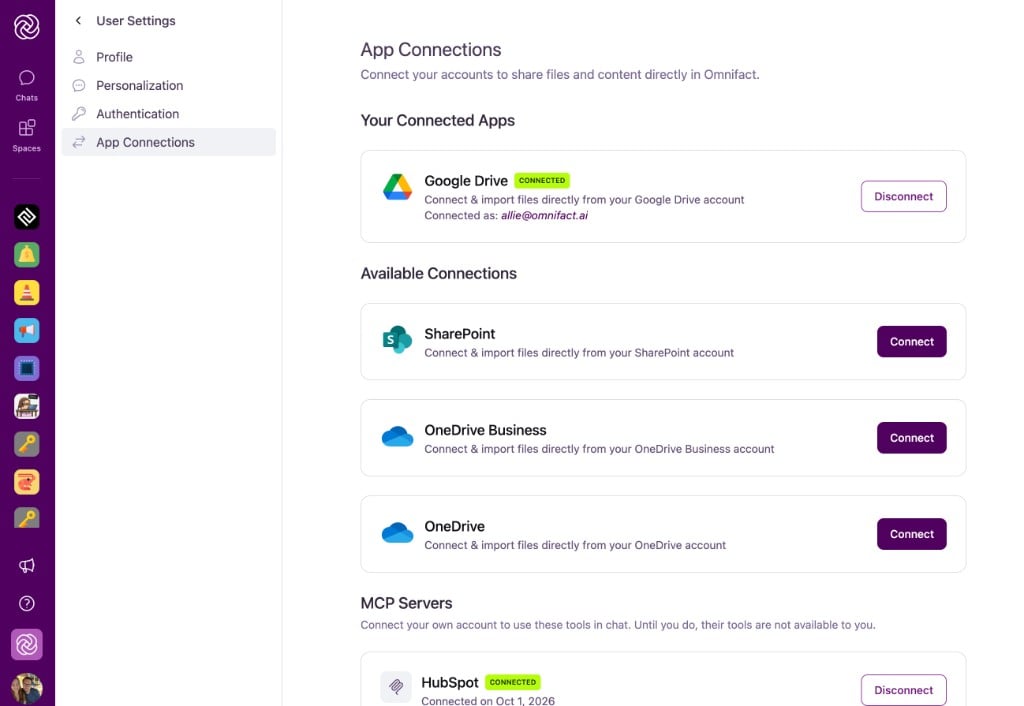
- Availability across the workspace: Once saved, the server is listed for all team members in Account Settings > App Connections (accessible directly at
https://chat.omnifact.ai/account/connections) under the MCP Servers section. - Personal authentication required: Discovered tools are not automatically enabled for end users. Each team member must click Connect on the server card and authenticate with their individual credentials. Until they do, the card indicates: “Connect your own account to use these tools in chat. Until you do, their tools are not available to you.”
- In-chat behavior: If a user asks the agent to perform an action using an OAuth tool that they have not yet connected (or if their authorization expired), the agent explicitly prompts them in chat to link their account under App Connections.
- User permission boundaries: The agent executes tools exclusively within the permissions of the individual’s connected account in the target system (such as HubSpot, GitLab, or Jira). The tool list on the administrator’s server page reflects the administrator’s account permissions; other users see and execute only what their own account allows.
- Admin connection status: If the administrator’s personal account is disconnected or its token expires later, the server page prompts them to click Connect Account before modifying tool configurations. Existing workspace connections and other team members’ access remain intact.
Interactive In-Chat Approvals
For tools assigned the Approval policy, Omnifact prevents unauthorized state changes by placing a human in the loop. When an AI agent decides to run an approval-gated tool:- Generation pauses, and an interactive Tool Approval Banner appears directly above the chat input.
- The banner clearly identifies the tool name, target MCP server, and total actions queued (for example, “1 of 2 actions”).
- Users can expand the parameter view to inspect the exact argument payload before deciding.
- Users click Allow to permit execution or Deny to cancel the call.

Privacy Filter and Security Considerations
Omnifact is built privacy-first, but external integrations require special awareness: To ensure security across your workspace:- Server Authorization: Only administrators with access to Team Settings can add or edit MCP servers.
- Default Disabling: Newly discovered tools are disabled until an administrator explicitly assigns an active policy.
- SSRF Defense: Omnifact validates destination endpoints to prevent access to private network resources and metadata services.
Related Resources
- Public Integrations Catalog: Browse all 35+ curated MCP servers and cloud storage connectors.
- Connections: How users link and manage their personal OAuth accounts for MCP tools.
- Integrations Overview: Manage cloud storage integrations and connected data.
- Group Management: Assign chat capabilities and model access across user groups.
- How the Privacy Filter Works: Learn how data masking operates across general chat interactions.