

Protect Your Workspace
The Security and Access tab in User Management gives administrators centralized control over login security for your organization. From here, you can require Two-Factor Authentication (2FA) for all team members and manage how authentication policies apply across your workspace.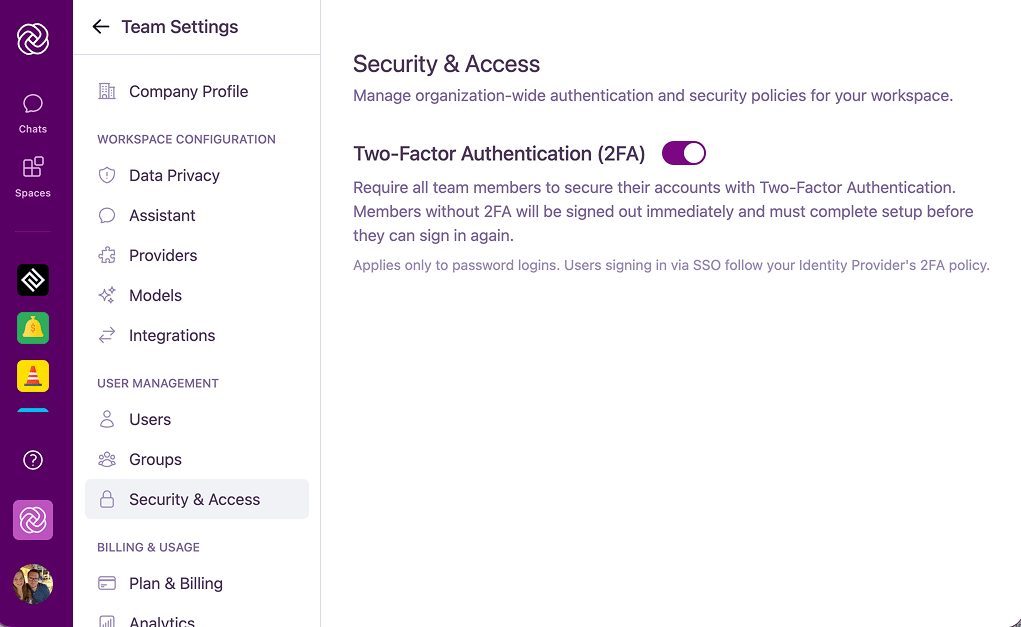
If your organization uses SSO/SAML, authentication and 2FA requirements are handled by your identity provider. SSO users will not see Omnifact’s 2FA setup options.
Enforcing Two-Factor Authentication
You can require 2FA organization-wide to ensure all members protect their accounts.1
Open User Management
Go to Team Settings and open User Management.
2
Open Security and Access
Select the Security and Access tab.
3
Enable Enforcement
Toggle on the requirement for Two-Factor Authentication.
User Experience Under Enforcement
When you enforce 2FA across your organization:- Any user who has already configured 2FA will experience no disruption.
- Any user who has not yet set up 2FA will be prompted to do so the next time they attempt to log in. They must complete the 2FA setup process before they can access the Omnifact platform.