

If your organization signs in via SAML Single Sign-On (SSO), the Authentication page is hidden in User Settings because your identity provider manages passwords and multi-factor authentication directly.
Changing Your Password
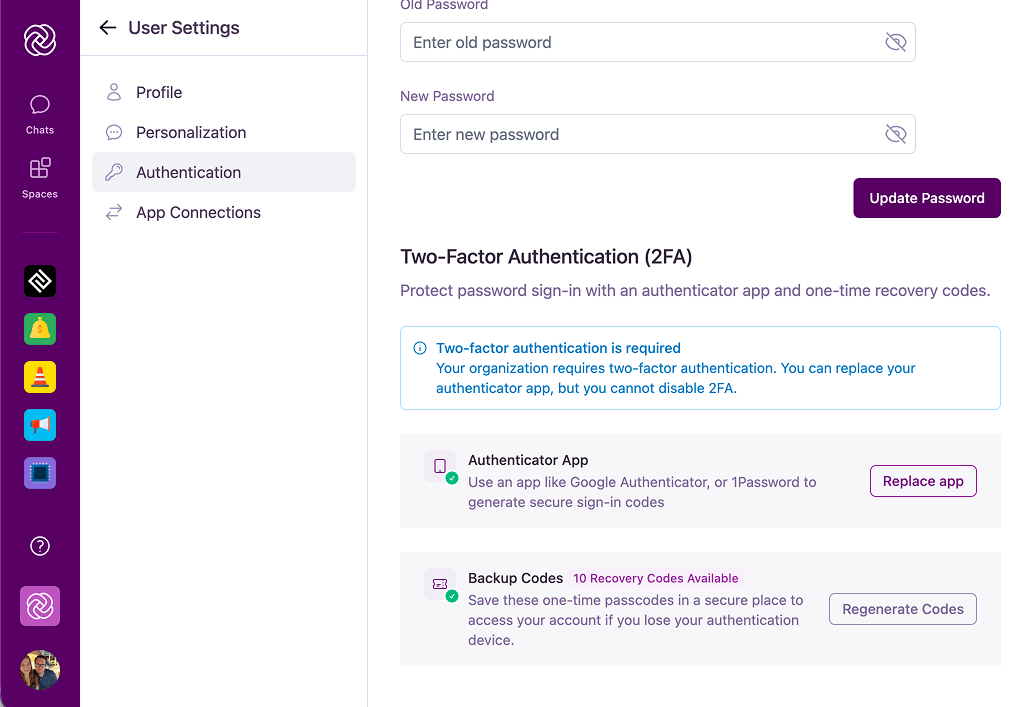
If you sign in with an email and password, you can update your password at any time:- Click your User Avatar at the bottom-left of the navigation bar, select Account Settings, and open Authentication.
- Under Password Protection, enter your Old Password.
- Enter your New Password. Passwords must be at least 12 characters long and include at least one lowercase letter, one uppercase letter, and one number (special characters are optional).
- Click Update Password to save your changes.
Two-Factor Authentication (2FA)
Two-Factor Authentication protects your Omnifact account with a Time-based One-Time Password (TOTP) from any standard authenticator app (such as 1Password, Google Authenticator, Microsoft Authenticator, or Authy).Team Administrators: To enforce mandatory 2FA across your entire organization, see Security & Access in Team Settings.
Enabling Two-Factor Authentication
1
Start 2FA Setup
In Account Settings > Authentication, locate Two-Factor Authentication and click Enable on the Authenticator App row.
2
Confirm Your Password
Enter your current Password and click Continue.
3
Link Your Authenticator App
Scan the QR code with your authenticator app (or copy the Manual setup key into your app) and click Continue.
4
Verify Your Code
Enter the 6-digit authentication code from your app and click Verify.
5
Save Your 10 Recovery Codes
Omnifact generates 10 one-time recovery codes (
XXXX-XXXX-XXXX). Click Download codes (omnifact-recovery-codes.txt) or copy them into your password manager, then click Finish.Managing Two-Factor Authentication
Once 2FA is active, Authentication provides three management controls:- Backup Codes: Shows how many of your 10 recovery codes remain (for example, 10 Recovery Codes Available). Click Regenerate Codes, confirming with your password and either a 6-digit authenticator code or an existing recovery code, to generate 10 fresh codes and immediately invalidate the previous set.
- Disable (when 2FA is optional): On the Authenticator App row, click Disable, enter your password and either a 6-digit authentication code or a Recovery Code (click Enter Recovery Code), and click Verify & disable.
- Replace app (when 2FA is required by your organization): When your organization enforces mandatory 2FA, Disable is replaced by Replace app so you can move to a new phone or authenticator app without turning 2FA off. Click Replace app, verify with your password and a 6-digit code (or a Recovery Code), and pair your new authenticator app.
Using Backup & Recovery Codes
Store your 10 recovery codes in a safe place such as a password manager:- Signing in without your authenticator: On the 2FA login prompt, click Enter Recovery Code, enter one unused recovery code, and click Verify & Login. Each recovery code works once.
- Switching phones without your old authenticator: Sign in using one recovery code, then open Account Settings > Authentication and use a second recovery code (via Enter Recovery Code) to Replace app, Regenerate Codes, or Disable 2FA.
- Lost both authenticator and all recovery codes: Contact your organization administrator or support@omnifact.ai for identity-verified assistance.
Sign-In, Invitations & Password Recovery
Resetting a Forgotten Password
Resetting a Forgotten Password
- On
https://chat.omnifact.ai, click Forgot Password? on the login screen. - Enter your work Email and click Reset Password.
- Open the reset link sent to your inbox, enter a new password meeting the 12-character complexity rules on Set a New Password, and click Set Password.
Accepting a Team Invitation or Signing In with SSO
Accepting a Team Invitation or Signing In with SSO
- Password accounts: Open the invitation link in your email (Join [Organization]), choose a password (12+ characters with uppercase, lowercase, and a number), review any linked internal guidelines, and click Create Account & Join Team.
- SSO organizations: Click Sign in with SSO on the login screen, enter your work Email, and click Log in to authenticate through your company’s identity provider.
Mandatory 2FA Setup at Login
Mandatory 2FA Setup at Login
If your administrator enforces organization-wide 2FA before you have configured an authenticator app, signing in opens Mandatory 2FA Required: click Get Started, scan the QR code, enter the 6-digit code (Verify), save your 10 recovery codes, and click Finish to enter Omnifact.
Failed Login Protection
To protect accounts against brute-force attempts, Omnifact temporarily throttles authentication after 5 failed attempts within 15 minutes (whether caused by an invalid password or invalid 2FA code).Automatic Protection
Applies automatically to all password and 2FA verifications.
Scoped to Account & IP
Throttling is scoped to the specific account and IP address pair, so colleagues on the same corporate office network are unaffected.
Automatic Cooldown
The temporary lock clears automatically after the 15-minute window expires.
Neutral Error Messaging
Displays a generic temporary-unavailability message so attackers cannot enumerate valid credentials.