

€), how many messages you have sent each day, and which AI models you use the most.
Only you can see this page. By design (to protect employee privacy and meet works council requirements), organization administrators only see team-wide totals on Billing & Usage and never have access to your individual usage history or spending amounts.
Accessing Model Usage
1
Open Account Settings
Click your User Avatar at the bottom of the main bar and select Settings.
2
Select Model Usage
In the User Settings sidebar, click Model Usage.
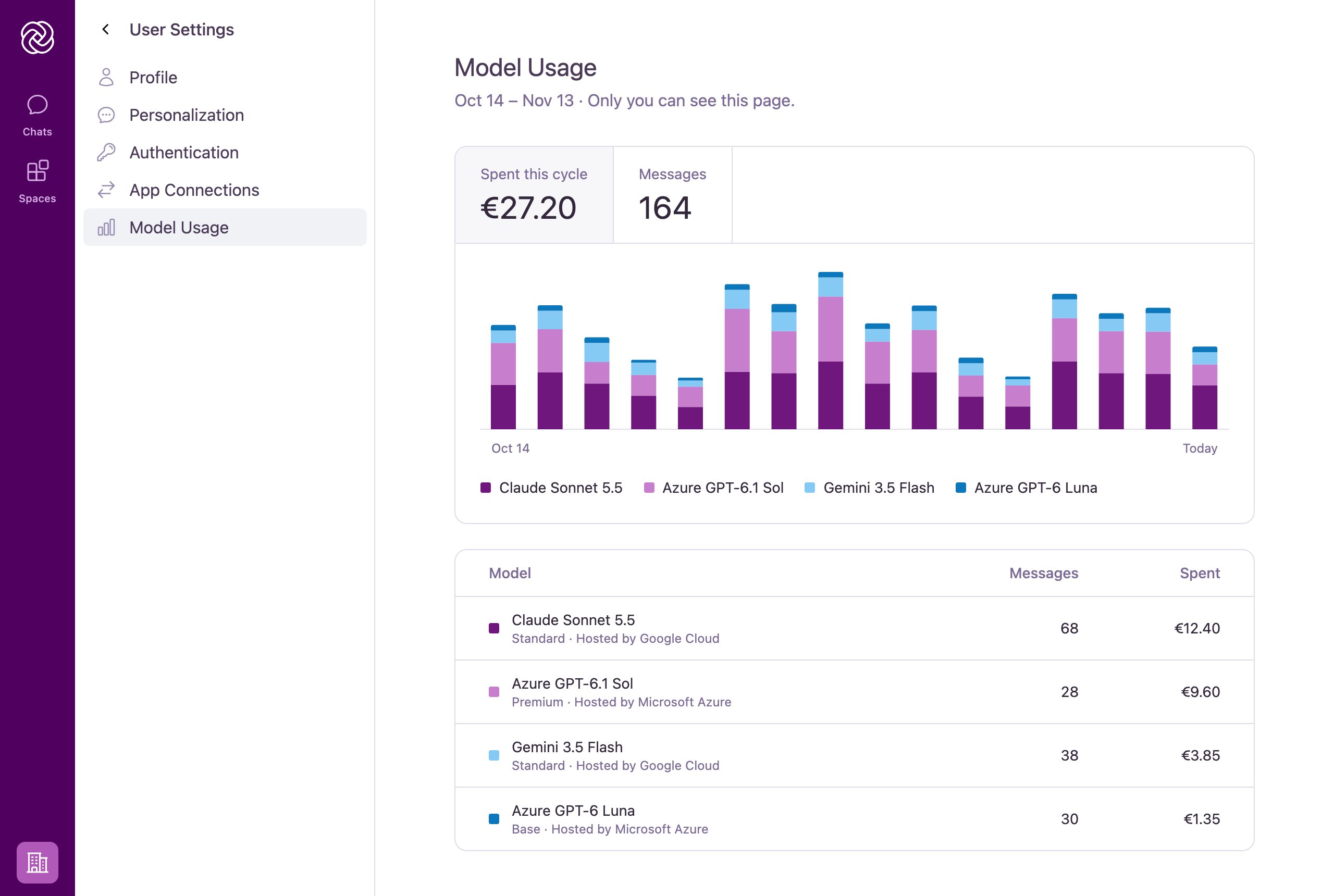
Understanding Your Usage Breakdown
The date range under the Model Usage heading shows your organization’s current monthly billing cycle. All figures on the page reset automatically when the next cycle begins.Daily Usage Chart
The chart at the top of the page visualizes your activity for each day of the current cycle, stacked by model:- Spent this cycle: Shows your total AI spend in Euros (
€) for the current billing period. Click this tab to display daily spend in the bar chart. - Messages: Shows the total number of chat messages (turns) you have sent during the current cycle. Click this tab to switch the bar chart to daily message counts.
- Interactive Legend: Hover over any bar to inspect your breakdown by model for that specific day, or hover over a model name in the legend or table to highlight its bars across the cycle.
Model Breakdown Table
Below the chart, a table lists every model you have used during the current billing cycle, sorted from highest to lowest spend:- Model: Displays the model name along with its tier (Base, Standard, or Premium) and hosting provider.
- Messages: The number of messages in which you used that model.
- Spent: The total amount spent on that model during the current cycle.
What counts toward your spend? Your total spend includes all chat interactions with your (both general chats and Spaces), including lightweight background tasks such as generating conversation titles and compacting long chat histories. Custom or unpriced models still record your message count while showing
€0.00 in spend.Your Monthly AI Spending Limit
To ensure fair access to your organization’s shared monthly usage credits, your administrator can configure a monthly per-user spending limit. While you are below your limit, no limit card is shown on Model Usage. If your spend reaches your monthly limit during the current billing cycle, a Your monthly AI spending limit card appears at the top of the page, and a notice appears above the chat input.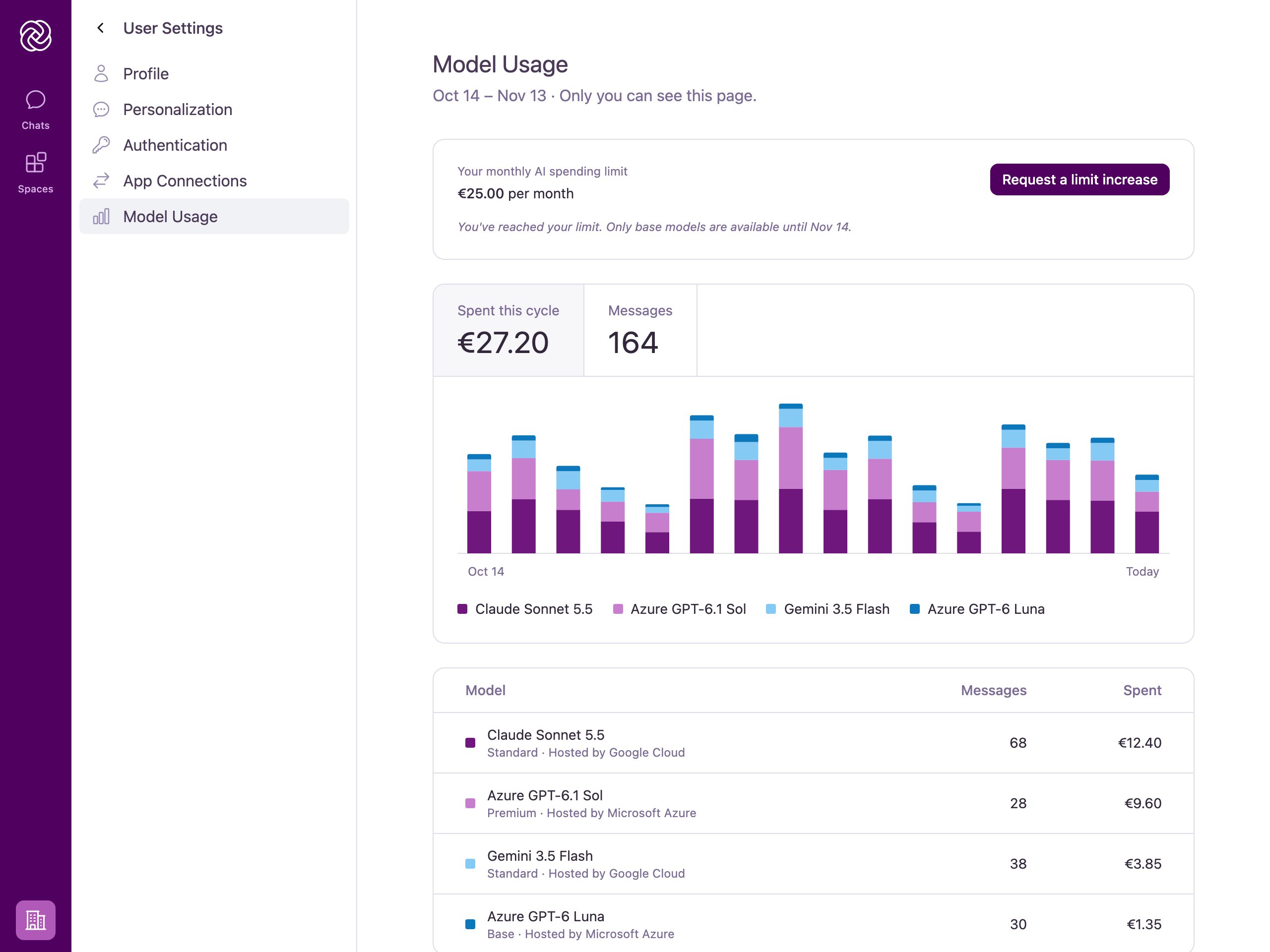
Chat Paused Until Reset (Default)
Sending new messages is paused until your usage resets on the date shown. You can ask an administrator to raise your limit at any time.
Base Models Remain Available
If your administrator has enabled Allow base models after the spending limit is reached, you can keep chatting with efficient base-tier models until your limit resets, while standard and premium models are paused.
Requesting a Limit Increase
If you reach your monthly AI spending limit and need additional capacity for your work, you can request a higher limit directly from Model Usage or from the banner in chat.1
Open the request dialog
Click Request a limit increase on the Model Usage page, or click Request Limit Increase in the banner above the chat input.
2
Explain your reason
In the Request a limit increase dialog, enter a short Reason (up to 1,000 characters) explaining why you need a higher monthly limit, such as a project deadline or large document analysis. You do not need to enter a specific euro amount; the approving administrator sets the new limit.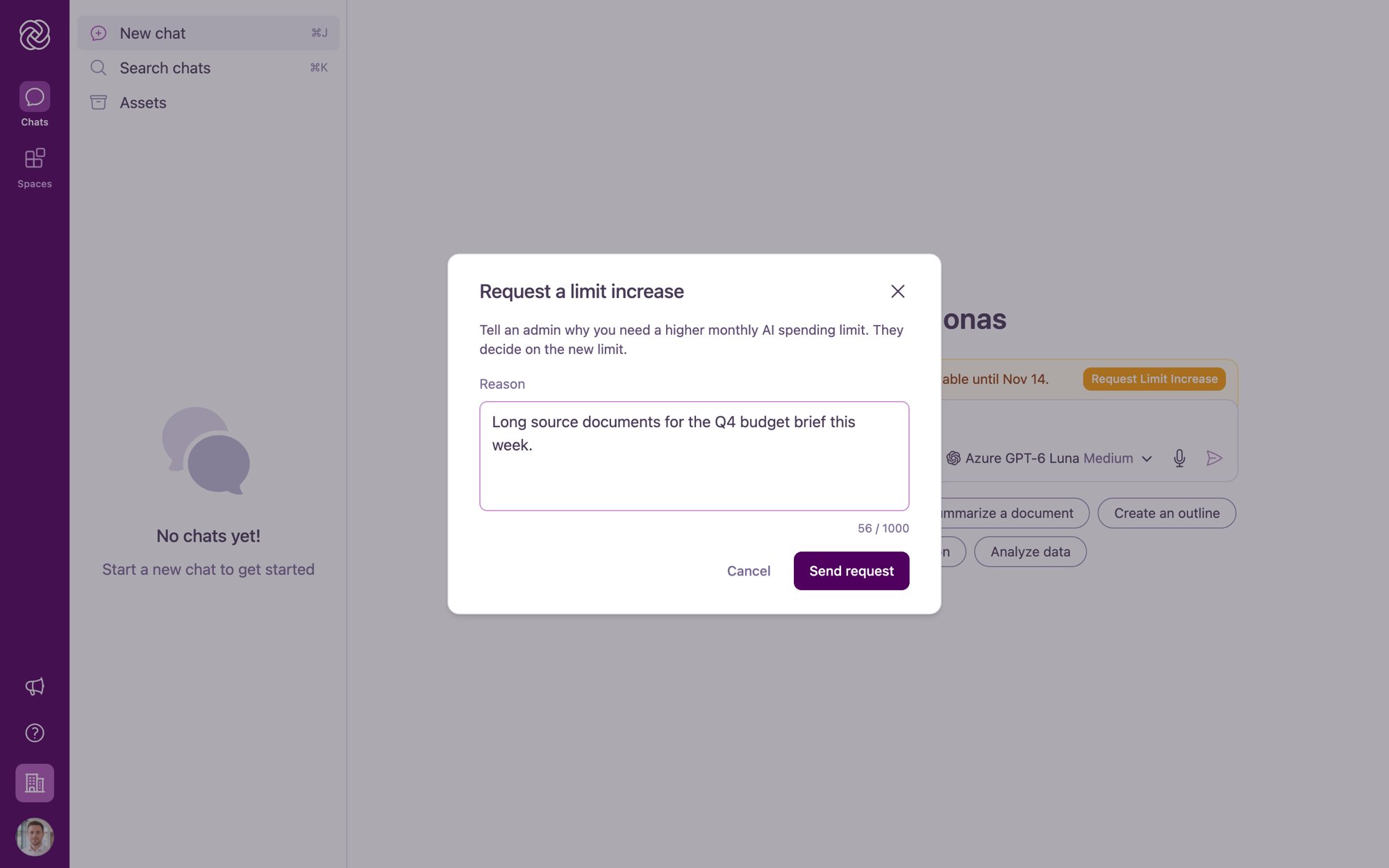
3
Send your request
Click Send request. Your organization’s administrators are notified by email and can review your request in Team Settings > Requests.
What Happens After You Submit a Request?
- While Pending: Your Model Usage card displays a Requested badge and notes “Your request is with an admin.” You can have one open request at a time.
- When Approved: You receive an email confirming your new monthly spending limit. The higher limit takes effect immediately as your individual limit and does not expire at the end of the billing cycle.
- When Declined: You receive an email confirming that your request was declined along with the date your limit resets. If the administrator included an optional note, it appears on your Model Usage card. You can submit a new request if you need to share additional context.
Related Resources
- AI Credits and Usage Limits: Understand how organization usage credits, per-user spending limits, and base-tier models work together.
- Selecting an AI Model: Learn how to switch between base, standard, and premium models in chat.
- Model Guide: Choose the most cost-effective model for each task.
- Billing & Usage: Learn how administrators manage monthly usage credits and default per-user spending limits.
- Requests: See how administrators review and approve spending limit increase requests.