

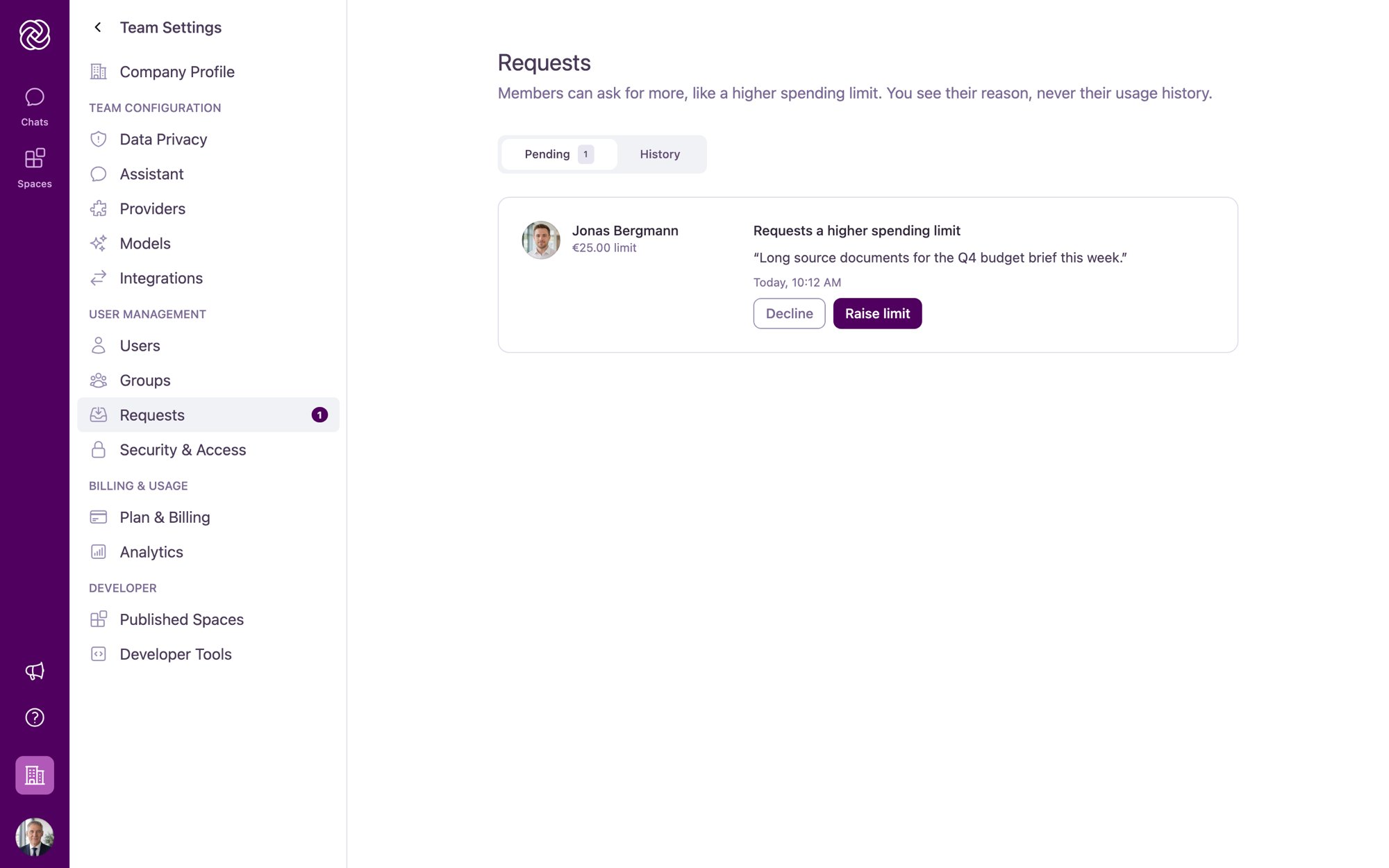
Privacy by Design (“Limits Without Monitoring”): When reviewing a request, you see the member’s name, their current spending limit, and the reason they provided. You never see a member’s individual usage history or how much they have spent.
Requests appears in the Team Settings navigation when per-user spending limits are enabled for your organization. To configure your organization’s default limit, visit Billing & Usage.
How Limit Increase Requests Work
When a member reaches their monthly AI spending limit, they can click Request Limit Increase in chat or Request a limit increase on their Model Usage page and submit a reason explaining why they need additional capacity.- Admin Notifications: Every active Admin and Owner in your organization receives an email notification (
New request from {Name}) with a Review request link. For privacy, the email contains no free-text reasons or spend figures. - Navigation Badge: A badge next to Requests in the Team Settings sidebar and on the Pending tab shows the number of open requests waiting for a decision.
- Shared Queue: Requests are shared across all administrators. Whoever approves or declines a request first resolves it for the entire team.
Reviewing Pending Requests
Open Team Settings > Requests and select the Pending tab. Each request card shows:- The requester’s name, profile picture, and current monthly spending limit (for example,
€25.00 limit) - The request type (Requests a higher spending limit)
- The member’s reason in quotes
- When the request was submitted
- Action buttons to Decline or Raise limit
Approving a Request (Raising a Limit)
1
Click Raise limit
On the pending request row, click Raise limit to open the Approve ‘s request dialog.
2
Enter the new monthly limit
In the New spending limit (EUR) field, enter the member’s new monthly limit. The amount must be higher than their current limit (up to 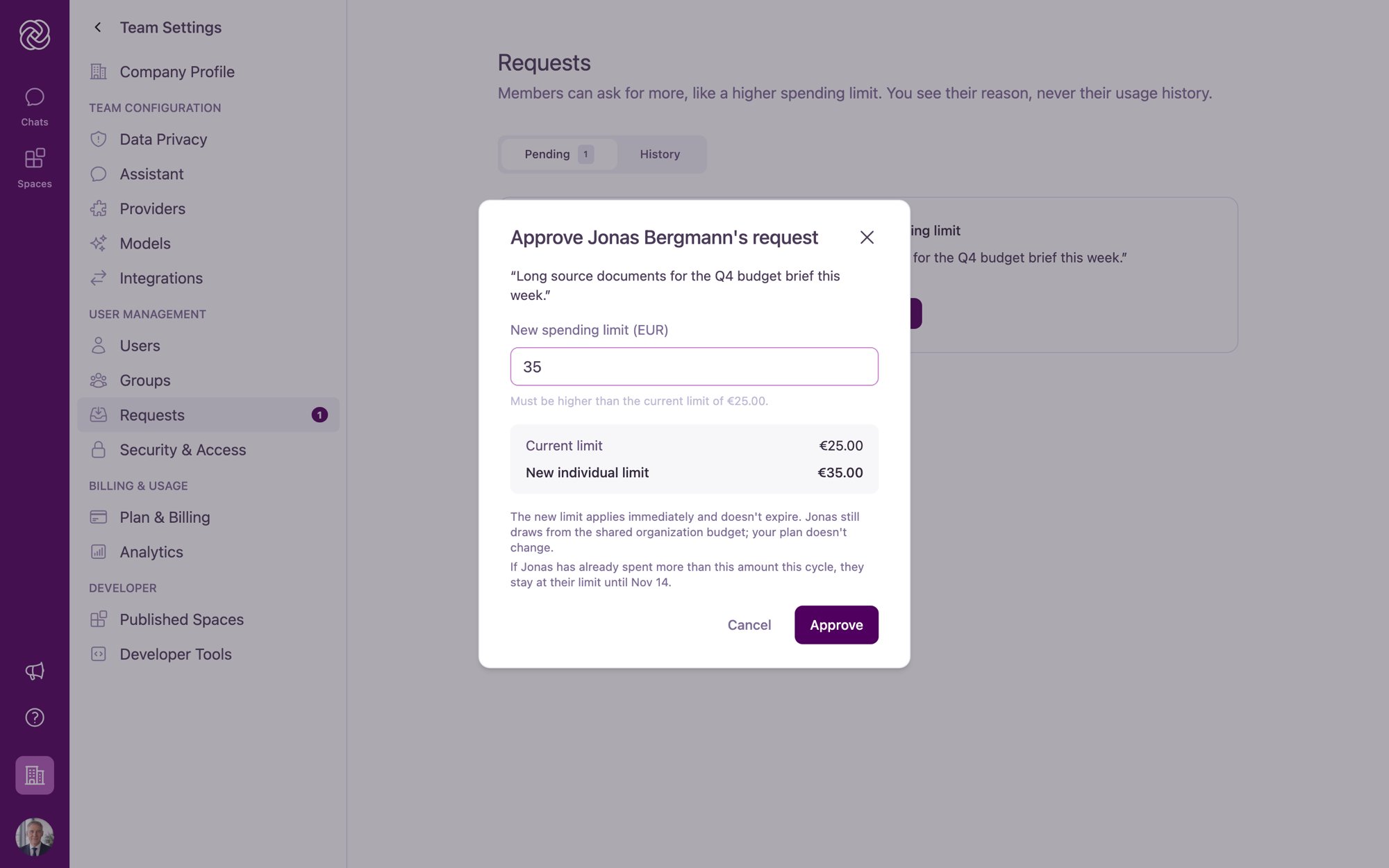
€10,000.00).3
Confirm approval
Review the summary comparing the Current limit and New individual limit, then click Approve.
- Immediate, Persistent Individual Limit: The new amount applies immediately as the member’s individual spending limit (replacing the organization default) and does not expire at the end of the billing cycle.
- Shared Organization Credits: Raising an individual spending limit does not change your subscription plan; the member continues to draw from your organization’s shared monthly usage credits.
- Email Notification: The member receives an email letting them know their monthly AI spending limit was updated to the new amount.
Because administrators do not see a member’s exact spend, if a member has already spent more than the newly approved amount during the current cycle (for example, if a long agent turn finished slightly above their previous cap), they will remain at their limit until the next cycle or can submit another request.
Declining a Request
1
Click Decline
On the pending request row, click Decline to open the Decline request from dialog.
2
Add an optional note
If helpful, enter a Note for (optional) (for example, letting them know to use base-tier models for the remainder of the billing cycle).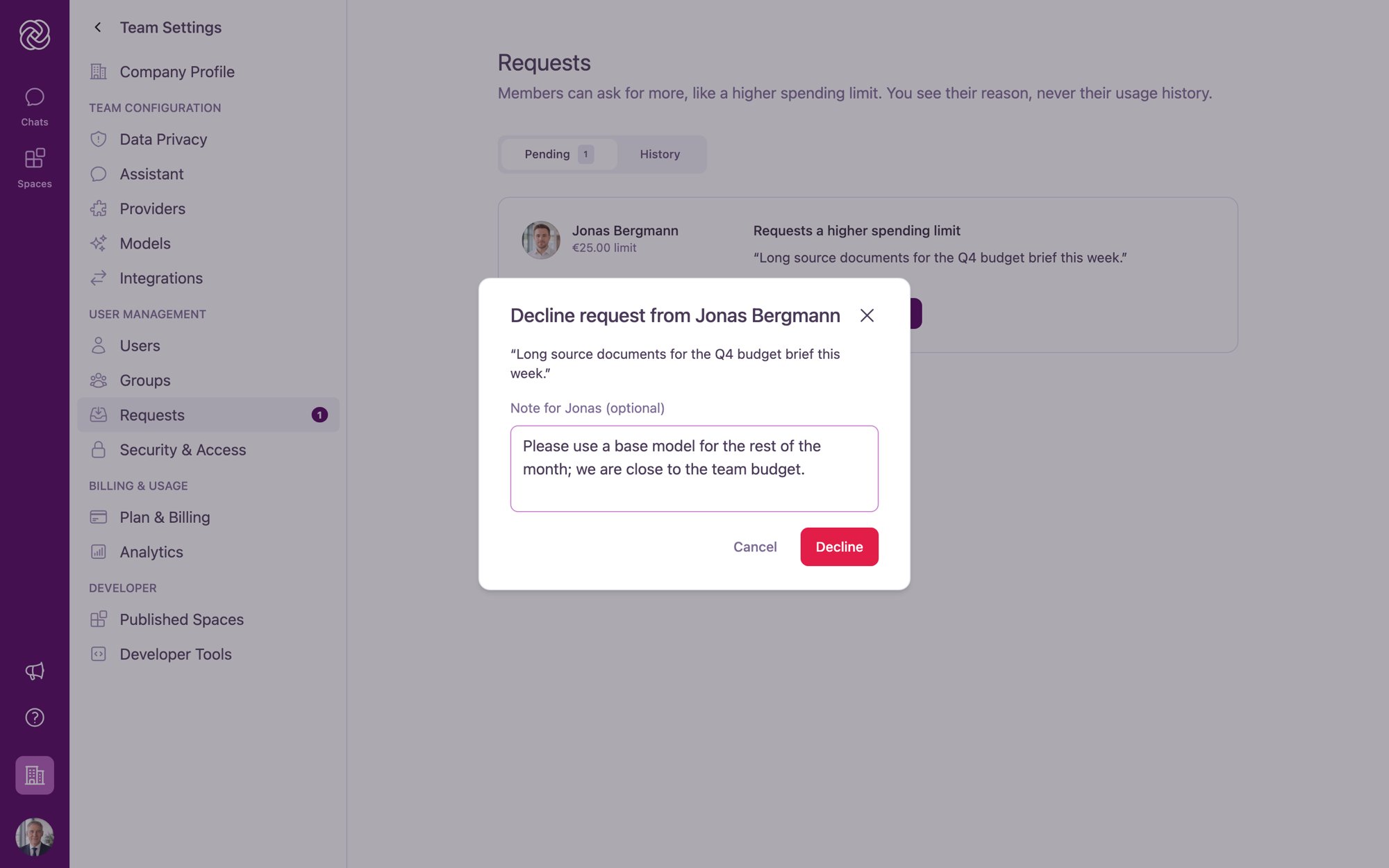
3
Confirm decline
Click Decline.
- The member’s spending limit remains unchanged.
- The member receives an email stating that an admin declined their request and reminding them when their limit resets.
- The member never sees which administrator declined their request. If you wrote an optional note, it is displayed on their Model Usage card.
Request History and Automatic Closure
Select the History tab on the Requests page to view past requests and their outcomes.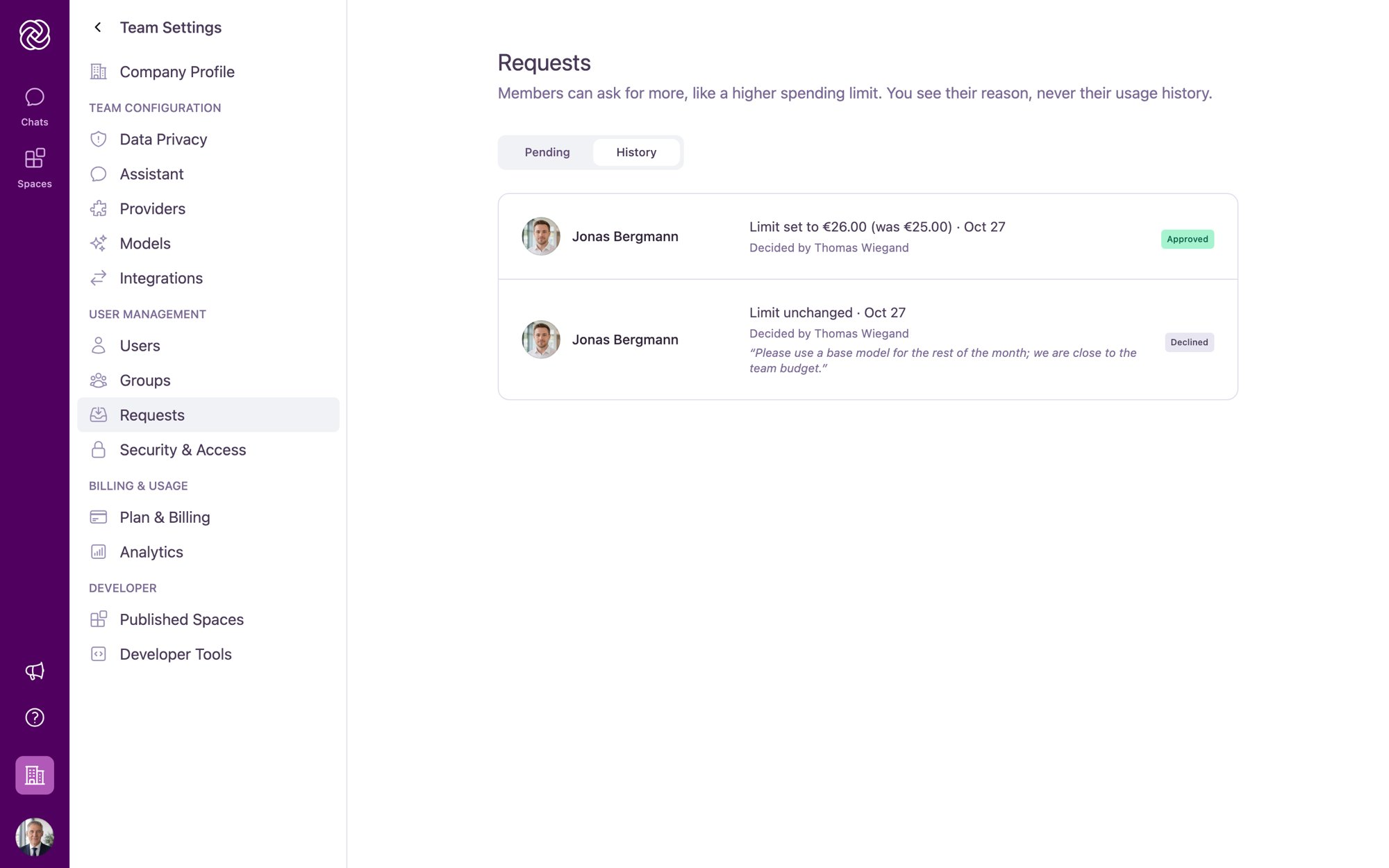
- Approved: Shows the new limit and previous limit (
Limit set to €35.00 (was €25.00)) andDecided by {Admin Name}. - Declined: Shows
Limit unchanged,Decided by {Admin Name}, and the optional note if one was provided. - Closed: If an administrator changes a member’s individual limit directly in User Management or changes the organization default on Billing & Usage while the member has a pending request, the pending request is automatically closed and logged in History with
Closed by {Admin Name}.
Cycle Rollover Expiry: If a pending request is not decided before the member’s monthly usage resets at the start of the next billing cycle, the request expires automatically and is removed from the Pending queue.
Role Permissions for Approving Limits
- Owners can approve requests and set individual spending limits for any member in the organization.
- Admins can approve requests and set individual spending limits for any Member or other Admin, but cannot modify the spending limit of an Owner.
- Your Own Limit: Administrators and Owners do not submit requests for themselves; they can raise their own limit directly in Team Settings > Users. If a member with a pending request is promoted to Admin, they will see a note on their request directing them to their own user details.
Related Resources
- Billing & Usage: Set your organization’s default per-user spending limit and configure base-model access.
- User Management: View or override individual spending limits on a user’s detail page.
- Model Usage: See what members view on their personal usage page and how they submit requests.
- AI Credits and Usage Limits: Troubleshooting guide for usage credits and spending limits.