

Manage Plan & Usage
Open Team Settings > Plan & Billing in the sidebar to access the Billing & Usage dashboard, where you can manage your subscription, monitor shared monthly AI credits, and set per-user spending limits.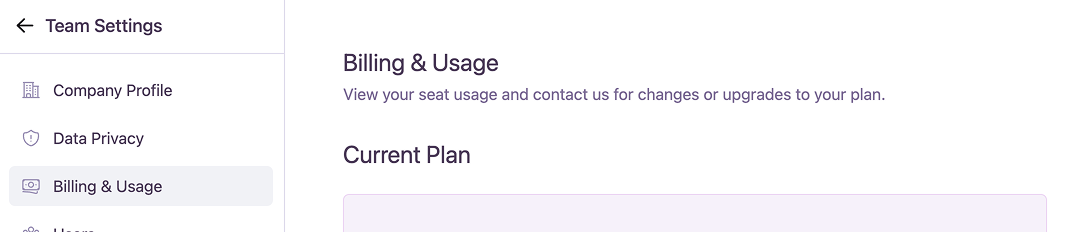
Understanding Your Current Plan
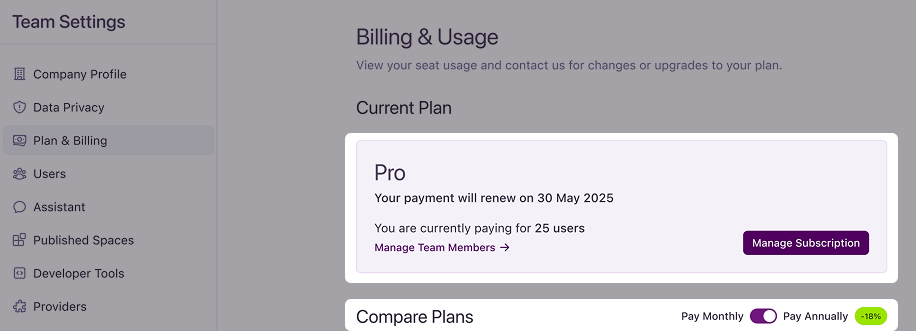
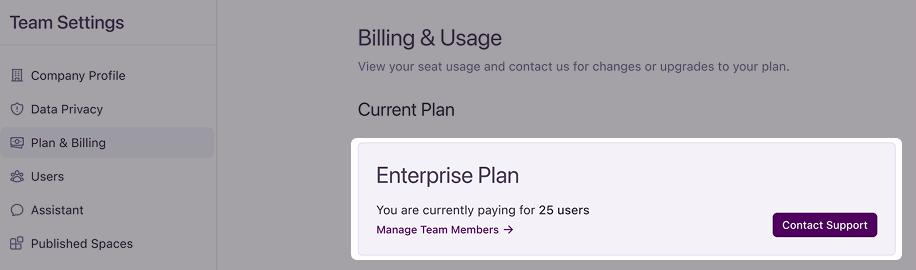
The Current Plan card at the top of Billing & Usage adapts to your billing model:- Free Trial
- Card-Billed Pro (Monthly or Annual)
- Invoiced Contracts (Enterprise & Pro)
Shows your remaining trial days (up to 5 seats by default) and an option to upgrade to a paid plan (or Contact Sales if SSO is enabled). Note that Monthly Usage Credit and Usage History cards are hidden during a free trial while Per-user spending limit remains available.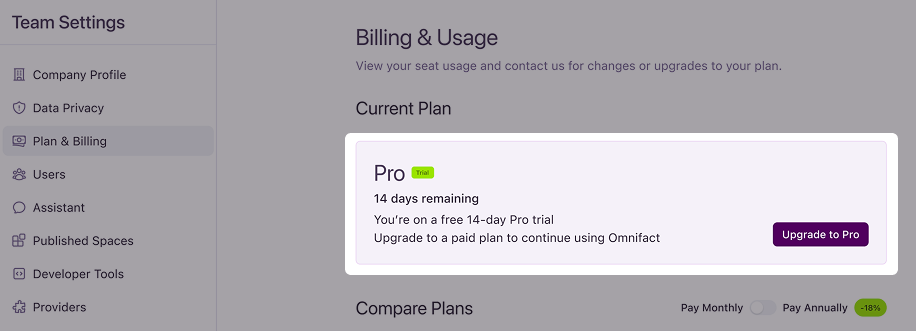
Alerts & Expired Statuses
- Trial Ending / Ended
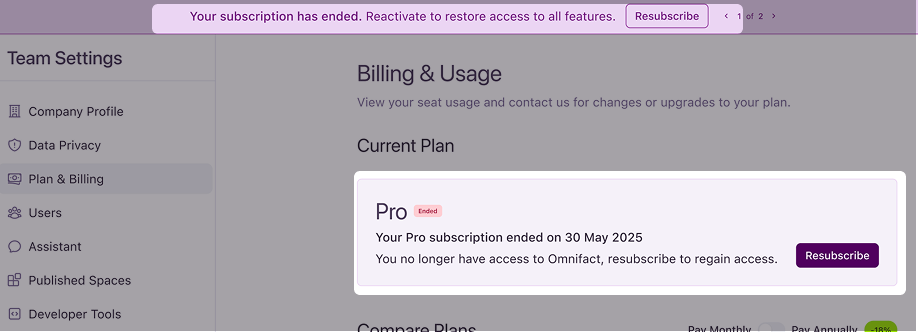
- Canceled / Ended
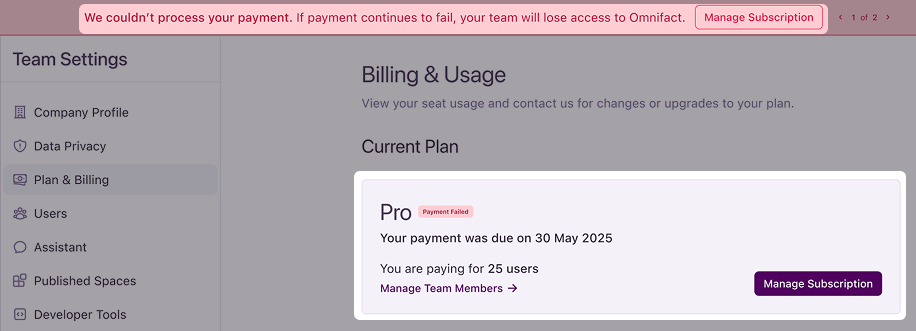
- Payment Failed
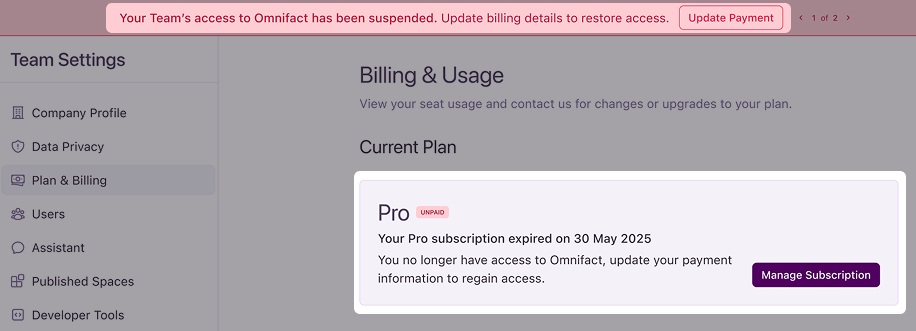
- Expired (Unpaid)
Displays a warning when your free trial is nearing expiration, and prompts you to upgrade once the trial ends to restore workspace access.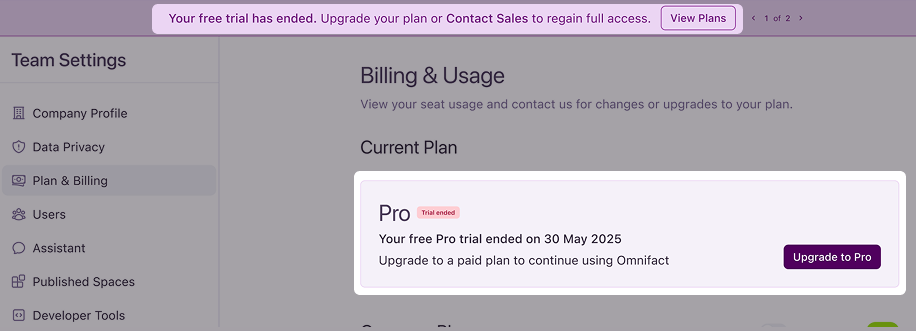
Seat Management
Every Active, Invited, and Provisioned (SSO/SCIM users created before their first sign-in) account counts as a member and occupies a seat. Only Deactivated users do not occupy a seat.- Card-Billed (Stripe) Subscriptions: Each paid Pro seat (€25/user/month billed monthly, or €20/user/month billed annually) includes €5/month in shared AI usage credits. Adding, importing, or reactivating users above your paid license count opens Confirm Subscription Upgrade (Confirm and Pay), prorating the new seat for the current billing cycle and updating your monthly usage credits automatically.
- Invoiced (Contract) Subscriptions: Inviting, CSV-importing, or reactivating members beyond the seats booked in your contract opens the Order more seats dialog:
- Review Seats in your contract and Seats after the order, check the binding order confirmation, and click Confirm order.
- New seats become available immediately and are invoiced by our team under your existing contract. Your Monthly usage credits are updated once the new seats are invoiced (ordering seats does not automatically change your contract’s stored monthly credit total beforehand).
- Booked contract seats cannot be reduced through self-service (deactivating or deleting unused invitations or non-SCIM provisioned accounts frees seats for new colleagues within your booked total, and automated SCIM directory sync is never blocked).
- Free Trials: Include up to 5 seats by default.
- Named accounts only: Every seat is for a single named user. Sharing a single account across multiple people is not permitted.
- Admin-only accounts: Need a dedicated administrator account strictly for managing Team Settings without chat usage? Contact support@omnifact.ai or your account manager.
Monthly Usage Credit
The Monthly Usage Credit card shows your team’s real-time AI credit consumption for the current billing cycle across Chat, Spaces, and the AI Gateway alongside Team Analytics.Monthly usage credits are pooled across your entire organization so any team member can draw from them, and unused credits do not roll over to the next billing cycle. By design, administrators only see organization-wide totals here (never per-person spend); individual members can view their own personal spend privately on Model Usage. For full details, see AI Credits and Usage Limits.

- Usage Meter: Every subscription has a stored monthly credit total. On self-serve card-billed Pro plans, total credit scales automatically at
€5/seat/month(for example,25 seats × €5/seat = €125/month). On invoiced contracts, the meter reflects your agreed fixed monthly EUR credit allocation. All model tiers (Base, Standard, and Premium) draw from this budget while credits remain. - Usage Alerts, Forecast & Exhaustion Fallback: Administrators receive in-app banners and email notifications at 75% and 90% of monthly credit usage (with a Review Usage link), as well as an in-app pace-based forecast banner whenever current usage is projected to run out before the end of the cycle. When credits reach 100%, administrators receive an email and in-app banner (Billing & Usage), and chat automatically restricts users to Base-tier (and custom self-hosted) models until the next cycle begins or you add more credits.
- Add More Credits: Click Add More Credits whenever your team needs a higher monthly budget:
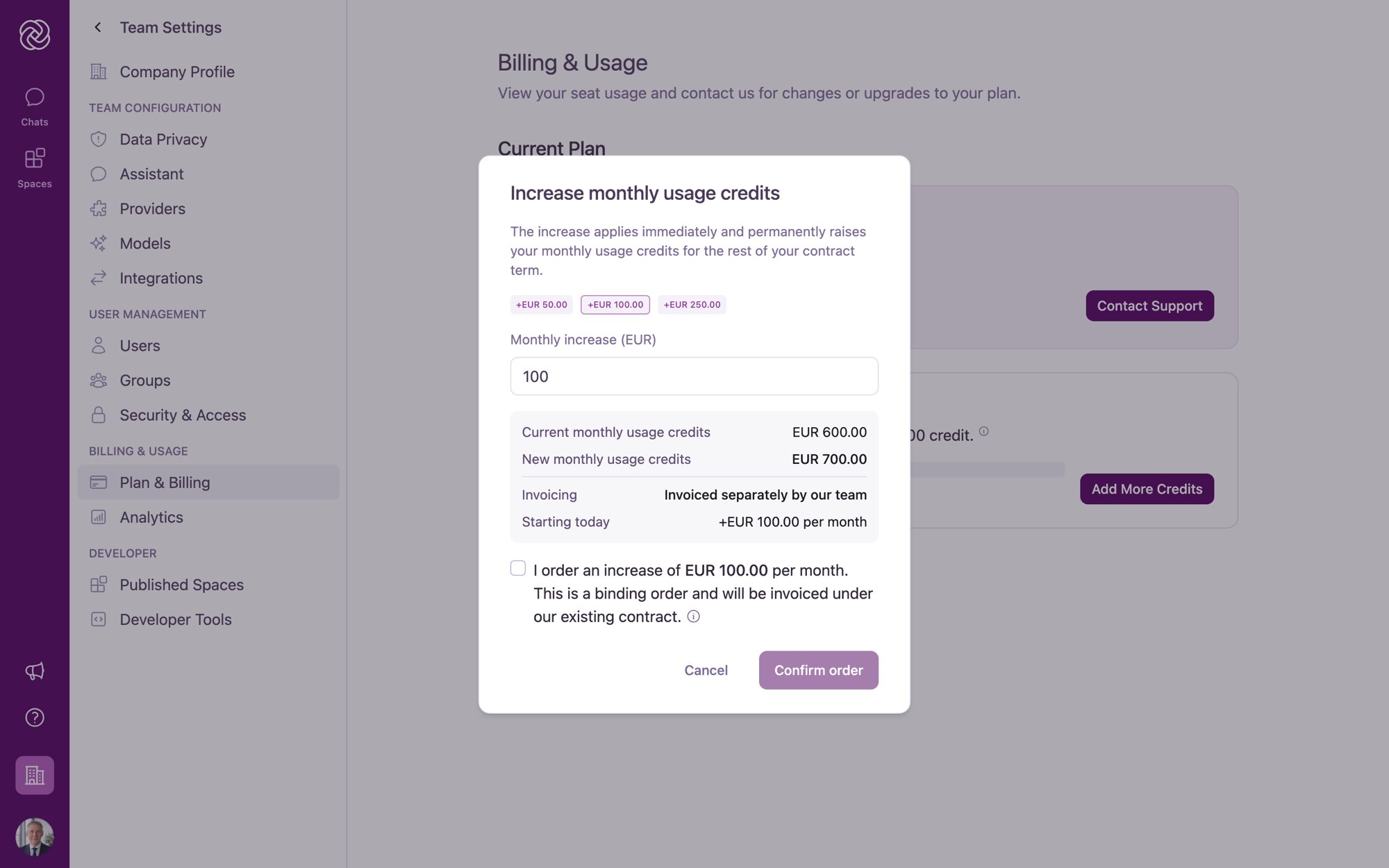
- Active Invoiced Contracts (Self-Service): Opens Increase monthly usage credits, where you can pick a quick increment (
+€50,+€100,+€250) or enter any whole-euro amount of at least€1(up to a€9,999.99monthly total in self-service; contact us for larger pools). Check the binding order confirmation and click Confirm order. The increase applies immediately, charges the current cycle in full without proration, permanently raises your monthly credits for the remainder of your contract term, and cannot be reduced in self-service. (Unavailable on terminated contracts with a scheduled end date.) - Card-Billed (Stripe) & Trial Plans: Opens a quick Request Additional Credits inquiry to our team (or add seats to scale self-serve Pro credits automatically).
- Active Invoiced Contracts (Self-Service): Opens Increase monthly usage credits, where you can pick a quick increment (
Per-User Spending Limit
While monthly usage credits stay shared across your workspace, the Per-user spending limit card lets you cap how much any single user can spend during a billing cycle, preventing one heavy user from draining the shared pool without per-employee surveillance.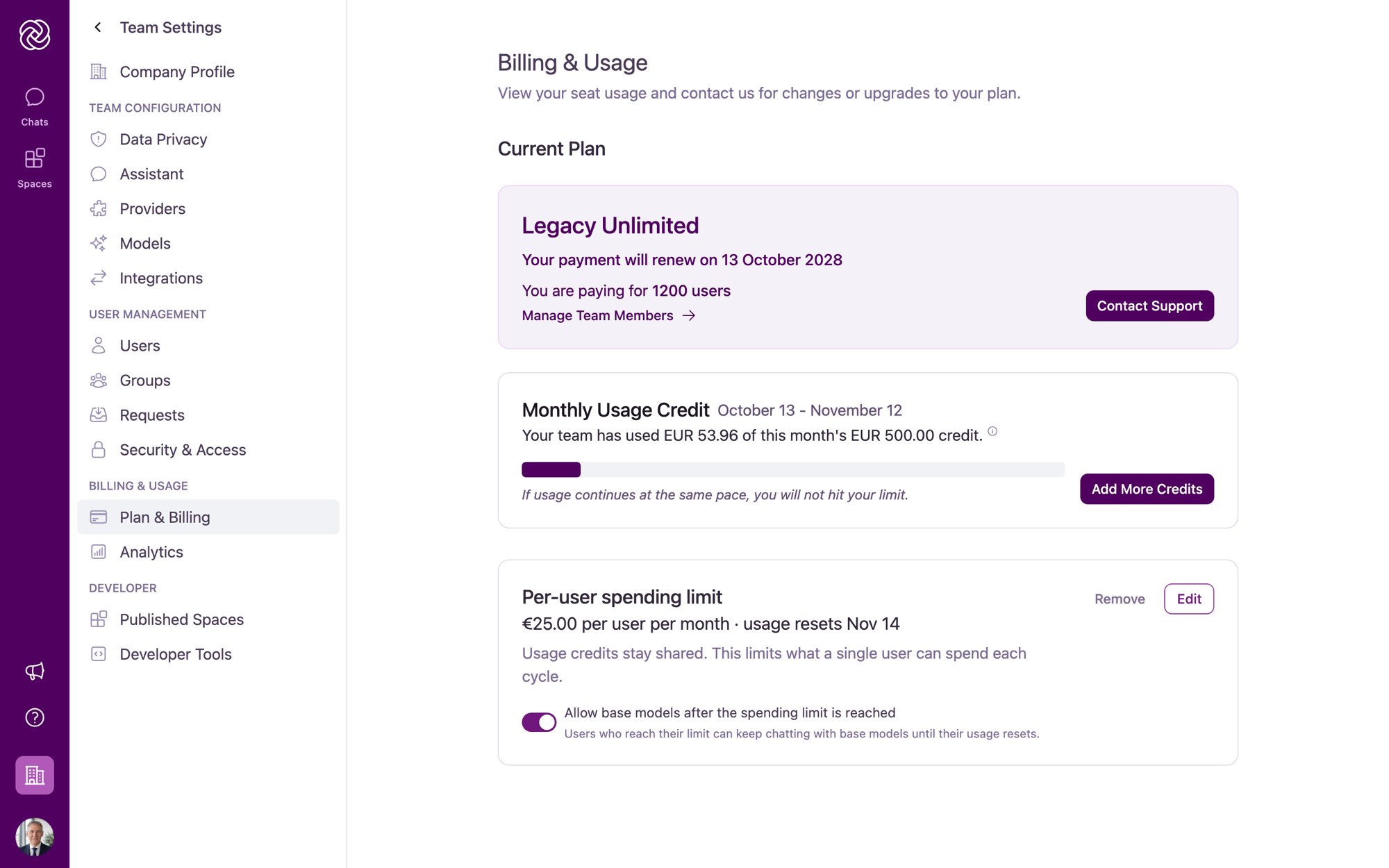
- Setting or Editing the Organization Default: Click Set (or Edit) to enter a monthly limit in Euros (from
€0.01up to€10,000.00) and click Save limit. This default applies to every user who does not have an individual spending limit. - Removing the Default Limit: Click Remove and confirm Remove limit. Users without an individual limit will only be bounded by your team’s shared monthly usage credits.
- Allow base models after the spending limit is reached:
- Off (Default): When a user reaches their monthly spending limit, sending new chat messages pauses until their usage resets at the start of the next billing cycle (or an administrator raises their limit).
- On: Users who reach their spending limit can continue chatting with Base-tier models until their usage resets (Base-tier usage continues to draw from your organization’s shared monthly credit pool).
Usage History
Lists previous monthly billing periods alongside the Used Credit Amount consumed in each cycle.Plan Comparison
Click Change Plan on self-serve plans to compare Pro and Enterprise capabilities:
Pro Plan
- Per-user monthly (€25) or annual (€20/month) billing
- Includes €5/user/month in shared AI usage credits on self-serve plans
- Designed for teams up to 50 users
- Up to 5,000 manual document pages across Spaces
Enterprise Plan
- Custom invoiced contracts and tailored monthly credit pools
- Everything in Pro, plus SAML SSO & SCIM directory sync
- Bring Your Own Key (BYOK) & custom self-hosted model endpoints
- Developer Tools API key & OpenAI-compatible AI Gateway
- Custom SLAs, cloud or dedicated deployment options, and dedicated support
View Full Plan Comparison
Visit our pricing page for a complete breakdown of all plan features.